Bluetooth Adapters? Basics
Your desktop PC has no Bluetooth, or the built-in Bluetooth keeps dropping your headphones — a USB Bluetooth adapter is the cheap fix. These little dongles add Bluetooth to any computer for the price of a coffee, but not all of them are equal. Range, Bluetooth version, and audio codec support decide whether you get smooth audio or constant stutter. Here is what to check before buying.
TL;DR / Quick Fix
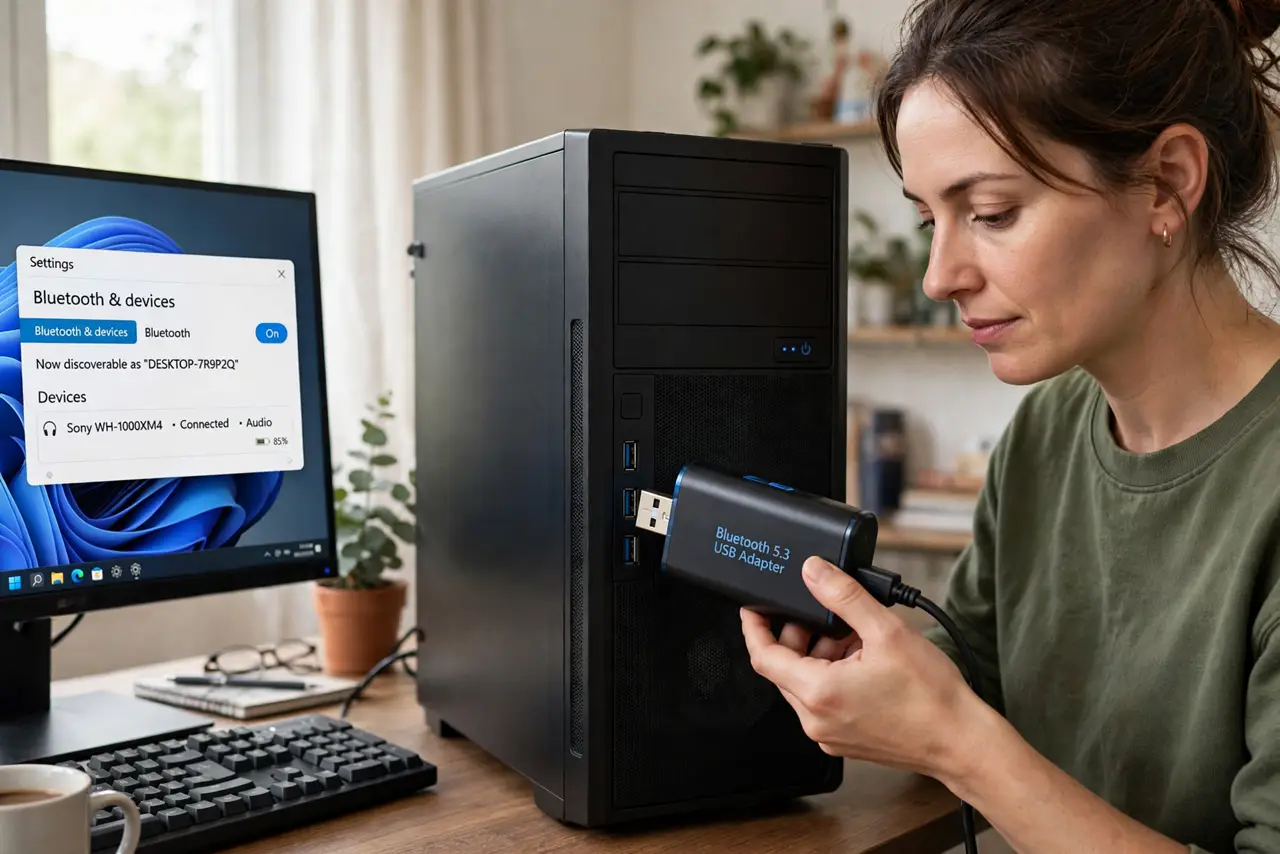
Quick fix: a USB Bluetooth adapter adds Bluetooth to any PC — plug it in, let Windows install the driver, then pair your device. Buy Bluetooth 5.0 or newer for range and stability. Use a front USB port for the best signal. Disable the built-in Bluetooth first to avoid conflicts.
Follow these steps
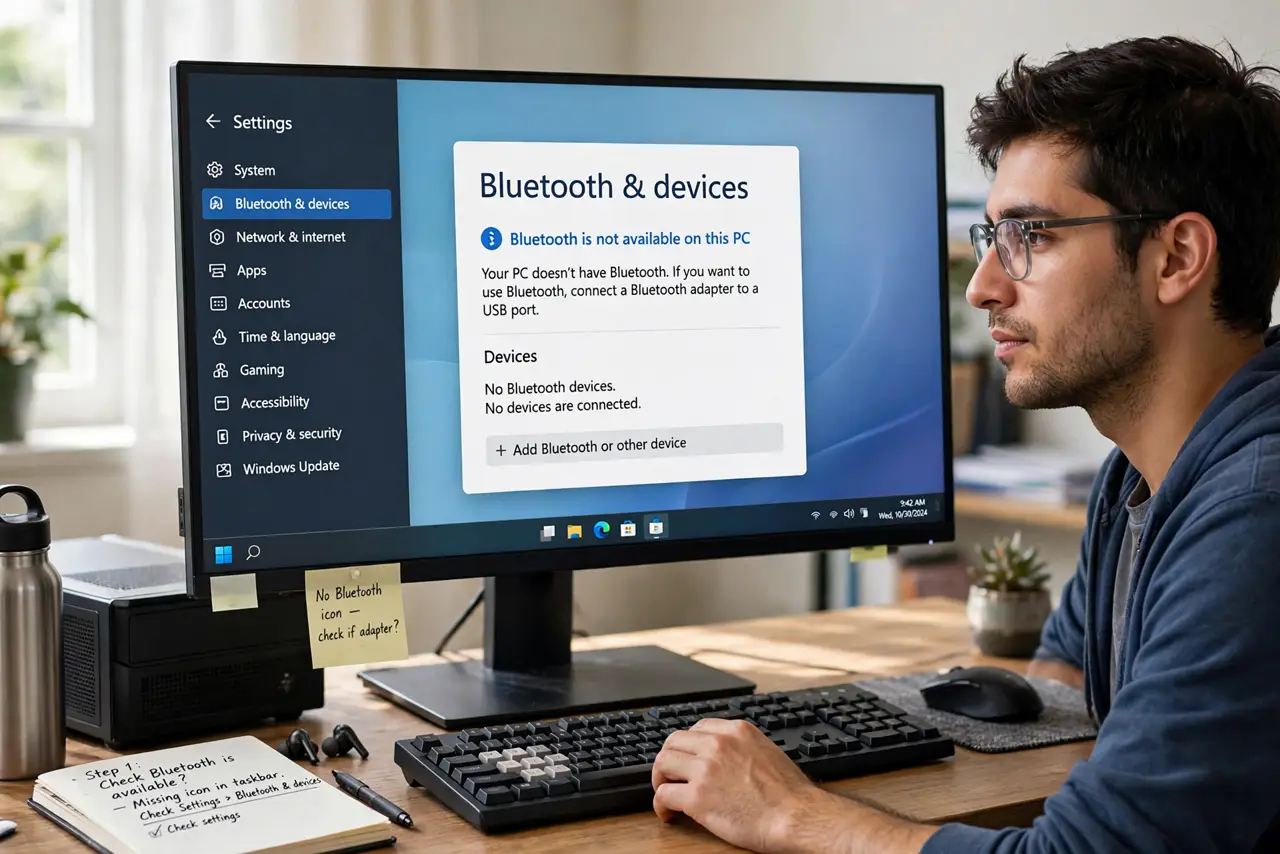
- Confirm you actually need one. Check whether your PC already has Bluetooth: on Windows open Settings, Bluetooth and devices. If it is there but flaky, the built-in radio may just need a driver update. Buy an adapter only when Bluetooth is missing or truly broken.
- Buy Bluetooth 5.0 or newer. Older 4.x adapters have shorter range and worse audio. Bluetooth 5.0 and 5.3 double the range and handle audio far better. The price difference is tiny, so there is no reason to buy old stock.
- Check audio codec support. If you stream music to headphones, the adapter and headphones must share a good codec. Codec support decides whether you get rich aptX audio or basic SBC — read the adapter's spec sheet, not just the box.
- Plug it into a front USB port. USB ports at the back of a PC sit behind a metal case that blocks radio signals. A front port — ideally USB 3.0 or newer — gives the adapter clear air. Check you are using a real data-capable port, not a charge-only one.
- Let the driver install, then pair. Most adapters install automatically in Windows 10 and 11 within a minute. Then open Bluetooth settings, put your device in pairing mode, and add it. If pairing fails, remove the old device entry and start fresh.
- Disable the old built-in Bluetooth. Two Bluetooth radios fight each other. After the adapter works, disable the motherboard Bluetooth in Device Manager so Windows routes everything through the adapter and stops dropping connections.
What NOT to do
- Do not buy the cheapest no-name adapter. Rock-bottom dongles lie about their Bluetooth version and die within months.
- Do not plug the adapter into the back of the PC. The metal case blocks the signal and you will blame the adapter for stutter that is really placement.
- Do not expect long range through walls. Bluetooth is a room-scale technology — one wall is usually fine, two walls is optimistic.
- Do not run two Bluetooth radios at once. Disable the built-in one or the PC will flip between radios and drop your devices.
Frequently asked questions
Why does my audio stutter with a Bluetooth adapter?
Usually placement (back port behind a metal case) or a version mismatch with old 4.x hardware. Move it to a front port first — that fixes most stutter.
Can I use a Bluetooth adapter for a keyboard and mouse?
Yes, adapters handle any Bluetooth device, not just audio. Keyboards and mice pair the same way through Windows Bluetooth settings.
Do Bluetooth adapters work on Mac?
Mostly no — Macs have built-in Bluetooth and rarely need one. Adapters are a Windows and Linux solution; macOS driver support is spotty.