Make a Bootable USB? How To
A bootable USB stick is the Swiss Army knife of PC repair: it installs operating systems, rescues files from dead Windows installs, and runs diagnostics outside the broken system. Making one is a fifteen-minute job with free tools — but doing it wrong just copies files onto a stick that will not boot. Here is the right way.
TL;DR / Quick Fix
Quick fix: download the OS image, write it to a blank 8 GB+ stick with a USB tool, and boot via the one-time boot menu. Copying the ISO onto the stick is not enough — the tool must write a bootable image. Back up the stick first; writing erases it.
Follow these steps
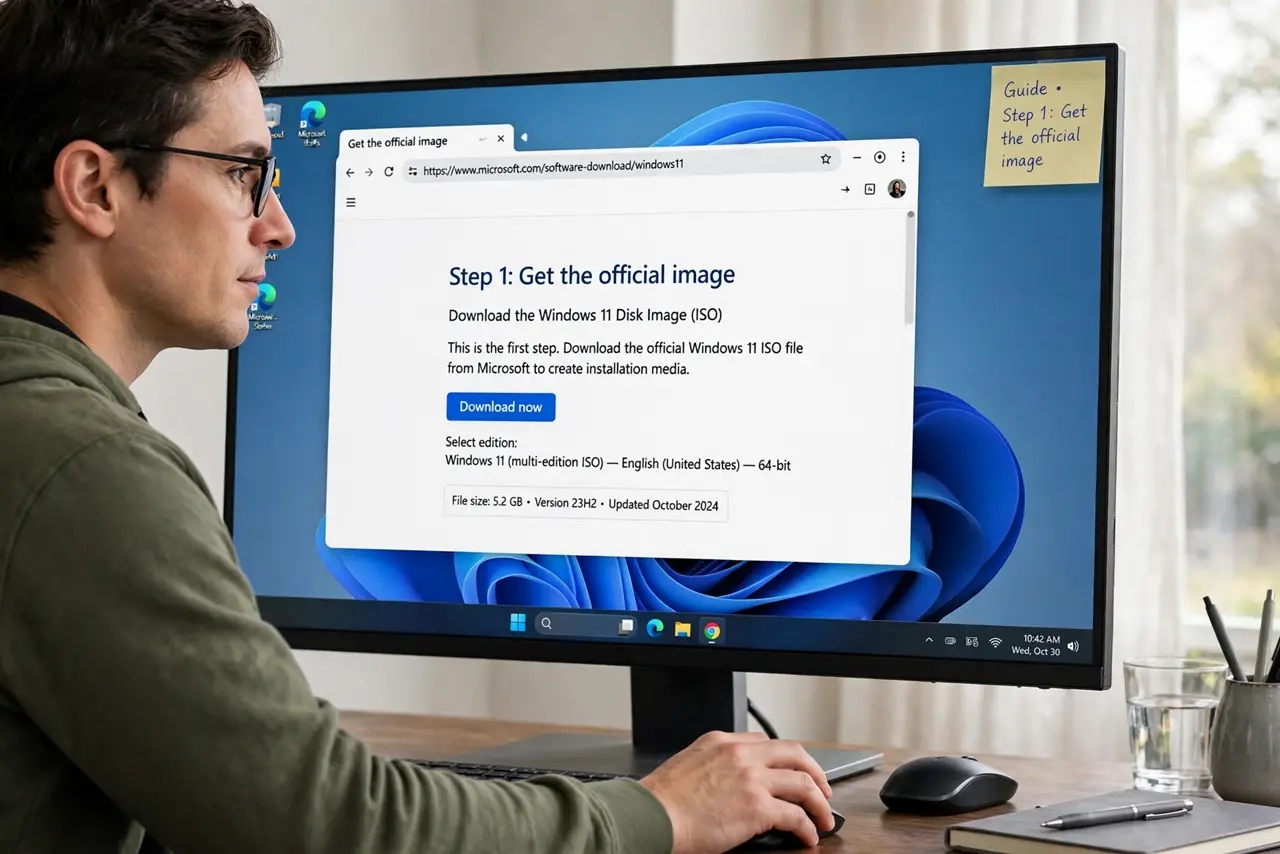
- Get the official image. Download the OS installer only from the maker's official site. Random ISO downloads bundle malware with alarming regularity — the official source is non-negotiable.
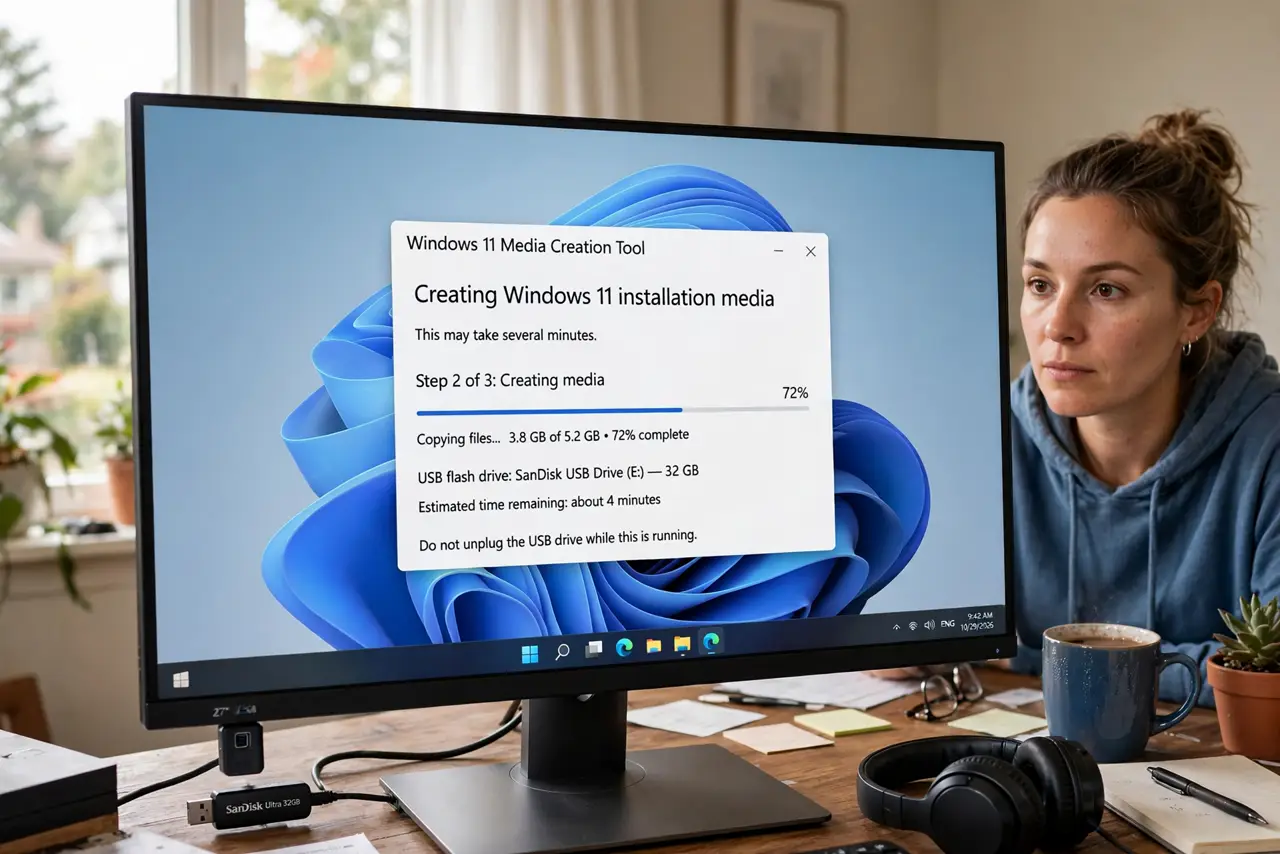
- Use a reputable creation tool. Dedicated USB writing tools handle the boot sectors correctly. Drag-and-drop copying an ISO onto the stick produces a stick full of files that no PC will boot from.
- Use a blank 8 GB or larger stick. Most modern installers need 8 GB minimum. Back up anything on the stick first — the writing process erases every byte of it.
- Write, do not copy. The tool writes the image sector by sector, creating boot partitions. This is the step that makes it bootable — file copying never does.
- Boot via the one-time boot menu. Restart, tap the boot key (often F12 or Esc), and pick the USB stick. For permanent priority changes, see how to change the boot order.
- Verify it boots before you need it. Test the stick once on a working PC — reaching the installer screen proves it works. Discovering a dud stick during an emergency is the worst time to learn.
What NOT to do
- Do not download ISOs from unofficial sites. Free ISO, free malware — the official maker site is the only safe source.
- Do not use a stick with files you need. The process wipes the drive completely — back up first, no exceptions.
- Do not use a USB 2 stick if you can avoid it. It works, but installations crawl — a USB 3 stick turns a 40-minute install into 15.
- Do not leave the bootable stick as your only copy of the installer. Keep the downloaded image file too, so you can remake the stick if it dies.
Frequently asked questions
Can I use the same stick for files afterward?
Yes — after its rescue duties, reformat it and it is a normal flash drive again. Bootable is a state, not a permanent identity.
Why won't my PC boot from the stick?
Usually the boot mode or order — the stick is fine but the PC ignores it. Check the boot menu key and the UEFI vs Legacy setting.
How long does a bootable stick last?
Flash drives degrade slowly; a stick written once and stored lasts years. Rewrite it fresh every year or two if it is your emergency tool.