Calibrate Your Monitor? How To
Your new monitor looks either washed out or like a neon sign, and the photos you edit look different on every other screen. That is an uncalibrated display — the factory settings aim for showroom punch, not accuracy. A basic calibration takes ten minutes with free tools and fixes most of it; a hardware calibrator finishes the job for serious work.
TL;DR / Quick Fix
Quick fix: most monitors look better after basic calibration — set brightness to match your room, pick the sRGB preset, and adjust contrast until dark grays are distinguishable. For photo work, a hardware calibrator is worth it. Free built-in OS wizards get you most of the way there.
Follow these steps
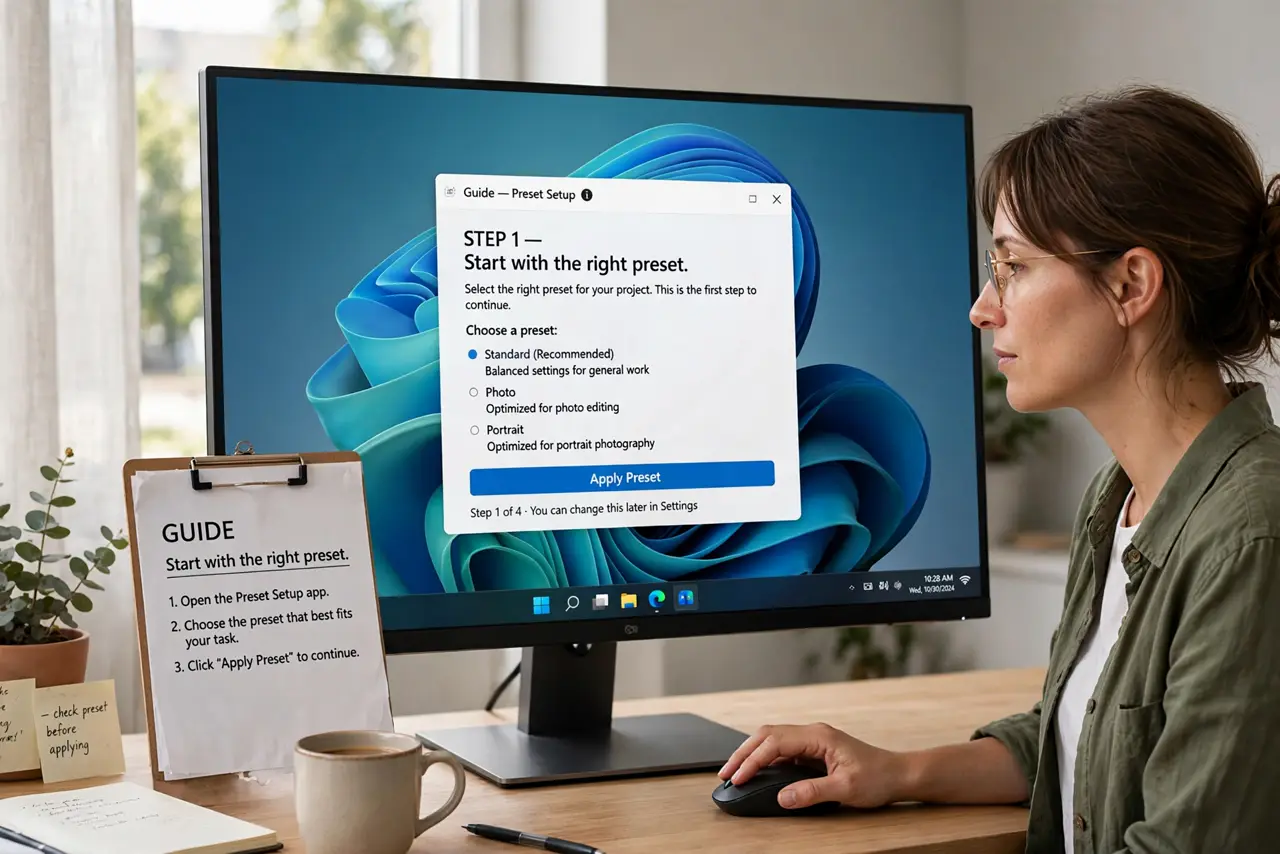
- Start with the right preset. Switch the monitor from Vivid or Dynamic to Standard, sRGB, or Custom. Showroom modes crush accuracy for shelf appeal — this one change fixes half of all 'bad color' complaints.
- Set brightness to your room. In a typical room, 120-150 nits equivalent (often 30-50% brightness) is right. Match the screen's white to a sheet of paper beside it — glaring white means too bright.
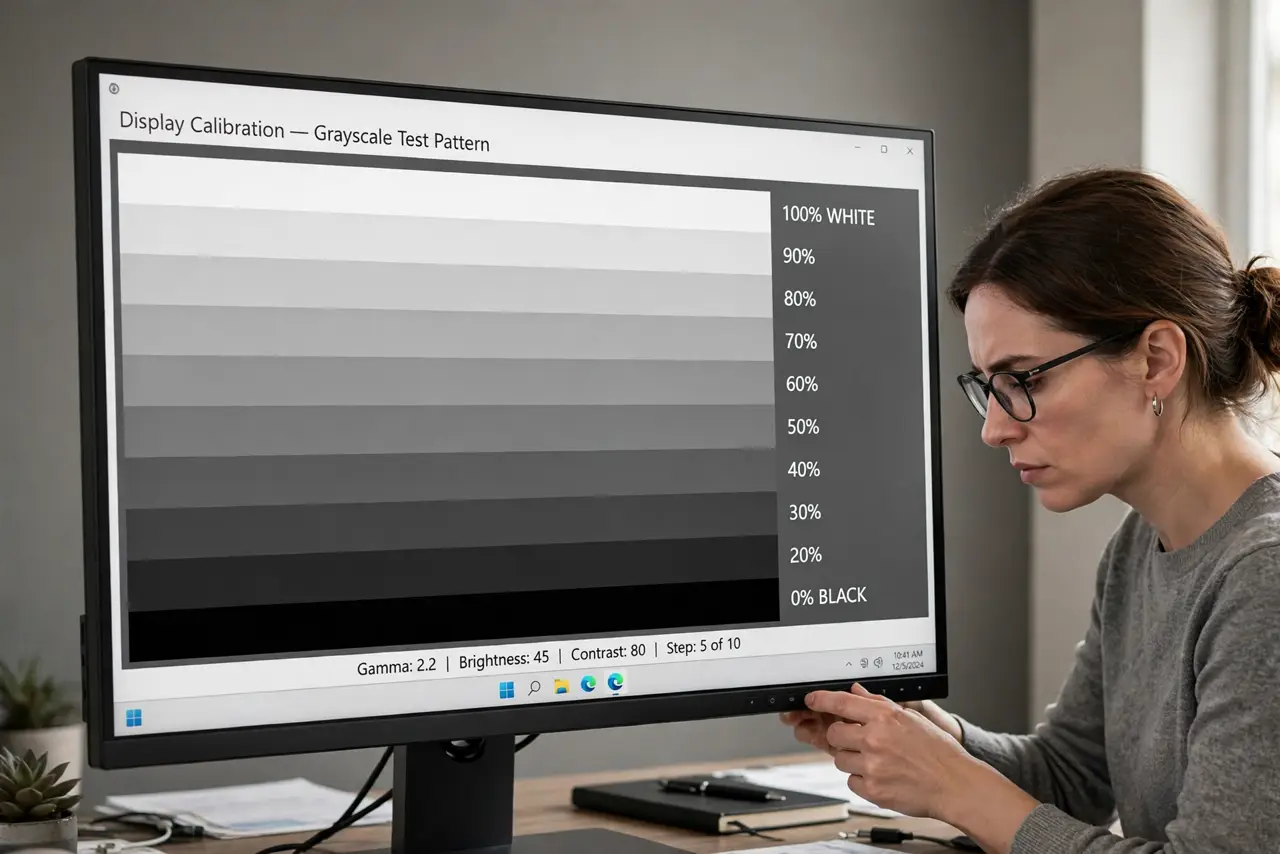
- Adjust contrast with a test pattern. Display a grayscale ramp and raise contrast until the brightest steps stay distinct, not blown to pure white. If dark grays crush together, lower it.
- Fix the color temperature. 6500K (often labeled Warm or Normal) is the neutral standard. Cool presets look bluish-crisp but lie about every color — avoid them for any color-sensitive work.
- Run the free OS wizard. Windows and macOS both include a guided display calibration that sets gamma and grayscale decently. Ten minutes, no purchases, big improvement — see the no-tool calibration walkthrough.
- Buy a colorimeter for serious work. If you edit photos for clients or print, a hardware calibrator (~the price of a nice dinner out, lasting years) measures your actual panel and builds a precise profile. Nothing else comes close.
What NOT to do
- Do not calibrate under colored room lighting. Warm lamps or RGB strips tint everything — calibrate in neutral light.
- Do not trust your eyes alone for paid work. Eyes adapt to anything; a colorimeter does not. Eyeballing is fine for browsing, not for clients.
- Do not leave Dynamic Contrast on. It constantly shifts brightness scene by scene, making any calibration meaningless.
- Do not calibrate once and forget for years. Backlights drift with age — recheck yearly, or after any factory reset.
Frequently asked questions
How often should I recalibrate?
Yearly for serious work; backlights drift slowly. Casual users can set it once and forget it unless something looks off.
Is phone-app calibration legit?
Rough at best — phone cameras are not colorimeters. Fine for a quick sanity check, not for real accuracy.
Why do prints never match my screen?
Uncalibrated screens lie about brightness and color. Calibrate first; if prints still mismatch, the print side needs profiling too.