Calibrate a Monitor Without a Hardware Tool
Your monitor's colors look off — too blue, too washed out, skin tones wrong — but you own no calibration gadget. The built-in calibration wizards in Windows and macOS can get you surprisingly close with just your eyes.
TL;DR / Quick Fix
Quick fix: reset the monitor to its factory defaults, then run your operating system's display calibration wizard in a normally lit room. Adjust brightness, contrast, and color balance following the on-screen targets, and compare a familiar photo before and after.
Follow these steps
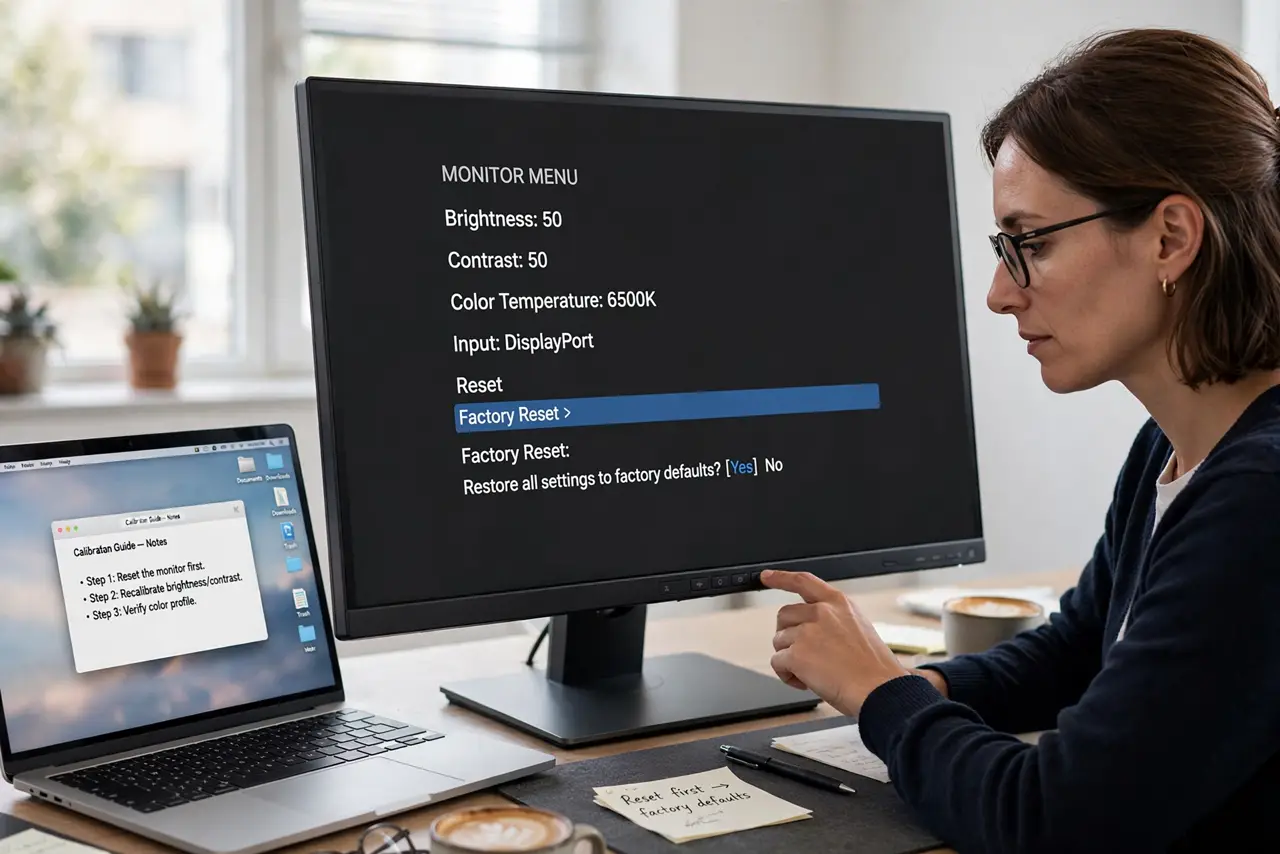
- Reset the monitor first. Open the monitor's on-screen menu and choose factory reset. Starting from defaults removes years of random tweaks that fight the calibration.
- Set the room lighting normally. Calibrate in the lighting you actually work in. A calibration done in a dark room looks wrong in daylight, so use your everyday light.
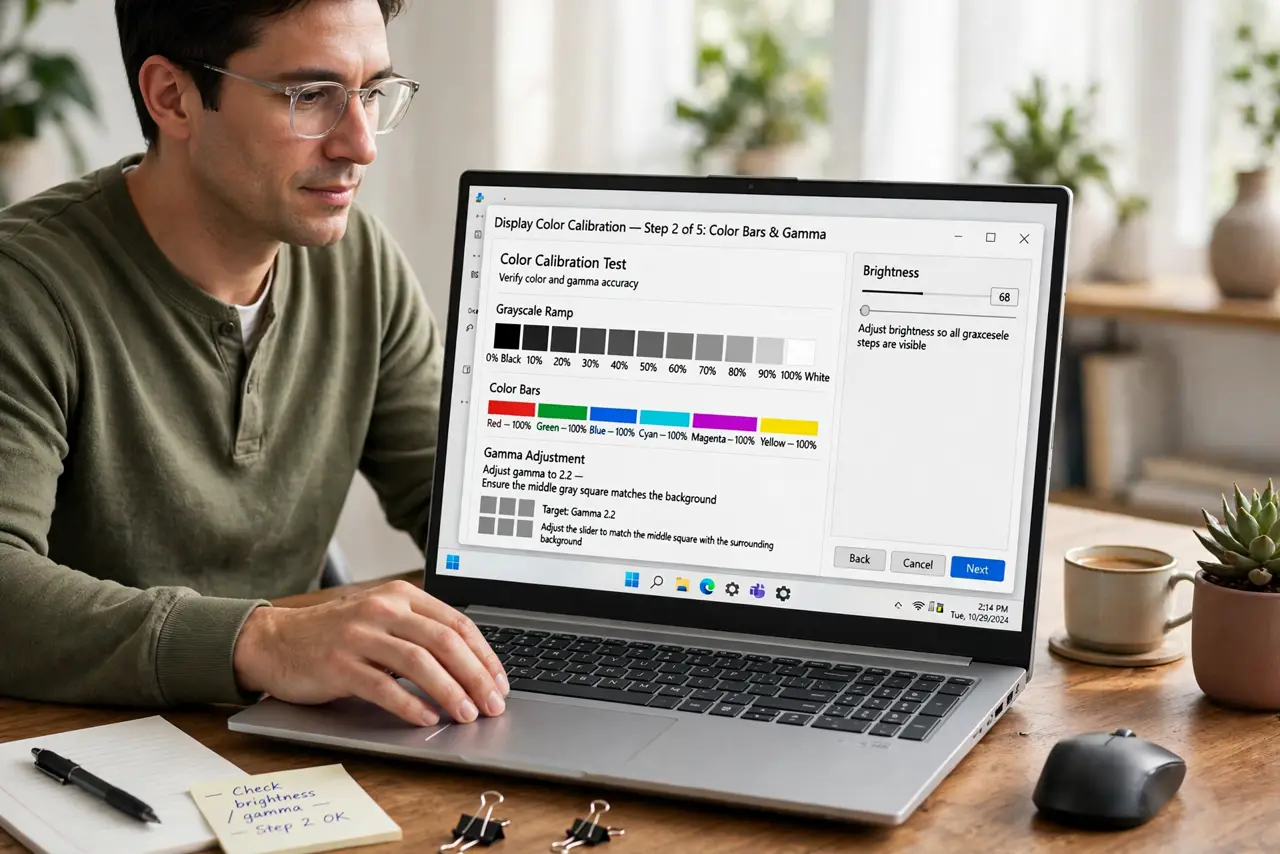
- Run the built-in calibration wizard. Open the display color calibration tool in your system settings and follow its targets for gamma, brightness, and contrast. The wizard's reference images guide your eyes step by step.
- Adjust RGB gains if offered. If the wizard or monitor menu offers red, green, and blue controls, balance them until grays look neutral. Gray is the tell: if gray looks tinted, colors are off too.
- Compare a familiar photo. Open a photo you know well — faces especially — before and after. If skin looks natural and whites look white, the calibration worked.
- Recheck yellow tint separately. If the whole screen still looks yellow after calibration, check for Night Light or Night Shift being on. Those features tint the screen on purpose and override calibration.
What NOT to do
- Do not calibrate in a dark room for daytime use. Ambient light changes color perception, so calibrate in your normal working light.
- Do not max out brightness and contrast first. Extreme settings crush detail, so let the wizard's targets set sane levels.
- Do not expect hardware-tool accuracy. Eye calibration gets you close and natural-looking, but professionals with critical color work still need a real colorimeter.
- Do not calibrate one monitor of a mismatched pair and stop. Calibrate both, since two uncalibrated monitors always disagree with each other.
Frequently asked questions
Can I calibrate without buying anything?
Yes. The built-in wizards in Windows and macOS plus your eyes get most monitors looking natural.
Why do my prints not match my screen?
Because screens glow and paper reflects. Calibration narrows the gap, but exact print matching needs profiles and test prints.
How often should I recalibrate?
Every few months, or whenever the lighting in your room changes significantly.