Chromebooks? Plain Basics
A Chromebook is a laptop that runs ChromeOS — basically the Chrome browser as an operating system, with Android apps on the side. They boot in seconds, cost far less than Windows laptops, and are nearly impossible to break with malware. But they are not for everyone. Here is the honest breakdown.
TL;DR / Quick Fix
Quick fix: Chromebooks run ChromeOS — fast, cheap, secure laptops built around the browser and web apps. They suit students, casual browsing, and anyone living in Google Docs. Skip them if you need Windows-only software, heavy gaming, or professional creative tools.
Follow these steps
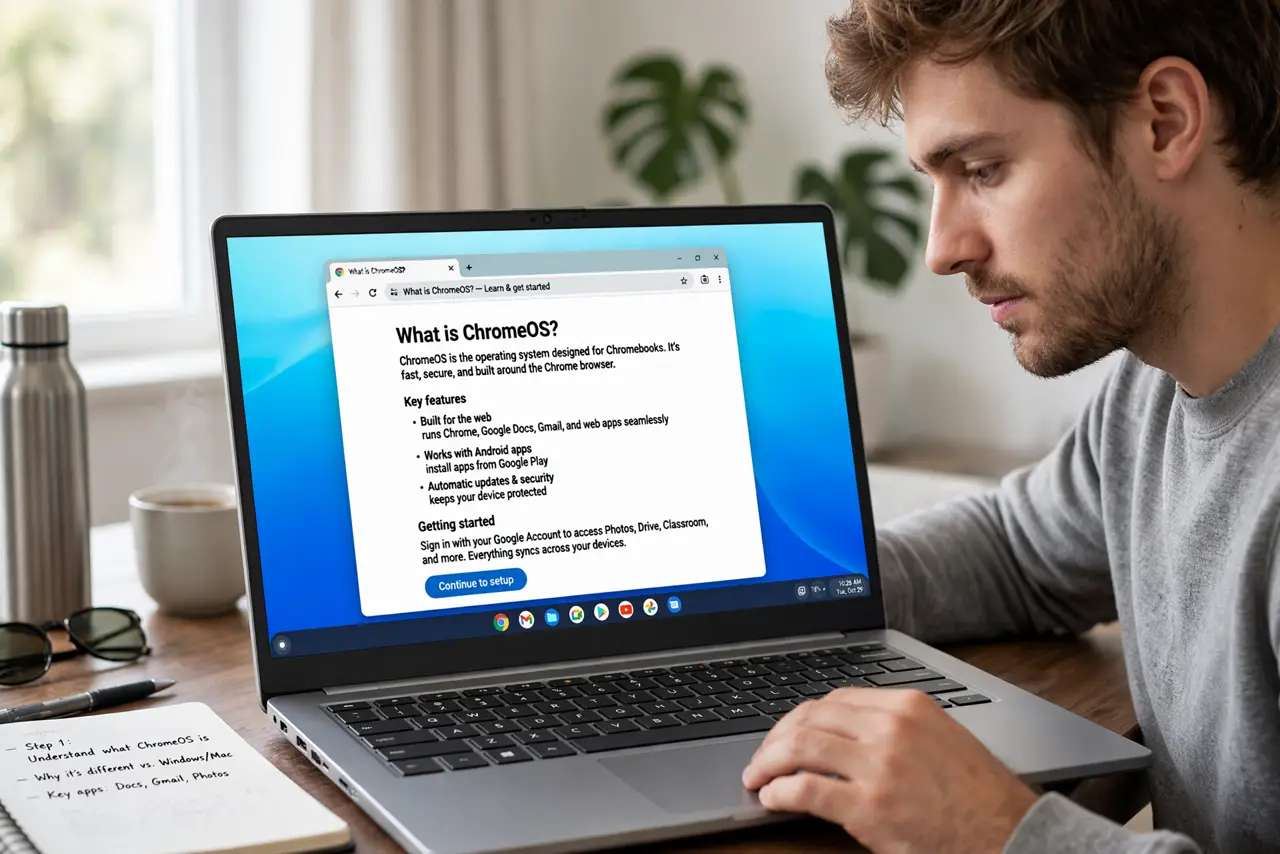
- Understand what ChromeOS is. The operating system is essentially the Chrome browser plus Android app support — everything lives on the web. If your life is Gmail, Docs, and streaming, it feels native; if it is Photoshop and Steam, it does not.
- Match it to the right person. Students, kids, grandparents, and travel laptops are the sweet spot — see the limits guide for the edge cases. Anyone whose work needs Windows or Mac software should look elsewhere.
- Check the specs that matter. Prioritize 8GB of RAM and a decent processor over storage — most files live in the cloud. A good screen matters more than a big SSD on a Chromebook.
- Verify the update expiration date. Every Chromebook gets a fixed years-of-updates lifespan (Auto Update Expiration). Check the date before buying — especially for used or discounted models nearing the end.
- Test your must-have apps. Most needs are covered by web apps and Android apps, but verify yours specifically — niche Windows programs and some peripherals have no Chromebook path.
- Compare total cost honestly. The laptop is cheap, but factor in cloud storage subscriptions if you outgrow the free tier. Still, for the target user it is the best value in computing.
What NOT to do
- Do not buy a Chromebook for Windows-only software. There is no real workaround — check compatibility first.
- Do not ignore the update expiration date. An expired Chromebook gets no security patches — it becomes a liability.
- Do not buy the cheapest model with 4GB of RAM. ChromeOS is light, but 4GB still struggles with many tabs.
- Do not expect serious gaming. Android games and cloud streaming work; installed AAA gaming does not.
Frequently asked questions
Can Chromebooks run Microsoft Office?
Yes — through the web versions of Word, Excel, and PowerPoint, or the Android apps. They work well for typical documents.
Do Chromebooks work offline?
Better than their reputation — Docs, Gmail, and many apps have offline modes. But they are happiest with a connection.
Are Chromebooks good for kids?
Excellent — cheap, hard to infect, easy to manage with Family Link, and replaceable if destroyed.