Cooling Pads? Basics
Your laptop runs hot, and the internet suggests a cooling pad — a stand with built-in fans that blows air at the laptop's underside. Do they actually work, or are they desk-decoration with LEDs? The honest answer: they help modestly, in specific situations, and the stand part matters more than the fans. Here is the plain guide.
TL;DR / Quick Fix
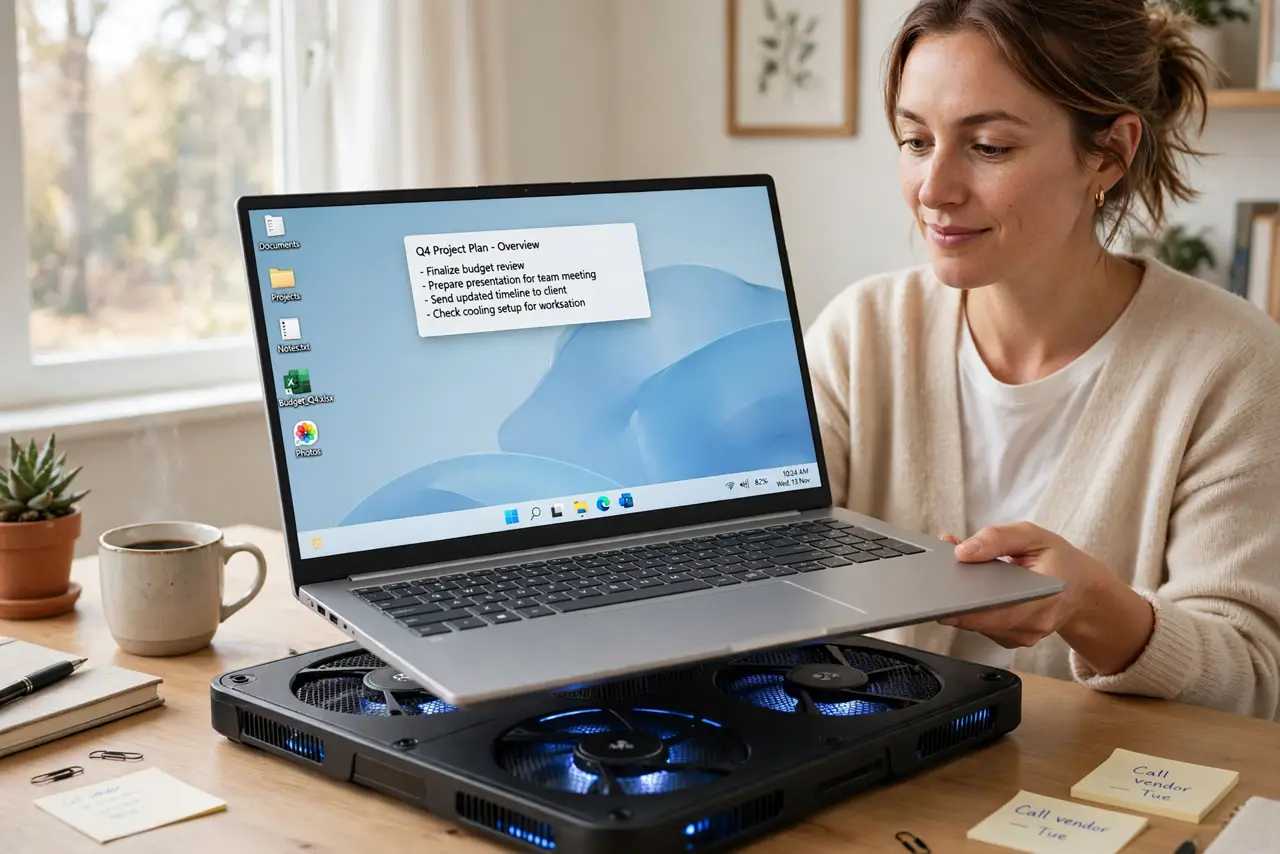
Quick fix: a cooling pad is a laptop stand with fans that improves airflow underneath — expect a modest few degrees of cooling, not a miracle. The elevation and airflow help most; the fans add a little more. Buy for comfort and slight gains, not to fix an overheating machine.
Follow these steps
- Understand what it actually does. A cooling pad lifts the laptop (improving natural airflow to the intake vents) and blows extra air at the underside. The lift does most of the work; the fans contribute a few extra degrees. Set expectations accordingly.
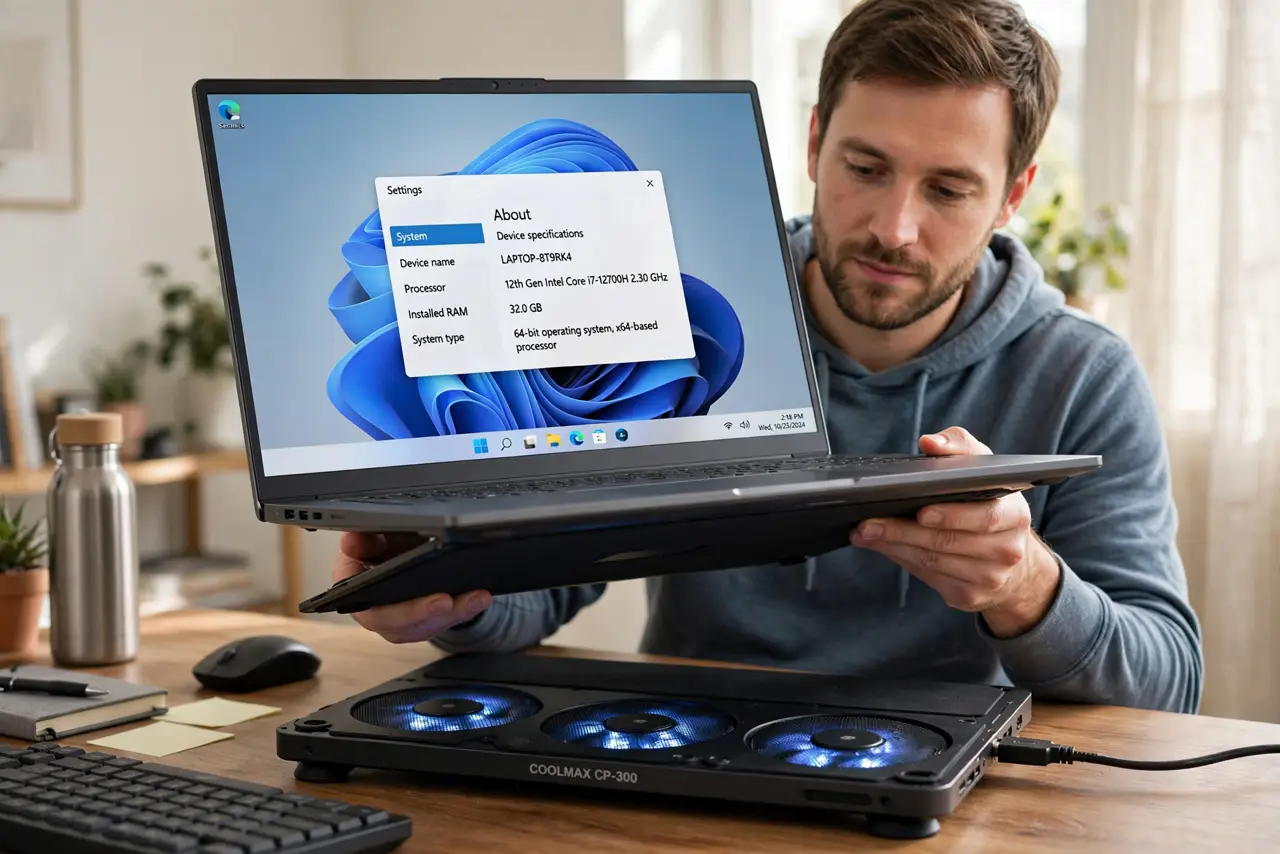
- Match the pad to your laptop size. A 15-inch laptop on a 13-inch pad wobbles and misses the vents. Buy the pad sized for your machine — the fans should sit under the laptop's actual intake areas, not beside them.
- Know when it helps most. Light-to-moderate heat on a desk: noticeable comfort gain, quieter internal fans. Genuine overheating with throttling: a pad masks symptoms — clean the vents and check the workload first.
- Consider a plain stand instead. A simple aluminum stand gives you most of the airflow benefit plus better ergonomics, with no noise and no USB power draw. If fan noise bothers you, the passive stand is the smarter buy.
- Check noise and power. Cheap pads whine and draw USB power (slightly draining battery on the go). Look for large, slow fans — quieter and more effective than small fast ones.
- Do not expect miracles. A few degrees cooler is the realistic outcome — enough for comfort and slightly calmer internal fans. If your laptop throttles badly, the problem is dust, paste, or workload, not the absence of a pad.
What NOT to do
- Do not buy a cooling pad to fix real overheating. Clean vents and a sane workload first — a pad on a clogged machine is decoration.
- Do not get a pad smaller than your laptop. Misaligned fans and wobbling machines help nobody.
- Do not ignore the noise. A whiny pad you switch off after a week was wasted money — check noise reviews.
- Do not use it on your lap expecting comfort. Pads are desk tools; on a lap they are awkward and still blow hot air at you.
Frequently asked questions
Do cooling pads really lower temperatures?
Yes, modestly — typically a few degrees under load. The elevation matters more than the fans, which is why passive stands also help.
Cooling pad vs laptop stand — which?
For cooling alone, similar. For ergonomics plus cooling, a proper stand wins — better screen height, no fan noise, no USB drain.
Can a cooling pad damage my laptop?
No — worst case it does little. Just avoid pads that block the intake vents with their own surface; mesh tops are the safe design.