Drawing Tablet? The Basics
You want to draw, sign, or annotate on your computer and the mouse feels like sketching with a bar of soap. A drawing tablet — a pressure-sensitive pad plus a pen — gives you back the hand control of paper. This guide covers what matters when buying your first one, without the artist-jargon fog.
TL;DR / Quick Fix
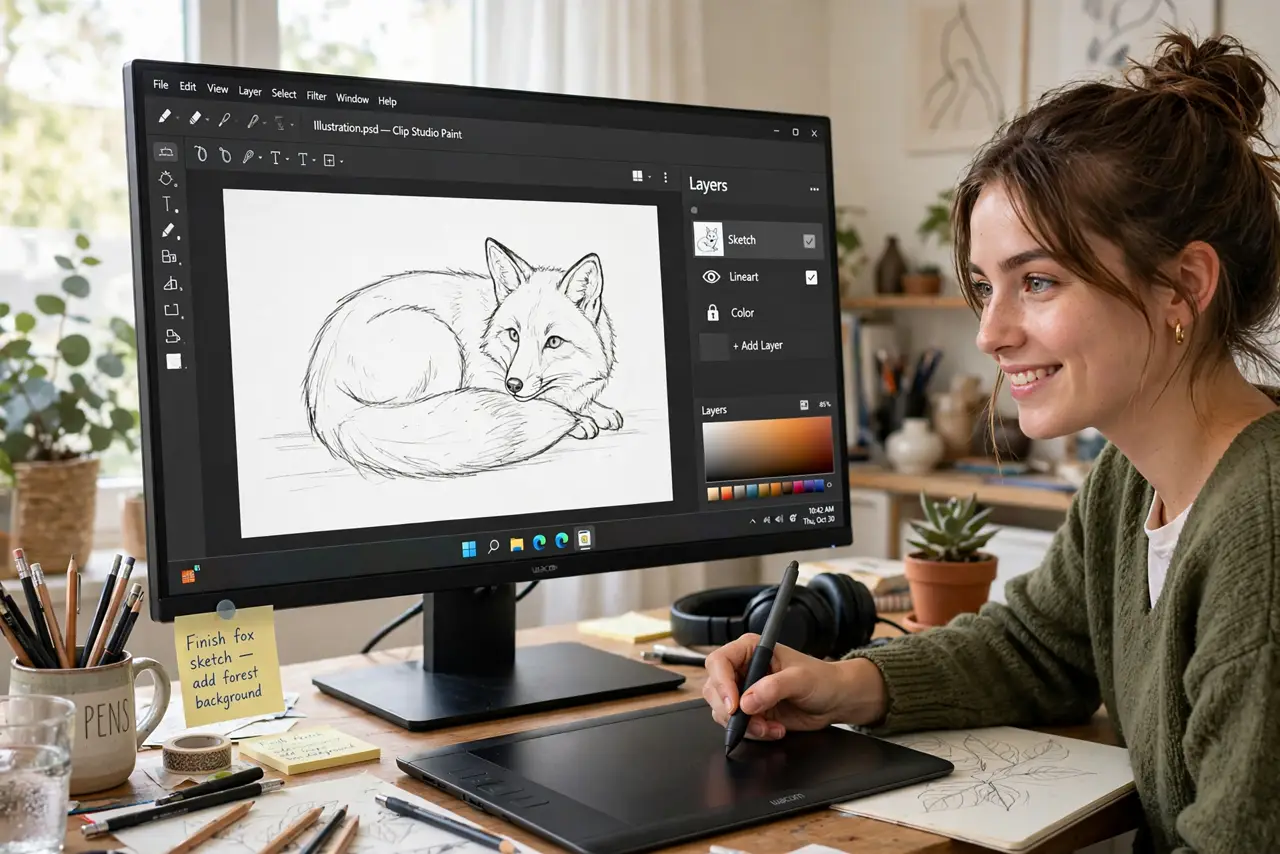
Quick fix: a drawing tablet is a pressure-sensitive pad with a pen — pressure controls line thickness like a real brush. Beginners do fine with a small, screenless tablet; pros often prefer display tablets. Check software compatibility first, and give yourself a week — hand-eye coordination needs practice.
Follow these steps
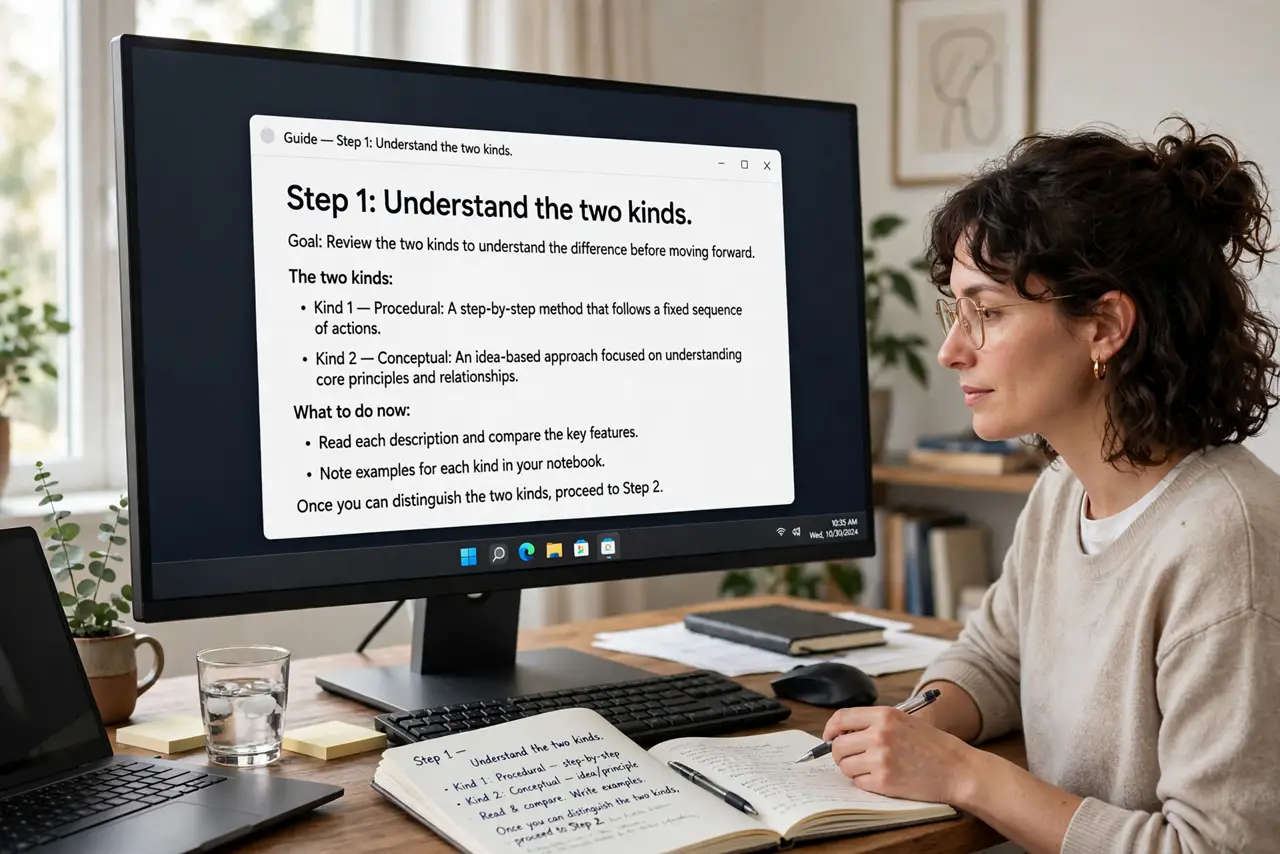
- Understand the two kinds. Screenless tablets: you draw on the pad while looking at the monitor — cheaper, and the standard starter. Display tablets: you draw directly on the screen — pricier, more intuitive.
- Start small and screenless. A small tablet maps fine to any monitor size and costs little. Upgrade only when you know you will stick with it.
- Check your software first. Confirm the tablet's drivers support your drawing app and OS. Most do, but verify before buying — driver headaches are the top beginner complaint.
- Learn pressure sensitivity. Press harder, line gets thicker — like a real pen. Practice strokes for a week; the disconnect between hand and screen fades fast.
- Map the pen buttons. The pen's side buttons usually become right-click and middle-click — or undo. Setting them early saves thousands of menu trips.
- Check the monitor connection for display tablets. Display tablets need a video signal plus USB — check your PC has a free output before buying one; see USB-C monitors for the one-cable option.
What NOT to do
- Do not buy a huge tablet as a beginner. Big tablets demand big arm movements that tire new users fast.
- Do not skip the driver install. The tablet 'works' without drivers but loses pressure sensitivity — the whole point.
- Do not draw with the mouse to 'save money' if you are serious. The tablet pays for itself in reduced frustration within weeks.
- Do not expect instant skill. The tablet removes the tool barrier; practice still builds the art.
Frequently asked questions
Can I use a drawing tablet as a mouse?
Yes — the pen works as a precise pointer everywhere. Many users keep the tablet plugged in even for non-art work.
Do I need a powerful computer?
No. Drawing apps are light compared to games or video editing — any modern PC handles a tablet fine.
Screenless or display tablet?
Screenless to start — cheaper and teaches the coordination. Display tablets feel natural faster but cost several times more.