Monitor Stuck on One Input? Switch It Back
When a monitor refuses to leave one input, you may be pressing the wrong button, the input menu may be locked, or the monitor may be auto-detecting a signal it prefers. The fix starts with the monitor own buttons and menu, not with the PC. A monitor that shows no signal at all needs the HDMI no signal checks instead.
TL;DR / Quick Fix
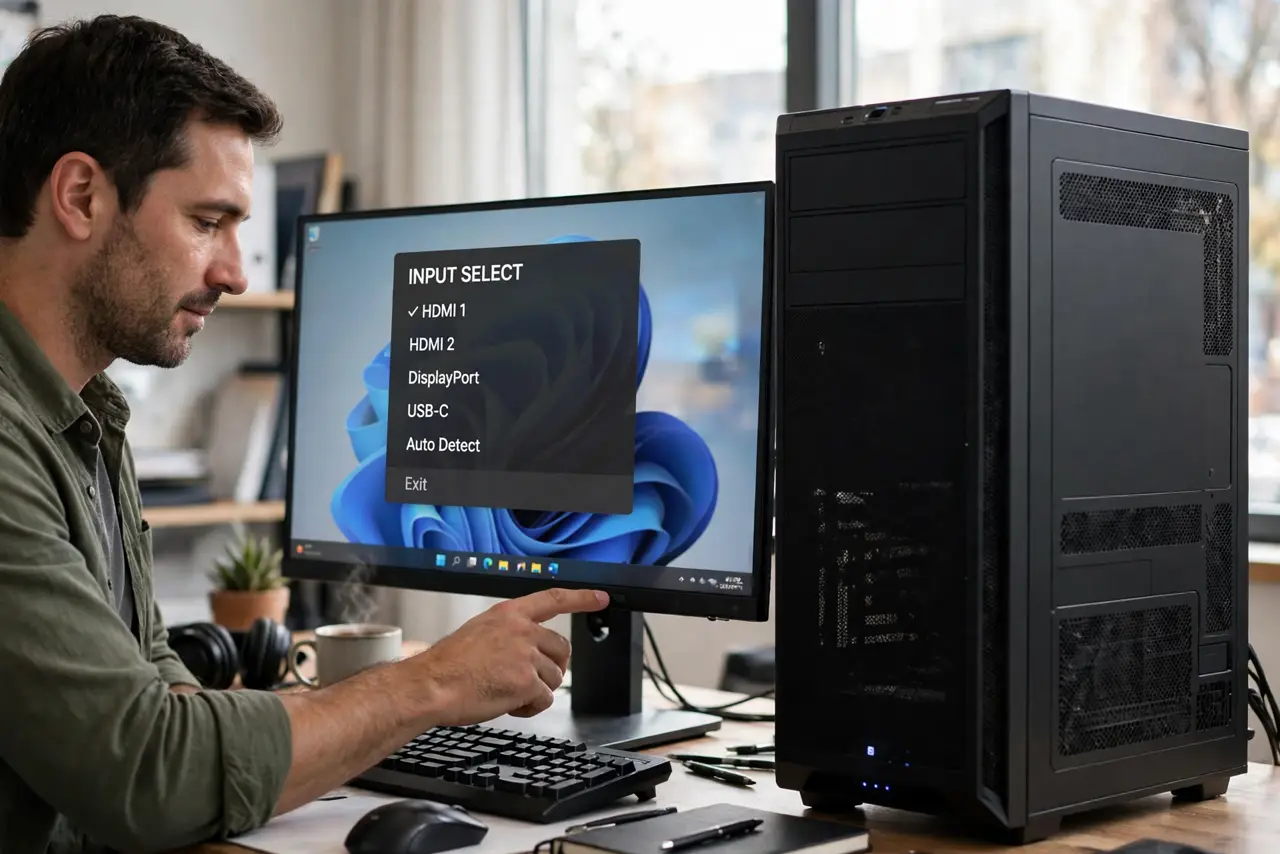
Quick fix: Press the input button and wait, then press again. Use the menu joystick or buttons to select, not just to browse. Then follow the remaining steps in order, and stop for a technician if you see damage or swelling.
Follow these steps
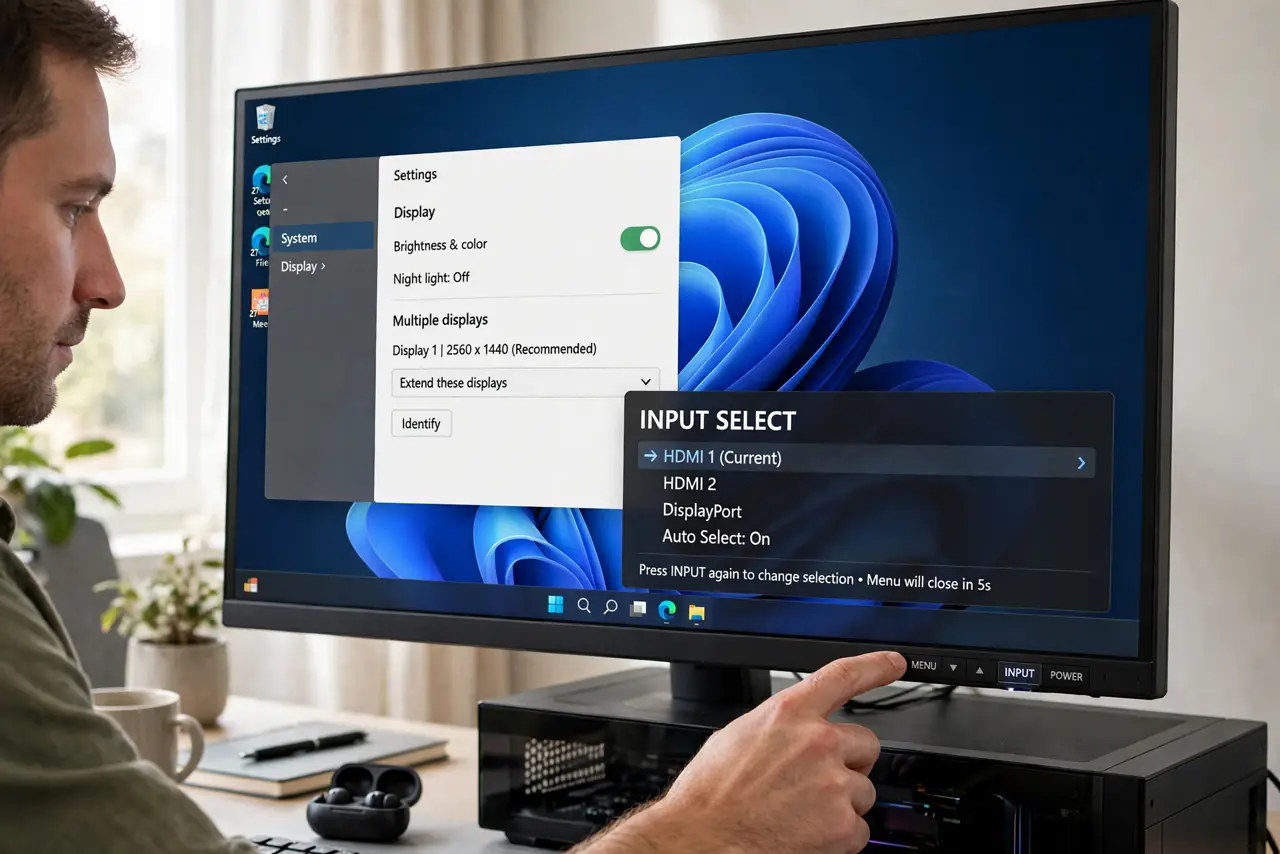
- Press the input button and wait, then press again. Press the monitor input button once, wait for the menu, then press again to move to the next input. Rapid presses can skip past the input you want or close the menu.
- Use the menu joystick or buttons to select, not just to browse. On monitors with a joystick, push it to confirm the input, not just to highlight it. Highlighting alone does not switch the input on many models.
- Disconnect the cable on the stuck input. Unplug the video cable for the input the monitor is stuck on, leaving only the cable you want. With only one signal present, most monitors switch to it.
- Turn off auto input detection if the menu offers it. In the monitor menu, find auto input or auto detect and turn it off, then select your input by hand. Auto detection can jump back to a stronger signal on its own.
- Reset the monitor to factory settings. In the monitor menu, choose Reset or Factory Reset, then select your input again. A reset clears a stuck input lock or a corrupted menu setting.
- Test the wanted input on another monitor if you can. Connect the same cable and PC to a second monitor. If the second monitor switches fine, the first monitor menu or buttons are at fault, not the PC.
What NOT to do
- Do not force monitor buttons or the joystick. Forced buttons break, and a broken input button needs a repair that a gentle press would have avoided.
- Do not change PC graphics settings to fix a monitor input lock. The input choice lives in the monitor menu, and PC settings cannot override a locked monitor menu.
- Do not unplug and replug cables rapidly. Rapid replugs confuse auto detection and can make the monitor jump inputs again, so change one cable and wait.
- Do not reset the monitor without noting your settings. A factory reset clears brightness and colour settings too, so note them first if you care about them.
Frequently asked questions
Why does my monitor jump back to the old input?
Auto input detection may prefer the stronger or first signal it finds. Turning auto detection off and selecting by hand stops the jumping.
What if the input button does nothing?
The menu may be locked, or the button may be faulty. Check the menu lock setting, and if the button is truly dead, the monitor needs repair.
Can a cable keep a monitor stuck?
Yes. A cable carrying a live signal on the old input gives auto detection a reason to stay there, which is why disconnecting it helps.