KVM Switch? What It Does
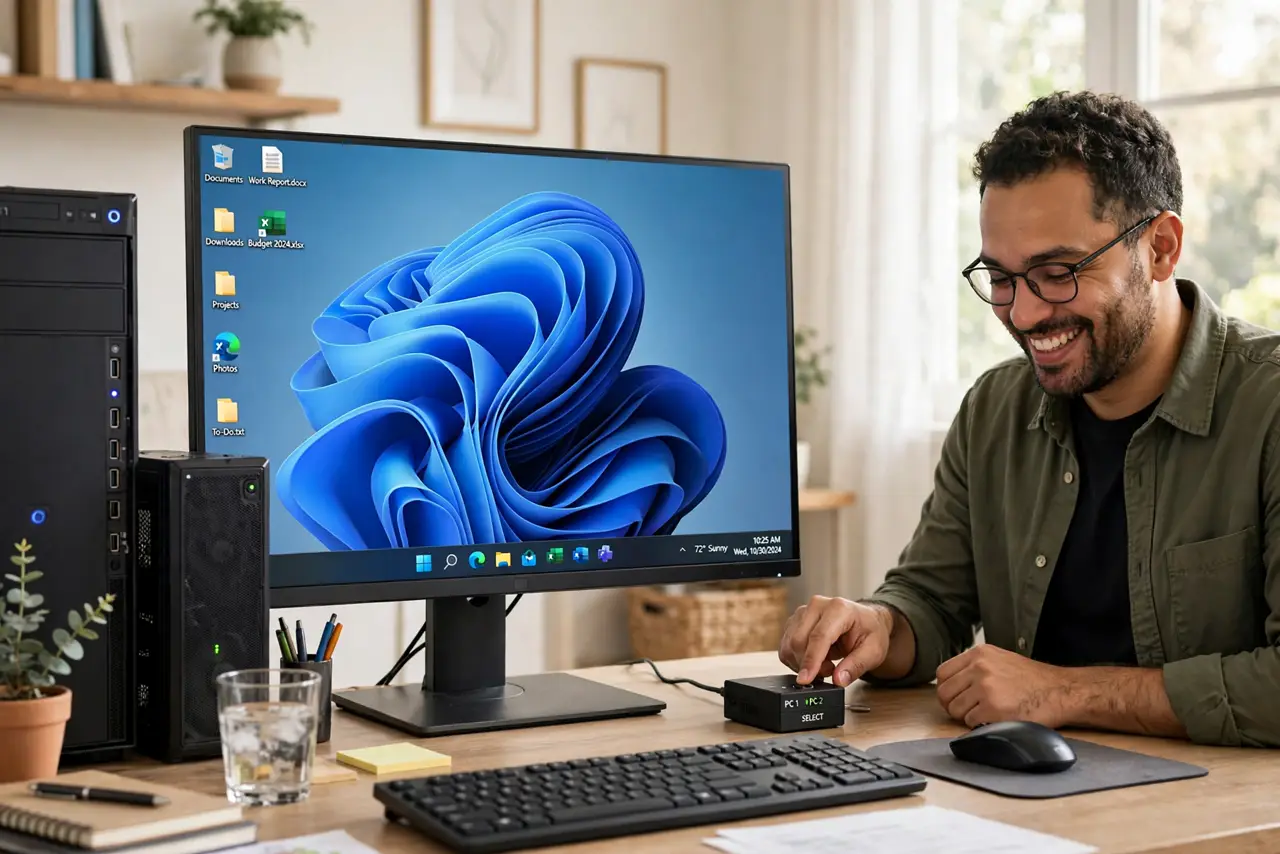
Two computers, one desk, one keyboard and monitor — crawling under the desk to swap cables every time you switch is nobody's idea of a workflow. A KVM switch (keyboard, video, mouse) routes one set of peripherals to multiple computers at the press of a button. Here is how to pick one that actually works with your setup.
TL;DR / Quick Fix
Quick fix: a KVM switch lets one keyboard, monitor, and mouse control two or more computers with a button press or hotkey. Match the switch's video ports and resolution to your setup, and expect minor quirks with high-refresh displays. It beats crawling under the desk to swap cables.
Follow these steps
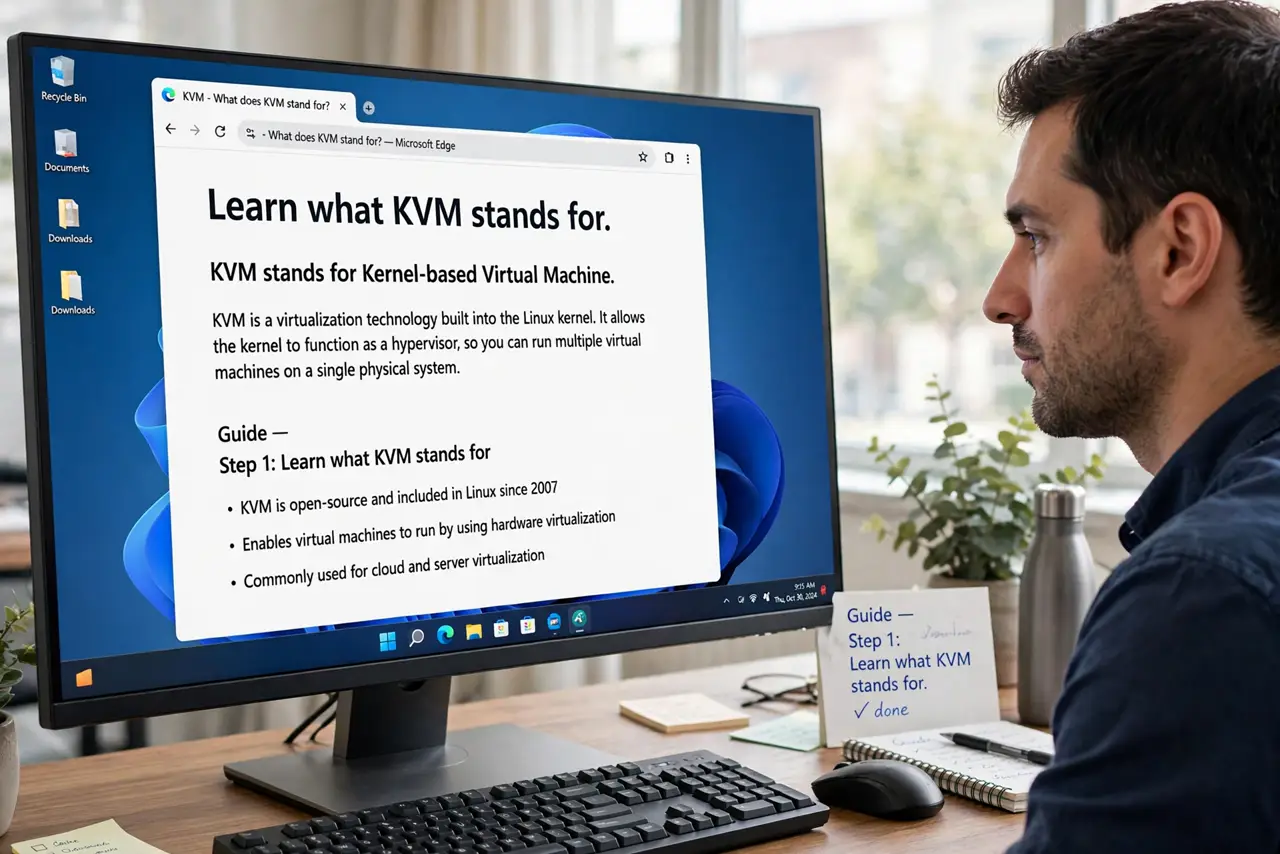
- Learn what KVM stands for. Keyboard, Video, Mouse — the three things the switch shares between computers. Press a button (or a hotkey) and your whole desk switches to the other machine instantly.
- Match video ports and resolution. Check the switch supports your monitor's connection (HDMI, DisplayPort, USB-C) at your resolution and refresh rate. A 4K 144Hz setup needs a much pricier switch than 1080p 60Hz.
- Count your USB devices. Beyond keyboard and mouse, webcams, headsets, and drives need USB ports on the switch too. Count everything — running out of ports defeats the purpose.
- Expect minor switching quirks. A second of black screen while switching is normal. High-refresh and ultrawide setups are fussier — read reviews from users with your exact resolution.
- Consider software alternatives first. For just keyboard and mouse sharing, free software options exist. A hardware KVM earns its keep when you also need to switch the monitor — especially across different operating systems.
- Watch for mouse lag on cheap units. Bargain switches can add input delay, especially with gaming mice. If the cursor feels floaty after switching, the switch — not the mouse — is usually the cause.
What NOT to do
- Do not buy a KVM without checking its max resolution and refresh rate. An under-spec switch silently downgrades your nice monitor.
- Do not expect instant switching. A brief black screen during the changeover is normal on nearly all switches.
- Do not run a gaming mouse through the cheapest switch. Polling-rate quirks and lag are the classic cheap-KVM complaints.
- Do not forget audio. If your headset matters, confirm the switch passes audio — many cheap ones do not.
Frequently asked questions
Can a KVM switch share one monitor between a PC and a Mac?
Yes — KVMs are OS-agnostic for video. Keyboard layout quirks between systems are the only usual friction.
Do KVM switches work with USB-C laptops?
With a USB-C KVM or a dock in front of it, yes. Verify video, data, and power all pass through — not every unit handles all three.
What is the difference between a KVM and a USB switch?
A USB switch shares only USB devices (keyboard, mouse, drives). A KVM also switches the video — the monitor itself.