Two PCs, One Monitor? Setup
You have a work PC and a personal PC on one desk and one monitor, and swapping cables is getting old. Most monitors can take both — you just need a way to switch the input, the keyboard, and the mouse between them. This guide walks through the three common setups, from a monitor button to a KVM switch.
TL;DR / Quick Fix
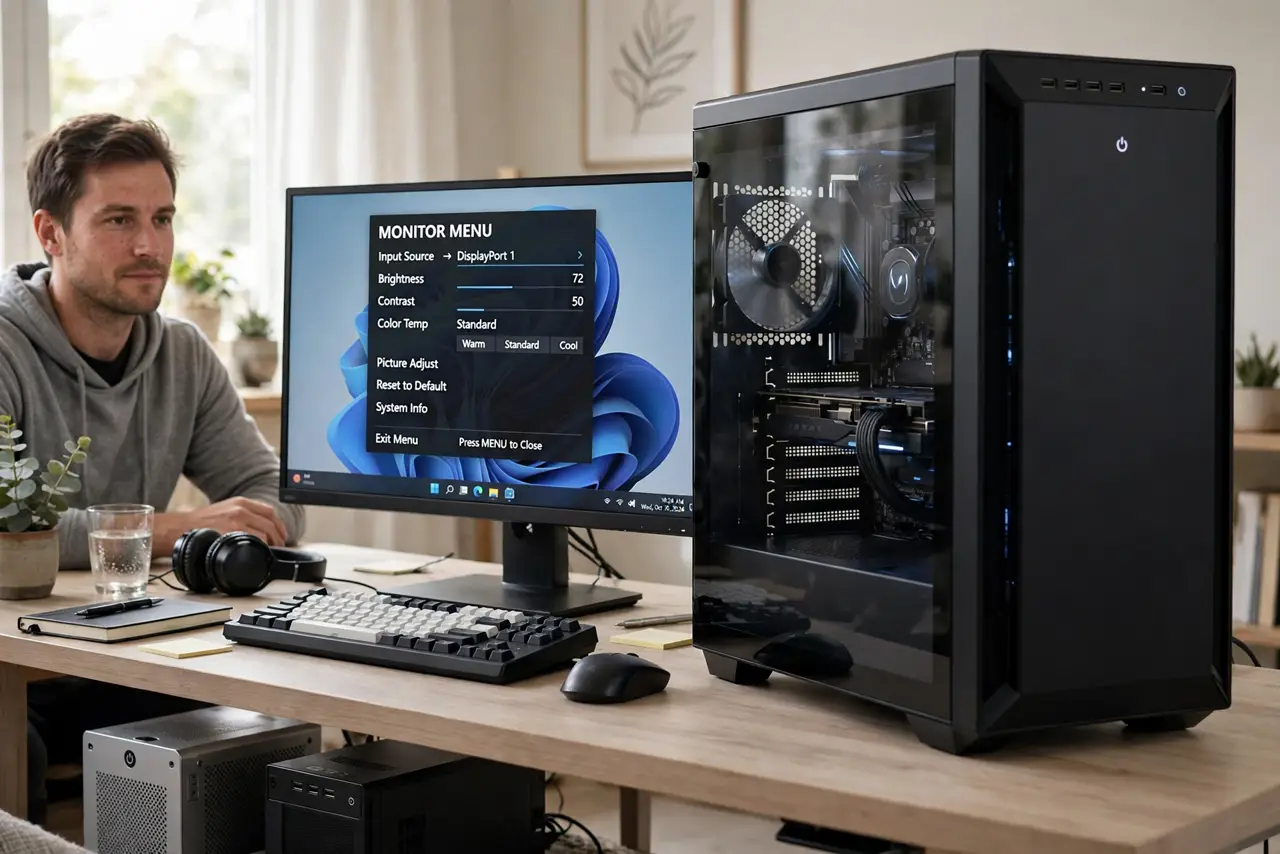
Quick fix: check how many inputs your monitor has — most take two PCs at once. A KVM switch switches monitor, keyboard, and mouse with one button; the monitor's own input button is free but slower. Avoid cheap no-name KVMs — laggy ones are a known headache.
Follow these steps
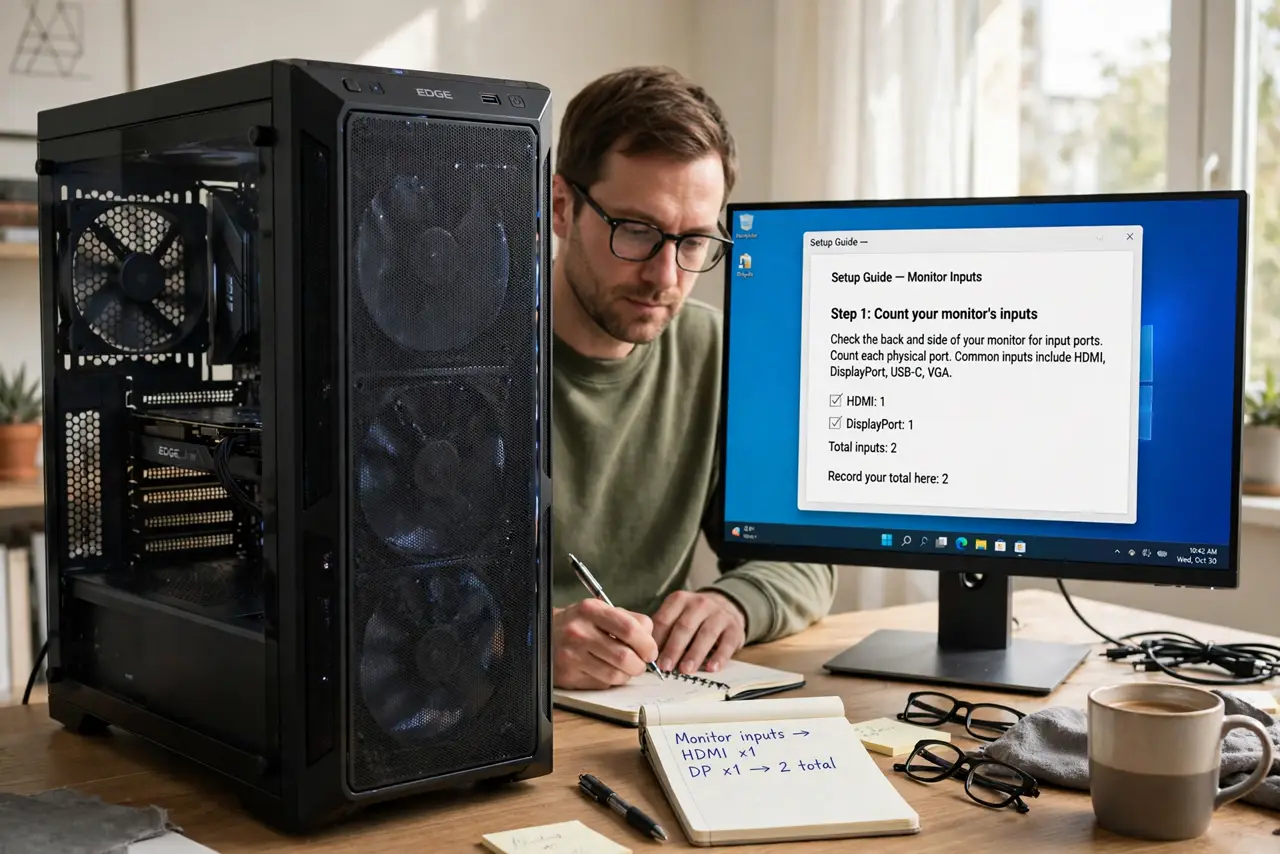
- Count your monitor's inputs. Most monitors have at least two inputs — HDMI plus DisplayPort, for example. Plug one PC into each and use the monitor's input button to swap. It is free, and for video-only needs it is enough.
- Decide what else must switch. Swapping the monitor is only half the job — the keyboard and mouse must follow. If you do not want two sets of peripherals, you need a KVM switch.
- Match cables to ports. Connect each PC with a cable that matches the port you plan to use — DisplayPort or HDMI — and make sure each PC is plugged into the graphics output; see which port to use. Mismatched cables are the top cause of 'one PC shows nothing.'
- Consider software switching. Tools that share one mouse and keyboard across PCs over the network exist — handy when the PCs sit side by side and you only need the peripherals to roam, not the video.
- Test resolution on both PCs. Switch to each input and confirm the picture is sharp. If one looks blurry, the PC may be outputting the wrong resolution — fix it before blaming the monitor.
- Label your cables. Put a small tag on each cable: 'work PC,' 'home PC.' Future-you will thank present-you the first time something needs unplugging.
What NOT to do
- Do not hot-swap video cables while PCs are on as a daily habit. It works, but worn connectors eventually fail — and you will forget which cable is which.
- Do not buy a KVM switch without checking its supported resolution and refresh rate. A 1080p KVM on a 4K monitor silently downgrades your picture.
- Do not plug both PCs into the monitor and call it done if you also need one keyboard and mouse. Video switching alone leaves the peripherals stranded.
- Do not use a USB hub as a KVM. Hubs split one signal; they do not switch two sources — see the powered vs unpowered hub difference to understand why.
Frequently asked questions
Can I use two monitors with two PCs instead?
Yes — give each PC its own monitor and skip switching entirely. The dual-PC-one-monitor problem only exists when you want one screen; two screens with a shared keyboard/mouse software switch is often the smoother setup.
Why does my KVM make the mouse lag?
Cheap switches and long cable runs are the usual causes — see the KVM lag guide. A better switch or shorter cables usually fixes it.
Do I need identical cables for both PCs?
No, but each cable must match the port it uses. Mixing adapters adds failure points, so native cable-to-port connections are the reliable choice.