Charge Limits? Basics
Your laptop sits plugged in at 100% all day, every day — and that constant full charge quietly wears the battery out. A charge limit caps charging at 80% (or similar), dramatically slowing battery aging for desk-bound machines. Most makers now include the setting; few owners know it exists. Here is how to use it.
TL;DR / Quick Fix
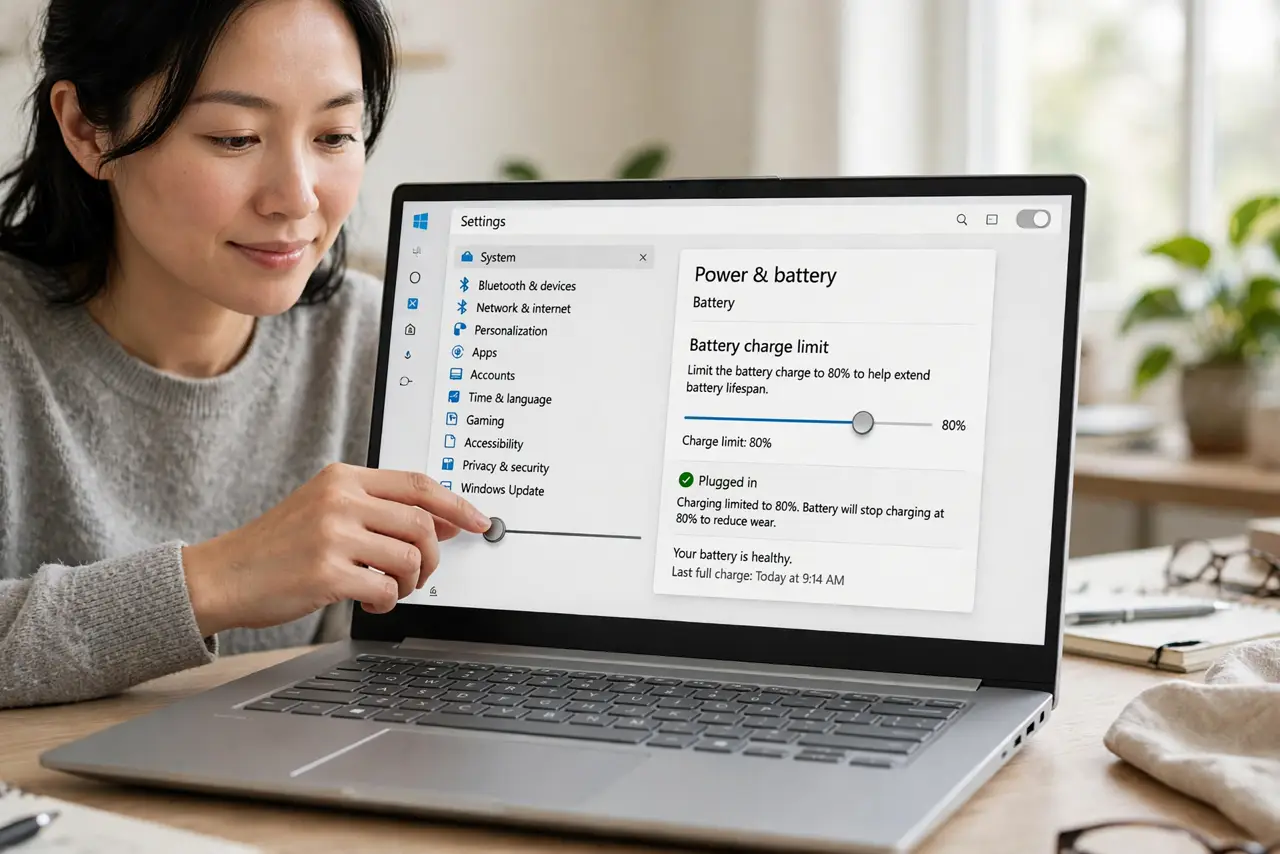
Quick fix: if your laptop lives on a charger, cap charging at 80% in the battery settings — it significantly slows long-term battery wear. You lose some runtime per charge but gain years of battery health. Turn the limit off before travel days when you need full capacity.
Follow these steps
- Find the setting. Look in your battery settings — Windows makers call it Battery Care, Lenovo Vantage, MyASUS, or similar; Macs have Optimized Charging in Battery settings. The option is increasingly standard; search 'charge limit' in settings if lost.
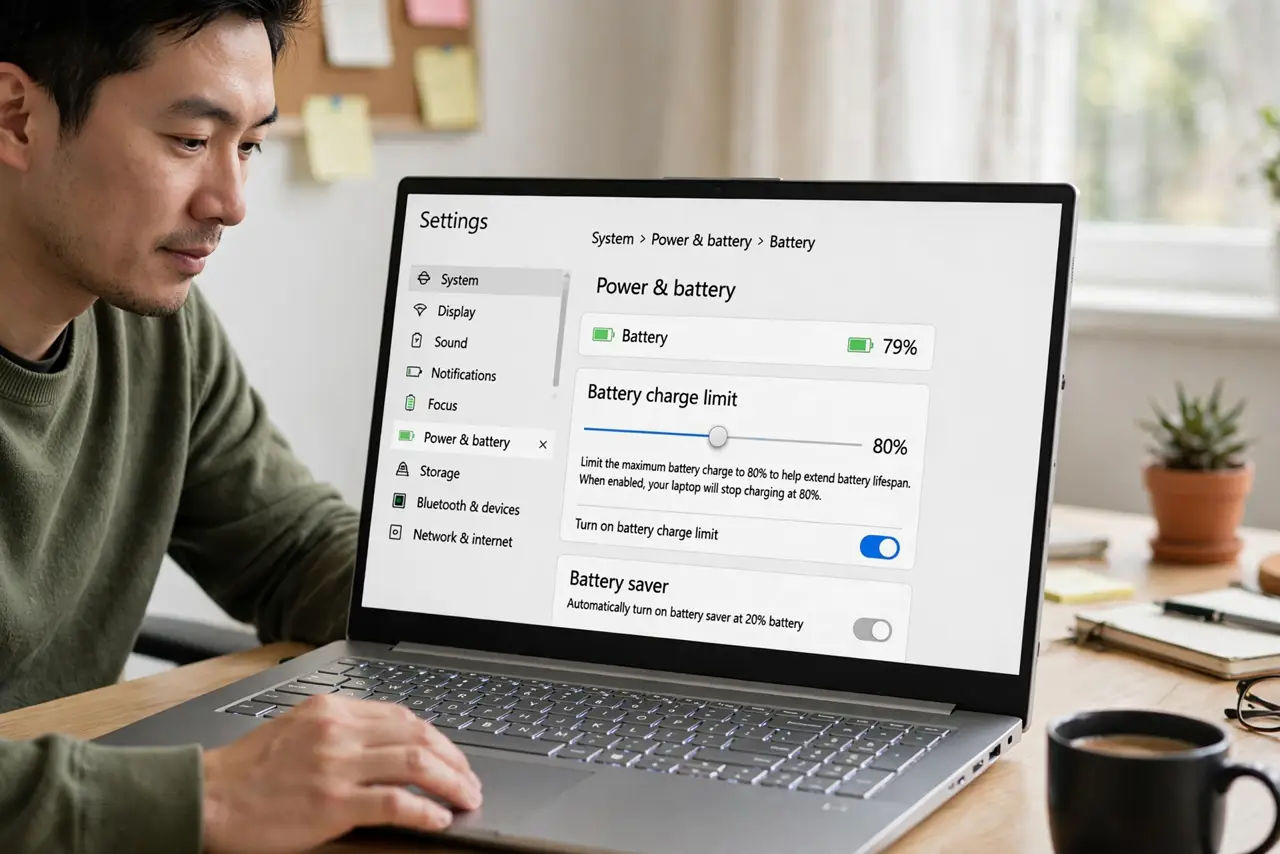
- Set it to 80%. Eighty percent is the sweet spot — meaningfully less stress than 100%, still plenty of runtime. Some tools offer 60% for always-docked machines; 80 suits most desk-bound use.
- Understand the tradeoff. You trade per-charge runtime for lifespan — the battery lasts years longer instead of fading in eighteen months. For a laptop that rarely leaves the desk, this trade is pure win. Pair with the battery life habits for the full picture.
- Disable before travel. Turn the limit off the night before a travel day so you leave with a full 100%. Forgetting means starting a long flight at 80% — set a reminder until it is habit.
- Know it is not instant magic. The benefit compounds over months and years — you will not feel a difference this week. Battery health reports after six months will show the payoff in retained capacity.
- Check it survived updates. Major system updates occasionally reset battery settings. Glance at the charge limit after big updates — a silently reset limit means silently resumed wear.
What NOT to do
- Do not leave a desk-bound laptop at 100% forever. Constant full charge is the fastest legal way to age a battery.
- Do not set the limit and forget travel days. An 80% cap on a long travel day is a self-inflicted short battery.
- Do not expect miracles on an already-worn battery. Charge limits slow future wear; they do not restore lost capacity.
- Do not confuse charge limits with battery saver. The limit caps maximum charge for longevity; saver stretches each charge for runtime — different tools.
Frequently asked questions
Will 80% hurt my daily use?
Only if you regularly need more than 80% of a charge away from outlets. Desk-bound users never notice; road warriors should toggle it per trip.
Does my laptop have this feature?
Most 2020+ laptops do — check the maker's battery utility or system battery settings. Very old machines may lack it; unplugging at 80% manually is the low-tech version.
Is keeping it plugged in bad otherwise?
Modern charging circuits stop at 100% safely — the harm is the battery sitting at full charge, which is exactly what the limit fixes.