Laptop Overheating? Basics
Your laptop's fans scream like a hair dryer, the keyboard feels like a griddle, and everything slows to a crawl. That slowdown is thermal throttling — the processor deliberately slowing itself to avoid damage. Overheating is normal in bursts, but constant heat shortens the machine's life. Here is how to cool things down safely.

TL;DR / Quick Fix
Quick fix: laptops overheat when vents are blocked or dust-clogged — use it on a hard flat surface, keep vents clear, and clean dust from fans. The slowdown you feel is thermal throttling protecting the chip. Persistent overheating on a clean machine deserves professional service.
Follow these steps
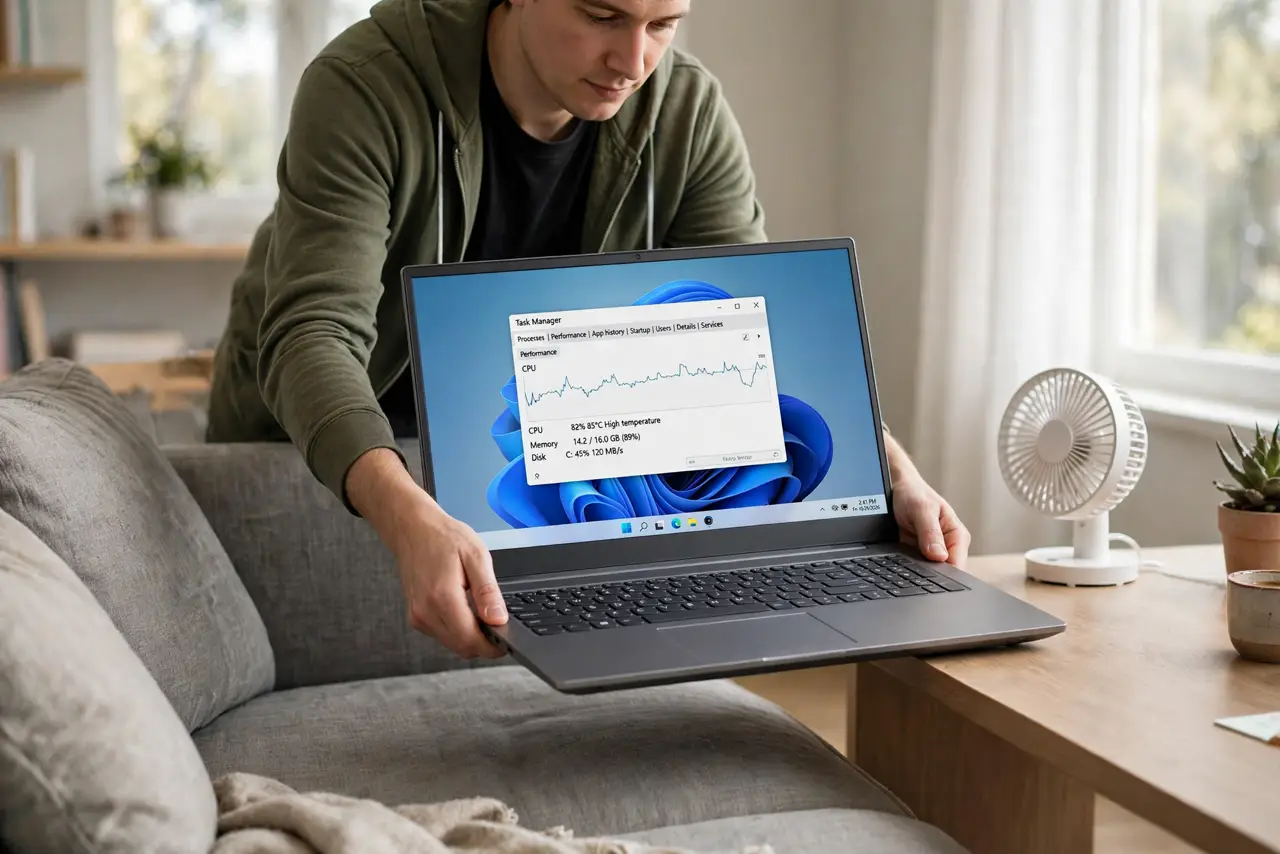
- Get it off soft surfaces. Beds, couches, and laps smother the intake vents underneath. A hard, flat desk is the single biggest cooling upgrade — free and immediate. This alone fixes most 'my laptop is burning' complaints.
- Keep the vents clear. Find the vent grilles (usually sides and rear) and make sure nothing blocks them — not your hand, not a stack of papers, not the wall. Hot air needs an exit path.
- Clean out the dust. Dust blankets the fans and heat sinks over months. With the laptop off, blow short bursts of compressed air into the vents. For a deep clean, a repair shop can open it up — see whether a cooling pad helps first for a no-opening-needed boost.
- Check what is working so hard. Open Task Manager (Windows) or Activity Monitor (Mac) and sort by CPU. A runaway browser tab or background updater at 100% explains sudden heat — close the culprit before blaming the hardware.
- Lower the workload. Close unused heavy apps, cap game frame rates, and avoid video rendering on your lap. Less work means less heat — obvious, but people run 4K exports on bedspreads and wonder why.
- Know when it is a service job. If a clean, well-ventilated laptop still overheats at idle, the thermal paste may be dried out or a fan may be dying. That is a repair-shop job — dried paste is not a DIY first project for most people.
What NOT to do
- Do not use the laptop on a bed or couch. Blocked vents are the number one cause of overheating — hard surfaces only.
- Do not ignore screaming fans for months. Constant max-RPM fans signal a real problem — dust, dying fan, or dried thermal paste.
- Do not put it in the fridge or freezer. Condensation kills electronics faster than heat does — room-temperature airflow is the answer.
- Do not block vents with a 'cooling' stand that covers them. Some stands look helpful while smothering the intakes — check the airflow path.
Frequently asked questions
Is it normal for laptops to get hot?
Warm under load is normal; too hot to touch comfortably is not. Sustained extreme heat with throttling means something needs attention.
Why does my laptop slow down when hot?
Thermal throttling — the processor deliberately slows to stay within safe temperatures. The slowness is the protection working, not a separate failure.
Do cooling pads actually work?
Modestly — they improve airflow under the machine and can drop temperatures a few degrees. They help; they do not fix clogged internals.