Calibrate Your Monitor?
Your new monitor looks either washed out or like a neon sign, and photos you edit look different on every other screen. That's an uncalibrated display — factory settings aim for showroom punch, not accuracy. A basic calibration takes ten minutes with free tools and fixes most of it; a hardware calibrator finishes the job for serious work.
TL;DR / Quick Fix
Quick fix: switch the monitor from Vivid to its sRGB or Standard preset, set brightness to match your room, and run your OS's free display calibration wizard. That fixes most color complaints in ten minutes. For photo work, a hardware calibrator is the real upgrade.
Follow these steps
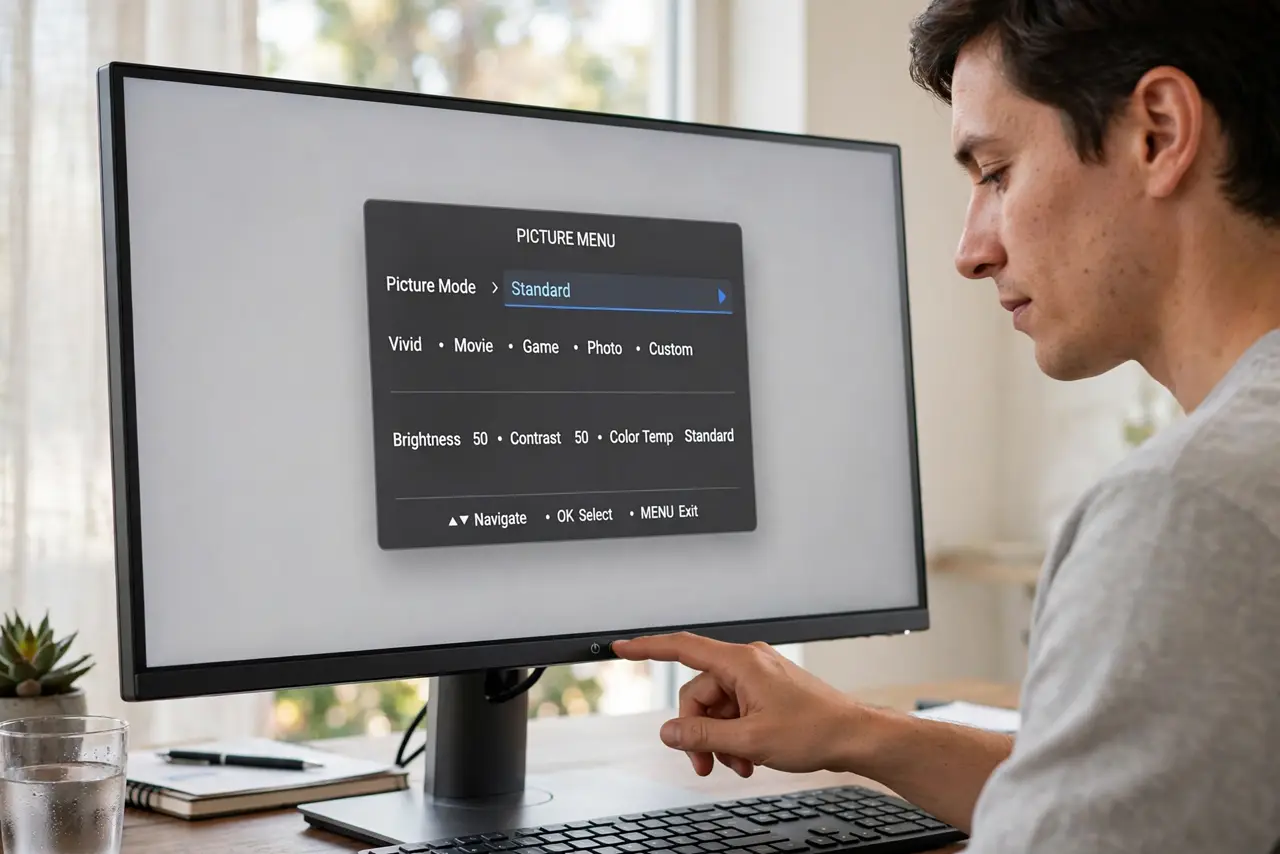
- Start with the right preset. Switch from Vivid or Dynamic to Standard, sRGB, or Custom. Showroom modes crush accuracy for shelf appeal — this one change fixes half of all bad-color complaints.
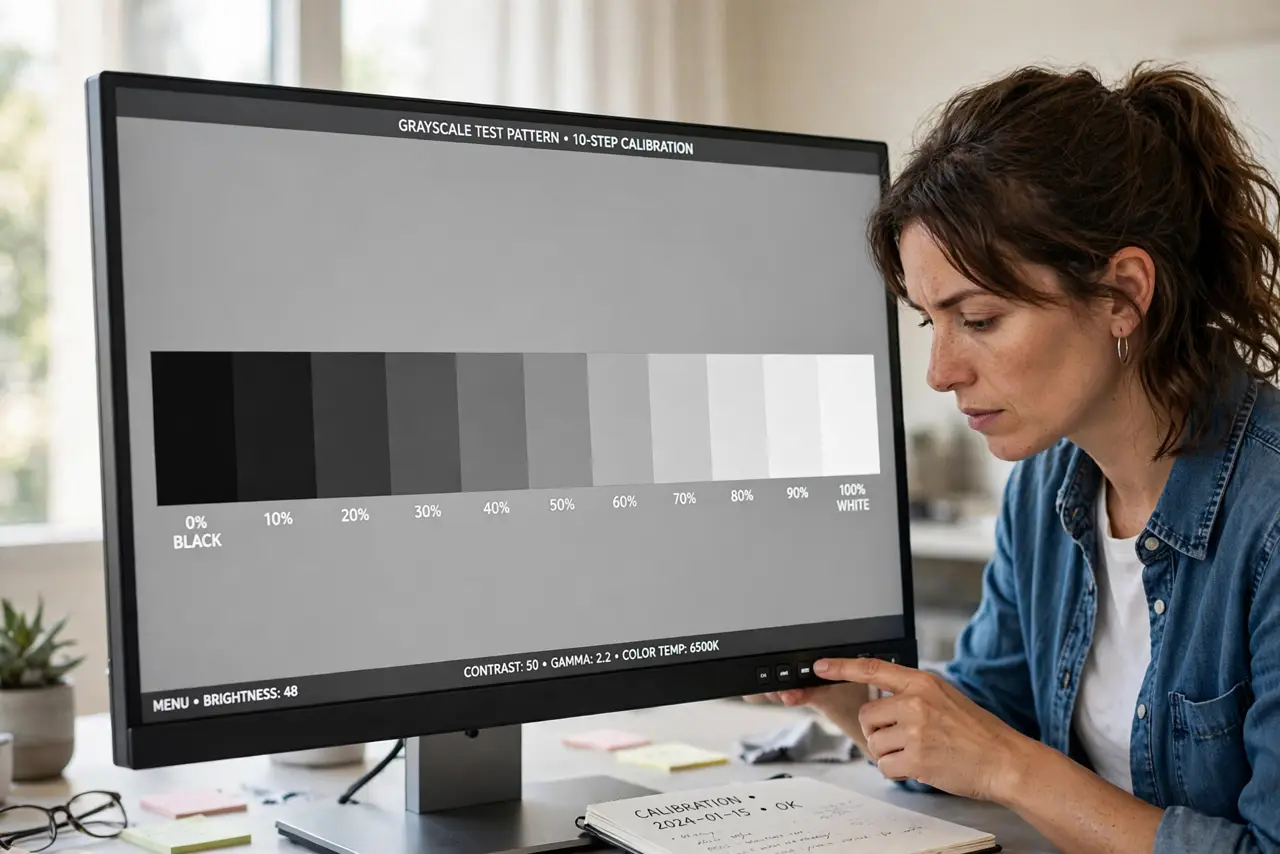
- Set brightness to your room. In a typical room, 30–50% brightness is right. Match the screen's white to a sheet of paper beside it — glaring white means too bright.
- Adjust contrast with a test pattern. Display a grayscale ramp and raise contrast until the brightest steps stay distinct. If dark grays crush together, lower it — detail at both ends is the goal.
- Fix the color temperature. 6500K (often labeled Warm or Normal) is the neutral standard. Cool presets look crisp but lie about every color — avoid them for color-sensitive work.
- Run the free OS wizard. Windows and macOS include guided calibration for gamma and grayscale — ten minutes, no purchases, big improvement. See the no-tool walkthrough for the full process.
- Buy a colorimeter for serious work. If you edit photos for clients or print, a hardware calibrator measures your actual panel and builds a precise profile. Nothing else comes close — see the Windows calibration guide for the software side.
What NOT to do
- Do not calibrate under colored room lighting. Warm lamps or RGB strips tint everything — calibrate in neutral light.
- Do not trust your eyes alone for paid work. Eyes adapt to anything; a colorimeter doesn't. Eyeballing is fine for browsing, not for clients.
- Do not leave Dynamic Contrast on. It shifts brightness scene by scene, making any calibration meaningless.
- Do not calibrate once and forget for years. Backlights drift with age — recheck yearly, or after any factory reset.
Frequently asked questions
How often should I recalibrate?
Yearly for serious work; backlights drift slowly. Casual users can set it once and forget it unless something looks off.
Is phone-app calibration legit?
Rough at best — phone cameras aren't colorimeters. Fine for a quick sanity check, not for real accuracy.
Why do prints never match my screen?
Uncalibrated screens lie about brightness and color. Calibrate first; if prints still mismatch, the print side needs profiling too.