Refresh Rate? Plain Explanation
Monitor boxes shout 60Hz, 144Hz, 240Hz — and the bigger number costs more. Refresh rate is simply how many times per second the screen redraws the image, and it controls how smooth motion looks. For office work the difference is subtle; for gaming it is night and day. Here is what the numbers mean and when paying extra is worth it.
TL;DR / Quick Fix
Quick fix: refresh rate is how many times per second the screen redraws — 60Hz is standard, 144Hz looks much smoother. You only benefit if your PC outputs enough frames and the higher rate is enabled in display settings. Office work is fine at 60-75Hz; gamers should aim for 144Hz.
Follow these steps
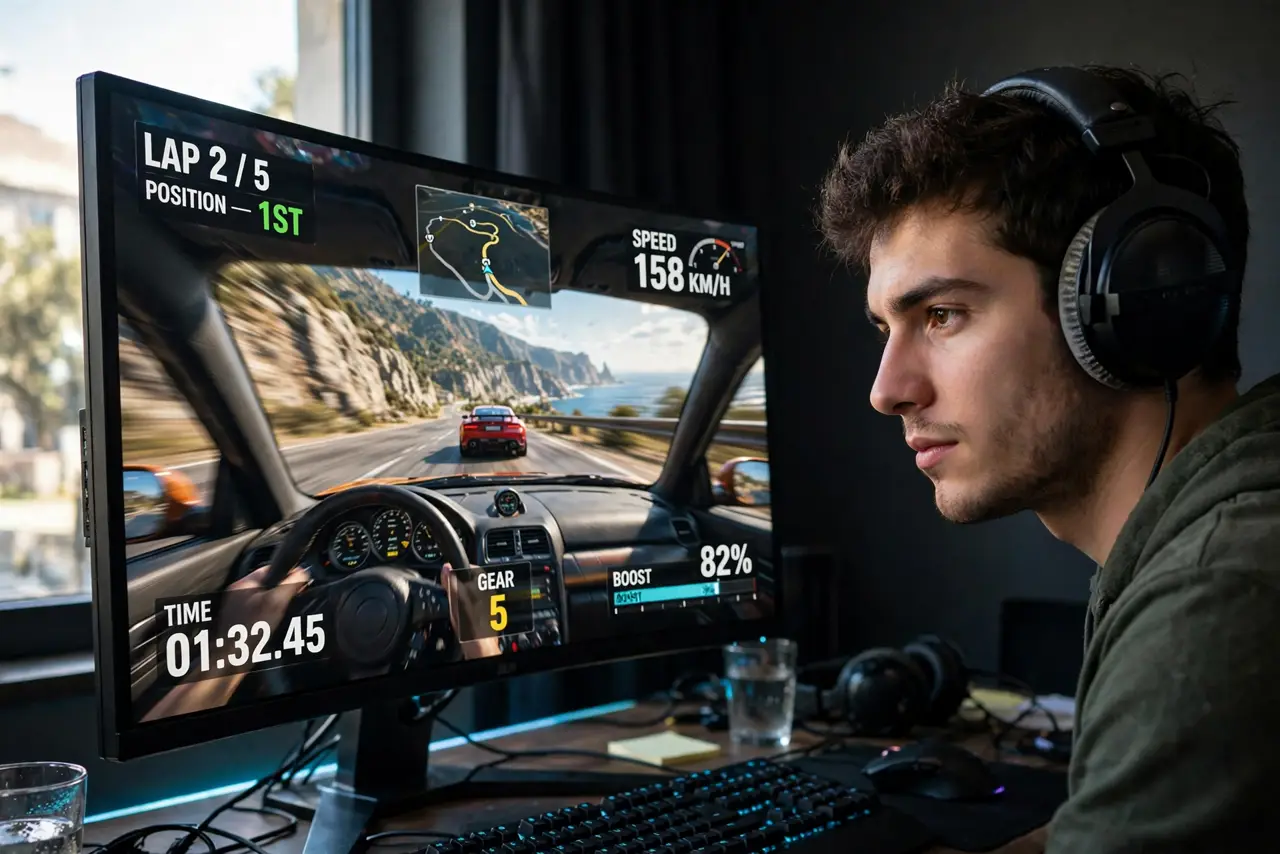
- Understand what the number means. 60Hz redraws 60 times per second; 144Hz redraws 144 times. Higher rates make motion — mouse cursors, scrolling, game action — look smoother and clearer. It does not make still images sharper; resolution handles that.
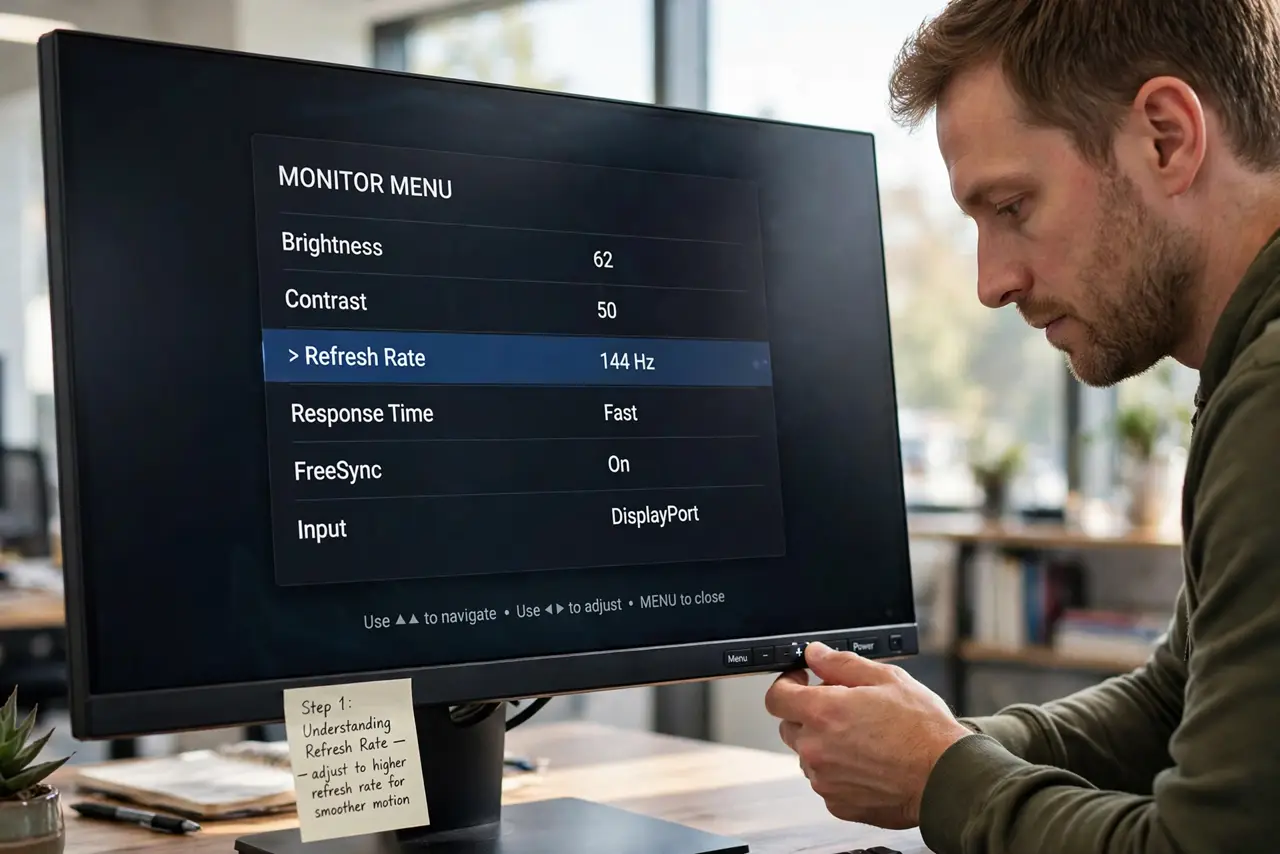
- Enable the higher rate manually. Many 144Hz monitors ship set to 60Hz — you must switch it in display settings (Windows: Advanced display; Mac: display settings). Also use a cable that supports it: HDMI and DisplayPort versions matter, so check the HDMI version guide if the option is missing.
- Match your PC's frame output. A 144Hz screen only shines when your PC renders near 144 frames per second. If your graphics card manages 60 fps in your games, a 144Hz monitor shows 60 fps — smooth enough, but you paid for unused headroom. Check your actual frame rates first.
- Know when 60Hz is enough. Word documents, spreadsheets, web browsing, and video (filmed at 24-60 fps) gain little from high refresh. If your days are office work and streaming, spend the budget on a better panel type instead of more hertz.
- Consider 120-144Hz for mixed use. The jump from 60 to 120/144 is the big one — everything feels snappier, even the mouse. Beyond 144 to 240Hz, gains shrink and mostly matter to competitive gamers. For most people, 144Hz is the sweet spot.
- Test with adaptive sync on. Screen tearing happens when frame rates and refresh rates mismatch; adaptive sync (FreeSync/G-Sync) fixes it by syncing the two. Enable it in both the monitor menu and your graphics settings for the smoothest result.
What NOT to do
- Do not buy 240Hz+ for office work expecting a revelation. Past 144Hz the gains are tiny outside competitive gaming — resolution and color matter more.
- Do not forget to change the setting after buying. A 144Hz monitor running at 60Hz is the most common high-refresh disappointment.
- Do not use an old cable and blame the monitor. Ancient HDMI cables cap you at 60Hz — the cable is part of the refresh-rate chain.
- Do not confuse refresh rate with response time. Refresh is redraws per second; response is how fast pixels change color — both affect motion clarity, separately.
Frequently asked questions
Is 144Hz worth it for non-gamers?
Mildly — scrolling and cursor movement feel smoother, which is pleasant all day. But it is a luxury for office work, not a need; a sharper or better-colored 60Hz screen is the smarter buy.
Why can't I select 144Hz in settings?
Three usual causes: the cable does not support it, you are on the wrong port, or the monitor needs the rate enabled in its own on-screen menu first. Check all three in that order.
Does higher refresh drain laptop battery?
Yes, somewhat — the GPU works harder. Many gaming laptops let you toggle between 60Hz and 144Hz; use 60Hz on battery for longer life.