Repaste Your CPU?
Your PC's fans scream under load and temperatures climb higher than they used to — dried-out thermal paste is a common culprit. Thermal paste fills the microscopic gaps between the CPU and its cooler, and after years it dries and loses effectiveness. Replacing it is cheap and straightforward, but it means removing the cooler, so it's worth knowing when it actually helps.
TL;DR / Quick Fix
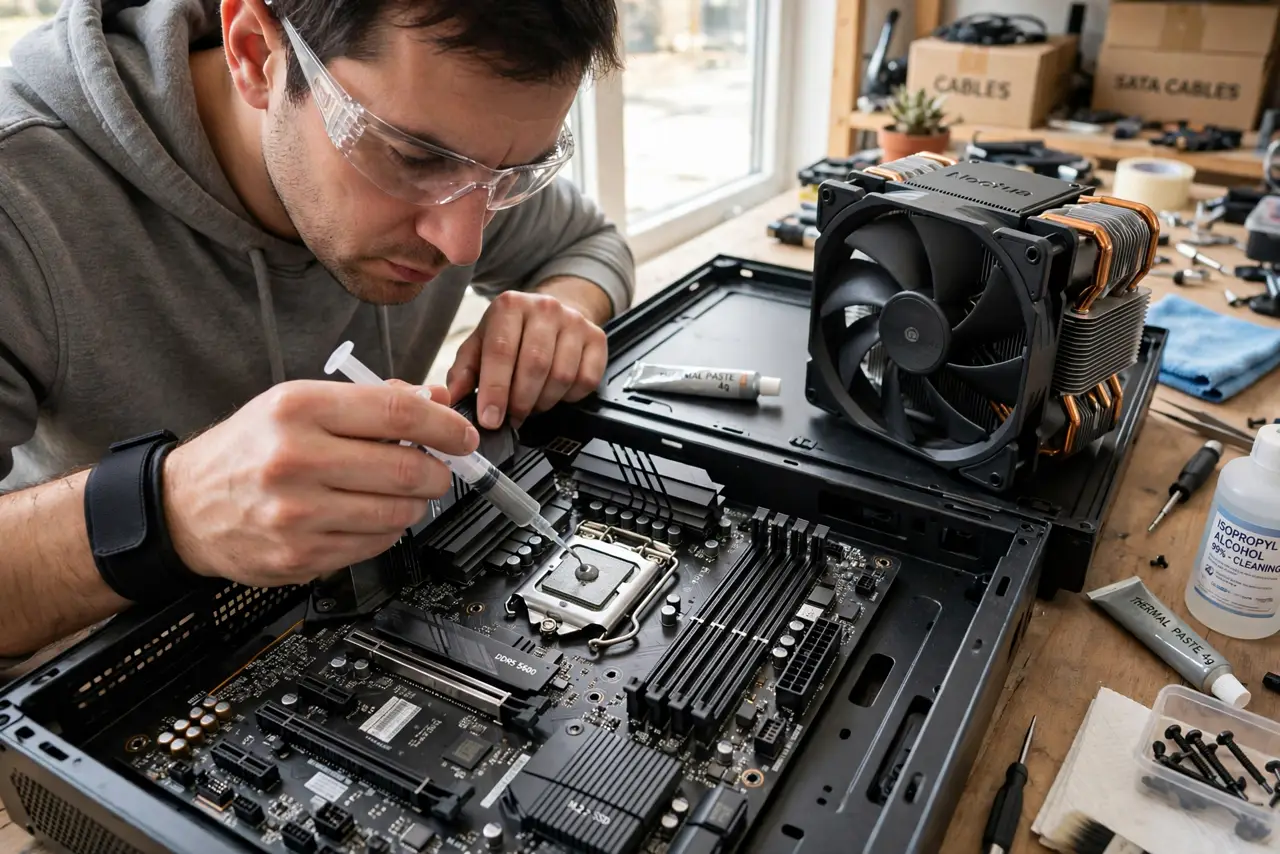
Quick fix: repaste if your CPU runs hot on an aging build or after removing the cooler — old paste dries out. Clean it off with isopropyl alcohol, apply a pea-sized dot of new paste, and reseat the cooler. Expect a 5–15°C drop.
Follow these steps
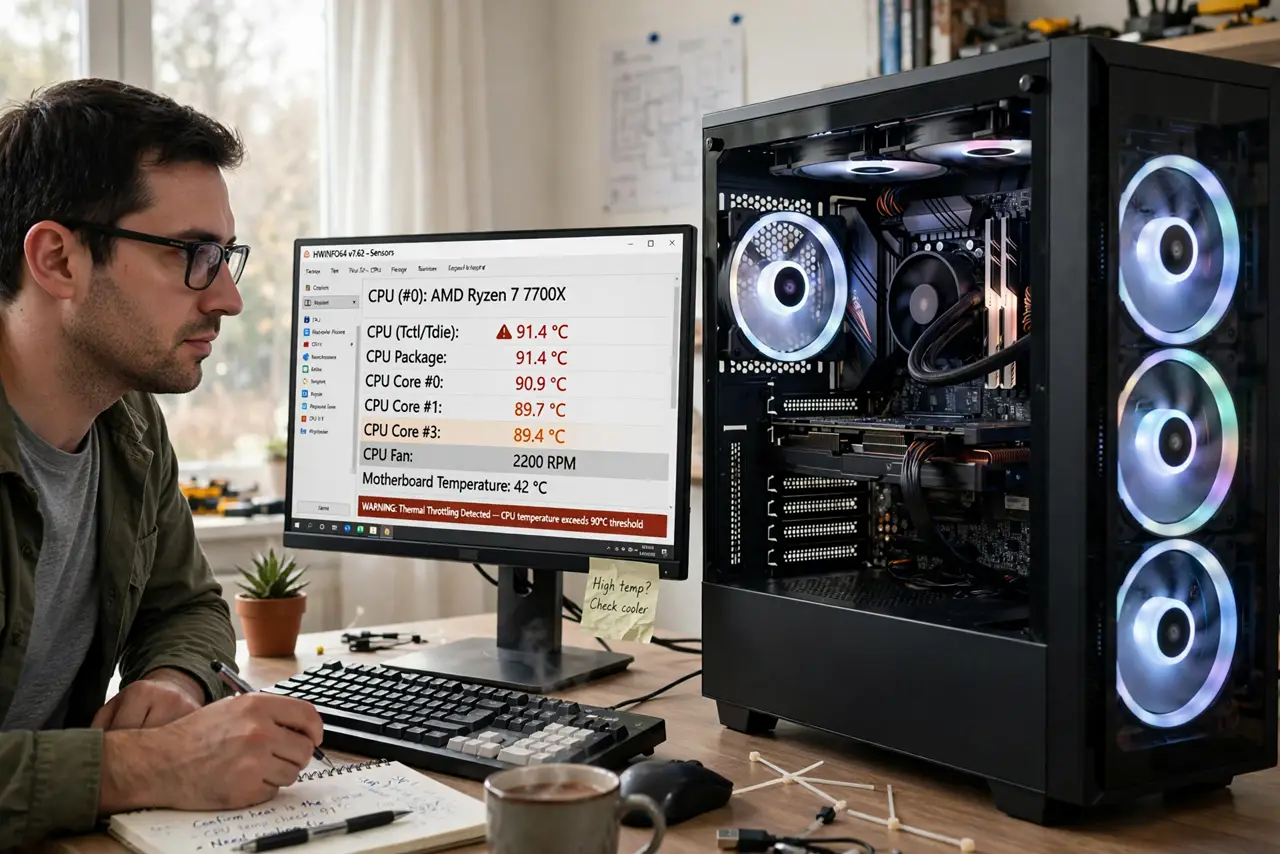
- Confirm heat is the problem. Check temperatures under load with a monitoring tool before opening anything. If the CPU only hits 70°C in games, paste isn't your issue — see throttling signs to read the symptoms correctly.
- Power down and ground yourself. Shut down, unplug the power cable, and touch the metal case to discharge static. Work on a clear table with good light — losing a tiny screw inside the case is a classic frustration.
- Remove the cooler carefully. Unclip or unscrew the cooler, then twist gently to break the seal — old paste can glue the cooler to the CPU. Never yank straight up, especially with AMD chips that can pull out of the socket.
- Clean both surfaces completely. Wipe old paste off the CPU and cooler base with isopropyl alcohol (90%+) and a lint-free cloth or coffee filter. Both surfaces should be mirror-clean — residue ruins the new application.
- Apply a pea-sized dot. Squeeze a pea-sized dot of paste in the center of the CPU — the cooler's pressure spreads it. More is not better; excess paste squeezes out and makes a mess. See how much paste if you're unsure.
- Reseat the cooler evenly. Lower the cooler straight down and tighten screws in a cross pattern, a little at a time. Then boot up and check temperatures — you should see the improvement within minutes under load.
What NOT to do
- Do not repaste a laptop as your first project. Laptop disassembly is far trickier than desktops — stripped screws and torn ribbon cables are common beginner casualties.
- Do not use conductive liquid metal unless you know exactly what you're doing. It performs better but can short-circuit components if it spreads — regular paste is safer.
- Do not spread the paste with a card or your finger. The pea-dot method plus cooler pressure gives the most even layer — manual spreading traps air bubbles.
- Do not power on with the cooler removed 'just to test'. A CPU without a cooler overheats in seconds — always reseat the cooler before booting.
Frequently asked questions
How often should I repaste?
Every 3–5 years for most desktops, or whenever you remove the cooler. Quality paste lasts a long time — if temperatures are fine, don't fix what isn't broken.
Can old paste damage my CPU?
Dried paste itself doesn't damage anything, but the resulting heat can cause throttling and, over long periods, reduce component lifespan. High sustained temperatures are the real enemy, not the paste.
Is the stock cooler paste good enough?
Yes — the pre-applied paste on stock and most aftermarket coolers is perfectly fine. Repasting only beats it once the original has aged, or if you're chasing lower temperatures with premium paste.