Try a Hardware Security Key
Your passwords are strong and your authenticator app is set up, but phishing still keeps you up at night — one clever fake login page and the codes go to the attacker too. A hardware security key is a little USB device that makes phishing nearly impossible: it only answers the real site, and there is nothing to type or intercept. Here is how to start.
TL;DR / Quick Fix
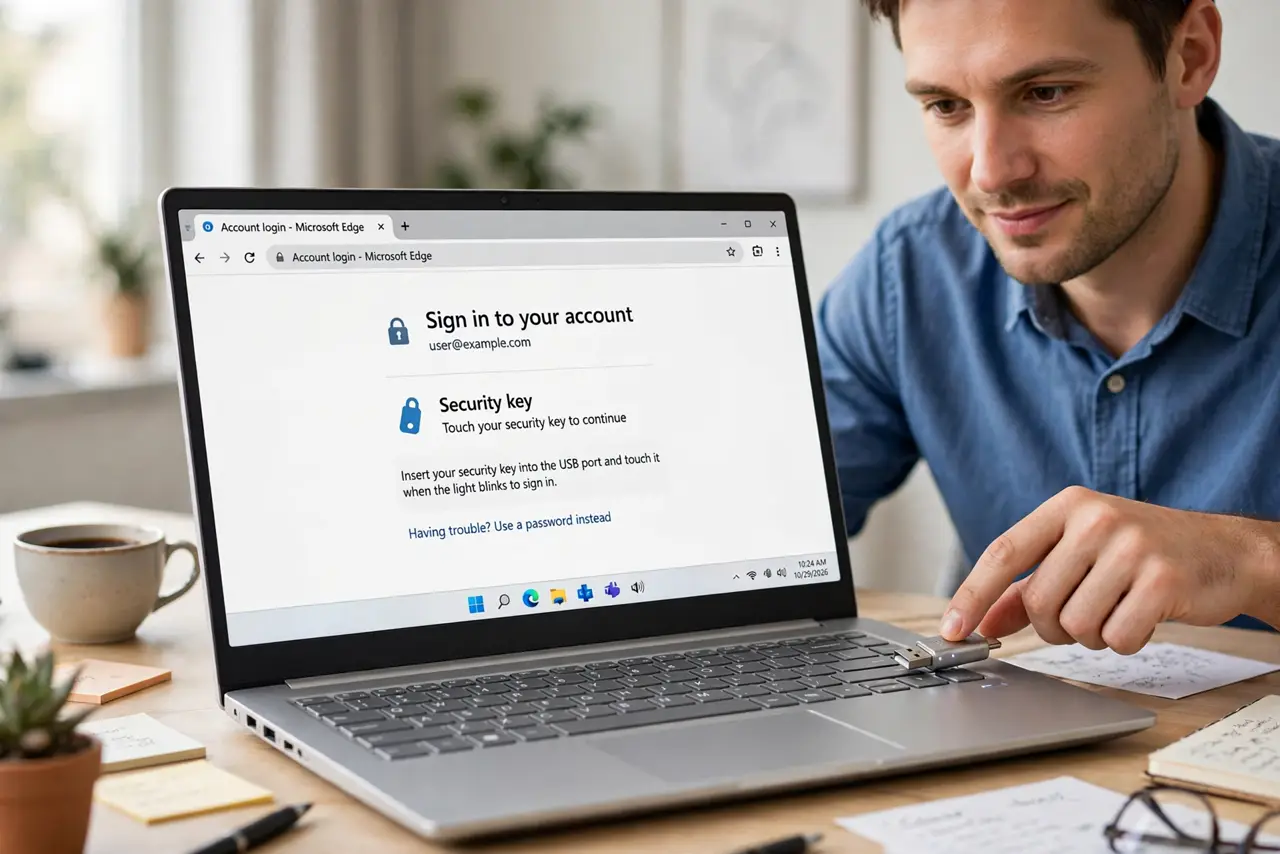
Quick fix: buy a reputable security key from a known maker, register it in your most important account's security settings, and keep a backup key in a safe place. Logging in becomes: enter password, tap the key. Start with email — it guards every password reset you will ever do.
Follow these steps
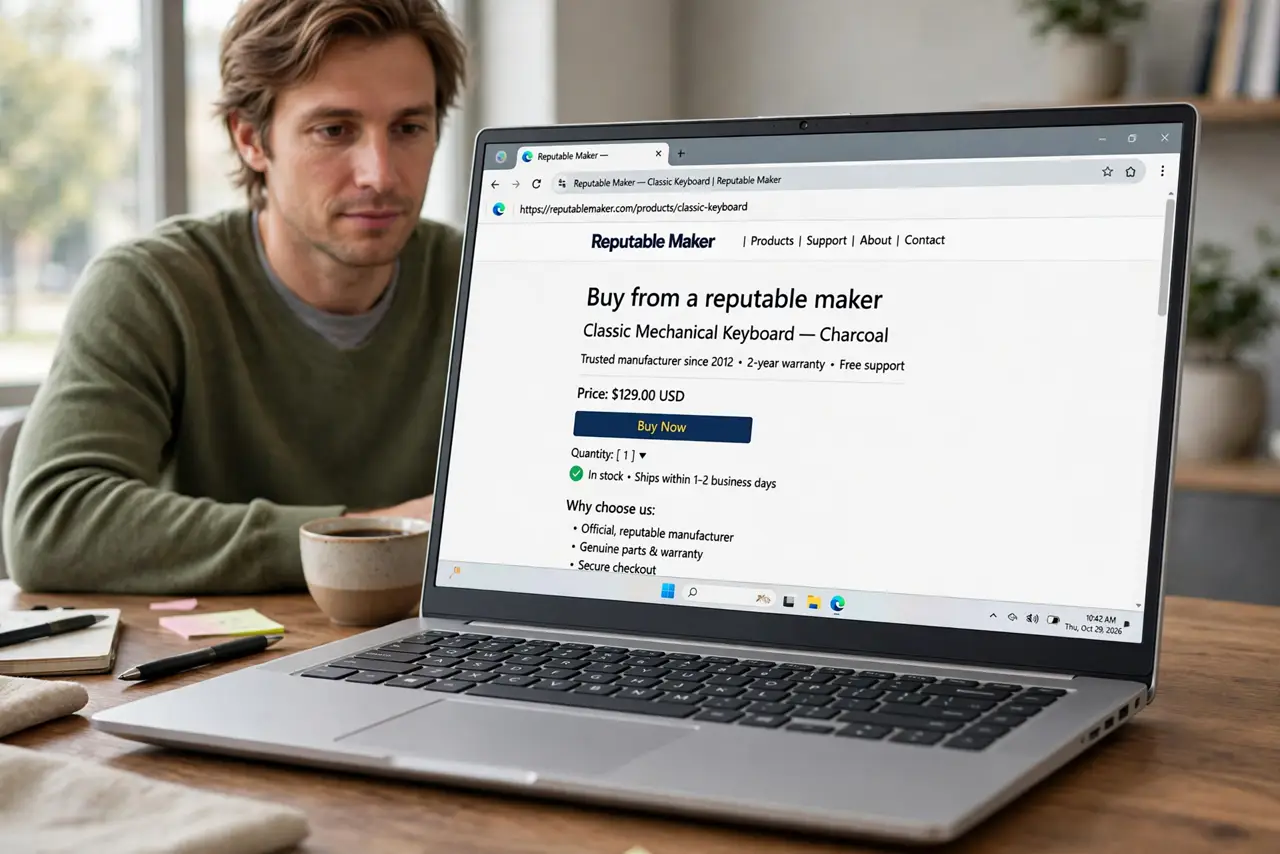
- Buy from a reputable maker. Get a key from an established brand, from the maker or a trusted retailer — not a no-name listing. This device guards your accounts; counterfeits are a real risk in this category.
- Register it on your email first. Go to your email account's security settings, choose to add a security key, and follow the prompts — insert, tap, done. Email first, because every other account's password reset flows through it.
- Add it to your other critical accounts. Banks, password managers, cloud storage — anywhere it is offered under two-factor or security key options. Each registration takes about a minute once you know the flow.
- Buy and register a backup key. Two keys, both registered everywhere. If one is lost or breaks, the other logs you in with zero drama. A single key with no backup is a future lockout.
- Store the backup sensibly. Keep the backup key somewhere safe but reachable — a drawer at home, not a safe deposit box you visit yearly. 'Safe' that you cannot reach in an emergency is just lost.
- Know the daily feel. Day to day it is: type password, tap key when it blinks. Slightly slower than an app code, vastly safer — and unlike app codes, it cannot be phished.
What NOT to do
- Do not buy a no-name key from a random listing. Counterfeit keys are a documented attack vector — brand and retailer matter here.
- Do not register only one key. A single key is a single point of failure; the backup key is not optional.
- Do not store the backup with the primary. Both in the same laptop bag means one theft takes both — separate them.
- Do not skip registering it on email. The fanciest key on a secondary account while email sits unprotected misses the point.
Frequently asked questions
How is this better than my authenticator app?
App codes can be phished — you type them into the fake site yourself. A key cryptographically verifies the real site before answering, so phishing pages get nothing. See the detailed comparison.
What if I lose the key?
That is what the backup key is for — register two from the start. Most services also offer recovery codes as a third fallback.
Do I still need a password?
Usually yes — the key is the second factor, replacing the app code. Some sites now offer passwordless login with just the key plus a PIN.