SMART Warnings? What They Mean
Your PC pops up a warning: 'SMART failure predicted on hard disk.' It sounds like robot gibberish, but it is actually your drive telling you it is dying — in advance. SMART is the self-monitoring system built into every modern drive. Here is how to read its warnings and what to do.
TL;DR / Quick Fix
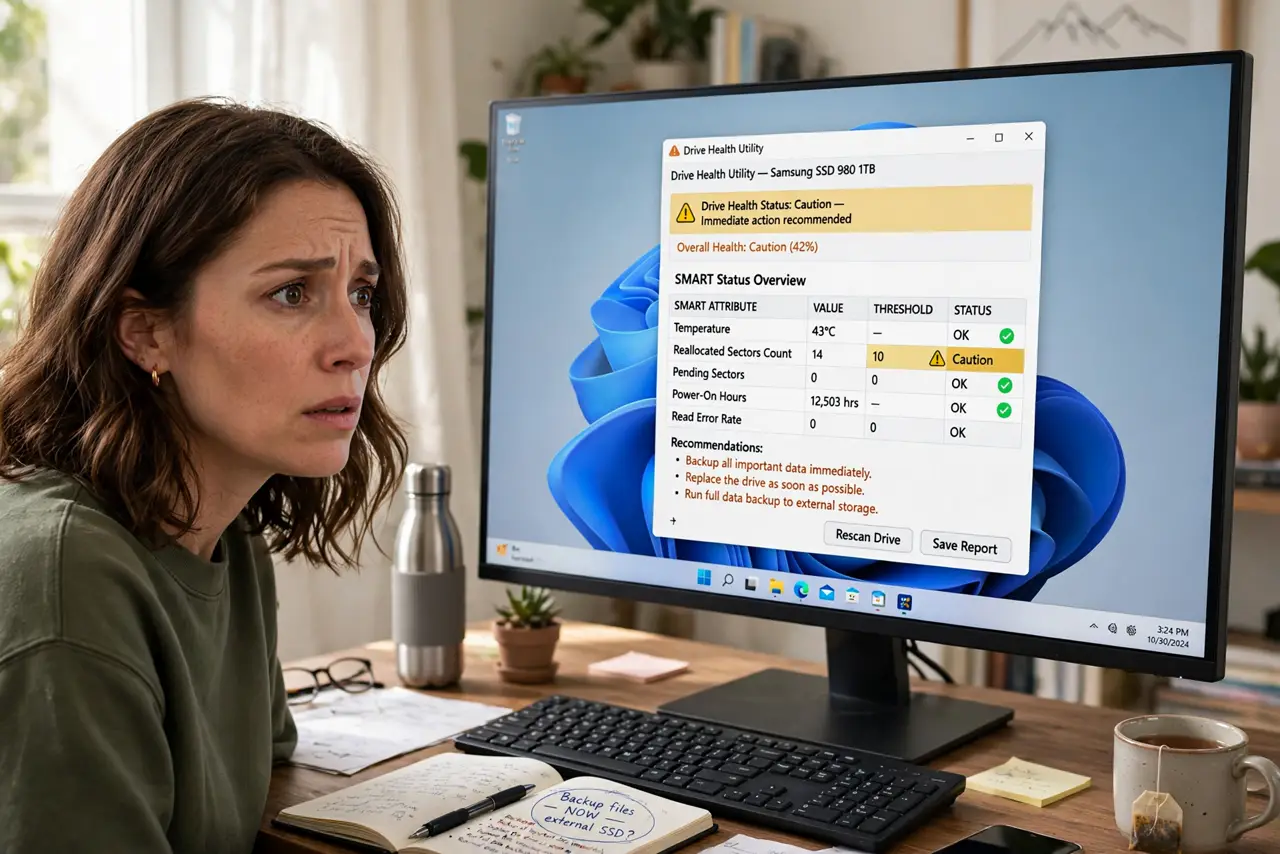
Quick fix: a SMART warning means the drive predicts its own failure — back up immediately, then replace the drive. Do not ignore it; 'predicted failure' is right most of the time. Check drive health yearly with the maker's tool. Warnings are a gift of time — use it.
Follow these steps
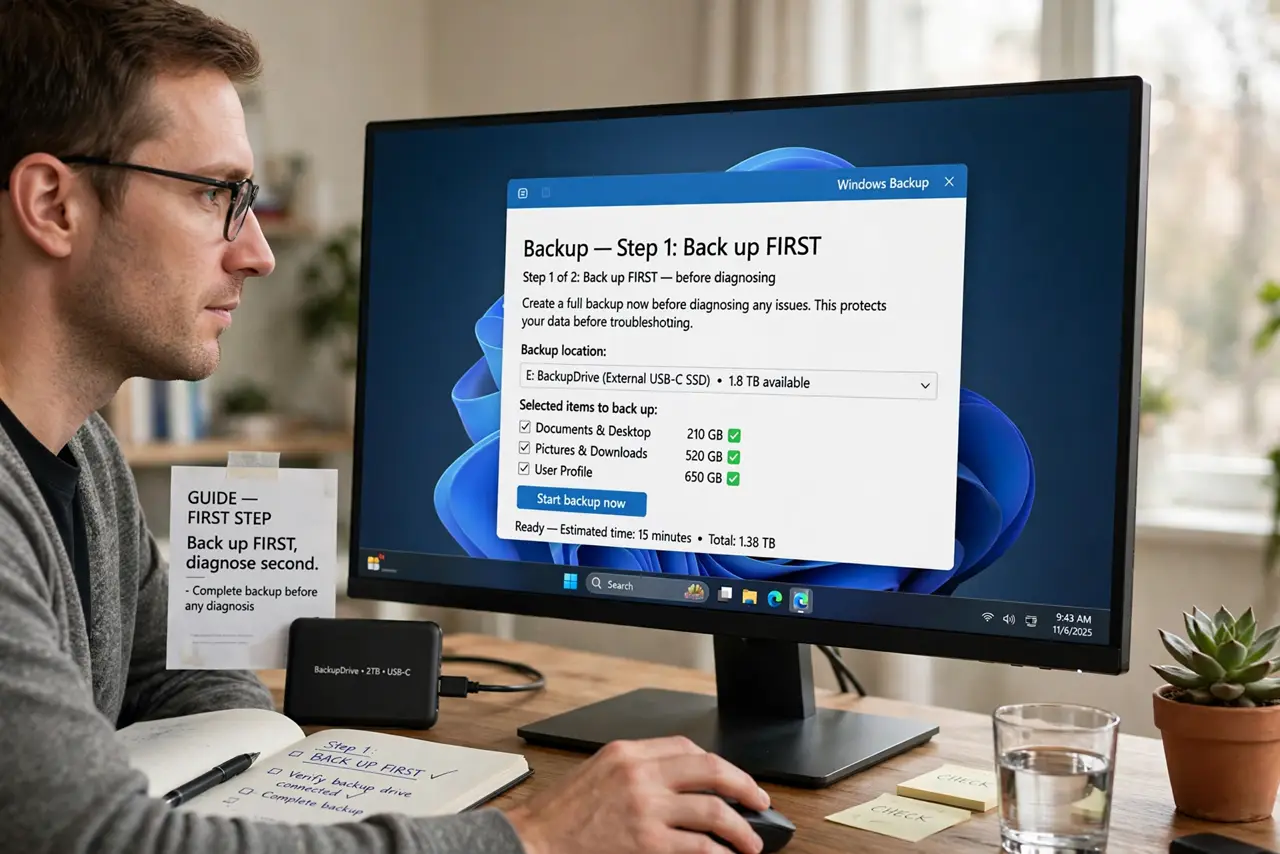
- Back up FIRST, diagnose second. A SMART warning is a countdown, not a discussion topic. Copy irreplaceable files before running any tests — see data recovery basics if it is already too late.
- Learn what SMART watches. Reallocated sectors, spin retries, temperature history, wear level on SSDs. The drive tracks its own decay and flags trends, not just sudden death.
- Read the actual attributes. The maker's tool or a health utility shows which attribute tripped. 'Reallocated sector count' rising means the drive is burning through its spares.
- Do not 'fix' a failing drive. Bad-sector remapping tools and low-level formats do not heal hardware. They hide the warning while the decay continues.
- Replace, do not repurpose. A SMART-flagged drive is not a 'backup drive' — it is a drive that will eat your backup. Retire it to non-critical duty at most.
- Check health yearly. A quick annual SMART check catches slow decay early. Five minutes once a year beats one panicked weekend.
What NOT to do
- Do not dismiss the warning because 'it still works.' SMART predicts; the drive dies on its own schedule, usually soon.
- Do not run intensive 'repairs' on a flagged drive. Stress-testing a dying drive can finish it off mid-backup.
- Do not trust a flagged drive with your only copy of anything. That is the one job it has proven it cannot do.
- Do not confuse SMART with a virus warning. It is hardware telemetry — antivirus cannot help and 'cleaning' is irrelevant.
Frequently asked questions
How accurate are SMART warnings?
Good enough to act on — predicted failures usually fail. False alarms happen, but betting against the warning is a bad gamble.
Do SSDs have SMART too?
Yes — with SSD-specific attributes like wear leveling count and spare blocks remaining. Same rule: back up, then replace.
Can I turn the warning off?
You can disable it in BIOS, but that is shooting the messenger. The drive still fails; you just lose the heads-up.