Sound Cards? Basics
A sound card turns digital audio into the analog signal your headphones and speakers actually play — and every PC already has one built into the motherboard. So why do separate sound cards exist? For most people the built-in audio is fine; dedicated cards matter for recording, high-end headphones, and cutting electrical noise. Here is when one is worth your money and when it is not.
TL;DR / Quick Fix
Quick fix: most people do not need a separate sound card — modern motherboard audio is good. Buy one only if you hear buzzing, drive demanding headphones, or record audio seriously. A USB audio interface beats an internal card for recording.
Follow these steps
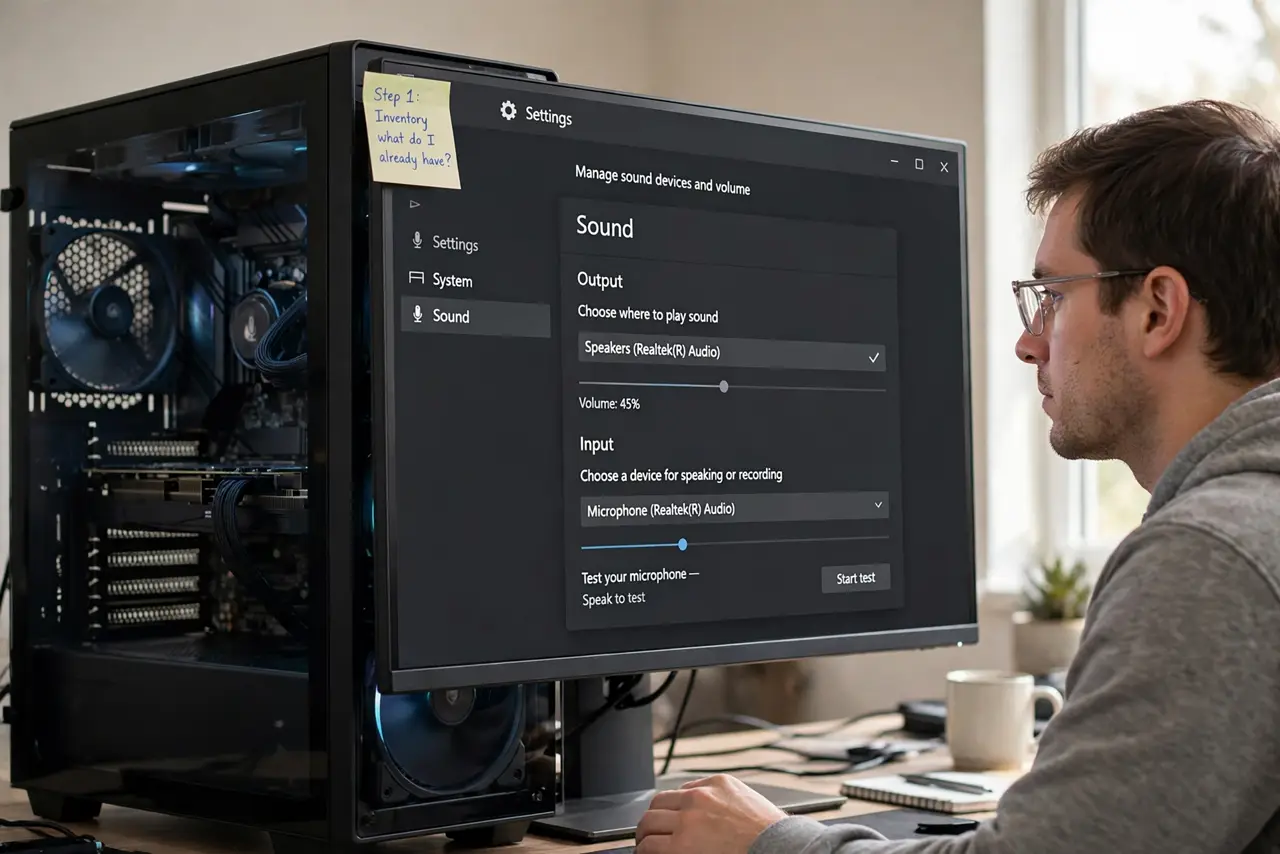
- Understand what you already have. Every motherboard includes a sound chip that handles everyday audio well. Before spending money, confirm the built-in audio is actually the problem — a headset not detected is usually drivers, not hardware quality.
- Identify the real reasons to upgrade. Three valid reasons: audible electrical noise (buzzing that changes with GPU load), high-impedance headphones the onboard chip cannot drive loudly, and serious recording work. 'Better sound' alone is rarely audible.
- Consider a USB DAC instead. An external USB DAC or headphone amplifier sits outside the electrically noisy PC case, which is exactly where interference comes from. It needs no installation and moves between computers — simpler than an internal card for most buyers.
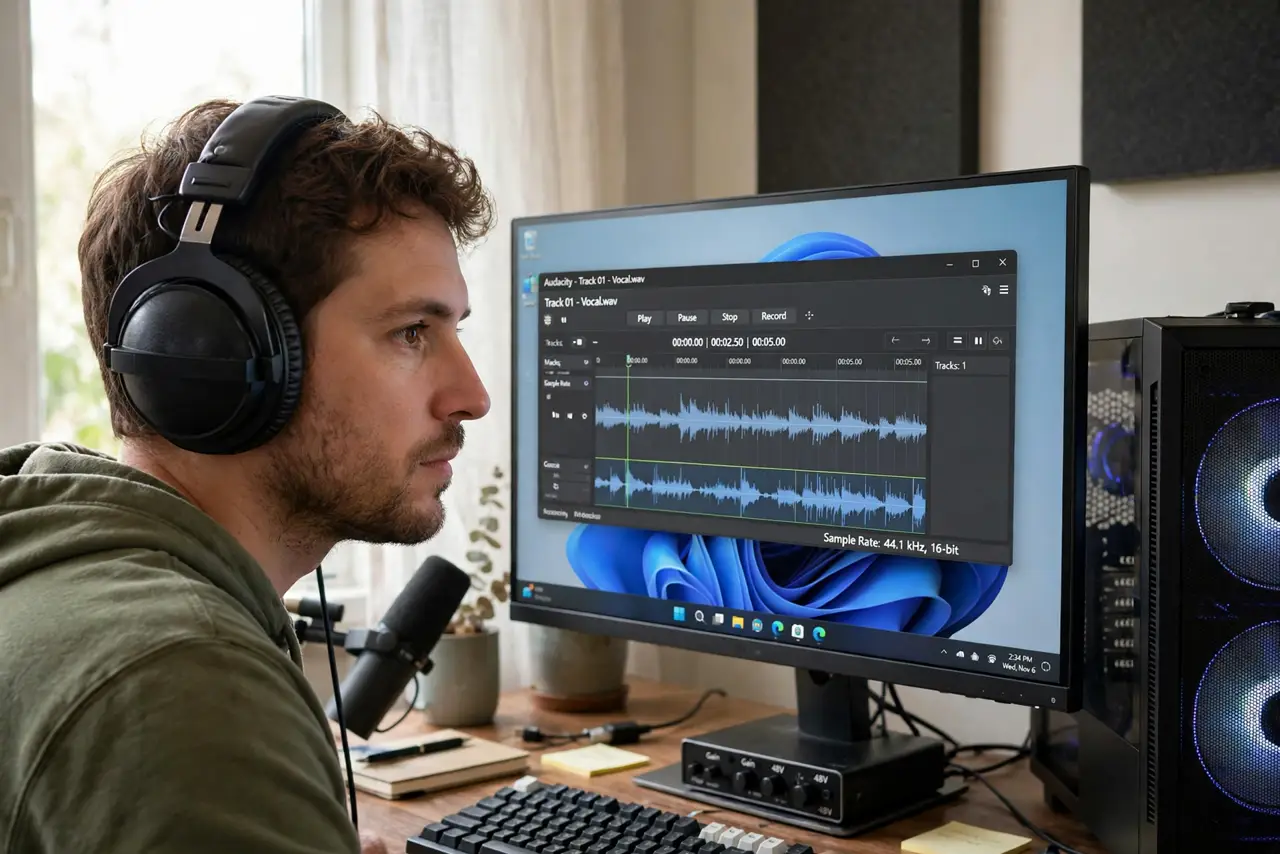
- Consider an audio interface for recording. If you record voice or instruments, a USB audio interface with proper microphone preamps beats any internal sound card. Creators should look at interfaces, like a USB vs XLR mic choice, not gamer sound cards.
- Check compatibility before buying internal. Internal cards need a free PCIe slot and driver support for your OS. Measure clearance around your graphics card — big GPUs block neighboring slots more often than people expect.
- Install drivers from the maker. Windows generic drivers work, but the maker's driver unlocks the card's features and fixes quirks. Download from the manufacturer's site, not a driver-aggregator site.
What NOT to do
- Do not buy a sound card for 'better Spotify.' Streaming audio differences are inaudible on typical gear — your headphones matter far more.
- Do not ignore electrical noise sources. Buzzing from a GPU can follow you to a new card if the real culprit is grounding or cables.
- Do not buy internal if you just need louder headphones. A small USB headphone amp solves that for less money and zero installation.
- Do not expect miracles from gaming-branded cards. Virtual surround marketing rarely beats a good headphone and clean source.
Frequently asked questions
Do I need a sound card for gaming?
No. Modern onboard audio handles games perfectly, and most gaming headsets are USB with their own processing. Spend the money on better headphones instead.
What is the difference between a sound card and a DAC?
A sound card is usually internal and handles input and output; a DAC is usually external and converts digital to analog for output only. For listening, a DAC is the simpler upgrade.
Why do I hear buzzing in my headphones?
Usually electrical interference inside the PC case or a ground loop. An external USB DAC breaks the interference path and is the most reliable fix.