Student Laptop Specs? The Minimum
Schools publish minimum specs, retailers push maximum prices, and parents get stuck in the middle. The truth is that most schoolwork — documents, research, video classes, light coding — needs far less machine than the upsell suggests. Here are the genuine minimums that will survive four years of school, and where spending more actually helps.
TL;DR / Quick Fix
Quick fix: the real student minimum is a modern processor, 8 GB of RAM (16 GB if soldered), a 256–512 GB SSD, and Wi-Fi 6. Battery life over 8 hours matters more than raw speed. Skip the gaming GPU and 4K screen — they add cost and weight, not grades.
Follow these steps
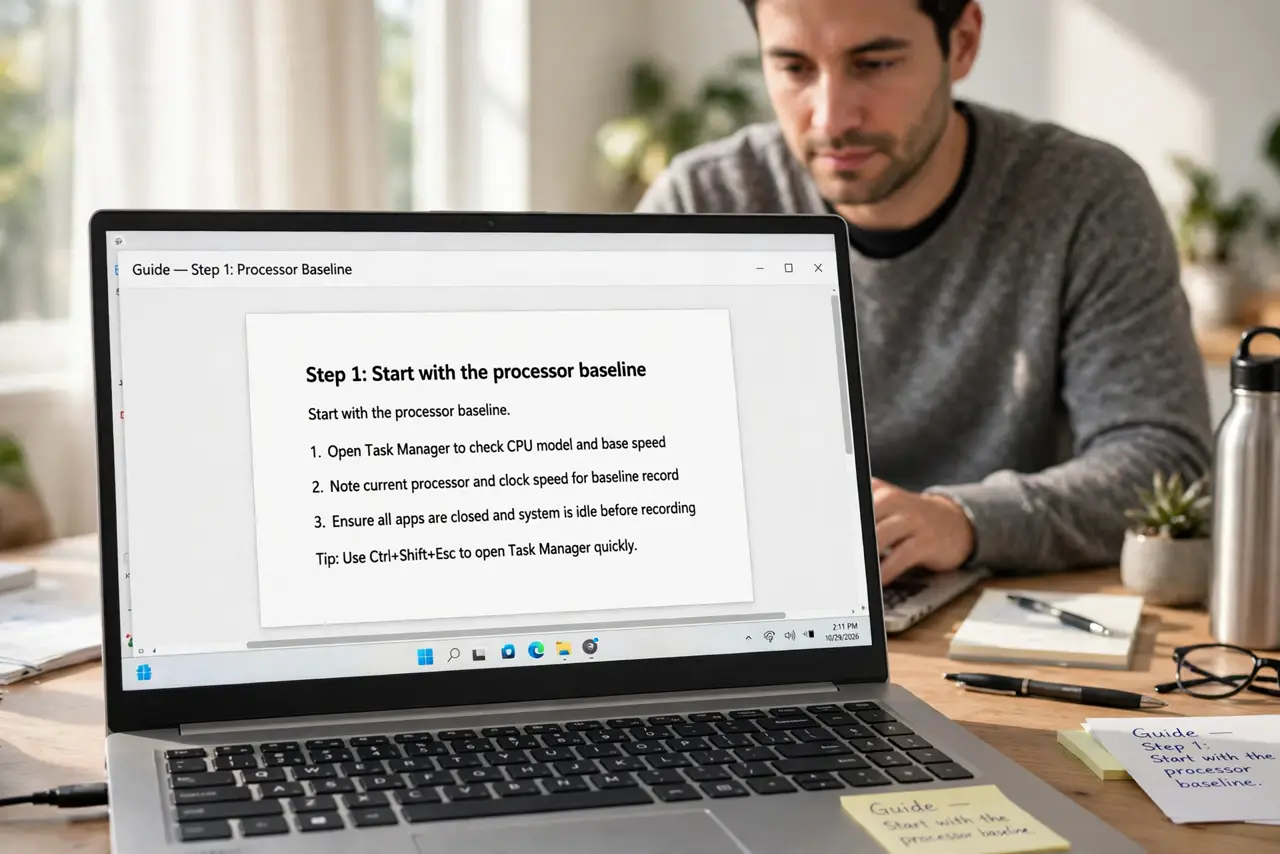
- Start with the processor baseline. Any current-generation i3/Ryzen 3 or better handles schoolwork. Do not pay for i7/Ryzen 7 for essays and Zoom — the money is better spent on RAM or battery.
- Get 8 GB RAM minimum, 16 if soldered. School multitasking — research tabs, video calls, documents — is exactly where 8 GB copes and 16 GB breathes. See the full 8 vs 16 breakdown before deciding.
- Insist on an SSD. A spinning hard drive in a student laptop in 2026 is disqualifying — boot times and app launches suffer daily. 256 GB suffices for cloud-first students; 512 GB is the comfort pick.
- Prioritize battery life. Eight-plus hours of real battery means no charger anxiety between classes. Manufacturer claims are optimistic — check independent reviews for measured life.
- Check the school's actual requirements. Some programs mandate specific software — engineering, design, and film courses may need Windows-only apps or real GPU power. Buy to the requirement, not the fantasy.
- Weigh durability and weight. A laptop that travels daily should survive drops and weigh under 1.5 kg. Business-class refurbished machines are the value pick here.
What NOT to do
- Do not buy a Chromebook for programs needing Windows or Mac software. Check software requirements first — a cheap machine that cannot run the coursework is the most expensive mistake.
- Do not pay for a gaming laptop for a non-gaming student. The GPU adds hundreds of dollars, kilograms, and fan noise for zero academic benefit.
- Do not ignore the keyboard and screen. A student types and stares for hours daily — a bad keyboard or dim screen is a daily tax on their work.
- Do not buy the absolute cheapest new laptop. The bottom tier cuts corners on screen, battery, and build that make four years miserable — refurbished business-class beats new bargain-bin.
Frequently asked questions
Mac or Windows for a student?
Either works for most coursework — decide by the school's software requirements and the student's familiarity. Do not switch ecosystems without a reason.
Is a tablet with keyboard enough?
For note-taking and light work, sometimes. For real papers, research multitasking, and specialized software, a real laptop still wins.
When should we buy?
Back-to-school sales are real, but need beats timing — a student starting now needs a machine now. Buy when the old one fails, not when the ads peak.