USB Hubs? Basics
Modern laptops ship with two ports and a dream — a USB hub gives you back the USB-A ports, card readers, HDMI, and Ethernet that vanished. But hubs vary wildly: powered vs unpowered, real USB 3 speeds vs old USB 2 in disguise, video that works vs video that does not. This guide shows what to check before buying.
TL;DR / Quick Fix
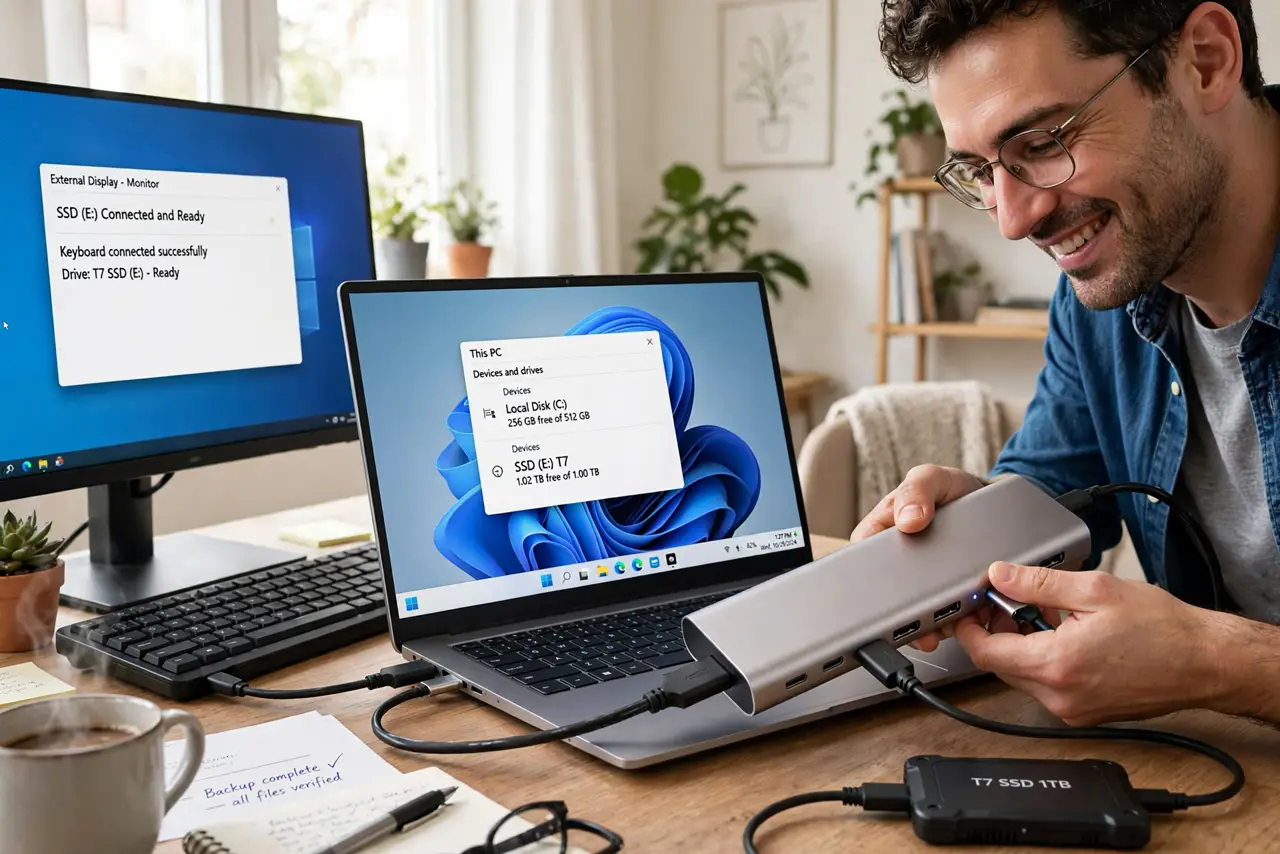
Quick fix: a USB hub adds the ports your laptop lacks — USB-A, HDMI, card readers — over one connection. Get a powered hub if you plug in drives or charge through it. Check video and power passthrough before buying. For one-cable docking, a Thunderbolt dock is the step up.
Follow these steps
- List what you need to plug in. Count your devices: mouse receiver, keyboard, external drive, SD cards, monitor. Buy for that list plus one spare port — hubs fill up fast.
- Choose powered or unpowered. Unpowered hubs suit keyboards, mice, and flash drives. Anything hungrier — spinning hard drives, charging phones — wants a powered hub with its own wall adapter. See the powered vs unpowered difference for the full breakdown.
- Match the host connection. A USB-C hub needs a USB-C port; USB-A hubs fit older laptops. Adapters between them work but add bulk and failure points — buy native to your laptop's ports.
- Check the real data speed. Look for USB 3.0/3.2 (5 Gbps+) on the ports you will use for drives. Some cheap hubs hide USB 2.0 ports that crawl with external SSDs — read the fine print.
- Verify video and power passthrough. Not all hubs do video — confirm HDMI/DisplayPort support and the max resolution. If you want charging through the hub, check its power-delivery wattage against your laptop's charger.
- Mind the cable. The hub's built-in cable should comfortably reach your laptop without strain. Short, stiff cables turn the hub into an awkward dongle hanging off the side.

What NOT to do
- Do not buy the cheapest hub for important work. Bargain hubs drop drives mid-transfer and overheat — spend a little more for the thing holding your data.
- Do not run a spinning hard drive off an unpowered hub. It will click, disconnect, or corrupt — hungry devices need their own power.
- Do not assume every port does everything. On many hubs only specific ports handle video or fast charging — check the labels, not just the port count.
- Do not daisy-chain hubs. Hub-into-hub works until it mysteriously does not — one good hub beats two cheap ones chained.
Frequently asked questions
Why does my drive keep disconnecting from the hub?
Almost always power — the hub cannot feed a hungry drive. Switch to a powered hub or plug the drive directly into the laptop.
Can a hub charge my laptop?
Only if it supports USB-C power delivery passthrough at your laptop's wattage. Check both numbers; many cheap hubs pass no power at all.
USB hub vs docking station?
A hub expands ports cheaply; a dock (especially Thunderbolt) adds serious video, Ethernet, and high-wattage charging. Heavy desk setups deserve the dock.