USB Versions? Plain Guide
USB 2.0, 3.0, 3.1, 3.2, USB4 — the version numbers sound like a software update gone wrong, and the names keep getting renamed. These versions define how fast data moves and how much power flows through the port. Matching the right version to your task is the difference between a backup that takes minutes and one that takes all night. Here is the plain translation.
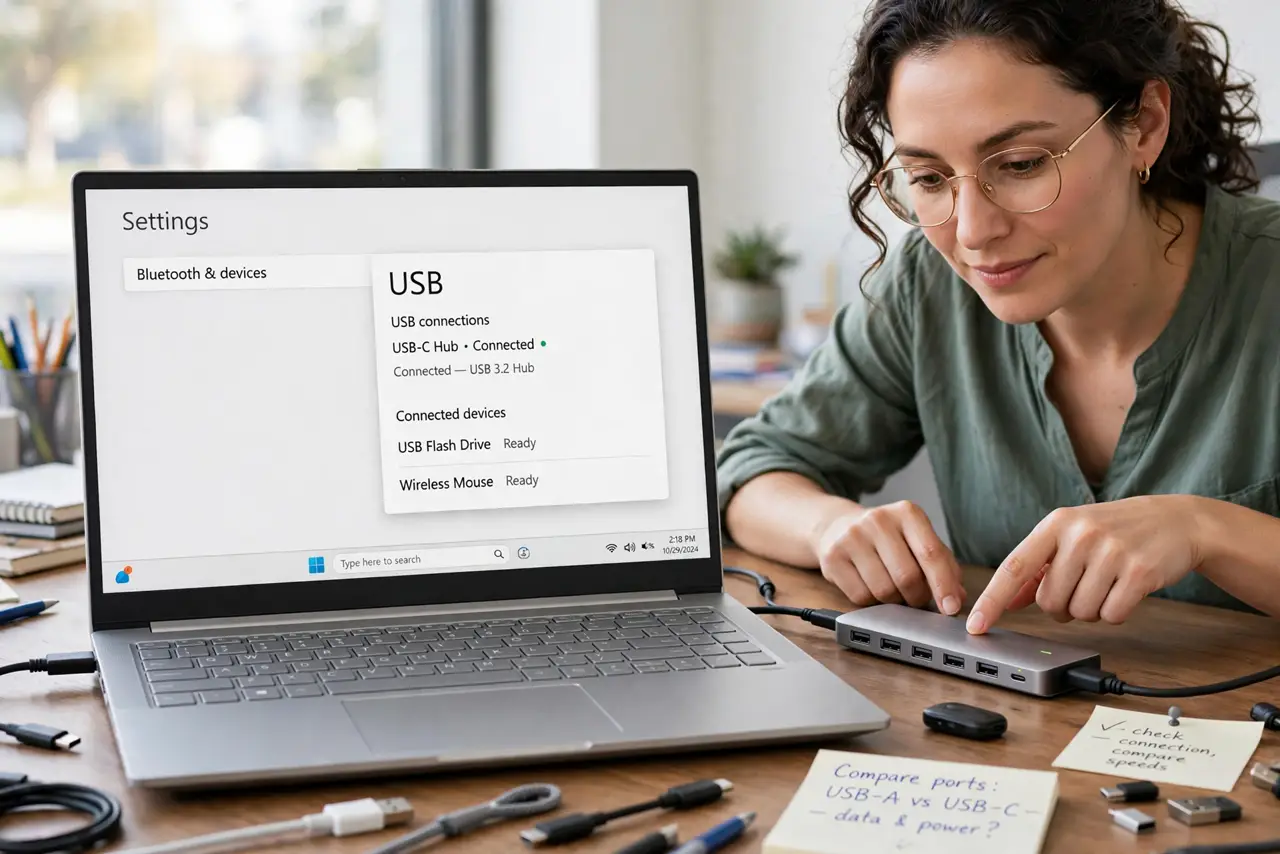
TL;DR / Quick Fix
Quick fix: USB 2.0 is slow (480 Mbps) — fine for keyboards and mice. USB 3.x (5–20 Gbps) is what you want for drives and backups. USB4 (40 Gbps) is the newest and fastest. Everything is backward compatible — you get the speed of the slowest link.
Follow these steps
- Learn the speed ladder. USB 2.0 moves 480 Mbps — fine for a mouse, painful for a backup. USB 3.x ranges from 5 to 20 Gbps depending on the generation. USB4 hits 40 Gbps. Each step up is roughly a 10x jump in real transfer speed.
- Ignore the silly renamed names. USB 3.0 was renamed USB 3.1 Gen 1, then USB 3.2 Gen 1 — all the same 5 Gbps speed. Manufacturers love the confusion; just look for the Gbps number and ignore the marketing name.
- Remember the slowest link rules. A USB4 drive on a USB 2.0 port runs at USB 2.0 speed. The port, the cable, and the device all negotiate down to whatever the weakest one supports.
- Use the right version for the job. Keyboards, mice, and printers: any version works. External SSDs and big backups: USB 3.x minimum. Docks driving monitors: USB4 or Thunderbolt.
- Identify your ports. USB 3.x ports often have blue plastic inserts; USB4/Thunderbolt ports carry a lightning-bolt symbol. When in doubt, your computer's specs page lists each port's version exactly.
- Do not pay for speed you cannot use. A USB4 cable and dock are wasted on a laptop with only USB 3.2 ports. Match your accessories to the ports you actually own — check first, buy second.
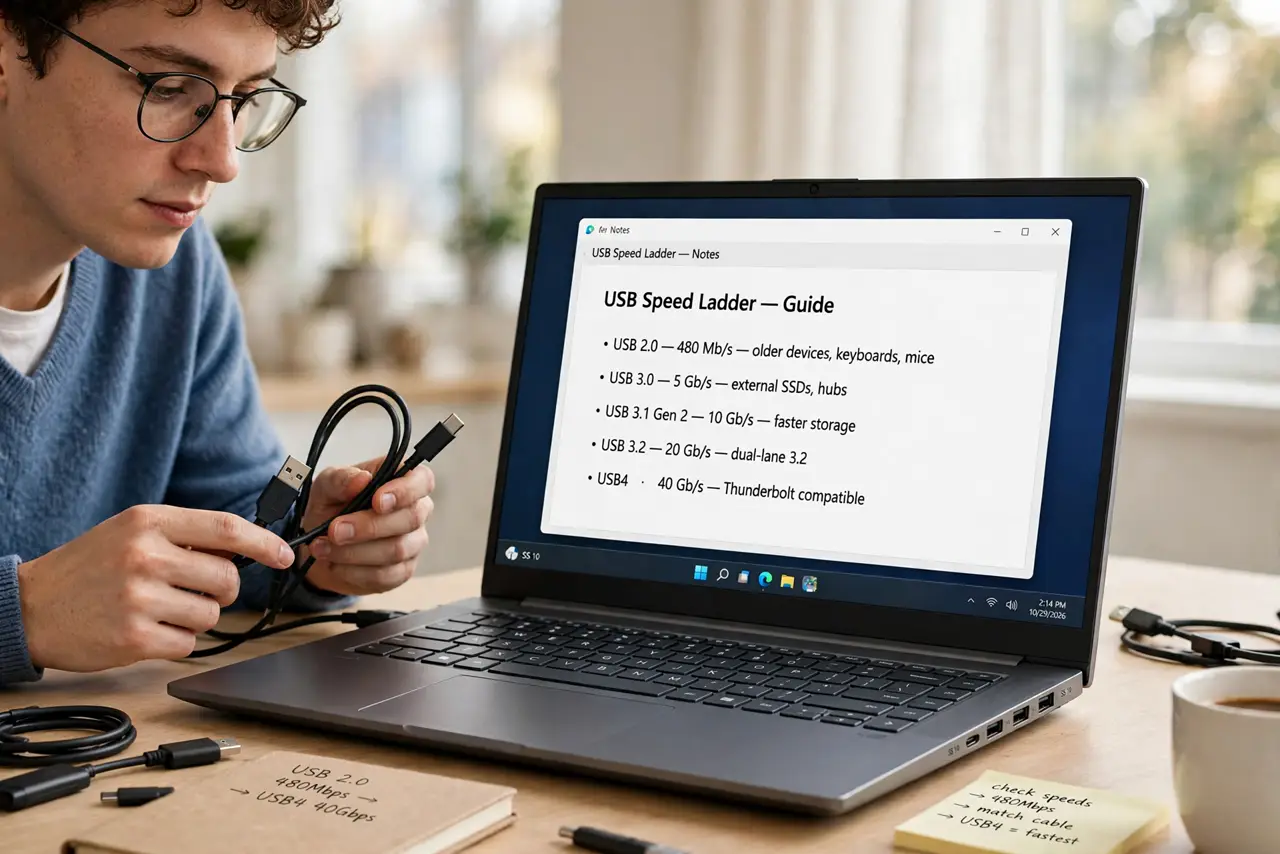
What NOT to do
- Do not assume a USB-C port means the newest version. USB-C is just the connector shape — the port inside can be USB 2.0 speed.
- Do not buy a USB4 dock for a USB 3.x laptop. You will pay double for speed the laptop cannot deliver.
- Do not daisy-chain through old hubs for big transfers. One USB 2.0 hub in the chain throttles everything behind it.
- Do not toss old USB 2.0 cables for slow devices. A keyboard gains nothing from a fancy cable — save the good ones for drives.
Frequently asked questions
Is Thunderbolt the same as USB4?
Closely related but not identical — Thunderbolt 3/4 and USB4 share the 40 Gbps foundation and the USB-C connector. See our Thunderbolt versions guide for the differences that matter when buying.
Why is my USB 3.0 drive so slow?
Check the port (maybe it is USB 2.0), the cable (maybe charge-only or 2.0), and the hub in between. One weak link drags the whole chain down to its speed.
Will USB versions keep changing?
Yes — but backward compatibility is the constant. Your old devices will keep working on new ports; only the top speed changes.