USB Cable Types? Plain Guide
You have a drawer full of cables that all look alike, and somehow the wrong one always ends up charging your laptop at a crawl. USB cables differ in connector shape, data speed, and power delivery — and the differences are invisible from the outside. Picking the right cable means your devices charge fast, transfer quickly, and in some cases display video. Here is how to tell them apart without a magnifying glass.
TL;DR / Quick Fix
Quick fix: match the cable to the job — USB-C is the standard for fast charging and data, USB-A is the older rectangle, and micro-USB is dying out. A cheap cable may charge but not transfer data, so check the specs. Buy cables rated for your device's speed and wattage.
Follow these steps
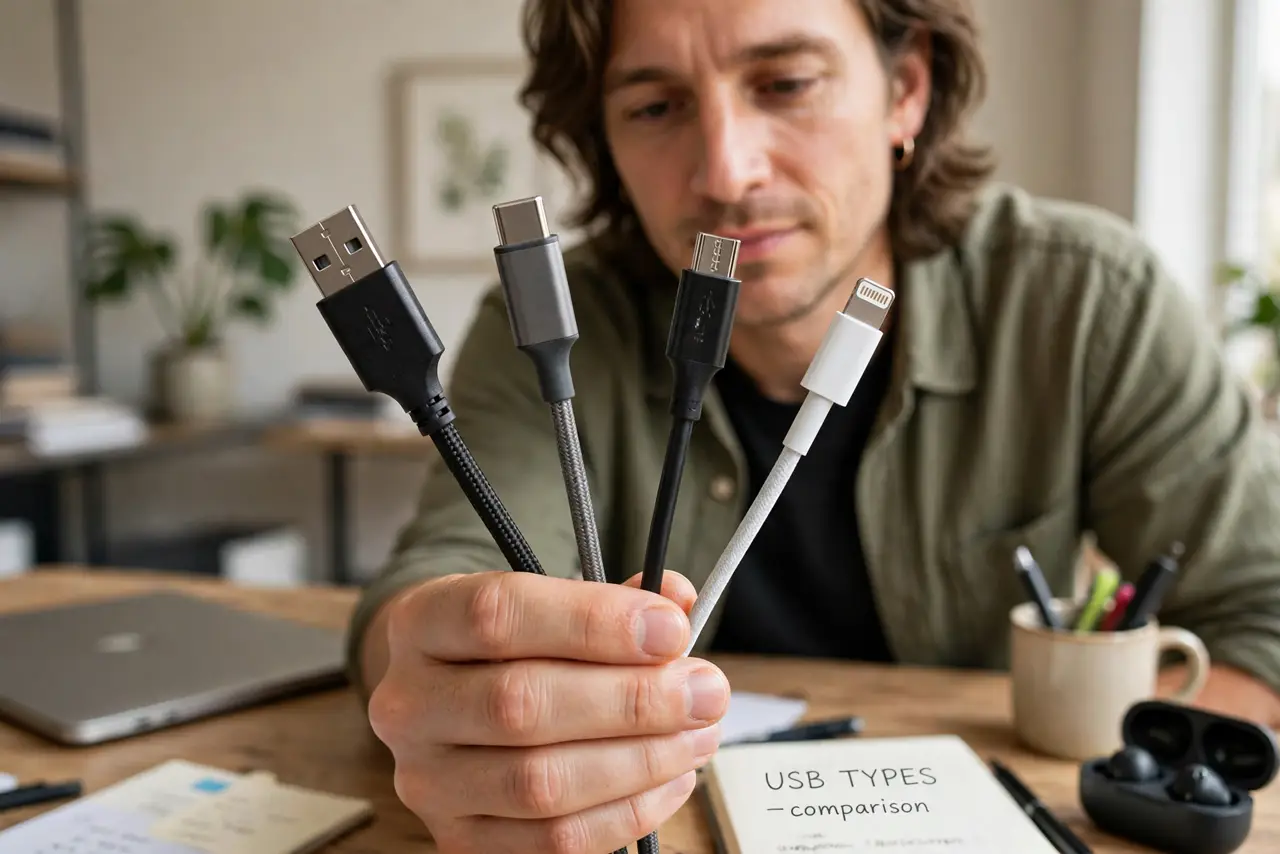
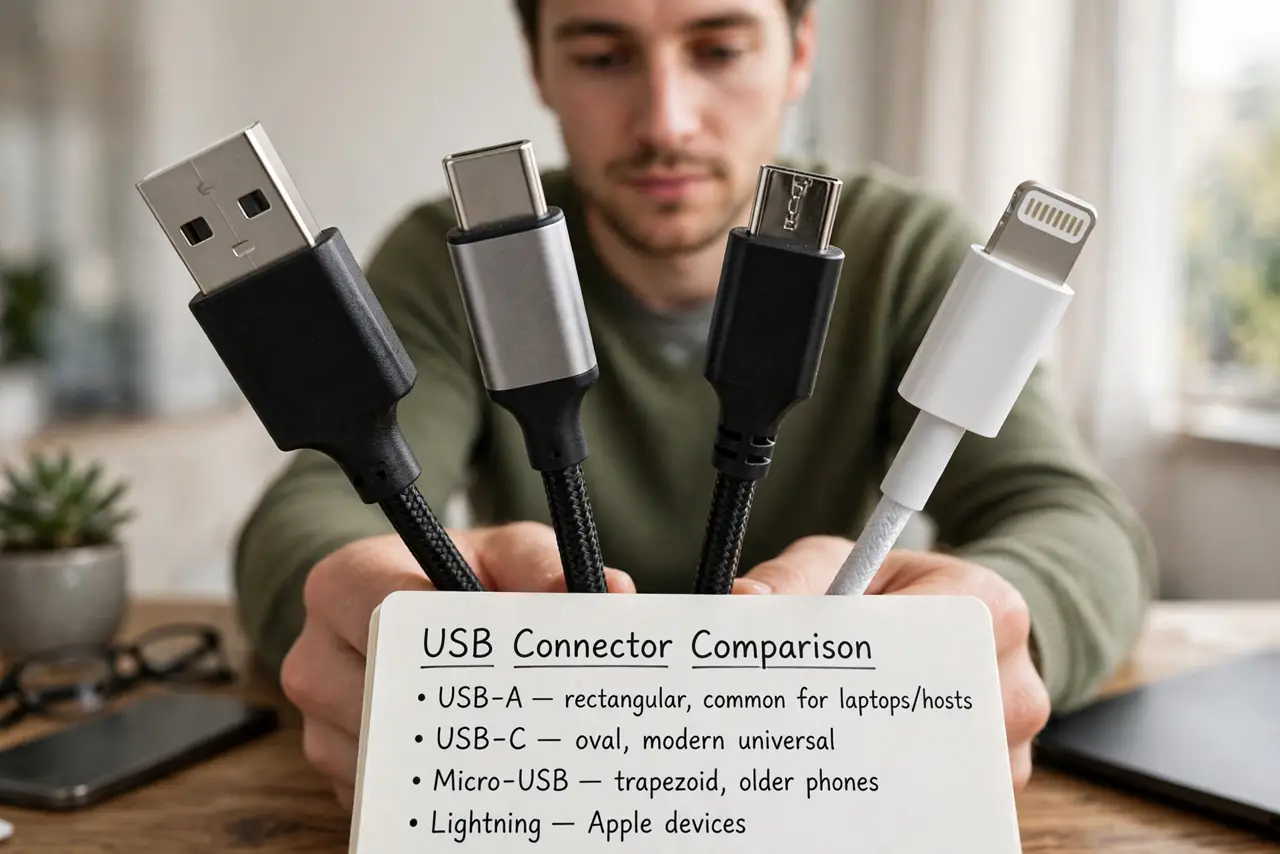
- Learn the connector shapes. USB-A is the classic rectangle, USB-C is the small reversible oval, micro-USB is the tiny trapezoid on old phones, and Lightning is Apple's older iPhone plug. Shape tells you where it fits — nothing about speed.
- Separate charging cables from data cables. Many cheap cables carry power only, with no data wires inside. They charge fine but will not transfer files or connect a phone to a PC. Here is how to tell a data cable from a charge-only one.
- Match the cable to the speed you need. USB 2.0 cables top out around 480 Mbps; USB 3.x cables (often with blue inserts) go far faster. For big backups and video transfers, a 3.x-rated cable saves real time — the connector shape alone does not guarantee it.
- Check the wattage for laptop charging. Phones sip power, but laptops need 45–100W. A thin bargain cable may throttle your laptop to a trickle charge. Look for the wattage rating printed on the cable or packaging before trusting it with a laptop.
- Know which cables carry video. Only USB-C cables with DisplayPort Alt Mode (or Thunderbolt) carry video to a monitor. A random USB-C cable may charge and transfer data but show nothing on screen — check for the video rating if a display is involved.
- Label your good cables. Once you find a cable that fast-charges your laptop or runs your monitor, put a tag or a piece of colored tape on it. Future you, digging through the drawer, will be grateful.
What NOT to do
- Do not assume all USB-C cables are equal. The connector is one standard; the wires inside range from basic charging to full Thunderbolt — the shape lies.
- Do not use a gas-station bargain cable on an expensive laptop. Under-rated cables can overheat and charge erratically; buy rated cables for high-power devices.
- Do not throw away every old cable. A USB-A cable is still perfect for keyboards, mice, and slow peripherals that need nothing faster.
- Do not force a connector that resists. USB-C is reversible, but micro-USB and Lightning are not — forcing them damages the port.
Frequently asked questions
Why does my phone charge slowly with one cable but fast with another?
The slow cable likely has thin wires or a low current rating. Fast charging needs both a capable charger and a cable rated for the higher current.
Can I use any USB-C cable for my monitor?
No — the cable must support DisplayPort Alt Mode for video. If the monitor shows no signal, the cable is the first suspect.
Are braided cables better?
The braid only protects against fraying; it says nothing about speed or wattage. Check the actual ratings, not the jacket.