HDR Looks Washed Out on Windows? Fix the Color
You turn HDR on and everything looks pale and flat instead of vivid. Windows and the monitor have to agree on HDR, and the SDR brightness balance matters too. These steps get them in sync.
TL;DR / Quick Fix
Quick fix: open Display settings and confirm HDR is on for the right monitor, then adjust the SDR content brightness slider until normal apps look right. Also check the monitor menu for its HDR mode, and test with HDR video before judging the result from the desktop alone.
Follow these steps
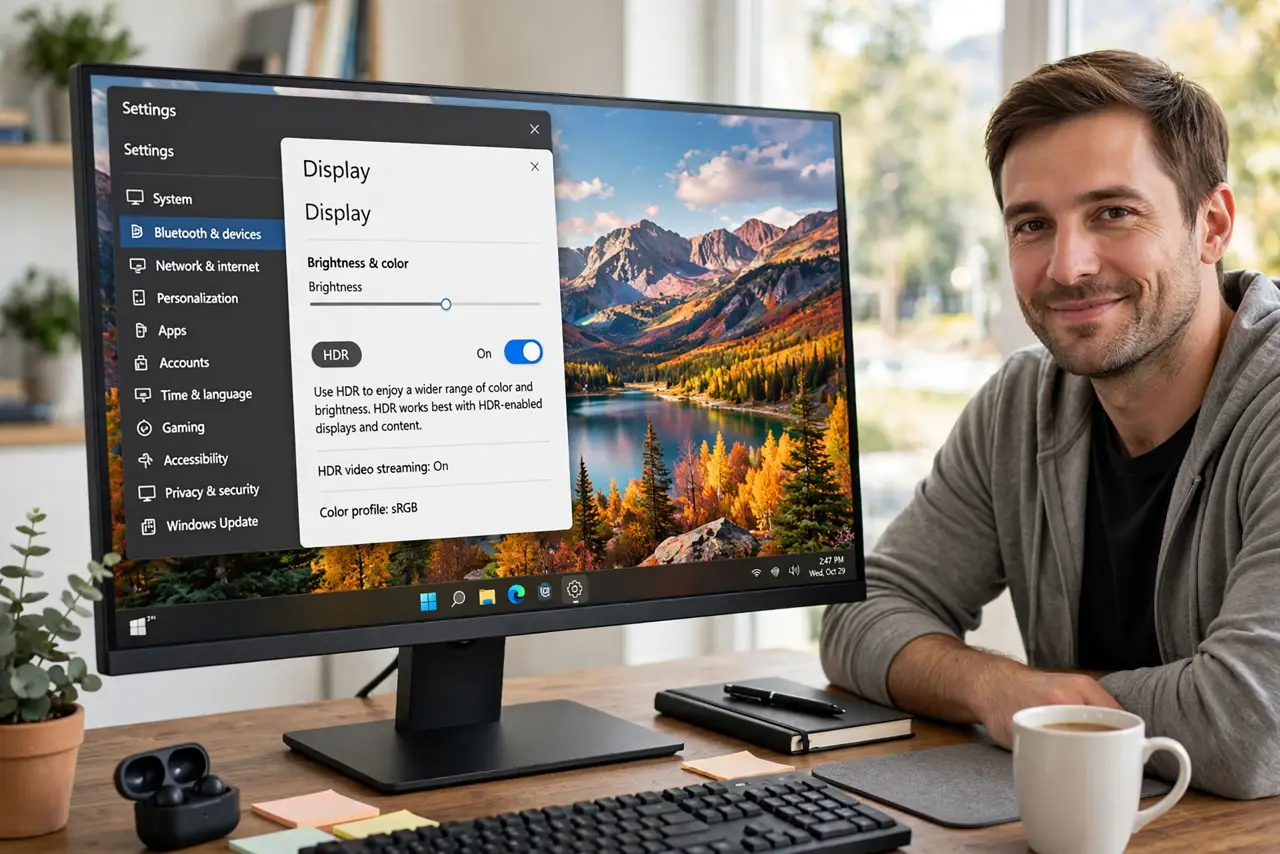
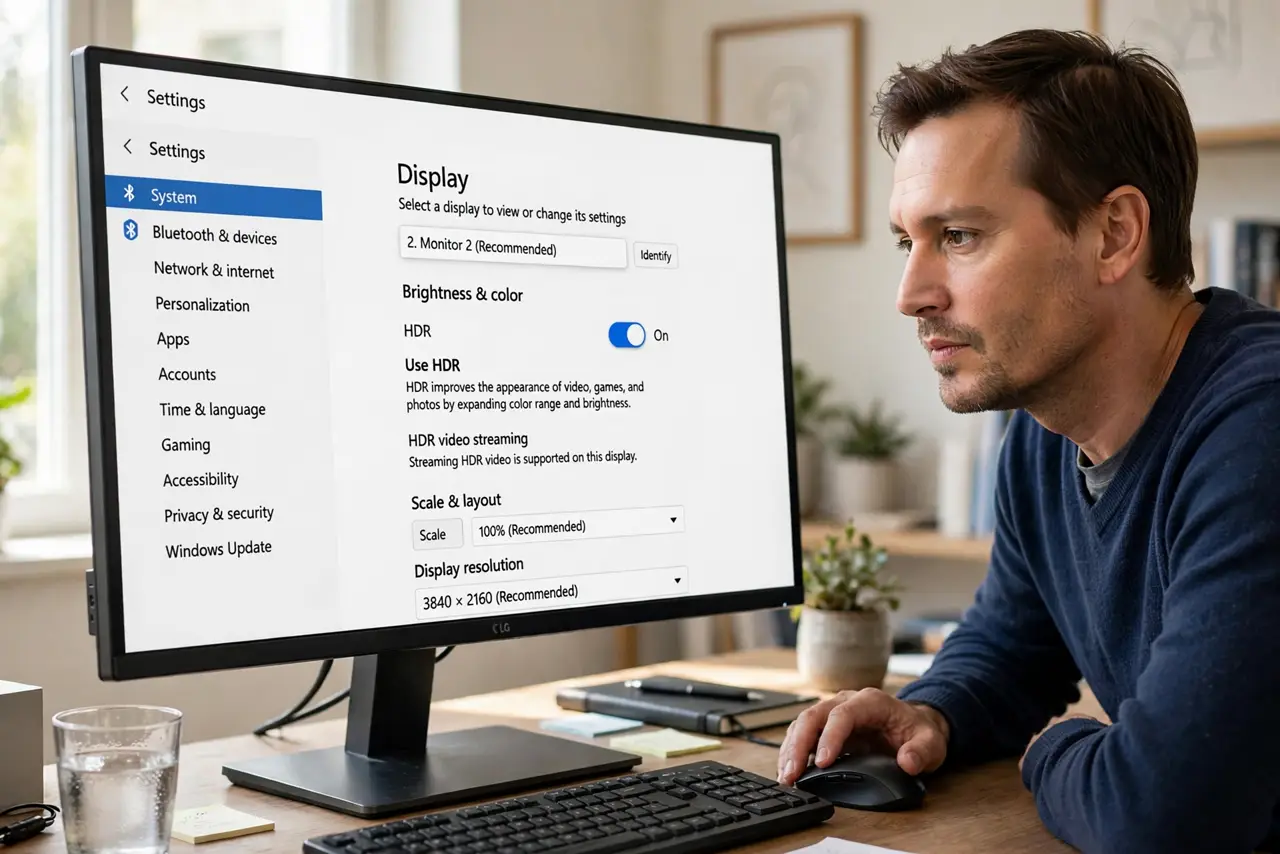
- Confirm HDR is on for the right monitor. Open Settings, then System, then Display, select the monitor you are looking at, and check the HDR switch. With two monitors, HDR may be on for the wrong screen.
- Adjust SDR content brightness. In the HDR settings, move the SDR content brightness slider until normal apps, text, and photos look natural. This slider controls how non-HDR content looks while HDR is on.
- Check the monitor HDR mode. Open the monitor on-screen menu and confirm HDR mode is on for the input you are using. If the monitor is in a standard picture mode, Windows HDR output will look washed out.
- Test with real HDR video. Play an HDR video and compare it with the desktop. Desktop apps are SDR content, so judge HDR from video, not from icons and menus, which are not meant to look vivid.
- Check the cable and input. Use the monitor input that supports HDR, and reseat the cable firmly. A port or cable that cannot carry the HDR signal can leave the picture pale or limited.
- Turn HDR off for desktop work if needed. If HDR video looks great but daily work looks pale, turn HDR on only for video. There is no rule that HDR must stay on all day, and SDR work often looks better with it off.
What NOT to do
- Do not judge HDR from the desktop alone. Menus and icons are SDR content, so they will never show what HDR video looks like.
- Do not max out brightness and contrast to fix washout. That crushes detail and makes the pale look worse once real HDR content plays.
- Do not enable HDR on a monitor that does not support it and expect vivid color. The setting alone cannot add HDR capability to a standard panel.
- Do not change monitor color presets and Windows settings at the same time. Change one, test with video, and then decide whether the other needs adjusting.
Frequently asked questions
Why does HDR look worse than SDR?
Usually the monitor HDR mode is off, or the SDR brightness slider is too low, so normal content looks pale while the system thinks it is in HDR.
Should HDR stay on all day?
Not necessarily. Many people turn HDR on for video and off for documents and browsing, because SDR work looks more natural with HDR off.
Does the cable affect HDR?
Yes. The input and cable must support the HDR signal. A weak link can leave colors limited or washed out even when the setting is on.