Convert HEIC to JPG
iPhones save photos as HEIC — smaller files, better quality — but half the internet still chokes on them. Email one to a Windows user or upload it to an old site and you get a broken file or a blank stare. Converting to JPG takes seconds, and you have options on every device.
TL;DR / Quick Fix
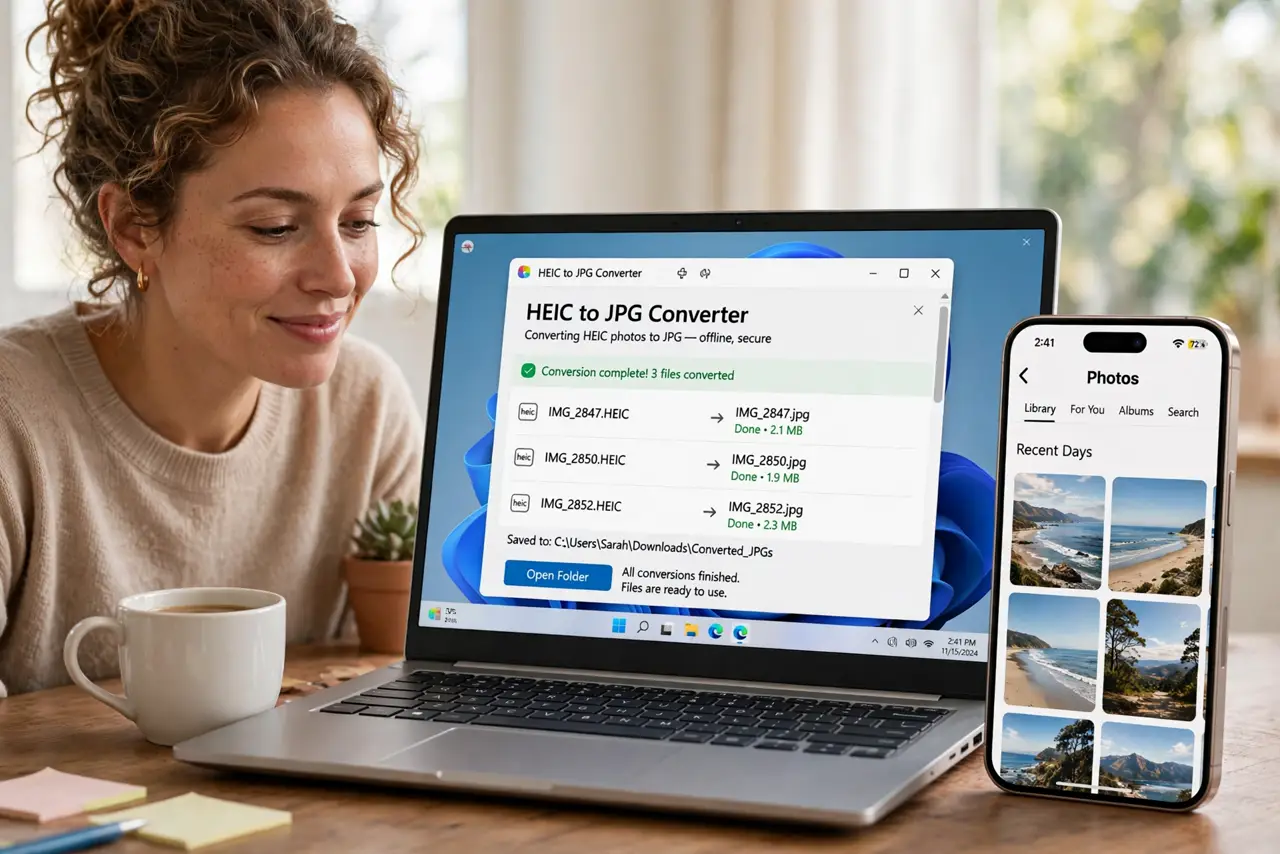
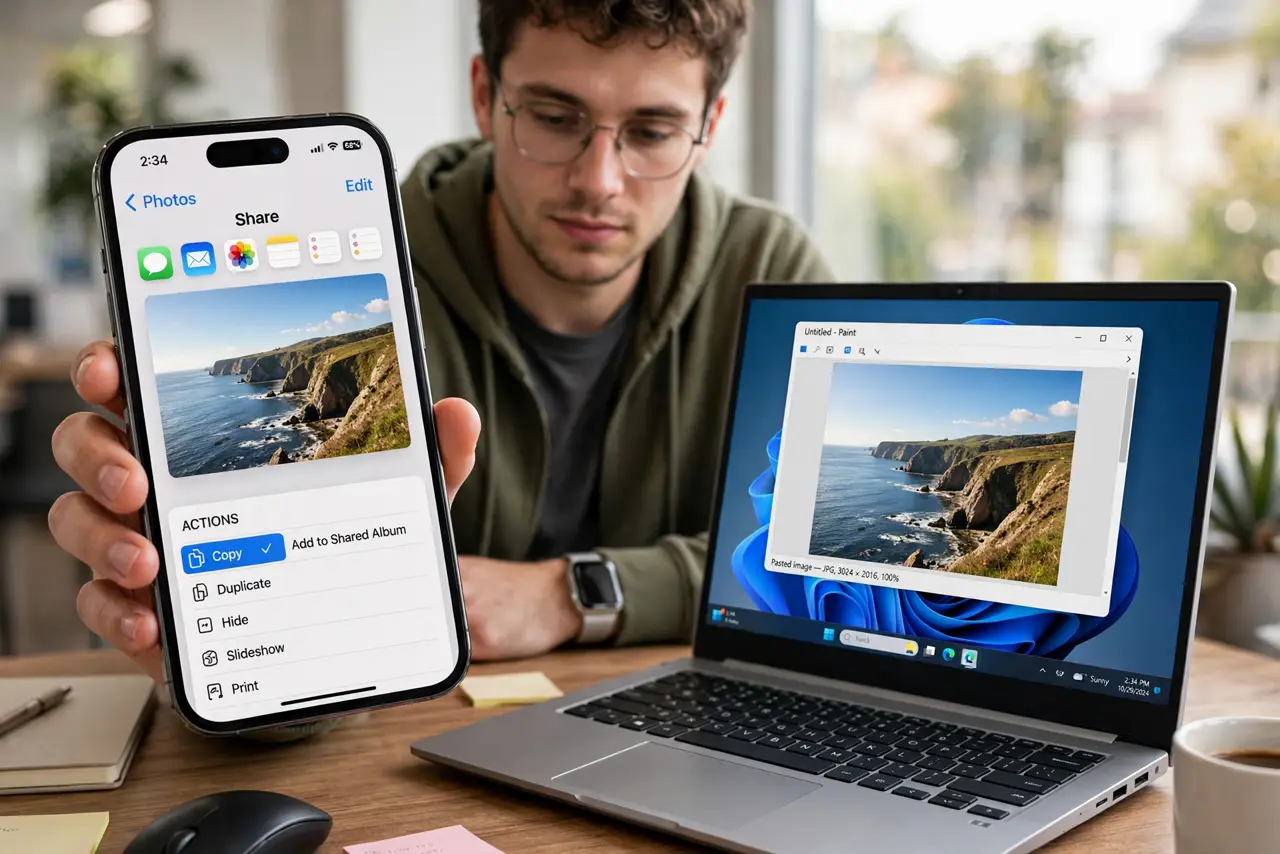
Quick fix: on iPhone, open the photo, tap Share, and choose 'Copy' — iOS pastes a JPG version in most apps. On Mac, open in Preview and choose File, Export, JPEG. On Windows, install the free HEIF extensions from the Microsoft Store so HEIC files open directly without converting.
Follow these steps
- Copy-share from iPhone. Open the photo, tap Share, then Copy — pasting into most apps delivers a JPG automatically. iOS converts on the fly when the destination cannot handle HEIC.
- Export from Mac Preview. Open the HEIC in Preview, choose File, Export, and pick JPEG. Set quality to high and you will not see a difference — this solves HEIC photos not opening on Windows at the source.
- Install HEIF support on Windows. Get the free HEIF Image Extensions from the Microsoft Store. With them installed, Windows opens HEIC files directly — no conversion needed at all.
- Batch convert whole folders. For dozens of photos, select them all and export at once in Preview or Photos, or use a batch converter. Converting one by one is a waste of an afternoon.
- Watch the file size. JPGs run larger than HEICs. If you are emailing, resize or compress after converting — a small HEIC can become a much bigger JPG.
- Keep the HEIC originals. Convert copies, not the only version. HEIC holds slightly more quality, and future software will handle it natively — do not burn the better original.
What NOT to do
- Do not screenshot the photo as a 'conversion.' Screenshots crush quality — a real export keeps every pixel.
- Do not upload HEICs to sites that do not accept them. The upload may silently fail or show a broken image to everyone else.
- Do not convert back and forth repeatedly. HEIC to JPG to HEIC stacks quality loss with zero benefit.
- Do not pay for a converter app. Free built-in tools on iPhone, Mac, and Windows handle this — paid apps sell you what you already own.
Frequently asked questions
Why does Apple use HEIC anyway?
It stores better quality in about half the file size of JPG. Great for your storage — annoying for compatibility.
Can I make my iPhone shoot JPG instead?
Yes: Settings, Camera, Formats, choose Most Compatible. Your photos will be bigger but universally readable.
Does converting lose quality?
Barely, at high quality settings. The difference is invisible for sharing and printing at normal sizes.