What to Do with a Home Server
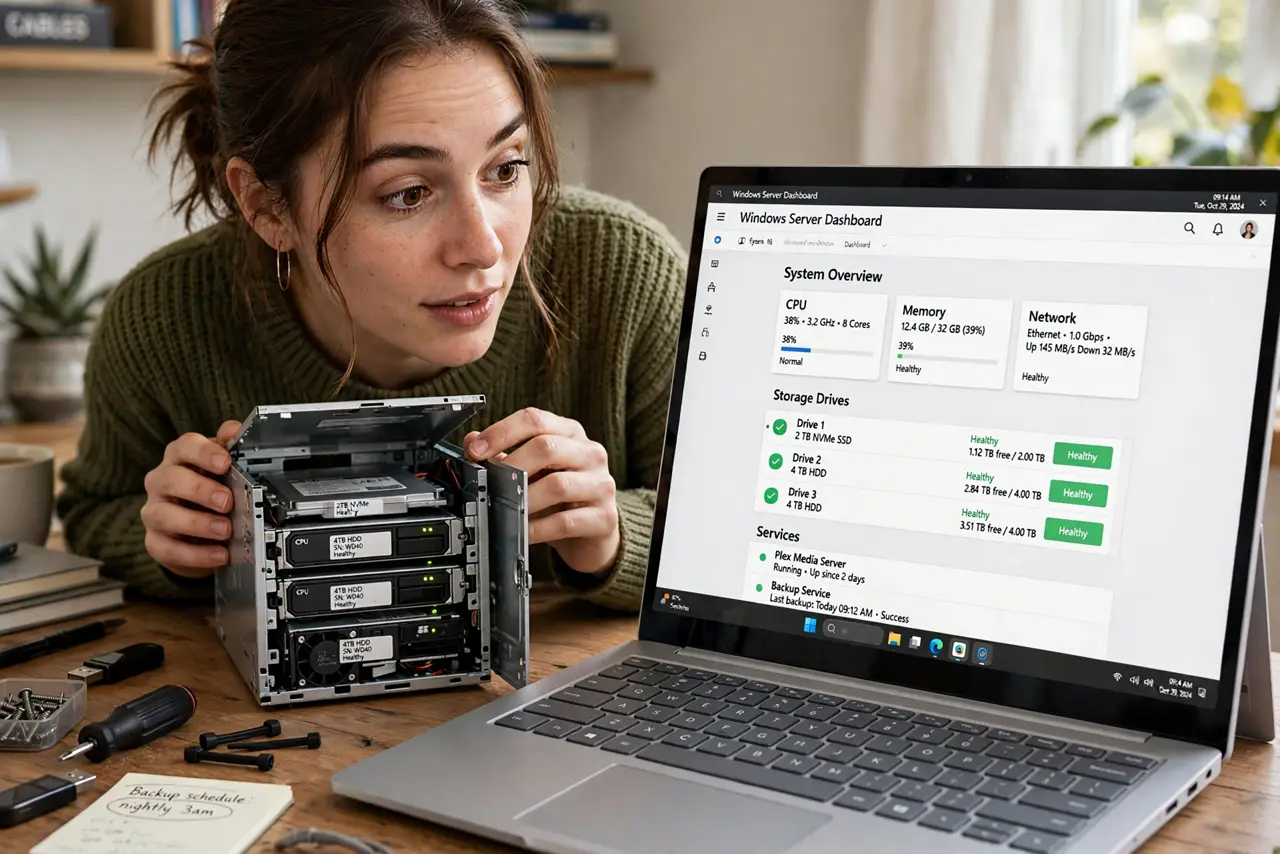
An old PC sits in the closet, and you keep hearing that a "home server" can do magical things — but what would you actually use it for? A home server is just a computer that stays on, serving files, media, backups, or smart-home software to your household. The honest answer: a few uses are genuinely great, and most are hobbies looking for a reason. This guide lists the worthwhile ones, the hardware you really need, and when a simple NAS is the smarter buy.
TL;DR / Quick Fix
Quick fix: the best home server uses are automatic backups for every computer, a shared media library, and a personal cloud for files. An old desktop or mini PC is plenty to start. If you only want shared files, a NAS is simpler than a full server.
Follow these steps
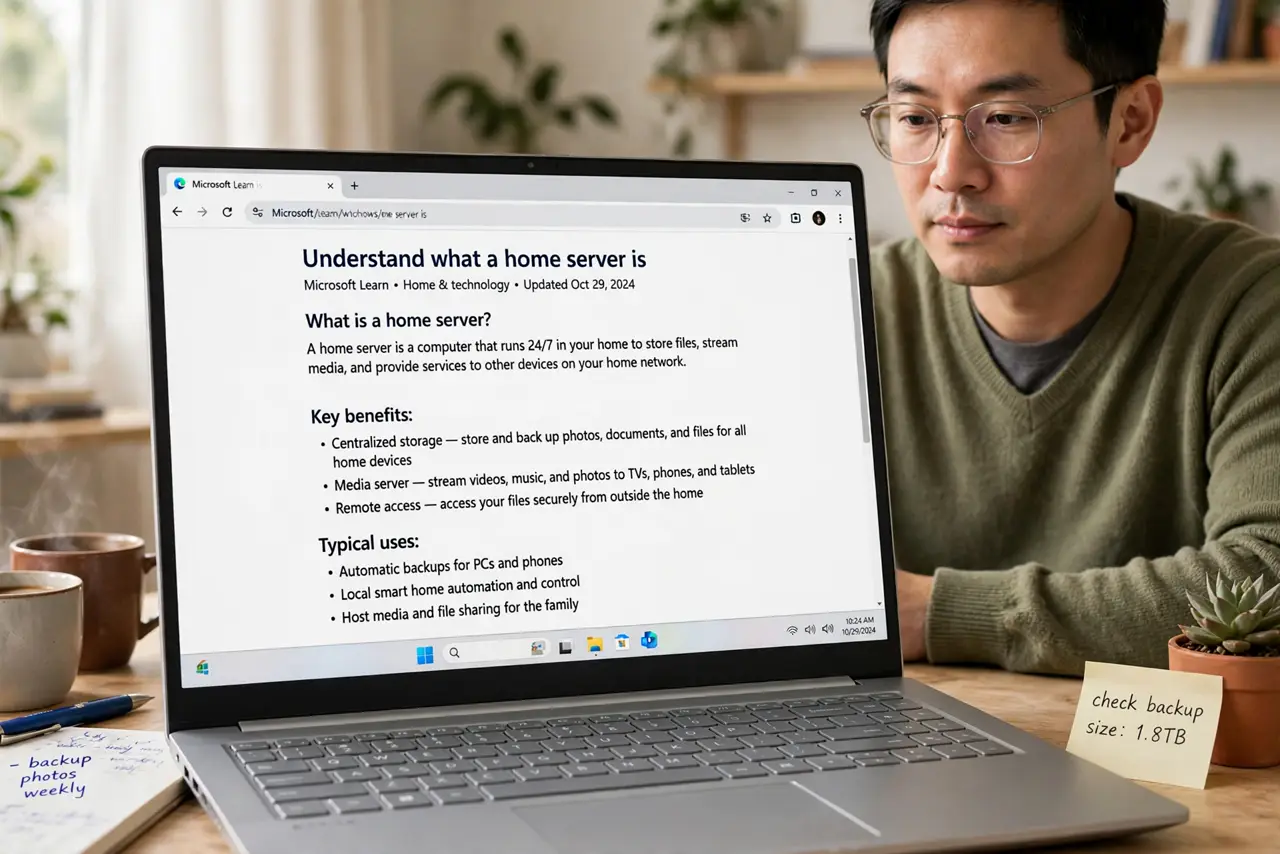
- Understand what a home server is. It is an always-on computer on your home network running services: file sharing, backups, media streaming, or smart-home control. The old desktop in the closet qualifies — 'server' describes the job, not the hardware.
- Start with automatic backups. The highest-value use: every computer in the house backs up to the server nightly, no subscriptions. This alone justifies the box for most families.
- Add a media library. Store movies, music, and photos centrally and stream them to any TV or phone. A server with media software replaces a stack of streaming subscriptions for content you own.
- Run a personal cloud. File-sync software on the server gives you Dropbox-like syncing with your own storage and no monthly fee. Access from outside needs careful secure setup — never just open ports.
- Consider smart-home control. A server can run home-automation software locally, keeping your gadgets working without cloud accounts. This is hobby territory — rewarding, but expect tinkering.
- Know when a NAS wins. If the list ends at 'shared files and backups,' a NAS does it simpler with less power draw and maintenance. Choose the server when you want to run actual software, not just store files.
What NOT to do
- Do not expose server services directly to the internet. Open ports invite automated attacks — use a VPN for remote access.
- Do not build a server before knowing its job. Hardware first, purpose later is how closets fill with humming regrets.
- Do not skip the backup of the server itself. The box holding everyone's backups needs its own off-site copy.
- Do not run it in a hot closet with no airflow. Heat kills drives; a ventilated shelf beats a sealed cabinet.
Frequently asked questions
How powerful a computer do I need?
For files and backups, nearly anything from the last decade. Media transcoding and virtual machines are what demand real CPU — start simple and upgrade if needed.
Does a home server use much electricity?
An old desktop idles around 30-60 watts — a few dollars a month. A mini PC or efficient NAS-style build can halve that.
Can I use a Raspberry Pi as a server?
For light duties — file sharing, ad-blocking, smart-home hubs — yes, brilliantly. For heavy storage and transcoding, a real PC wins.