Change Your Wi-Fi Password? How To
You shared the Wi-Fi password with guests two years ago and half the neighborhood might know it by now — or you just suspect someone is freeloading. Changing the Wi-Fi password is a five-minute job in the router's settings, with one catch: every device in the house needs reconnecting. Here is the smooth way to do it.
TL;DR / Quick Fix
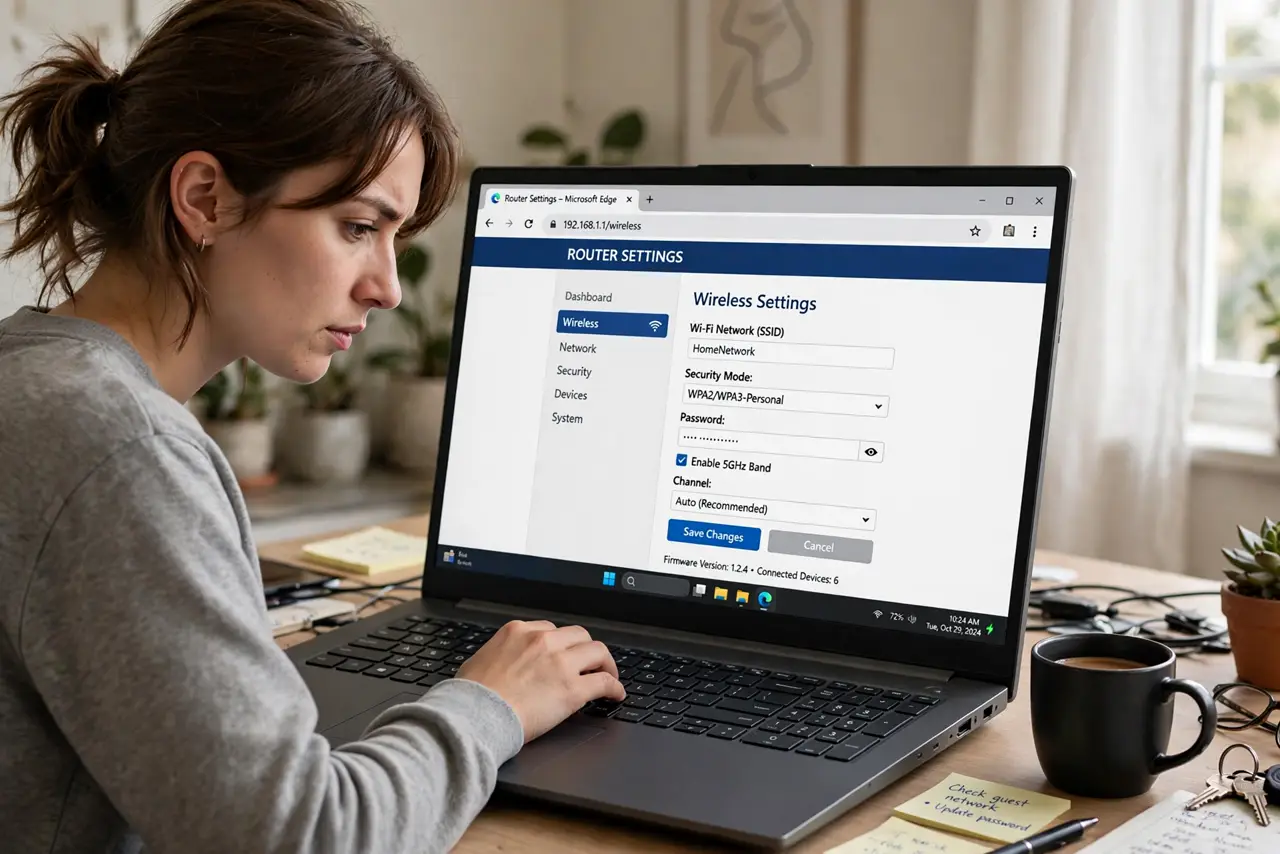
Quick fix: log into your router's settings, find the wireless security section, and set a new password. Reconnect each device with the new password — phones, TVs, smart gadgets. Do it when everyone is home so you can update everything at once and avoid a day of 'Wi-Fi's broken' complaints.
Follow these steps
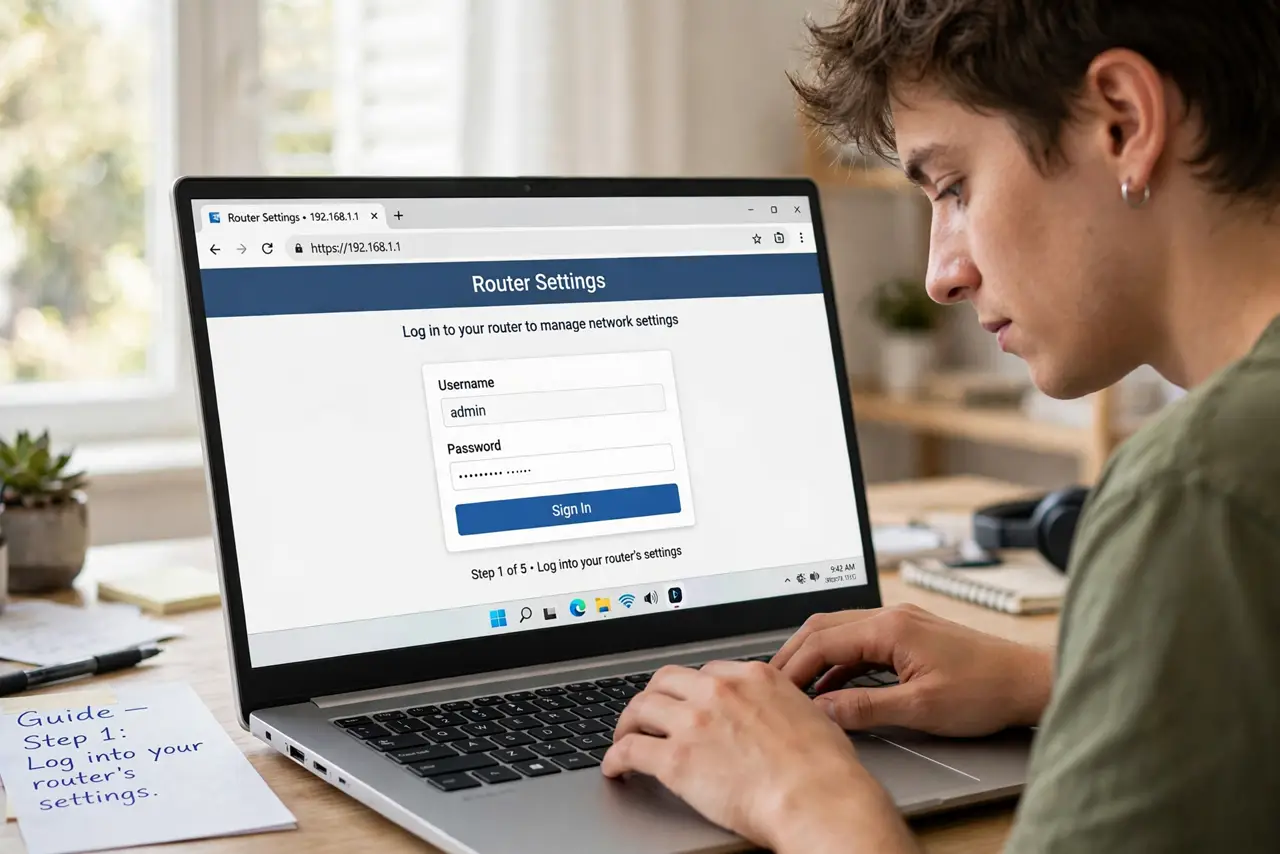
- Log into your router's settings. Type the router's address — often on a sticker underneath — into a browser, and sign in with the admin credentials. This is the admin login, not the Wi-Fi password.
- Find the wireless security section. Look for Wireless, Wi-Fi Settings, or similar. The password field may be labeled passphrase, network key, or WPA key.
- Set a strong new password. Long beats complex — a memorable phrase of several words resists guessing far better than eight random characters. Avoid reusing the old pattern.
- Save and let the router restart its radio. Saving usually drops every device at once. That is normal — it means the change took effect immediately.
- Reconnect devices one by one. Phones, laptops, TVs, smart speakers, bulbs — walk the house with the new password. Smart-home gadgets are the ones people forget.
- Update anything with the password saved. Printers, thermostats, doorbells — check who is on your network afterward to confirm only your devices reconnected.
What NOT to do
- Do not change the admin password and Wi-Fi password in the same confused step. Change Wi-Fi first; the admin login is separate and stays as-is.
- Do not pick a cute password the neighbors can guess. Your street name plus '123' is not security — it is decoration.
- Do not forget the smart home gadgets. The bulb that 'stopped working' after a password change just needs the new one.
- Do not share the new password widely again. Use the guest network for visitors — that is what it is for.
Frequently asked questions
Will changing the password kick off freeloaders?
Yes — every device must re-authenticate, and only those with the new password get back on. That is the whole point.
How often should I change my Wi-Fi password?
Only when needed — suspected freeloading, after guests had long-term access, or after a router scare. Routine changes add hassle without security gain.
I forgot my router admin login — now what?
Check the sticker on the router first. If the admin password was changed and lost, a factory reset restores the defaults — then set everything fresh.