Channel Width? Basics
Buried in your router settings is a choice between 20, 40, 80, and 160 MHz channel width — and picking wrong either halves your speed or litters interference across your neighbors. Wider channels are faster but more fragile; narrower ones are slower but polite. This guide picks the right width for each band without the guesswork.
TL;DR / Quick Fix
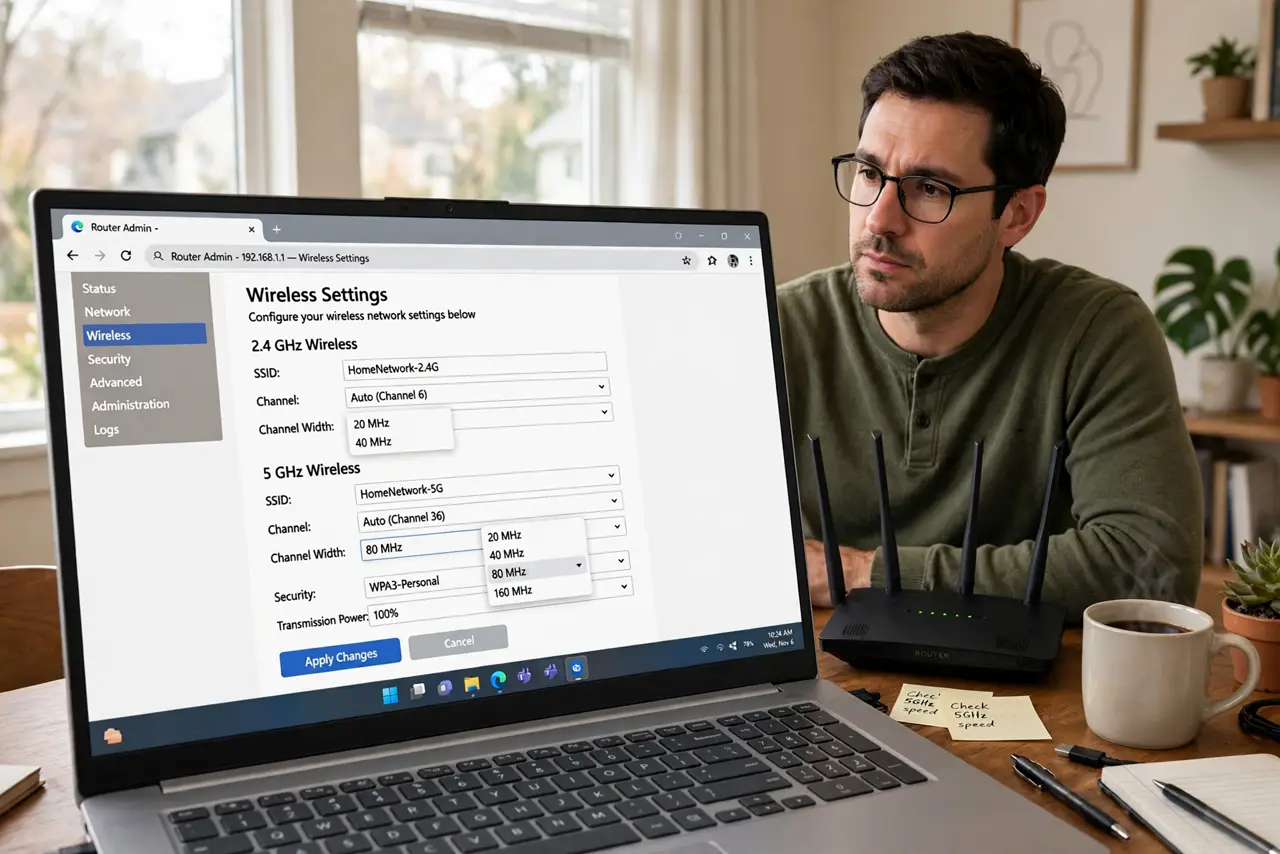
Quick fix: on 2.4 GHz use 20 MHz — wider just causes interference. On 5 GHz use 80 MHz for the best speed-to-stability balance. Only use 160 MHz if your devices support it and neighbors are sparse. After changing, run a speed test to confirm the improvement.
Follow these steps
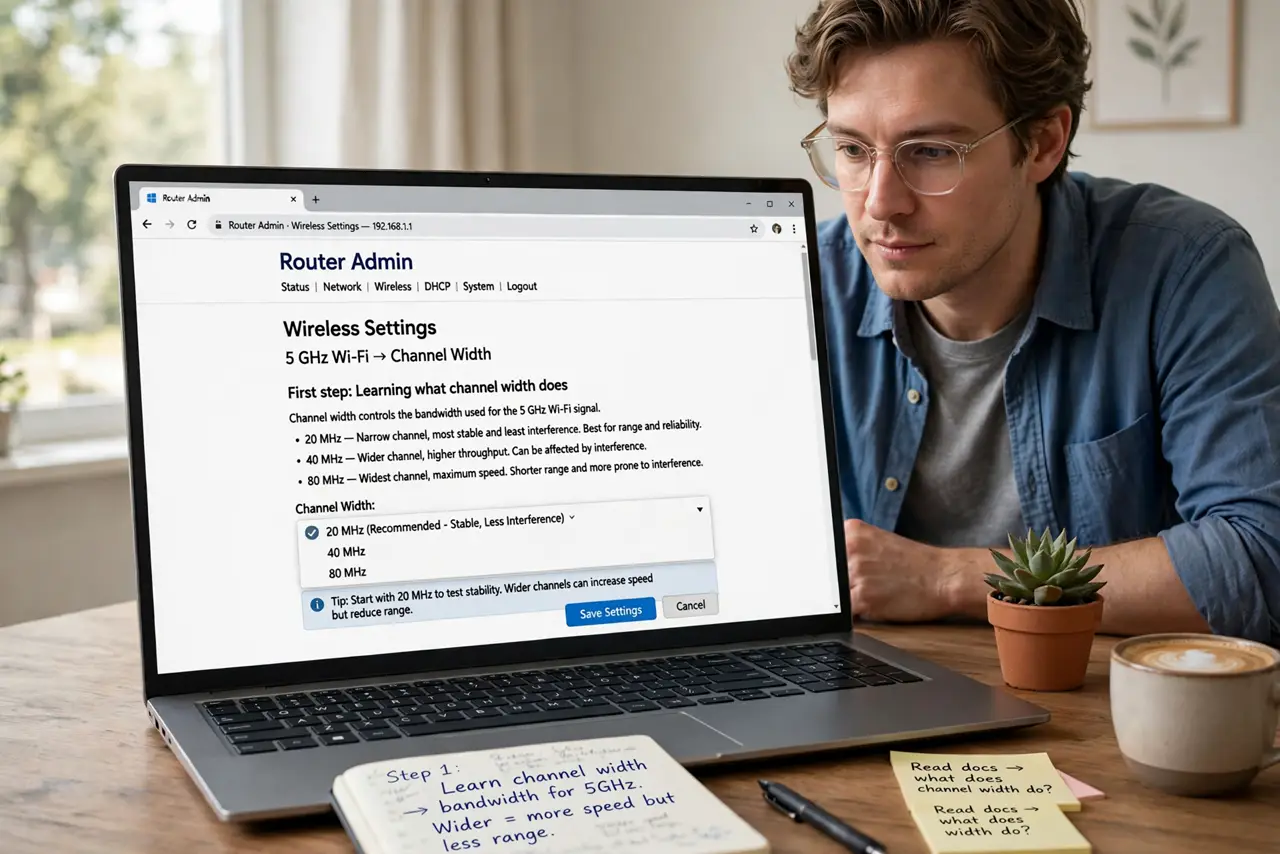
- Learn what channel width does. Width is how much radio spectrum each Wi-Fi channel uses. Wider means more speed but more overlap with neighbors — 160 MHz is a highway that crosses everyone's lanes.
- Set 2.4 GHz to 20 MHz. On the crowded 2.4 band, 20 MHz is the polite and stable choice. 40 MHz here causes the overlap pain that slows the whole neighborhood, including you.
- Set 5 GHz to 80 MHz. 80 MHz is the sweet spot: big speed gains with manageable interference. Drop to 40 MHz only if the 5 GHz band is unusually crowded around you.
- Try 160 MHz only with care. 160 MHz doubles peak speed on paper but needs clean airspace and compatible devices. In apartments it usually backfires — test with a speed test before and after.
- Change it in the router. Find wireless settings, then the channel width or bandwidth option per band. Save, let the router restart its radios, and retest — one band at a time.
- Measure, do not guess. Run a speed test before and after each change, at the same spot. Numbers beat theory — keep the width that tests fastest in your real environment.
What NOT to do
- Do not use 40 MHz on 2.4 GHz in apartments. It stomps two channels and earns you interference from every neighbor it touches.
- Do not set 160 MHz and walk away. Without testing, you may have traded real speed for a bigger number on a settings page.
- Do not change width and channel together. One variable at a time — otherwise you never know which change helped.
- Do not forget older devices. Some old gadgets only speak 20 MHz — check that nothing important drops off after widening.
Frequently asked questions
What channel width is fastest?
160 MHz on paper, but 80 MHz usually wins in real homes because it dodges interference. Test both where you live.
Why is 2.4 GHz stuck at 20 MHz?
Because the band is narrow and crowded — 40 MHz overlaps neighbors and the standard politely refuses in congested areas.
Does channel width affect range?
Slightly — narrower channels punch through a bit better. But band choice (2.4 vs 5 GHz) matters far more for range.