DFS Channels? Basics
Your Wi-Fi feels congested even though you pay for fast internet, and your router settings show mysterious channels labeled DFS. DFS stands for Dynamic Frequency Selection — a slice of the 5 GHz band shared with weather radar and aviation systems. These channels are usually emptier, which means less interference and faster speeds. The catch: your router must quietly vacate them if it detects radar. Here is what that means in practice.
TL;DR / Quick Fix
Quick fix: DFS channels are extra 5 GHz Wi-Fi channels shared with radar — usually less crowded, so enabling them can speed up busy-area Wi-Fi. Your router leaves the channel automatically if radar appears, causing a brief drop. Near airports, expect interruptions; elsewhere, they are worth trying.
Follow these steps
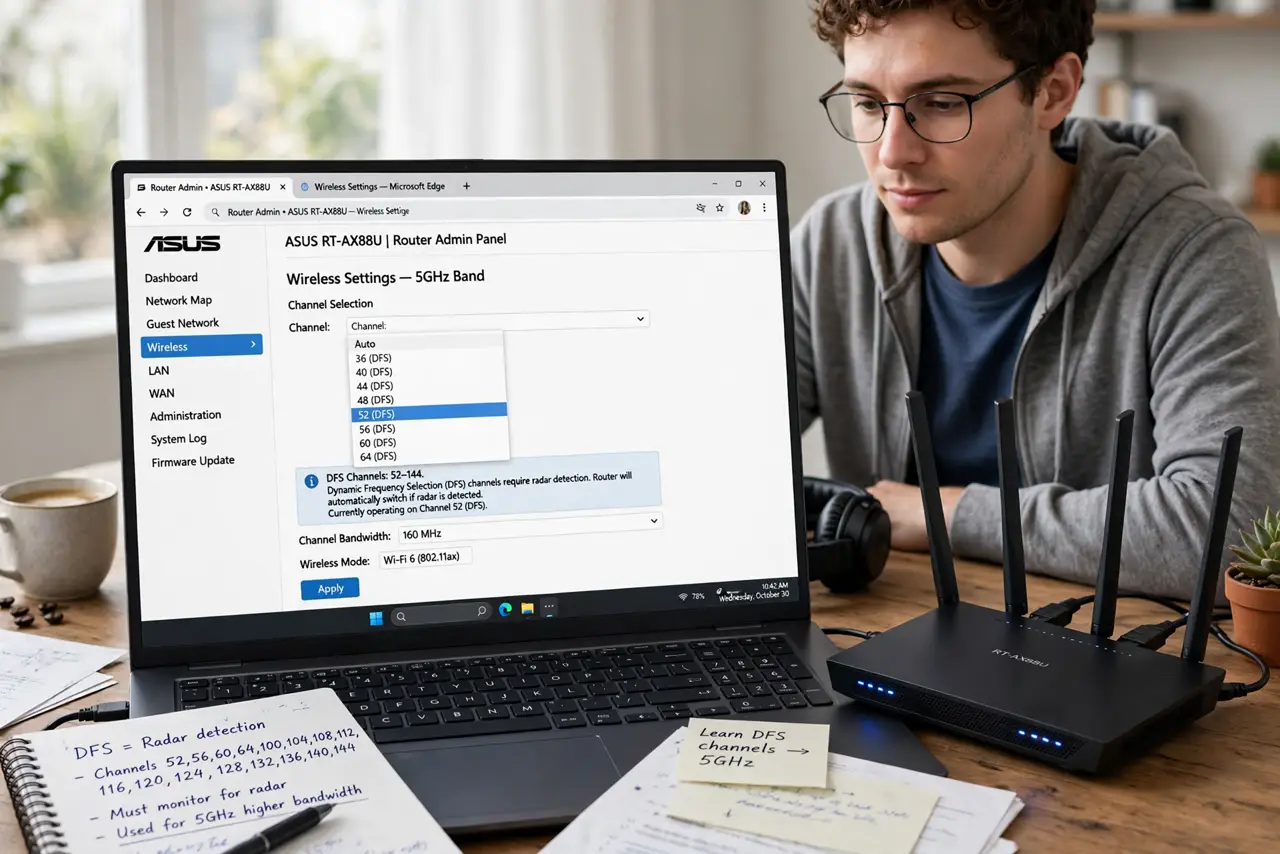
- Understand what DFS means. Dynamic Frequency Selection is a rule: on certain 5 GHz channels, your router must listen for radar and move off the channel if it hears it. This keeps Wi-Fi from interfering with weather radar and aviation. In return, you get access to channels most neighbors are not using.
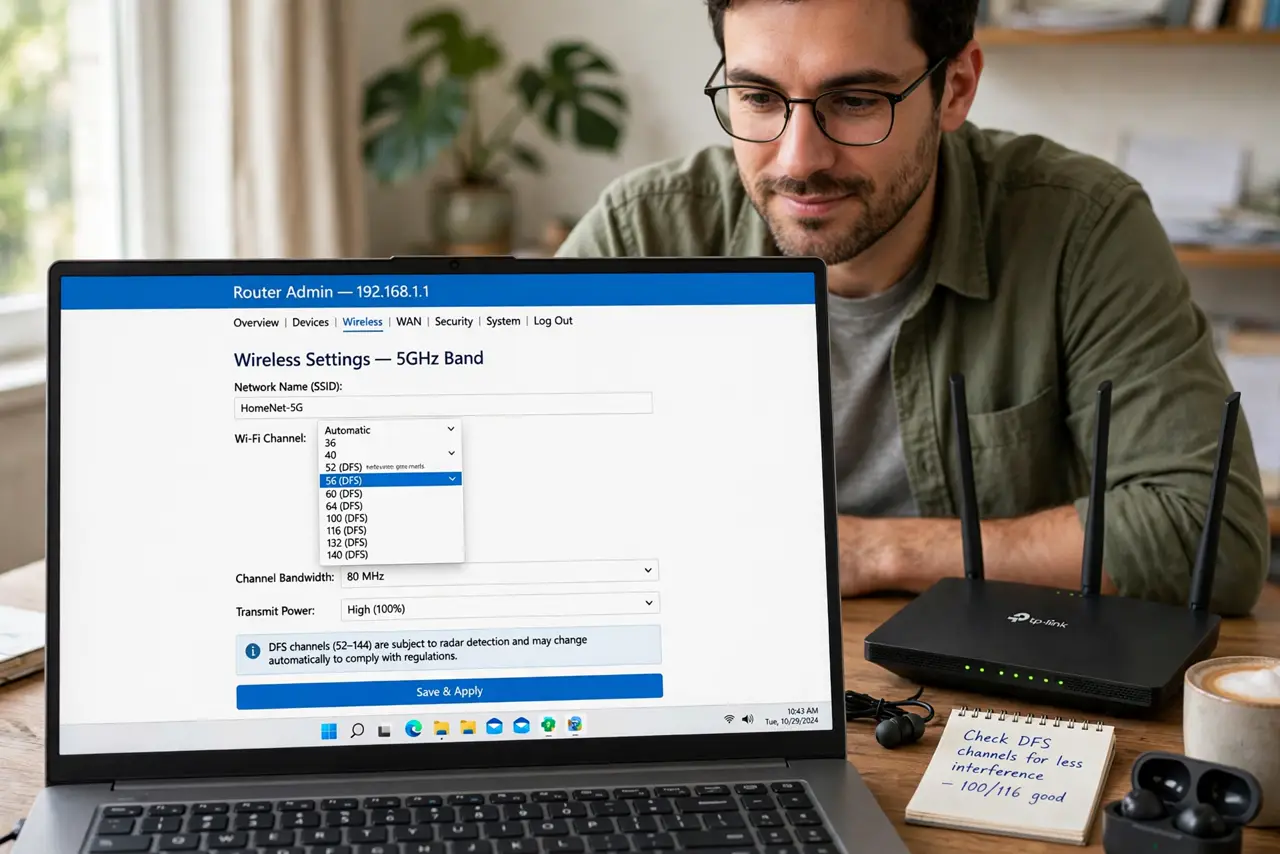
- Find the DFS setting in your router. Log in to your router admin page (see our router login guide), open the wireless or 5 GHz settings, and look for a channel list or an 'Auto (DFS)' option. Some routers hide DFS channels behind an 'Enable DFS' checkbox.
- Try DFS if your neighborhood is congested. In apartments and dense streets, the standard 5 GHz channels are packed. Switching to a DFS channel often cuts interference immediately, especially when paired with a wider 160 MHz channel where DFS spectrum is required.
- Avoid DFS near airports or weather stations. If you live close to an airport, military base, or weather radar, your router will keep detecting radar and bouncing off the DFS channel. The result is random drops — in that case, stick to the standard channels.
- Pick a specific DFS channel, not Auto. Auto channel selection sometimes avoids DFS entirely to be safe. Choosing a specific DFS channel manually — like 100 or 116 — locks you onto the quiet spectrum instead of hoping the router figures it out.
- Test for a few days before deciding. Radar events are sporadic, so a quick test can mislead. Run on the DFS channel for several days of normal use; if you notice no drops, you have gained free speed.
What NOT to do
- Do not panic when the router changes channels by itself. That is the radar-avoidance rule working as designed, not a malfunction.
- Do not enable DFS and then complain about one random drop. Near radar sources, intermittent drops are the known tradeoff — choose standard channels there instead.
- Do not assume all devices support DFS channels. Some older smart-home gadgets and game consoles refuse to connect to them; check your device list after switching.
- Do not expect miracles on an uncrowded network. If your Wi-Fi is already fine, DFS channels solve a problem you do not have.
Frequently asked questions
Why did my Wi-Fi drop for a minute on a DFS channel?
Your router detected a radar signal and was legally required to vacate the channel, then it rescanned and moved you elsewhere. The brief outage is the DFS rule in action — it usually reconnects on its own.
Are DFS channels faster than regular ones?
Not inherently — the speed comes from less interference, since fewer neighbors use them. On an uncrowded network, a DFS channel and a standard channel perform the same.
Should I use DFS on a 2.4 GHz network?
No — DFS only exists on the 5 GHz band. The 2.4 GHz band has no DFS channels, so this setting simply does not apply there.