Guest Network for Visitors? Setup
Handing guests your main Wi-Fi password means they can see your shared folders, printers, and smart-home gadgets — and that password lives on their phones forever. A guest network gives visitors internet on an isolated lane, with a password you can change anytime. Most routers include it; few people turn it on. Here is the setup.
TL;DR / Quick Fix
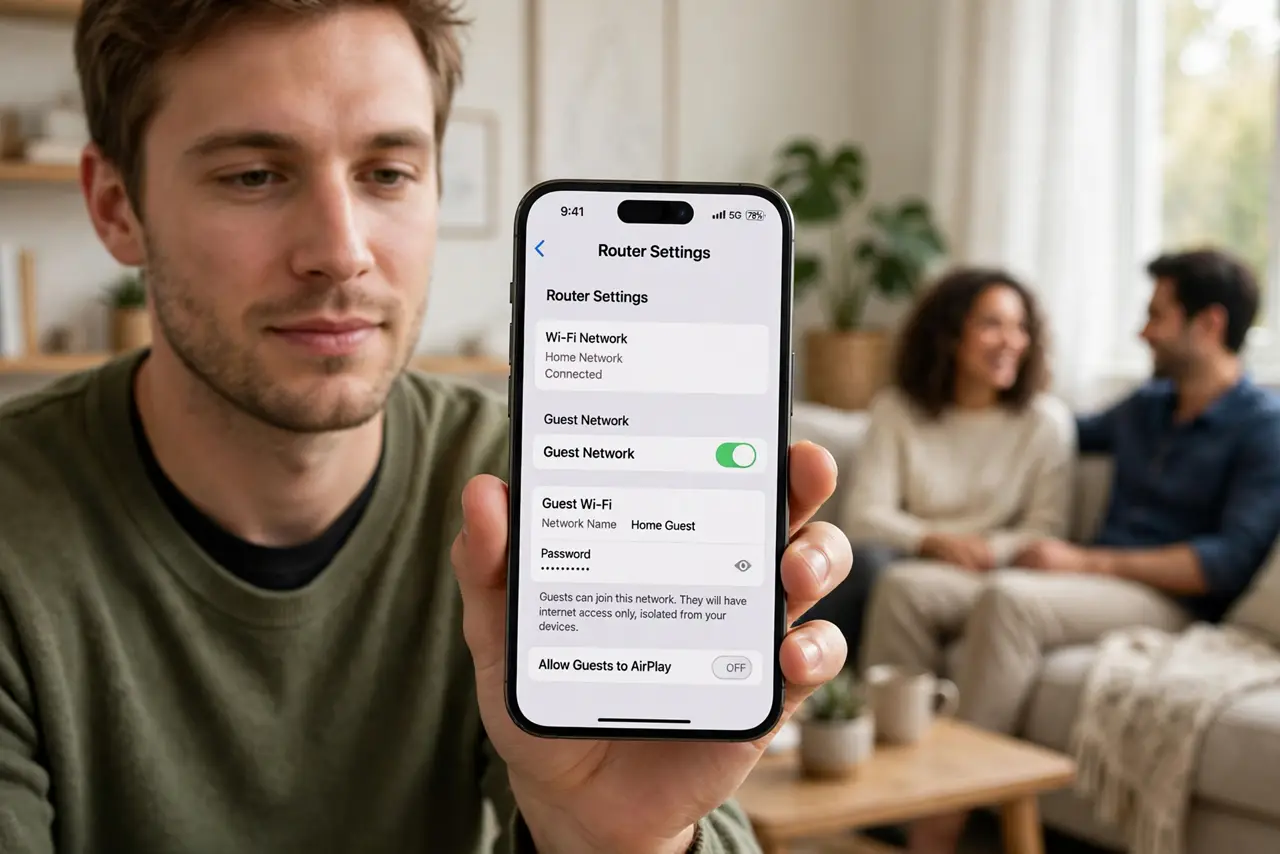
Quick fix: log into your router's settings, find the guest network option, enable it, and give it a simple name and password. Guests get internet but cannot see your private devices or files. Change the password after big gatherings for extra safety.
Follow these steps
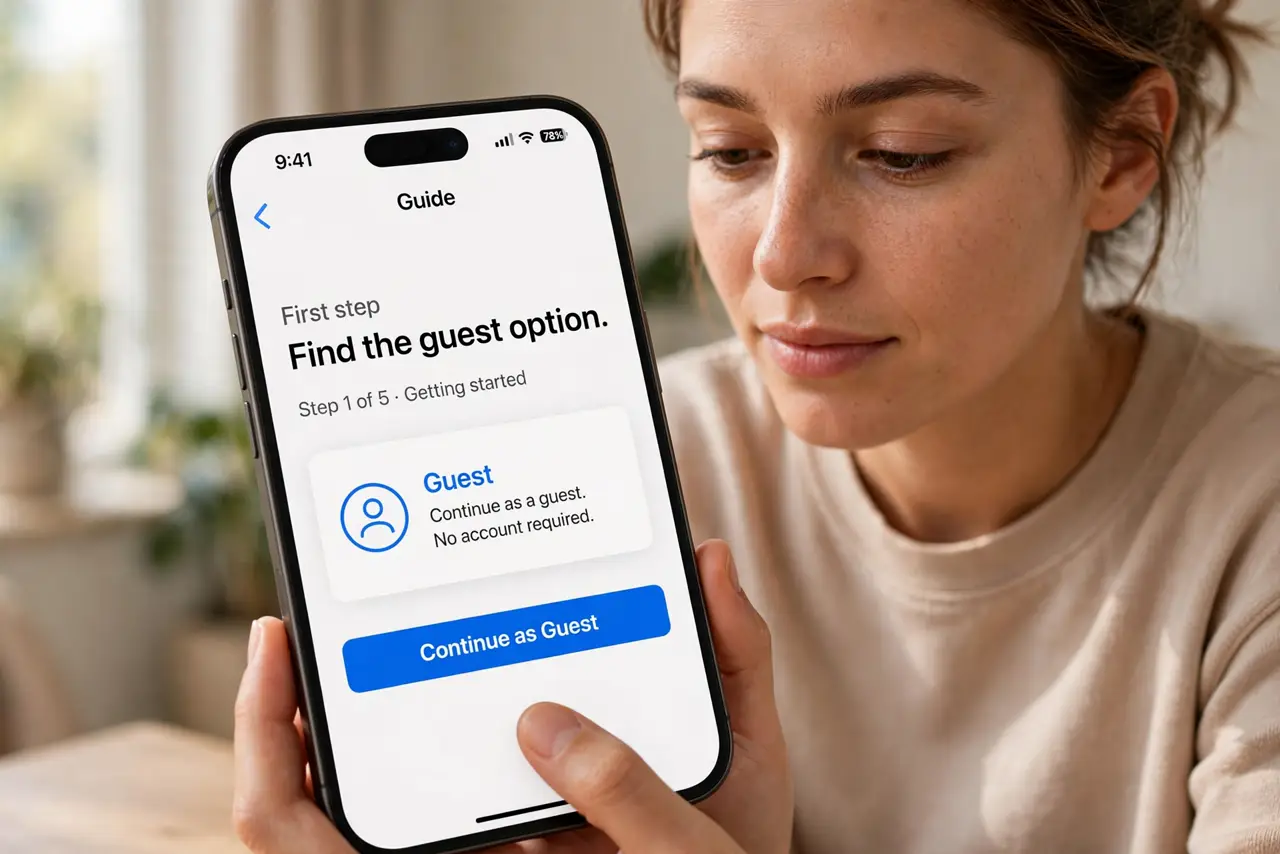
- Find the guest option. Log into the router admin page and look for Guest Network under Wireless settings. Most routers from the last decade include it — it is just off by default.
- Name it clearly. 'Smith-Guest' beats a cryptic default. Guests should recognize it instantly without asking which network is yours.
- Set a simple, separate password. This password is meant to be shared and changed. Do not reuse your main Wi-Fi password — that defeats the entire purpose.
- Enable client isolation if offered. Isolation stops guest devices from seeing each other, not just your devices. On a party network, that is a genuine privacy win.
- Limit bandwidth if you can. Some routers let you cap guest speed. Your 4K movie night should not buffer because a guest is updating their laptop.
- Rotate the password occasionally. After houseguests leave or a big party, change it. Old guests keeping permanent access is how 'temporary' becomes forever.
What NOT to do
- Do not give guests the main password 'just this once.' It ends up saved on their devices, shared with their friends, and never changed.
- Do not leave the guest network open with no password. An open network invites the whole street — a simple password costs nothing.
- Do not enable the guest network and forget it. An unused open door is still a door — disable it between visits if you rarely host.
- Do not assume guests cannot misbehave. Illegal downloads on your connection trace back to you — the guest network limits access, not liability.
Frequently asked questions
Can guests see my files and printers?
No — that is the point. A proper guest network isolates visitors from your local devices while giving them internet.
Should the guest network have a different password?
Absolutely, and change it periodically. It is a shared credential by design — treat it as disposable.
My router has no guest option — now what?
Older routers may lack it. A modern router upgrade brings it, or you can share a mobile hotspot for short visits instead.