Laptop Wi-Fi Keeps Disconnecting? Fix
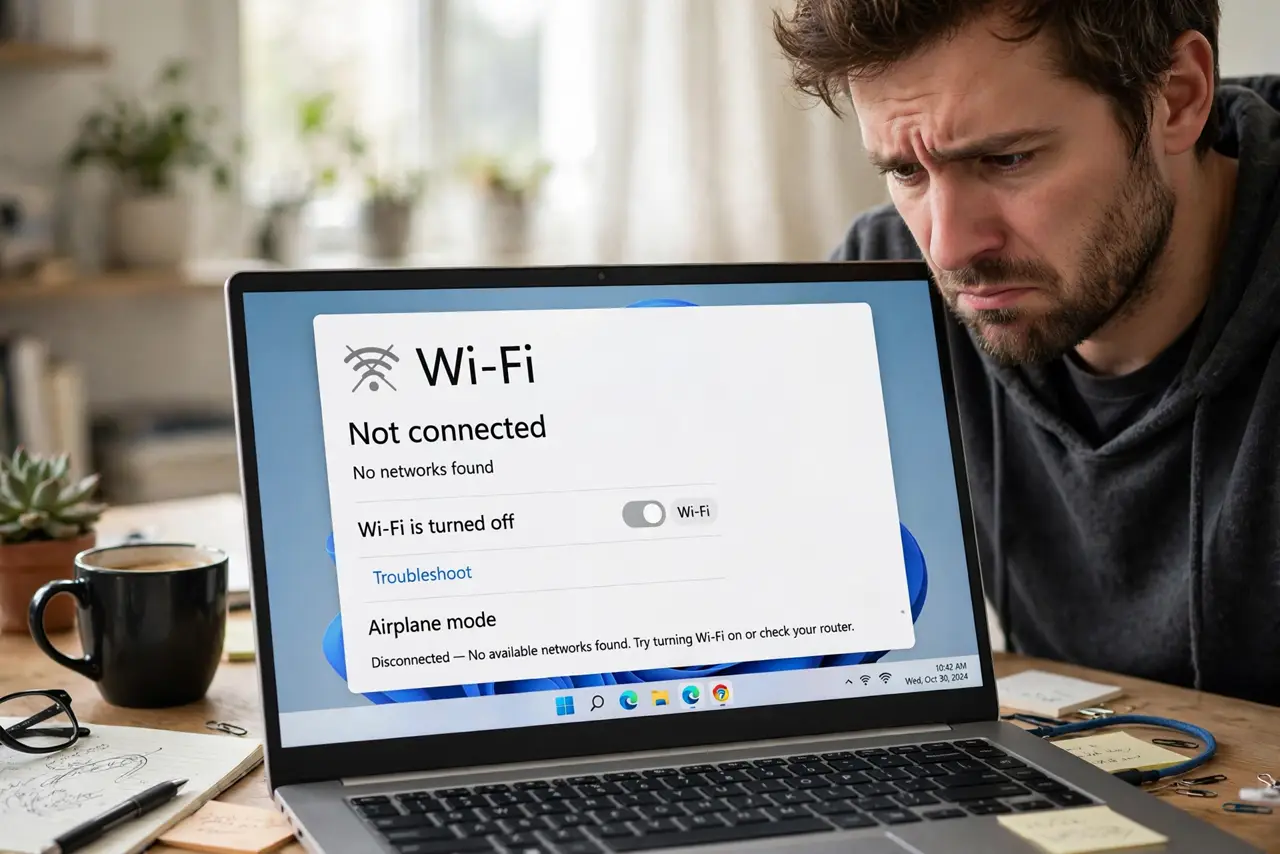
The laptop connects, works for a while, then drops — reconnects, drops again. Phones stay connected through it all, which rules out the router dying. Laptops have their own special disconnect causes: power-saving radios, driver bugs, and band-hopping. Here is the laptop-specific hunt, in order.
TL;DR / Quick Fix
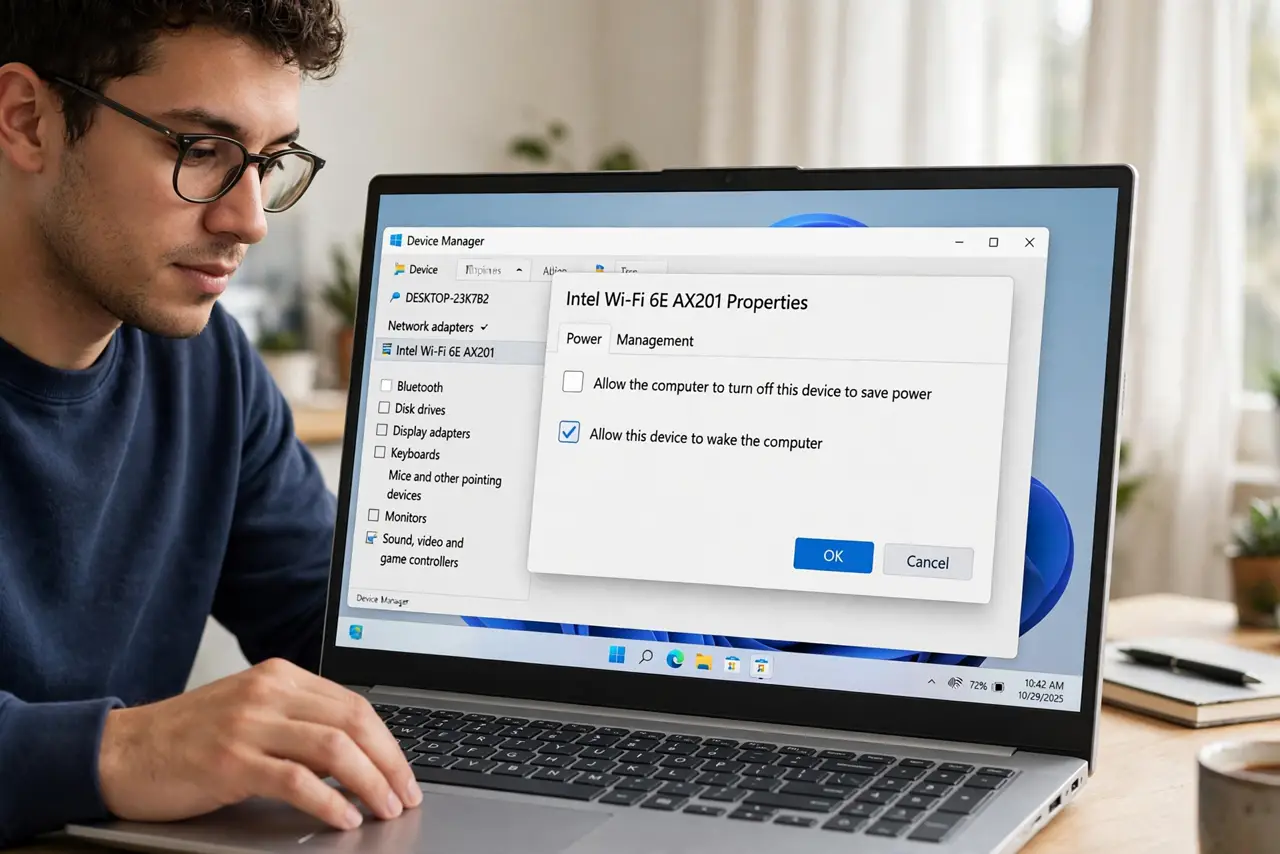
Quick fix: on Windows, stop the Wi-Fi adapter from sleeping — in Device Manager, find the wireless adapter and uncheck 'Allow the computer to turn off this device to save power.' Then update the driver. If drops continue, forget the network and rejoin fresh.
Follow these steps
- Disable Wi-Fi power saving. Device Manager, network adapter, Properties, Power Management — uncheck 'Allow the computer to turn off this device to save power.' This single checkbox ends a huge share of laptop disconnects.
- Update the wireless driver. An old or buggy driver drops under load or on band switches. See update the driver — do this second, not fifth.
- Forget the network and rejoin. A stale profile with wrong security settings causes connect-drop loops. Forget it, restart, and join fresh with the correct password.
- Stop the band flapping. If the laptop hops between 2.4 and 5 GHz and drops each time, split the bands and park it on the stronger one.
- Check for third-party interference. VPN clients, antivirus firewalls, and 'Wi-Fi optimizer' utilities can all drop connections. Disable suspects one at a time and test.
- Test near the router. If drops vanish three feet from the router, it is signal quality at your desk — not software. Then it is a placement or adapter-antenna problem.
What NOT to do
- Do not reinstall Windows over Wi-Fi drops. The power-saving checkbox and the driver fix the vast majority — wiping is wildly disproportionate.
- Do not buy a USB Wi-Fi dongle before trying the driver. Dongles help dead radios, not misconfigured power settings.
- Do not disable IPv6 or random protocols from forum posts. Shotgun 'fixes' create new mysteries; work the ordered list.
- Do not ignore the pattern. Drops every 30 minutes sharp? That is power saving or DHCP lease timing — patterns diagnose.
Frequently asked questions
Why does only my laptop drop, not my phone?
Laptops aggressively power-manage their Wi-Fi radios; phones are tuned for constant connectivity. Different power policies, different behavior.
Drops started after a Windows update — related?
Very likely — updates sometimes replace a good driver with a buggy one. Roll back the Wi-Fi driver and test.
Could the laptop's antenna be broken?
If drops happen everywhere, even next to the router, and a USB adapter fixes it — yes, suspect the internal antenna or its cable.