Multi-Link Operation? Basics
Wi-Fi 7 routers advertise Multi-Link Operation — MLO — as the headline feature, but the box never explains what it actually does. In plain terms: MLO lets your device use two or three Wi-Fi bands at the same time instead of picking just one, combining their speed and dodging congestion. It is the biggest real-world change in Wi-Fi 7. Here is how it works and what you need to use it.
TL;DR / Quick Fix
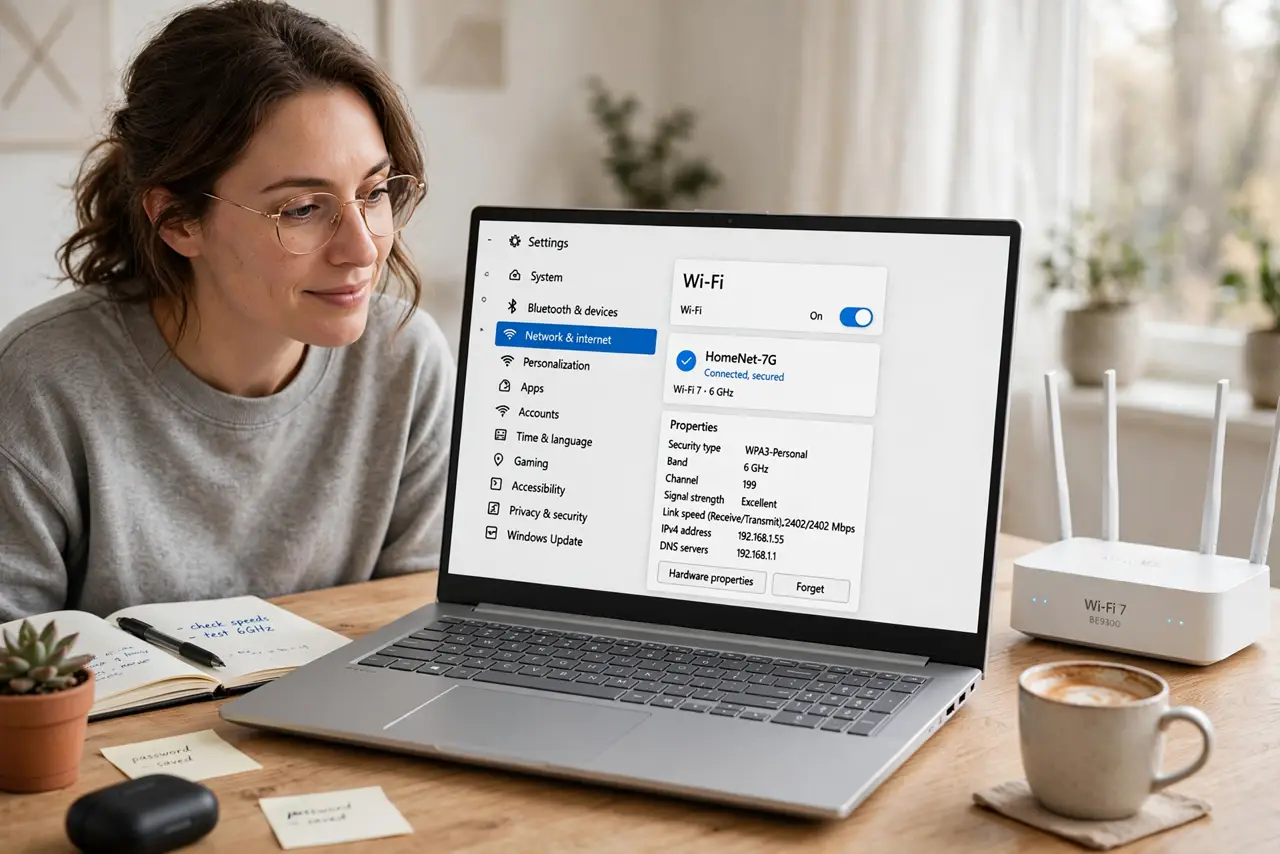
Quick fix: Multi-Link Operation lets a Wi-Fi 7 device use two bands at once — 5 and 6 GHz — for more speed and steadier connections. You need a Wi-Fi 7 router and a Wi-Fi 7 device; older gear uses one band. It works automatically, no settings to tweak.
Follow these steps
- Understand the old way first. Before Wi-Fi 7, your device picked one band — 2.4, 5, or 6 GHz — and stuck with it. If that band got congested, your speed tanked until the device roamed. One band, one connection, no backup.
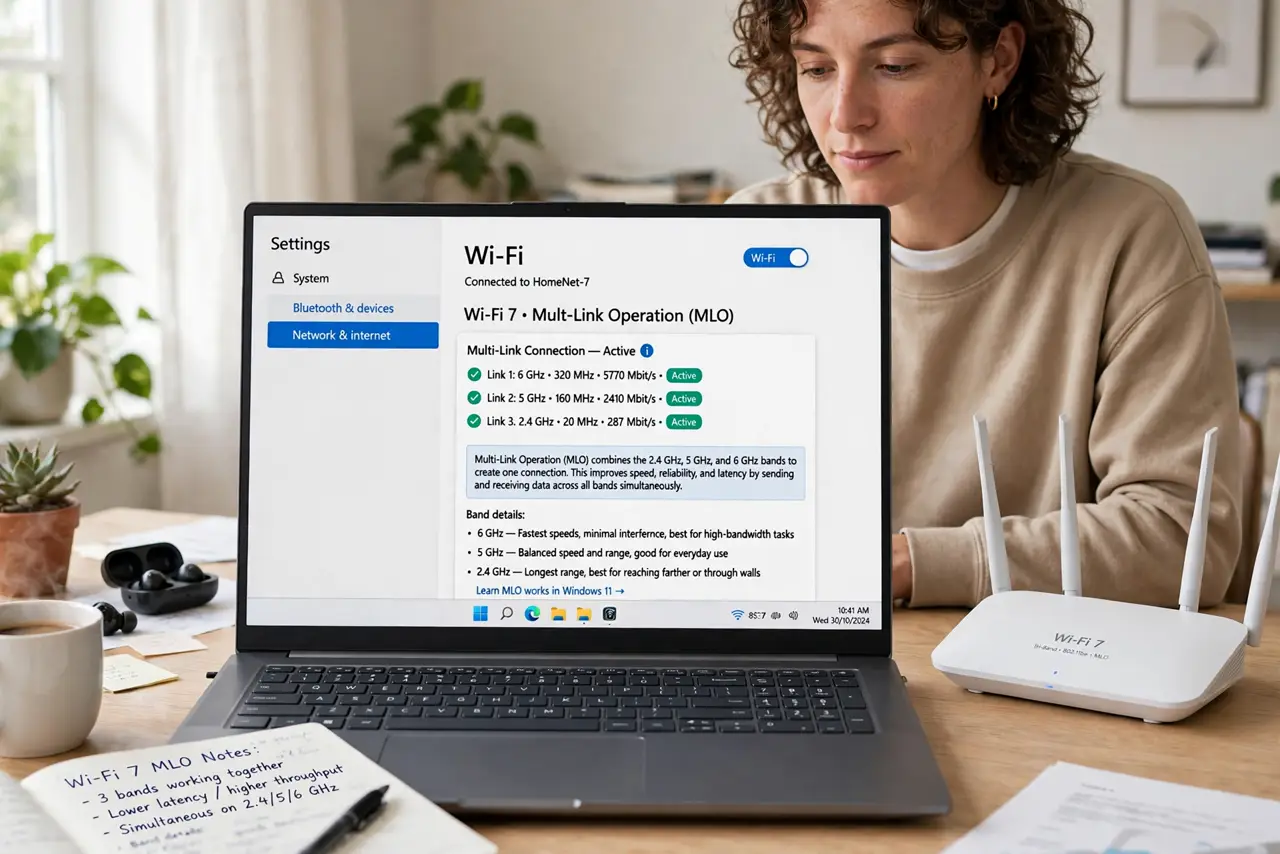
- Learn what MLO changes. Multi-Link Operation opens simultaneous links on multiple bands between your device and the router. Traffic flows across whichever links are clearest, and can even be split across bands — so a crowded 5 GHz band no longer stalls you if 6 GHz is free.
- Know what you need for it. Both ends must be Wi-Fi 7: the router and your phone, laptop, or other device. If either side is Wi-Fi 6 or older, the connection falls back to the old single-band behavior — no harm, just no MLO.
- Expect steadier, not just faster. The headline is speed, but the real win is reliability: MLO hops traffic around interference in real time. Video calls and gaming get fewer hitches because a congested band is no longer a dead end.
- Check that it is actually active. Some routers show MLO status in the admin panel or app — look for 'MLO' or 'multi-link' on the connected device's details. If you do not see it, confirm both devices are Wi-Fi 7 and the router firmware is current.
- Do not upgrade just for MLO. If your current Wi-Fi is fine, MLO alone is not worth a new router plus new devices. Upgrade when you naturally replace gear — MLO will be waiting.
What NOT to do
- Do not assume every 'Wi-Fi 7' device does MLO. It is the flagship feature, but check the specs — a few early Wi-Fi 7 devices skimp on it.
- Do not expect miracles on a slow internet plan. MLO speeds up your local Wi-Fi; if your plan is 100 Mbps, that is still your ceiling.
- Do not disable bands trying to 'help' MLO. Turning off 2.4 or 5 GHz removes the links MLO would use — leave all bands on.
- Do not confuse MLO with mesh roaming. MLO is one device using multiple bands to one router; mesh is multiple access points handing you off. Different features, both useful.
Frequently asked questions
Will MLO work with my Wi-Fi 6 laptop?
No — MLO needs Wi-Fi 7 on both ends. Your Wi-Fi 6 laptop connects to a Wi-Fi 7 router the old way, on a single band, which still works fine.
Does MLO use more battery?
Slightly, since the radio maintains multiple links — but the faster transfers often finish sooner, roughly balancing out in practice.
Is MLO the same as band steering?
No. Band steering nudges your device onto the best single band; MLO uses several bands simultaneously. Band steering was the workaround; MLO is the real fix.