Printers on 2.4 GHz? Basics
Your phone and laptop live happily on the fast 5 GHz Wi-Fi, but the printer only speaks 2.4 GHz — and suddenly nobody can find it. This is the single most common printer Wi-Fi headache: the printer joins the slow band, the devices are on the fast band, and discovery between bands gets flaky. The fix is understanding bands, not buying a new printer.
TL;DR / Quick Fix
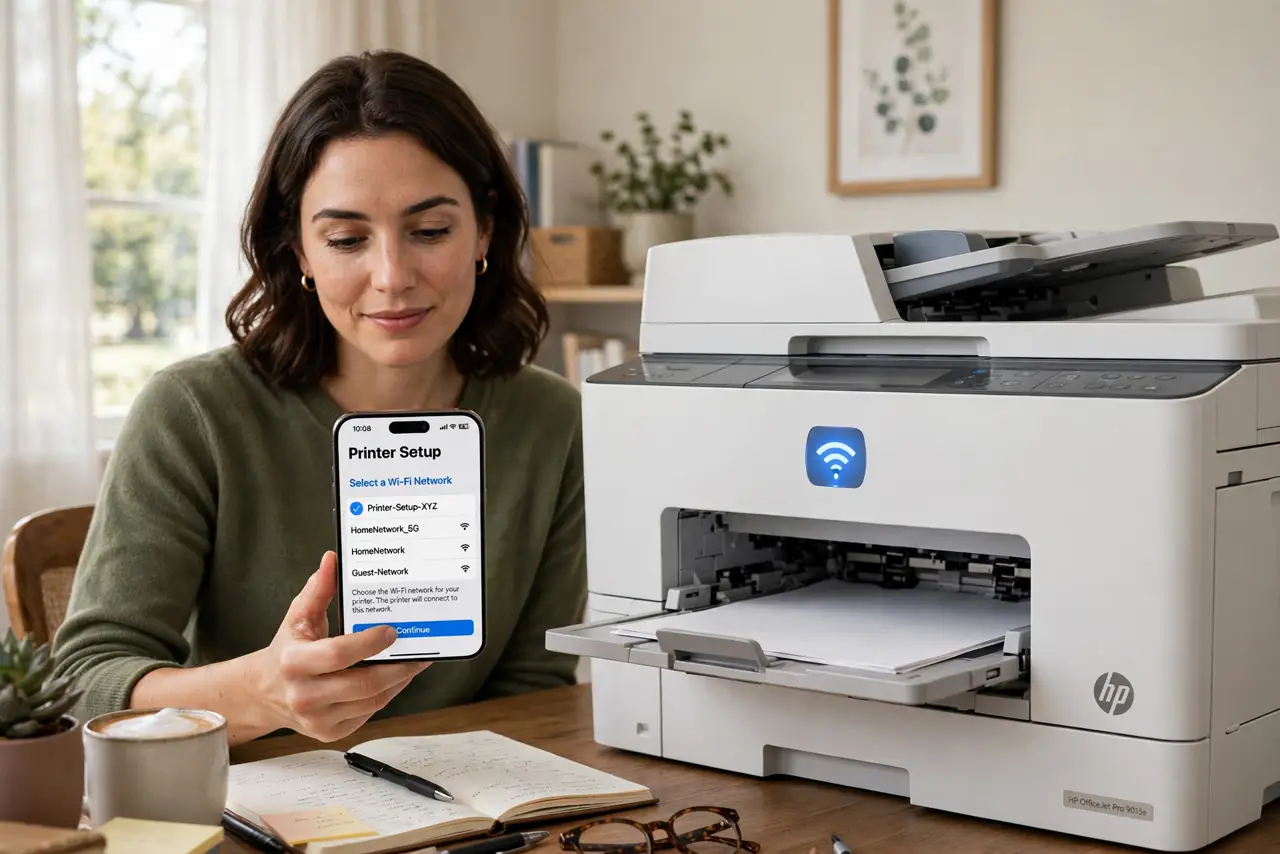
Quick fix: most printers only support 2.4 GHz Wi-Fi — during setup, put your phone temporarily on the 2.4 GHz network too, since setup apps often fail across bands. Give the printer a permanent 2.4 GHz home with a strong signal, and reserve its IP in the router.
Follow these steps
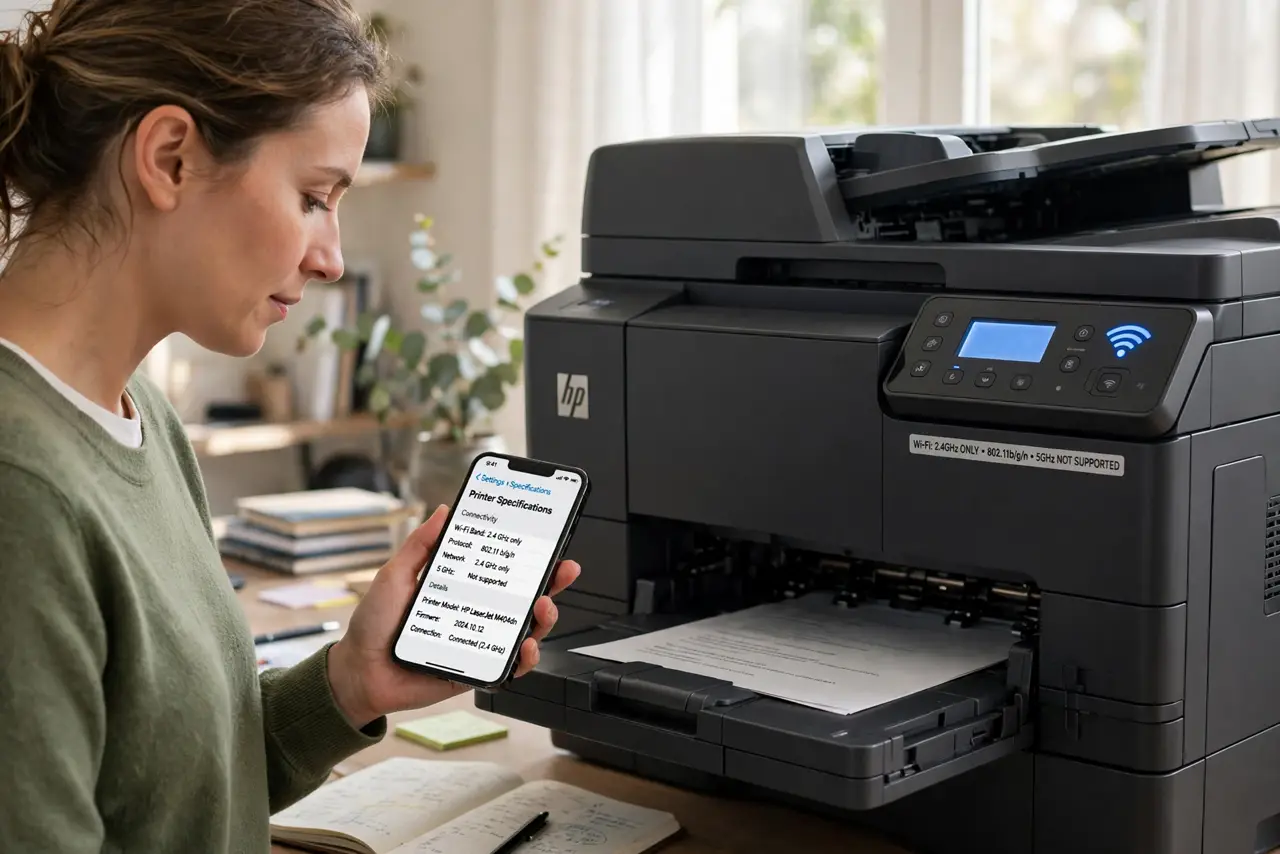
- Confirm the printer is 2.4 GHz only. Check the specs — the vast majority of home printers lack 5 GHz radios entirely. This is not a defect; printing needs almost no bandwidth, so makers skip the faster radio to save cost.
- Join 2.4 GHz on your phone during setup. Printer setup apps discover the printer over the local network, and many fail when the phone is on 5 GHz and the printer is on 2.4 GHz. Temporarily switch your phone to the 2.4 GHz network, run setup, then switch back.
- Give the printer a strong, stable signal. Printers often sit in corners and closets where Wi-Fi is weakest. If setup keeps failing, move the printer closer during setup — you can move it back once it is connected, within reason.
- Use a fixed IP or DHCP reservation. Printers that change IP address confuse computers that remember the old one. In the router settings, reserve one IP for the printer's MAC address — discovery problems drop dramatically.
- Enable cross-band discovery if needed. If 5 GHz devices cannot see the 2.4 GHz printer after setup, look in the router for multicast, Bonjour, or mDNS relay settings and enable them. This is the bridge between the bands.
- Consider USB or Ethernet for the stubborn ones. A printer that will not stay on Wi-Fi can plug directly into the router with Ethernet, or into one computer with USB and be shared. Wired beats wireless for reliability every time.
What NOT to do
- Do not buy a new printer over a band mismatch. The printer is fine — the setup sequence and router settings are the fix.
- Do not run printer setup with your phone on 5 GHz. Cross-band setup failure is the number one cause of 'printer not found.'
- Do not place the printer in a Wi-Fi dead zone. Closets and far corners starve the 2.4 GHz radio the printer depends on.
- Do not factory-reset the printer as step one. Re-running Wi-Fi setup preserves your settings; a full reset rarely adds anything.
Frequently asked questions
Why can't my phone find the printer?
Almost always a band mismatch: phone on 5 GHz, printer on 2.4 GHz, with the setup app failing across bands. Put the phone on 2.4 GHz temporarily during setup.
Should I buy a printer with 5 GHz?
It helps marginally with discovery, but 2.4 GHz prints just as fast — documents are tiny. Fix the setup, not the hardware.
Why does the printer keep going offline?
Usually a changed IP address or a weak signal. A DHCP reservation plus decent placement fixes the great majority of cases.