Set Up the iPhone Action Button Right
The Action Button replaced the mute switch, and most people leave it doing nothing useful — or triggering the wrong thing by accident. It can run shortcuts, open the camera, toggle the flashlight, and more. This guide sets it up deliberately, so it never does the wrong thing again.
TL;DR / Quick Fix
Quick fix: open Settings, Action Button, and swipe through the options — pick the one action you'll actually use daily. Test it with a deliberate press and hold, since a quick tap does nothing. If it keeps firing accidentally, choose a less disruptive action like the flashlight.
Follow these steps
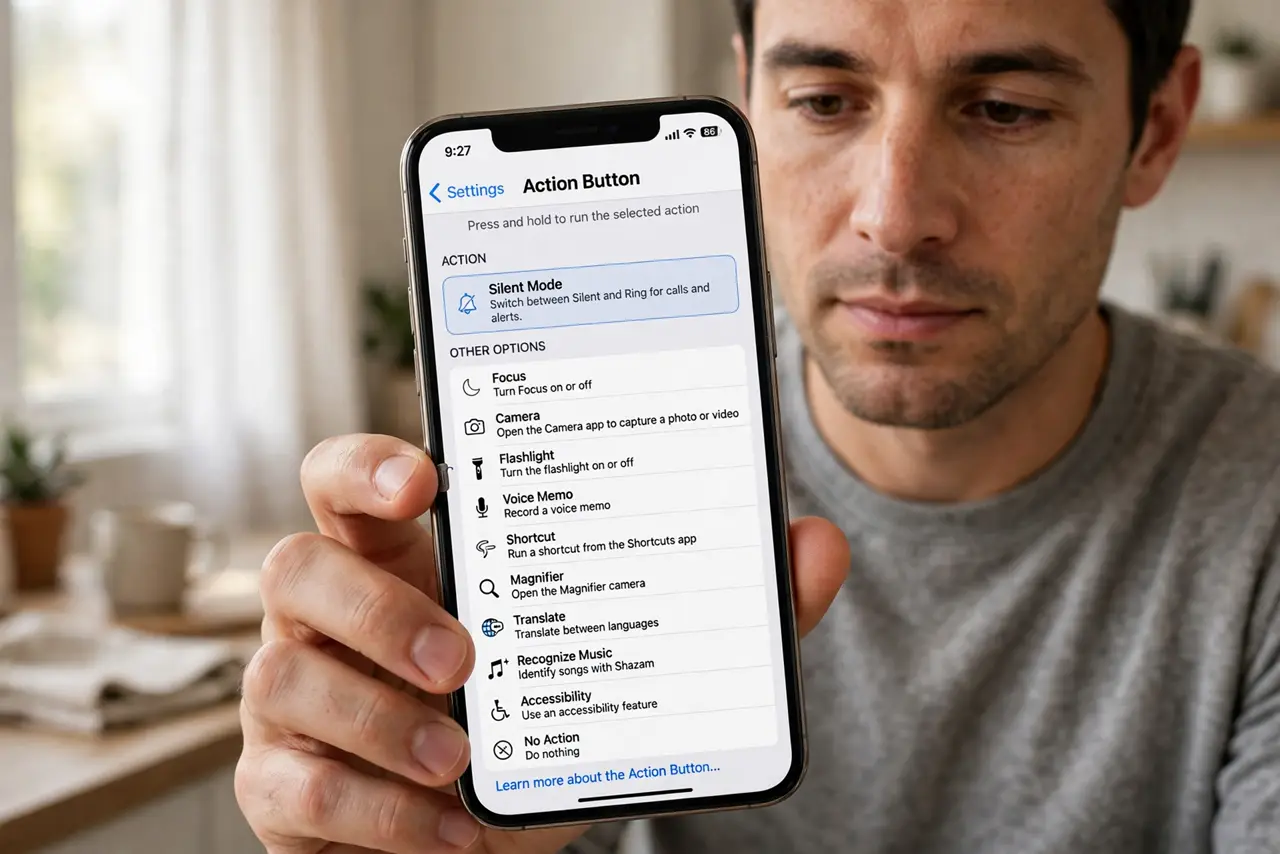
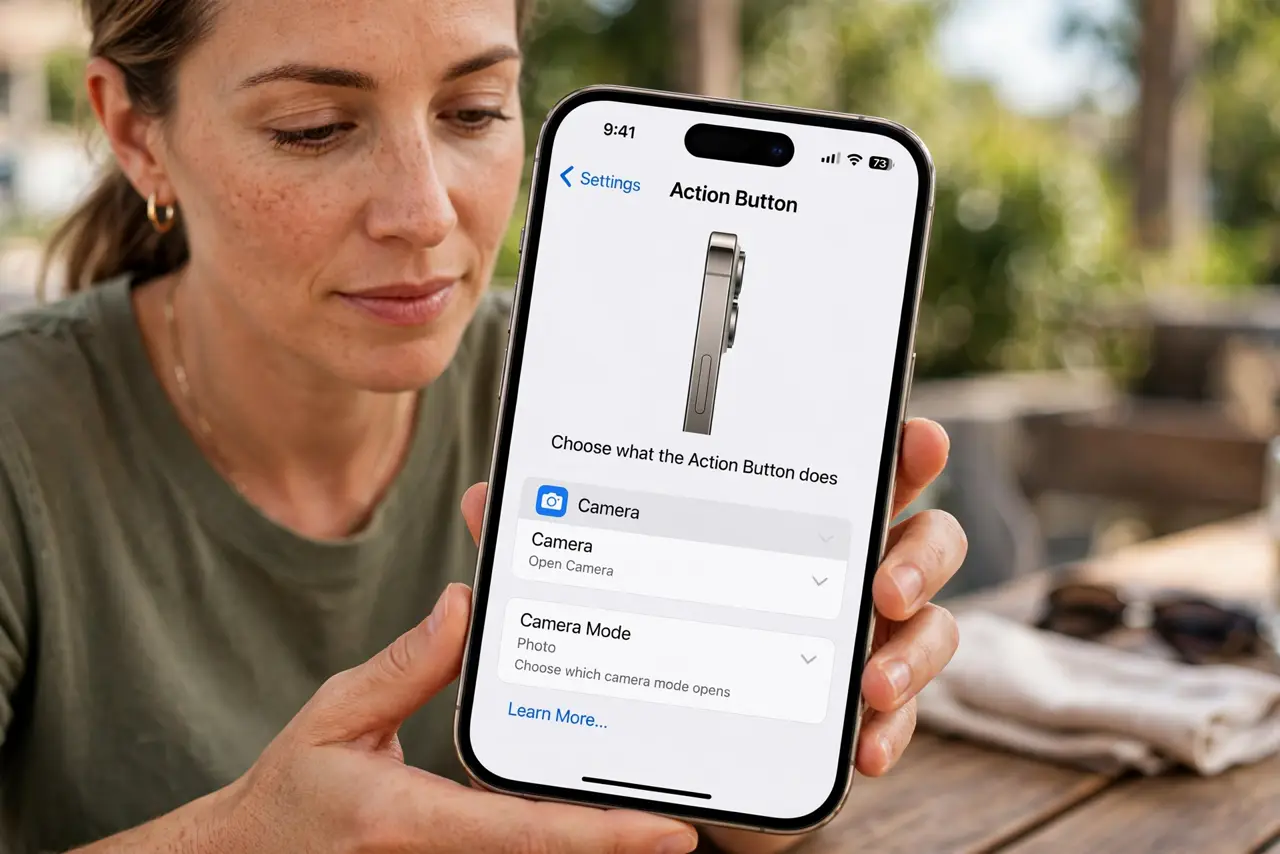
- Open the Action Button settings. Go to Settings, Action Button. The screen shows each option with a preview — swipe through them all before deciding.
- Pick one daily-use action. Choose the single action you will use most: silent mode, camera, flashlight, a Focus mode, or a shortcut. One deliberate choice beats a clever one you never use.
- Learn the press-and-hold. The button needs a deliberate press and hold — a quick tap does nothing. Practice the gesture so it feels natural.
- Try a Shortcut for real power. Assign a Shortcut to chain actions — for example, one press that starts a workout playlist and enables Do Not Disturb. This is where the button earns its place.
- Test it in real situations. Try it with the screen off, in your pocket scenario, and one-handed. If it misfires, reconsider the chosen action.
- Revisit the choice monthly. Your routine changes; the button should follow. A thirty-second review keeps it useful instead of forgotten.
What NOT to do
- Do not assign a destructive action. The button is easy to press accidentally — keep it away from anything that deletes, sends, or pays.
- Do not expect a single tap to work. The press-and-hold design is intentional, to prevent pocket activations.
- Do not leave it on silent mode out of habit if you never silence your phone. The old switch's job is not necessarily the button's best job.
- Do not stack five shortcuts behind one press without testing. Complex chains fail in confusing ways — build up gradually.
Frequently asked questions
What can the iPhone Action Button do?
Toggle silent mode, open the camera, turn on the flashlight, start a Focus mode, run a Shortcut, and more — one press-and-hold action of your choice.
Why doesn't a quick tap work?
By design. The button requires a press and hold to prevent accidental pocket activations.
Can I make it do different things at different times?
Indirectly — assign a Shortcut that checks the time or location and branches. It takes some setup but works well.