Limit AirDrop to Contacts
On a crowded train, a stranger AirDrops you an unwanted photo — it has happened to millions of people. AirDrop's Everyone setting leaves your phone open to anyone nearby. Switching to Contacts Only takes ten seconds and ends the surprise forever, while still letting friends send you files instantly.
TL;DR / Quick Fix
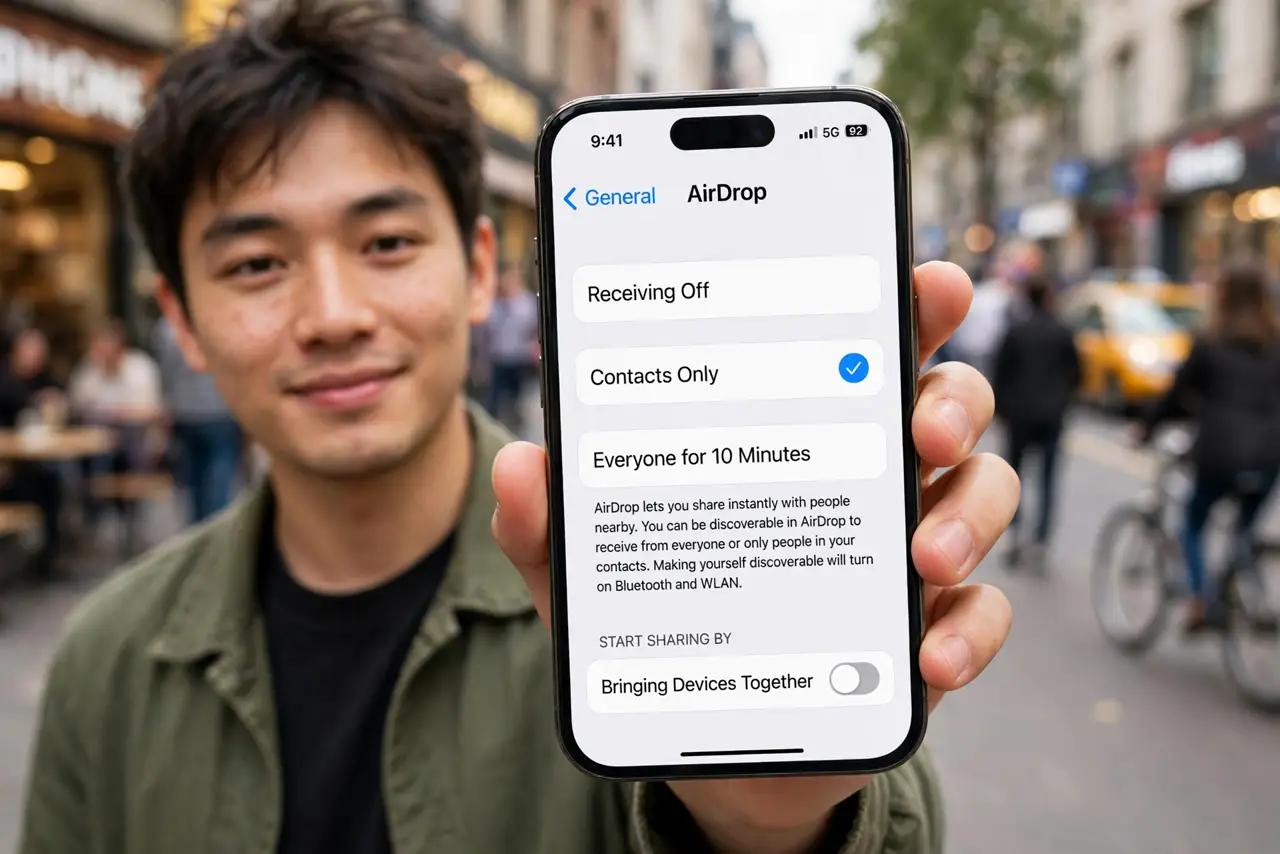
Quick fix: open Settings, go to General, then AirDrop, and choose Contacts Only. Only people in your contacts can then send you files — strangers nearby can no longer surprise you. Use Receiving Off in crowds, and Everyone for 10 Minutes only when expecting a file from someone new.
Follow these steps
- Open the AirDrop setting. Go to Settings, then General, then AirDrop. You will see three options: Receiving Off, Contacts Only, and Everyone for 10 Minutes.
- Choose Contacts Only. Tap Contacts Only. Now only people in your contacts — with your Apple Account details — can discover your device. Strangers see nothing.
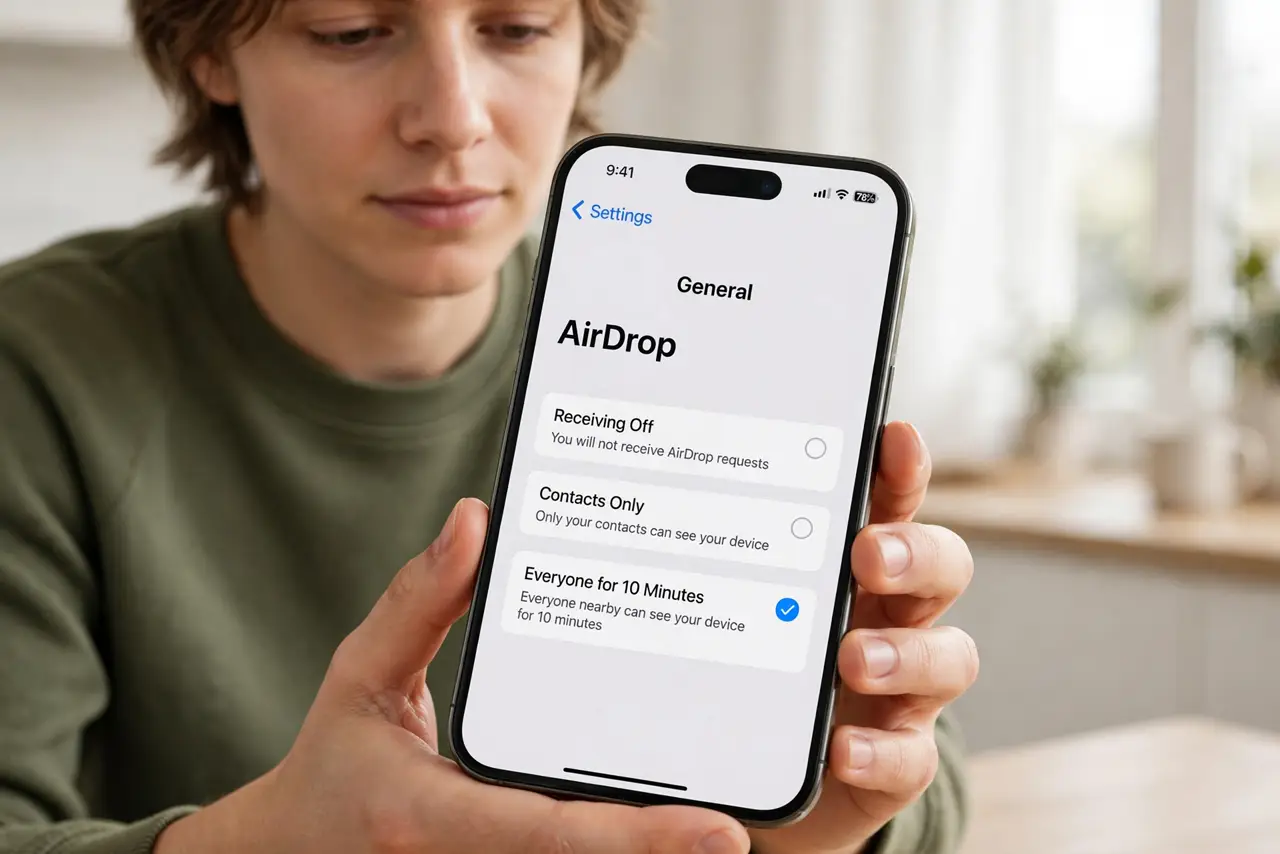
- Know the Everyone timer. Everyone for 10 Minutes reverts automatically — Apple designed it this way after the flashing incidents. Use it only when actively expecting a file from a non-contact, then let it expire.
- Use Receiving Off in crowds. In stadiums, transit, and classrooms, switch to Receiving Off entirely. Ten seconds in Settings buys total peace — see the not working guide if toggling seems stuck.
- Tell friends what to expect. If a friend cannot find you, they need your contact card with your Apple Account email or number — the contacts-only block is the usual confusion.
- Check it after updates. Major iOS updates occasionally reset sharing settings. A quick glance at the AirDrop screen after updating keeps you protected.
What NOT to do
- Do not leave AirDrop on Everyone permanently. The ten-minute timer exists for a reason — permanent Everyone invites surprises.
- Do not assume Contacts Only blocks everyone unknown. Anyone in your contacts can still send; prune as needed.
- Do not forget the Mac has the same setting. Your Mac's AirDrop visibility is separate — set it to Contacts Only too.
- Do not accept files from strangers even once. Curiosity is the attack vector — decline and move on.
Frequently asked questions
Why can't my friend AirDrop me on Contacts Only?
They need to be in your contacts with the Apple Account email or phone number they use for AirDrop. Add it and retry.
Does Contacts Only affect other sharing?
No — it only gates AirDrop discovery. Messages, email, and everything else work exactly as before.
Is AirDrop safe to leave on?
On Contacts Only or Receiving Off, yes. The risk was always the Everyone setting in crowded places.