Make Your Contact Poster
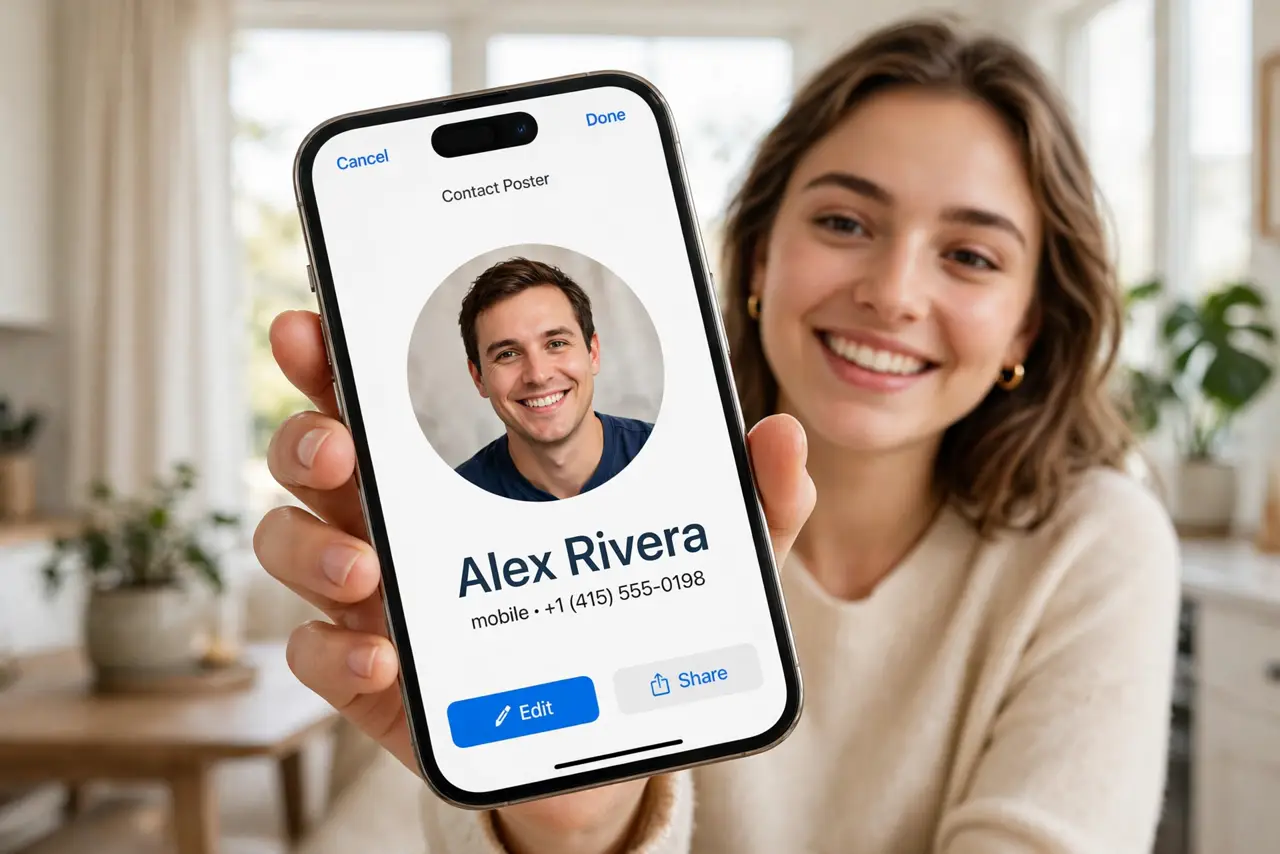
When you call another iPhone user, they can see a full-screen poster you designed — your photo, your name in big type, your style. Contact Posters turn the boring incoming-call screen into something personal. Setting one up takes two minutes; the only trick is knowing where the setting hides.
TL;DR / Quick Fix
Quick fix: in the Phone app, open Contacts, tap your card at the top, and choose Contact Photo and Poster. Pick a photo or Memoji, style the name, and preview it. The poster shows on other iPhones when you call — if yours never appears, check the sharing setting.
Follow these steps
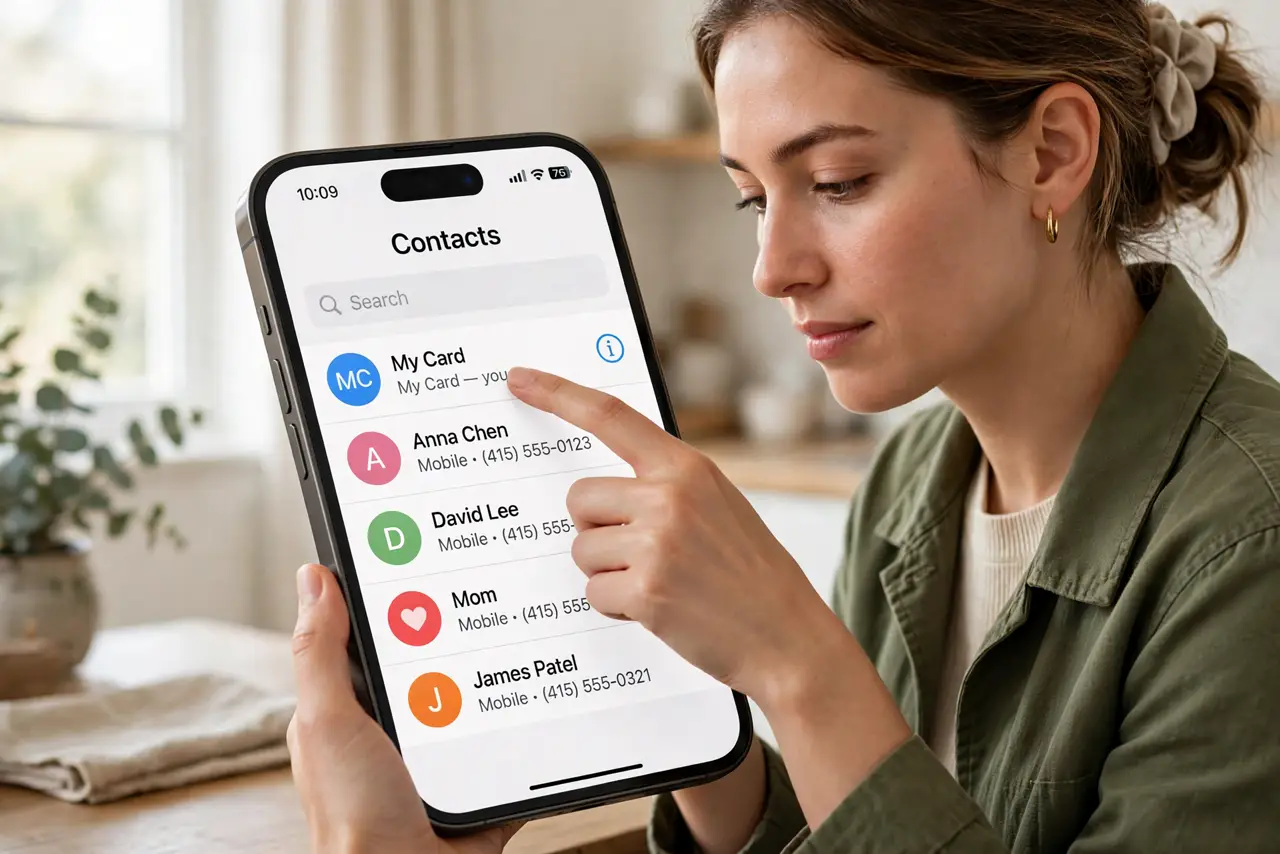
- Open your own contact card. In the Phone app, tap Contacts, then tap your card at the very top — labeled My Card. This is the card other people receive.
- Tap Contact Photo and Poster. Choose Contact Photo and Poster, then tap Edit. You will see poster templates: photo, Memoji, monogram, and color backgrounds.
- Pick a photo or Memoji. Choose a clear, recognizable photo — this is how people identify your call. Memoji works if you prefer something playful; avoid blurry or distant shots.
- Style the name text. Pick a font, size, and color for your name. Keep it readable — the poster flashes on screen for seconds, and fancy thin fonts vanish at a glance.
- Preview and save. Preview the poster full-screen exactly as callers see it. Save when it looks right — you can redo it anytime.
- Check the sharing setting. Under the poster, set sharing to Contacts Only or Always Ask. If your poster never shows for others, this switch is off — see the posters not showing fix.
What NOT to do
- Do not use an embarrassing photo. Your poster appears on professional calls too — pick something you would not mind your boss seeing.
- Do not set sharing to everyone without thinking. Contacts Only keeps your photo out of strangers' call screens.
- Do not use tiny unreadable text. The poster shows for a few seconds — bold and simple beats delicate.
- Do not forget Android callers see nothing. Contact Posters are an iPhone-to-iPhone feature; everyone else gets the standard call screen.
Frequently asked questions
Who sees my Contact Poster?
iPhone users you call, according to your sharing setting — Contacts Only or everyone. Android phones show the regular incoming-call screen.
Can I have different posters for different people?
No — one poster per your card. Everyone who sees it sees the same one.
Why does my poster not show up?
Sharing is probably off or set to ask. Check Contact Photo and Poster sharing, and confirm the other person runs a recent iOS.