Customize Always-On Display
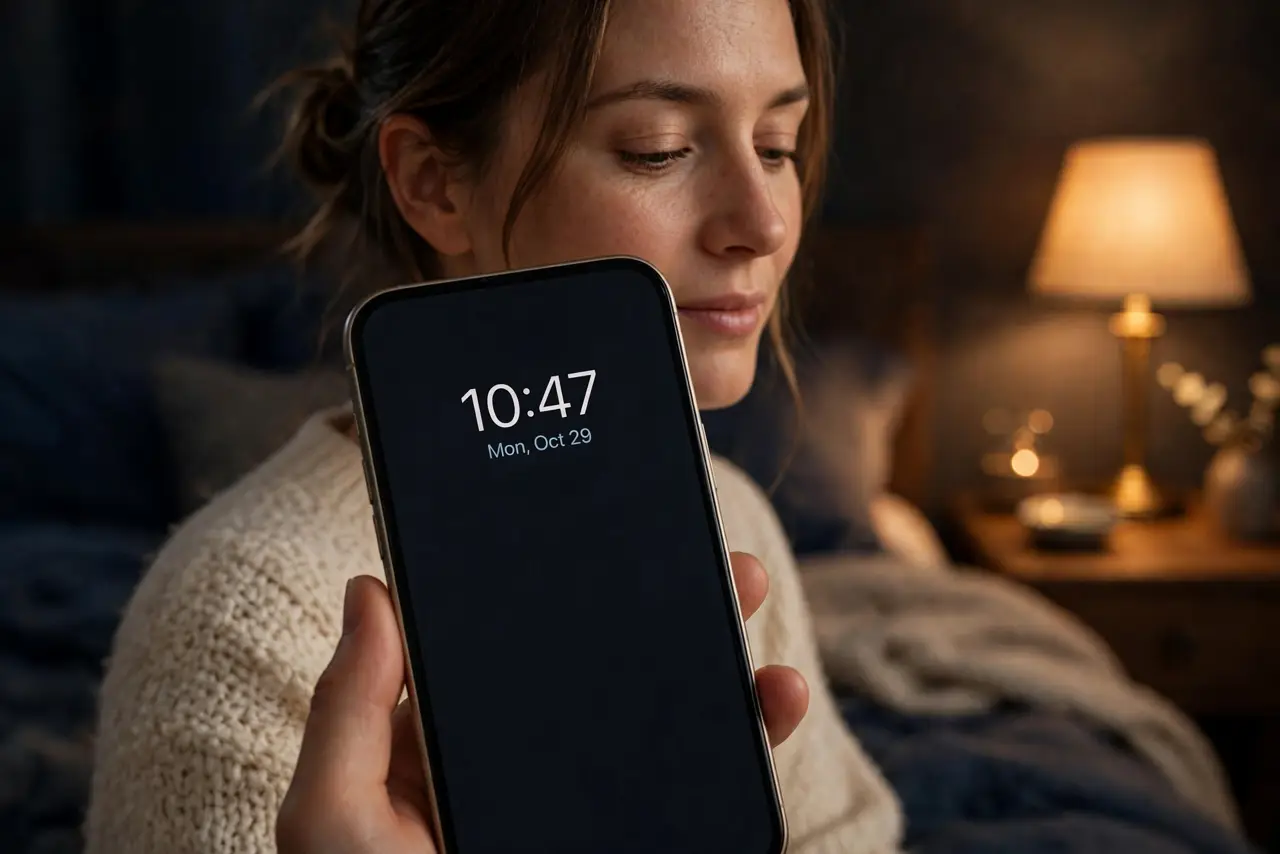
Your iPhone's always-on display glows all night on the nightstand, showing the full wallpaper like a tiny billboard. But it does not have to: you can dim it to a minimal clock, schedule it off while you sleep, or turn it off entirely. A few toggles turn a distracting glow into a glanceable clock.
TL;DR / Quick Fix
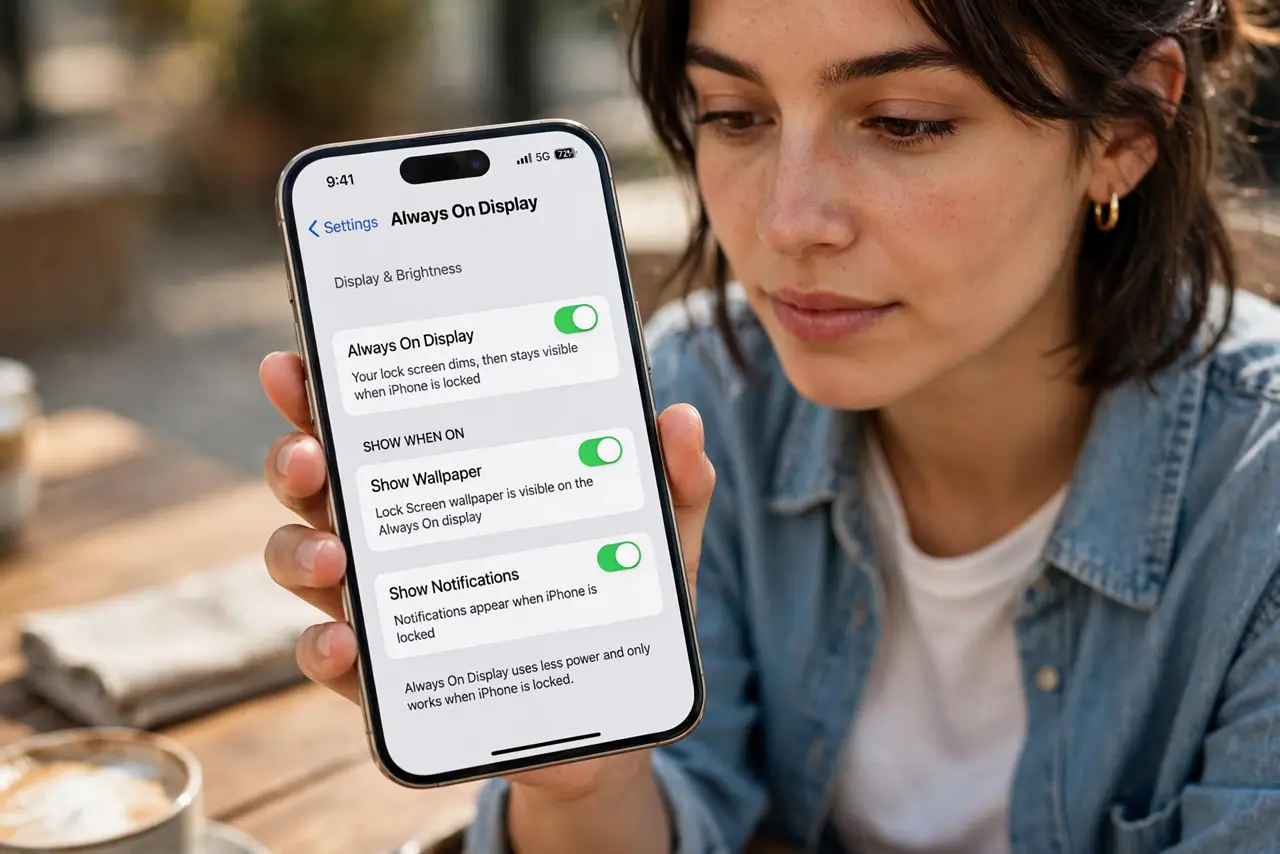
Quick fix: open Settings, then Display and Brightness, then Always On Display. Turn off Show Wallpaper for a minimal dark clock that sips battery. Tie it to your Sleep Focus so it goes fully dark at bedtime. Nothing is deleted; every toggle is reversible.
Follow these steps
- Open the Always On settings. Go to Settings, then Display and Brightness, then Always On Display. Every customization lives on this one screen — wallpaper, notifications, and the master switch.
- Turn off Show Wallpaper. Disable Show Wallpaper to replace the full-color glow with a dark screen showing just the time and widgets. This is the single biggest improvement for nightstand use and battery.
- Choose notification behavior. Decide whether notifications appear on the always-on screen. Showing them keeps you informed; hiding them keeps the screen truly minimal — pick based on how often you glance over.
- Schedule it with Sleep Focus. In the Focus settings, set your Sleep Focus to turn the always-on display off entirely overnight. The phone goes fully dark at bedtime and wakes the display with your alarm.
- Check the battery impact. The minimal mode uses very little power — roughly a few percent overnight. If you notice real drain, the battery breakdown per app will show whether the display or an app is the culprit.
- Turn it off completely if you prefer. The master toggle on the same screen disables always-on entirely. The raise-to-wake gesture still lights the screen when you lift the phone — you lose nothing but the idle glow.
What NOT to do
- Do not leave the full wallpaper glowing overnight. It is distracting and wastes battery for zero benefit while you sleep.
- Do not confuse always-on with raise-to-wake. They are separate toggles; turning off always-on still lets the screen wake when you lift the phone.
- Do not expect zero battery use. Minimal always-on sips power; if every percent counts overnight, use the Sleep Focus schedule.
- Do not forget it is reversible. Every toggle here can be flipped back in seconds — experiment freely.
Frequently asked questions
Does always-on display burn in the screen?
Modern phones shift the dimmed content slightly to prevent burn-in, and the minimal mode is very dim. It is not a practical concern.
Why is my always-on screen still bright?
Show Wallpaper is probably still on, or a Focus mode is overriding your settings. Check both the wallpaper toggle and your active Focus.
Can Android phones do this too?
Yes — most Android phones have an always-on display with clock styles and schedules under Settings, then Display or Lock screen.