Customize the Lock Screen
Your lock screen is the thing you see a hundred times a day, and the default one is forgettable. Both iPhone and Android let you change the wallpaper, add widgets, and restyle the clock without installing anything. A few minutes of setup turns a boring screen into one that shows the information you actually check — weather, calendar, battery — at a glance.
TL;DR / Quick Fix
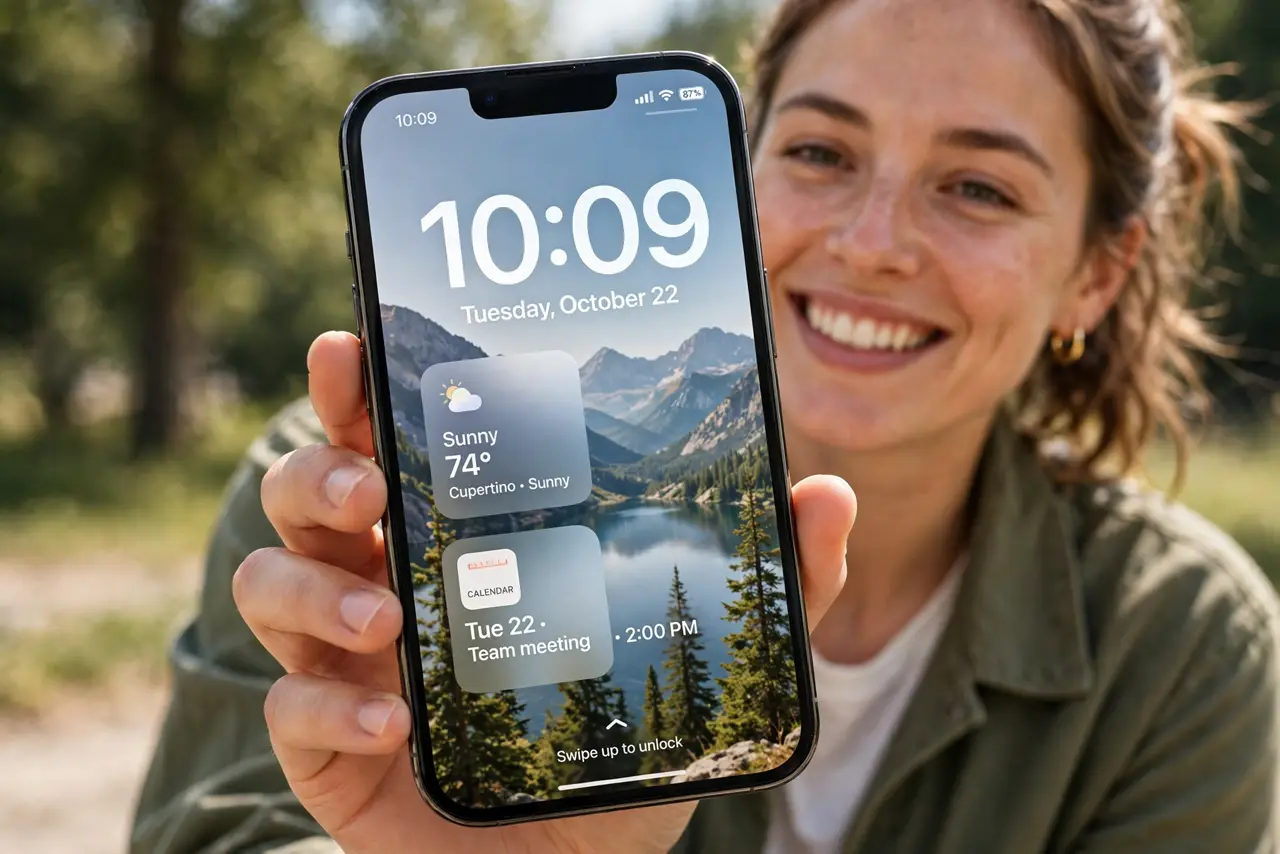
Quick fix: press and hold the lock screen, tap Customize, and change the wallpaper, clock style, and widgets. Add the two or three widgets you check most, like weather and calendar. Keep notifications visible but tidy so the screen stays useful instead of noisy.
Follow these steps
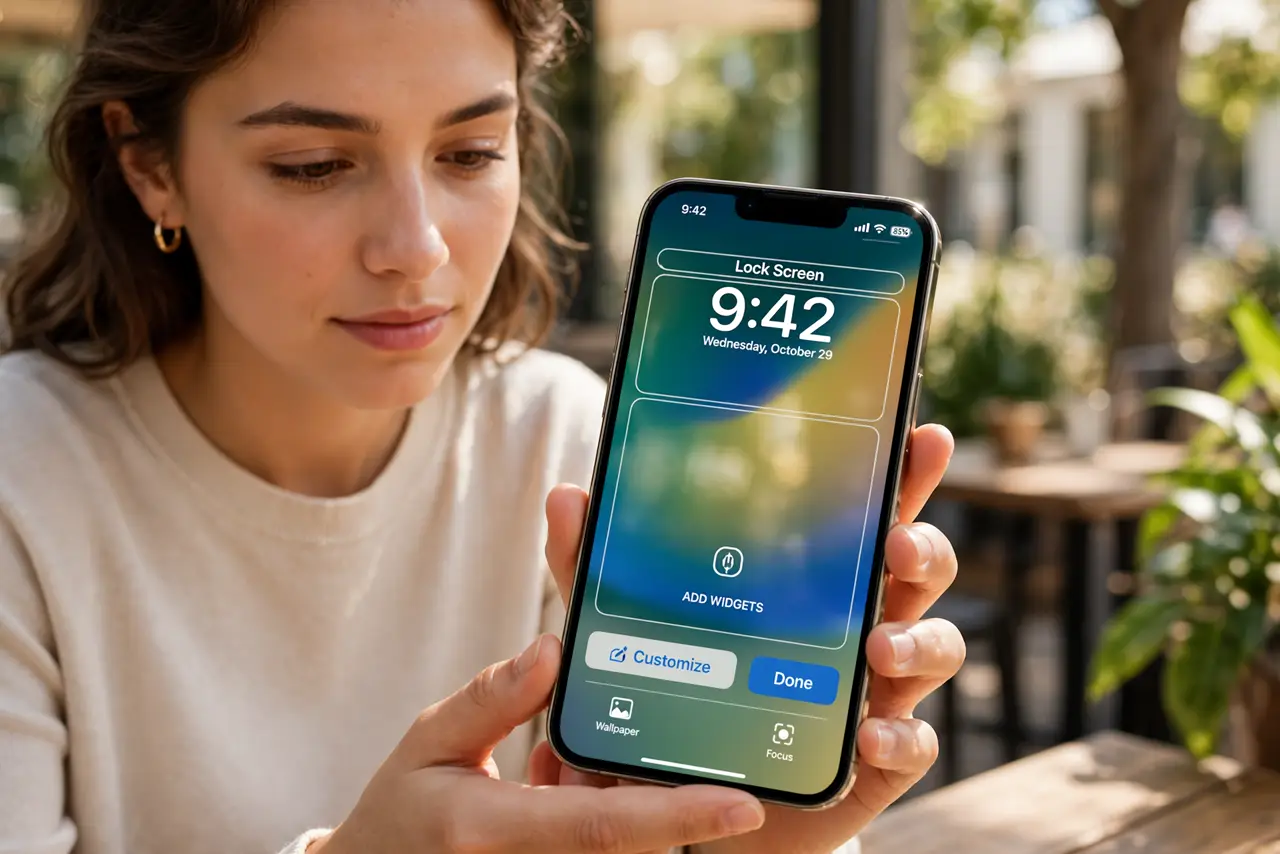
- Open the lock screen editor. On iPhone, press and hold the lock screen, then tap Customize. On Android, press and hold the home screen wallpaper area or open Settings, then Wallpaper and style. This is the starting point for every lock screen change.
- Pick a wallpaper that stays readable. Choose a photo with a calmer area behind the clock. Busy images fight the time display; a slightly dark or blurred region keeps the clock legible. Live or depth-effect wallpapers look great but use a little more battery.
- Restyle the clock. Change the clock font, weight, and color to match the wallpaper. A bolder font pops over busy photos; a thinner one suits minimal wallpapers. Pick a color with strong contrast against the background.
- Add two or three widgets. Add widgets for what you check most — weather, calendar, activity rings, or battery. Resist filling every slot; a crowded lock screen is harder to read at a glance than a curated one.
- Tune notification display. Choose whether notifications show as a count, a stack, or a full list. The count option keeps the screen cleanest; the list is best if you triage messages from the lock screen.
- Save it and make a second look. Save the design, then create a second lock screen for variety — workdays versus weekends, for example. Swiping between saved designs in the editor takes seconds once both exist.
What NOT to do
- Do not use a photo with faces behind the clock. The time display lands on the face and both look worse.
- Do not fill every widget slot. More widgets means more noise; two or three useful ones beat six you never read.
- Do not use a pure-white wallpaper with a white clock. Contrast is what makes the time readable at a glance.
- Do not hide all notifications to make it pretty. The lock screen is a tool — keep the alerts you act on visible.
Frequently asked questions
Will customizing drain my battery?
A static wallpaper with a few widgets uses almost no extra power. Live wallpapers and an always-on display add a small drain; the customization itself is free.
Can I have different lock screens for work and weekends?
Yes. Save multiple designs in the lock screen editor and swipe between them, or tie them to Focus modes on iPhone so they switch automatically.
Why are my widgets blank?
Widgets need their app installed and opened at least once, plus background refresh allowed. Open the app, then return to the editor and re-add the widget.