Always-On Display Drains Battery? Fix It
The always-on display is lovely — glanceable time, notifications, and wallpaper at a dim glow. It also sips power all day and night, and on some phones it sips more than you'd expect. Here is how much it really costs, the settings that trim the cost, and when turning it off is the sane choice.
TL;DR / Quick Fix
Quick fix: always-on display costs a few percent of battery per day, more with a bright wallpaper. On iPhone open Settings > Display & Brightness > Always On and turn off Show Wallpaper, or switch it off overnight. Bigger all-day drain usually comes from something else.
Follow these steps
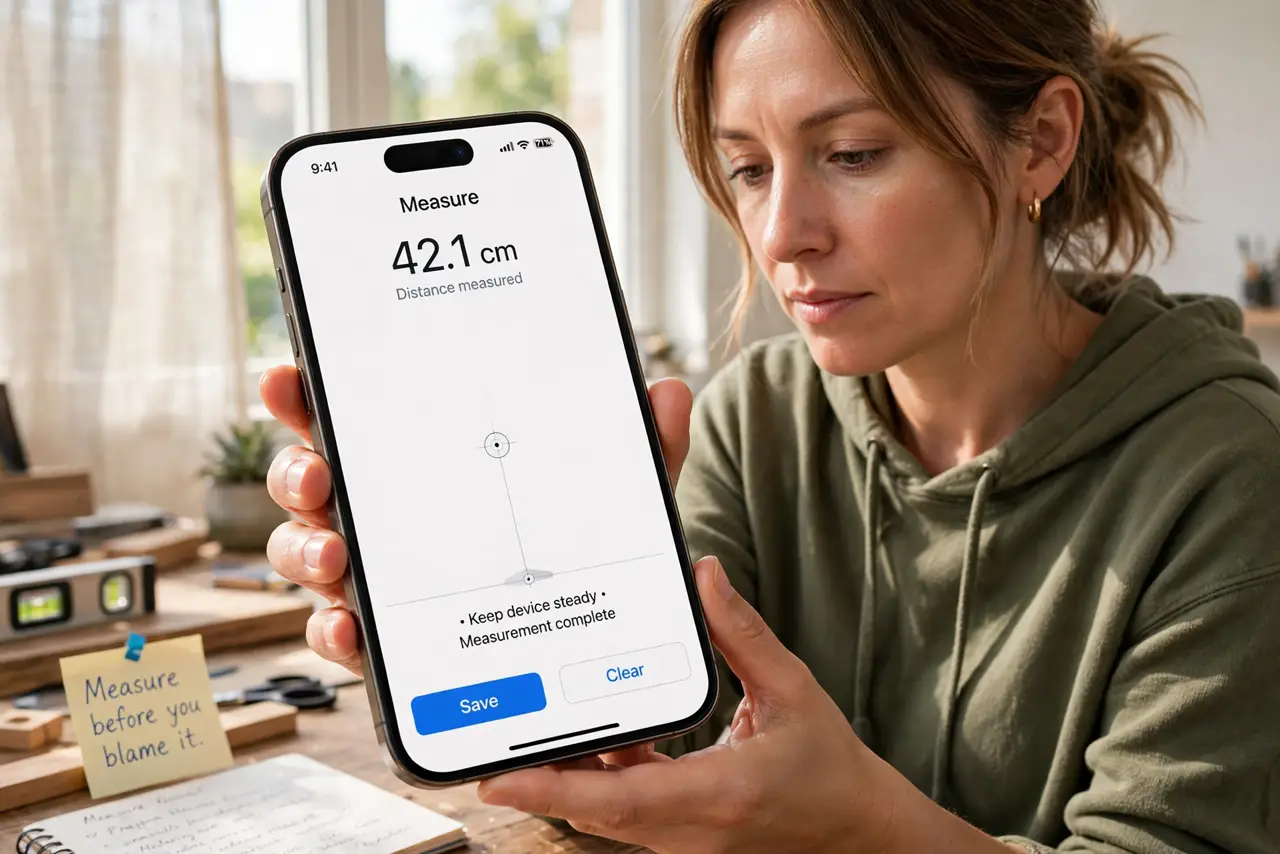
- Measure before you blame it. Check Settings > Battery and look at the last 24 hours. If the screen is not near the top of the drain list, the always-on display is not your problem.
- Turn off the wallpaper on iPhone. Open Settings > Display & Brightness > Always On Display and switch off Show Wallpaper. A black dim screen costs far less than a glowing photo.
- Schedule it off overnight. Use a Sleep Focus, or turn Always On off before bed. Eight hours of a lit nightstand adds up to real percentage points.
- Check the Android equivalent. On Android look under Settings > Display > Lock screen or Always On Display. Many brands let you schedule it or show it only on tap.
- Compare one day with it off. Disable it for a full normal day and compare the evening battery level. A difference under five percent means it was never the villain.
- Look at the real drain suspects. If the phone still dies fast, the usual culprits are poor signal, background video, or a battery draining overnight for other reasons.
What NOT to do
- Do not turn it off and assume the battery is fixed. Always-on is a small, steady sip — big drains come from elsewhere.
- Do not set maximum brightness hoping the dim display looks better. That defeats the whole point of a low-power glanceable screen.
- Do not confuse it with raise-to-wake. Raise-to-wake lights the full screen on movement and can cost more than a dim always-on display.
- Do not install a third-party always-on app on a phone that has one built in. Duplicates fight each other and drain more.
Frequently asked questions
How much battery does always-on display actually use?
Roughly a few percent over a full day on modern phones — more with a bright wallpaper, less on a plain black screen. It is steady but small.
Does always-on display cause screen burn-in?
Modern phones shift the pixels slightly and dim aggressively to prevent it. Burn-in from always-on is rare on current displays.
Why is my battery worse after enabling it?
Check whether you changed anything else at the same time — a new wallpaper, more notifications, or a weak signal can coincide. Test one full day with it off to compare fairly.