Screen Sleeps While You're Reading? Fix It
You're halfway through a long article or a recipe and the screen goes dark — again. The auto-lock timer is simply set shorter than your reading pace. This guide shows where the timeout setting lives on iPhone and Android, how to pick a length that fits, and the trade-off to know before you crank it to the maximum.
TL;DR / Quick Fix
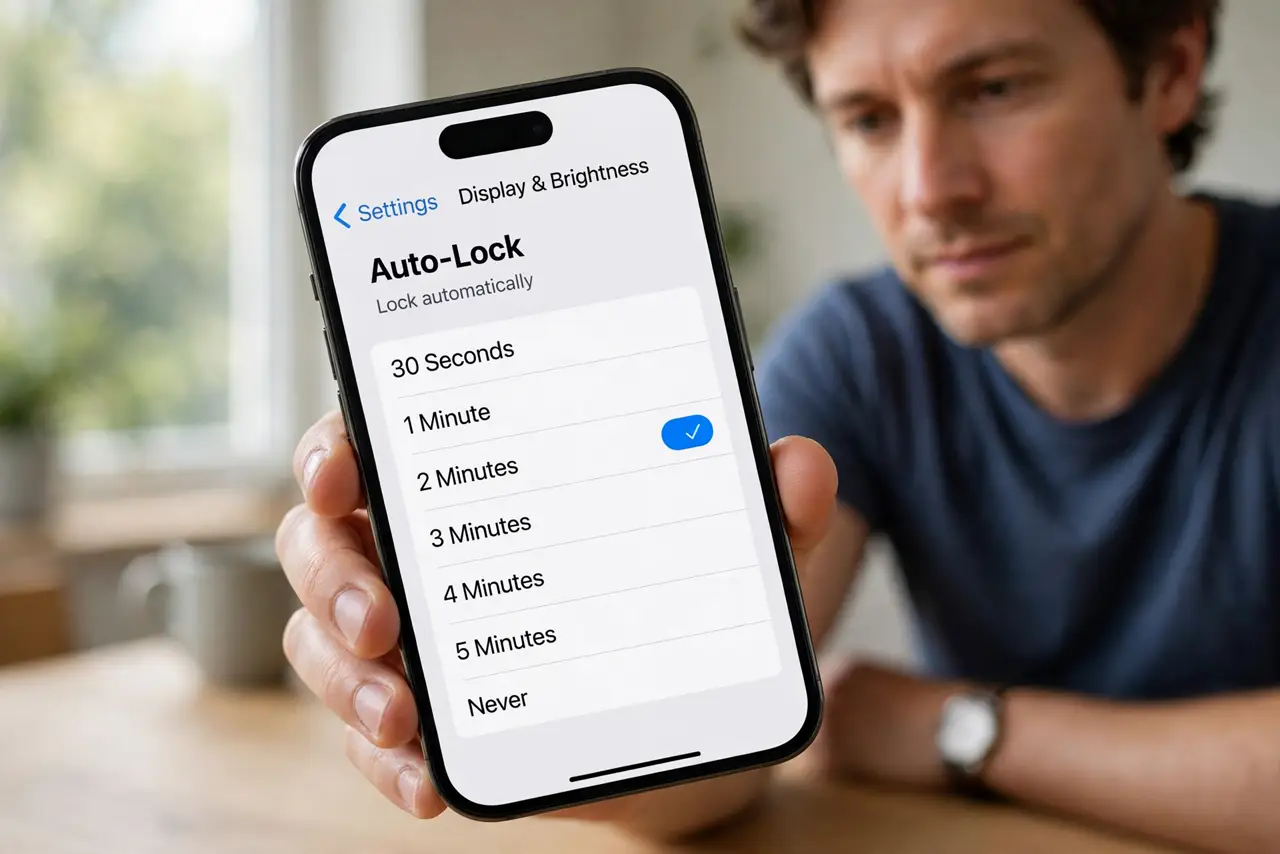
Quick fix: open Settings > Display on your phone and set the timeout — Auto-Lock on iPhone, Screen timeout on Android — to two to five minutes. Two minutes suits most readers; five suits recipes. Avoid Never except while charging, because a longer timeout drains the battery faster.
Follow these steps
- Find the timeout setting on iPhone. Open Settings > Display & Brightness > Auto-Lock. Pick 2, 3, or 5 minutes — long enough for a page, short enough that a forgotten phone does not stay lit in your pocket.
- Find the timeout setting on Android. Open Settings > Display > Screen timeout (on some brands it sits under Lock screen). Options vary by maker, but 2 to 5 minutes covers most reading.
- Match the length to the task. Two minutes suits articles and messages; five suits recipes or sheet music. If you only need a long timeout once, set it back afterward.
- Check that battery saver is not overriding it. Some phones shorten the timeout when battery saver kicks in. If your choice keeps reverting to 30 seconds, that is the usual culprit.
- Use Never only while charging. iPhone's Never option is handy on a kitchen stand while cooking, but left on, it is the fastest way to find a dead phone later.
- Test with a real reading session. Open a long article, put the phone down, and time how long the screen stays lit. Adjust once more if it still sleeps mid-paragraph.
What NOT to do
- Do not set the timeout to Never and forget it. A lit screen in a bag or pocket drains the battery and can pocket-dial.
- Do not blame the screen when the phone sleeps during a call. That is the proximity sensor, a different system entirely.
- Do not crank brightness to maximum to compensate for a short timeout. That burns battery without fixing the actual setting.
- Do not install a keep-screen-on app before checking the built-in setting. Most phones already have exactly what you need.
Frequently asked questions
Why does my screen time out even while I'm reading?
The timer counts inactivity, not attention — scrolling counts as activity, staring does not. Lengthen the timeout or tap occasionally; reading apps with a built-in keep-awake option solve it cleanly.
Does a longer timeout drain the battery?
Yes, noticeably. The screen is the hungriest part of the phone, so every extra lit minute costs charge. Two to five minutes is the sweet spot between comfort and battery life.
Why did my timeout setting change by itself?
Battery saver modes and some work profiles reset it. Check that battery saver is not active, then re-set your timeout after system updates.