Tame Always-On Display
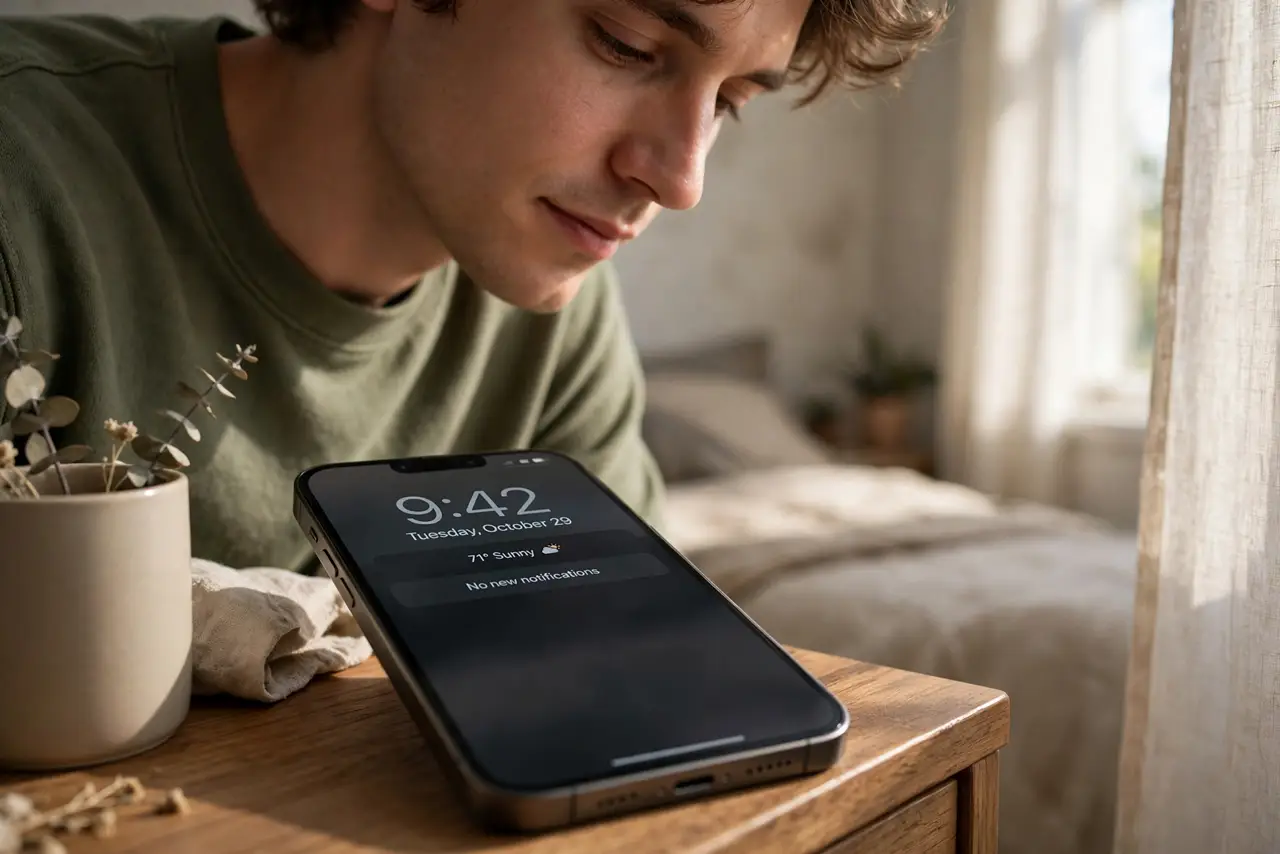
Always-on display keeps the time, date, and widgets faintly visible when your iPhone is locked — beautiful, but it sips battery all night if you let it. The trick is tuning what stays visible so you get the glanceability without the drain. This guide sets it up the smart way.
TL;DR / Quick Fix
Quick fix: always-on display shows the time and widgets dimly when locked. To save battery, go to Settings, Display and Brightness, Always On Display, and turn off Show Wallpaper for a plain black screen. If overnight drain bothers you, schedule Sleep Focus so the screen goes fully dark overnight.
Follow these steps
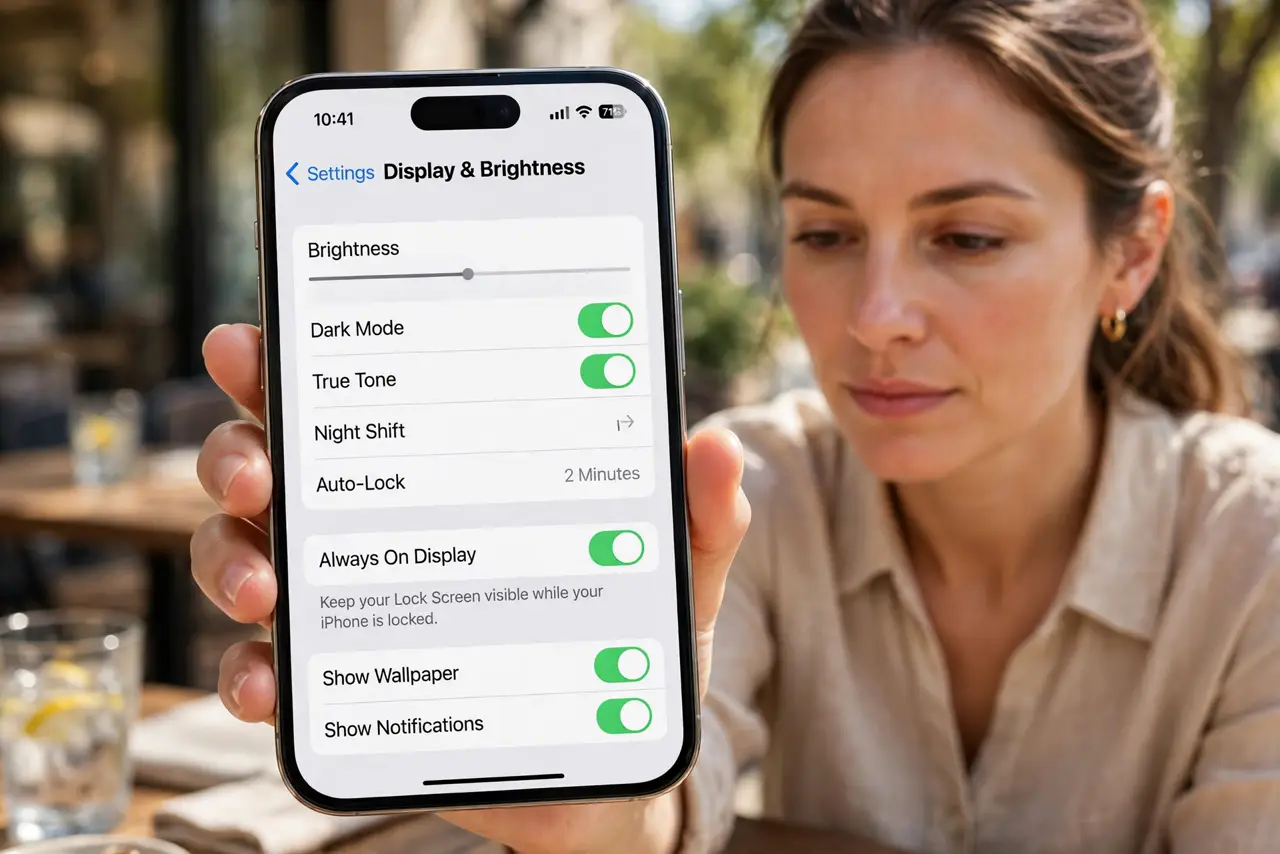
- Find the Always On settings. Go to Settings, Display and Brightness, Always On Display. Every option for the feature lives on this one screen.
- Turn off Show Wallpaper to save power. A plain black always-on screen uses far less energy than your full wallpaper. This single toggle is the biggest battery saver in the feature.
- Choose whether notifications stay visible. Keeping notifications on means the screen lights more often. If overnight drain bothers you, hide them — the phone still buzzes.
- Schedule Sleep Focus for the night. With a Sleep schedule, the iPhone goes fully dark while you sleep and the always-on display takes the night off automatically.
- Let it turn off when it should. The iPhone already dims the display face-down, in a pocket, or when you wear an Apple Watch and walk away. Do not fight these — they are free savings.
- Test one night and check battery stats. Change one setting, sleep, then check Settings, Battery in the morning. Small experiments beat guessing about drain.
What NOT to do
- Do not leave full wallpaper always-on if battery is tight. It looks great and costs the most — black is the efficient choice.
- Do not assume the screen is 'off' when dim. Always-on is still on; only Sleep Focus or Low Power Mode truly darkens it.
- Do not disable the feature out of fear before testing. Measure one night first — many people find the drain negligible once wallpaper is off.
- Do not expect it on older iPhones. Always-on display needs an iPhone 14 Pro or newer.
Frequently asked questions
How much battery does always-on display use?
Typically a few percent overnight with wallpaper off. With wallpaper on, noticeably more — that is why the toggle matters.
Why is my always-on display completely dark?
Sleep Focus, Low Power Mode, face-down placement, or a paired Apple Watch walking away all darken it by design.
Can I schedule it instead of using Sleep Focus?
Not directly — Sleep Focus is the built-in scheduler. Set a sleep schedule and the screen follows it.