AssistiveTouch? Basics
AssistiveTouch is the floating on-screen button that gives you a virtual Home button, gestures, and shortcuts — a lifesaver with a broken physical button, and a handy shortcut hub for everyone else. It floats over every app and opens a menu of taps, gestures, and device controls. Most people discover it by accident; this guide makes it intentional.
TL;DR / Quick Fix
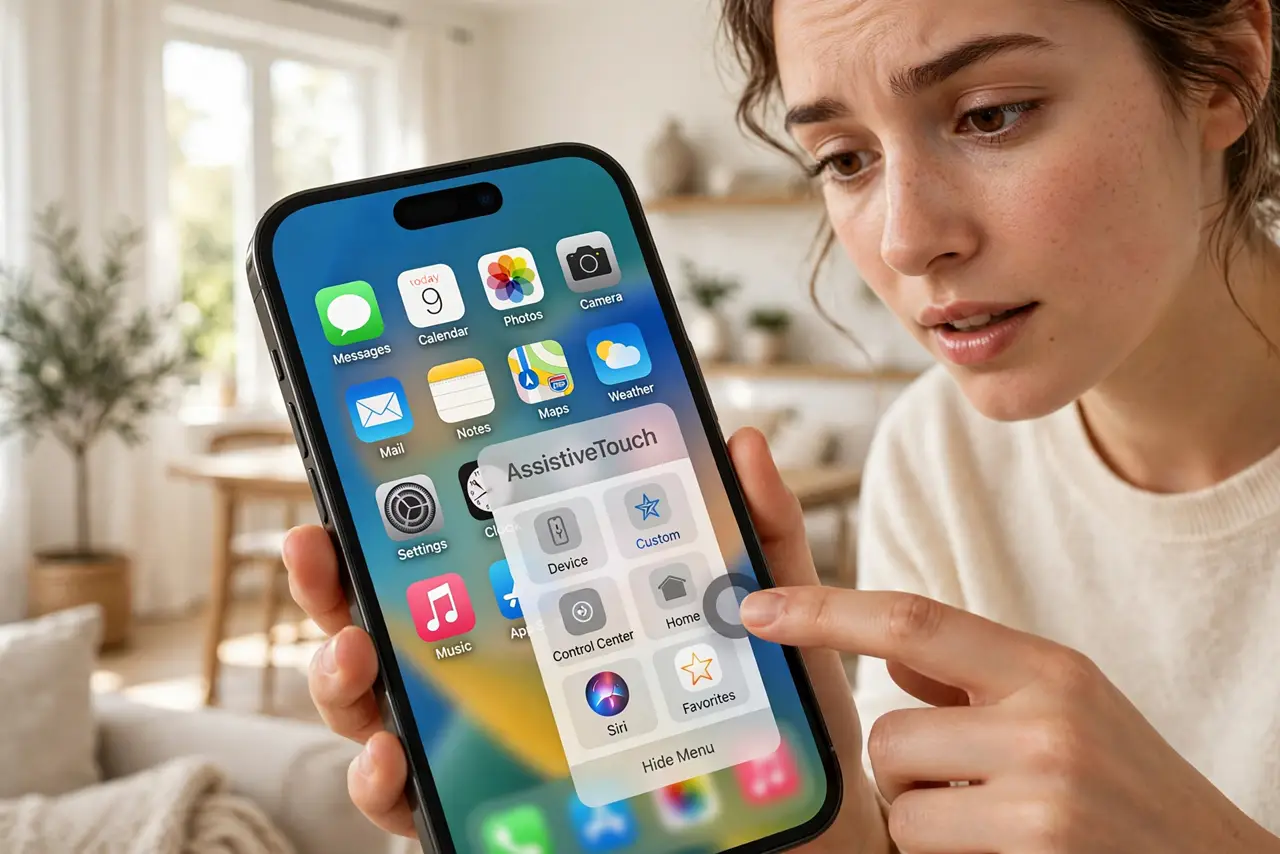
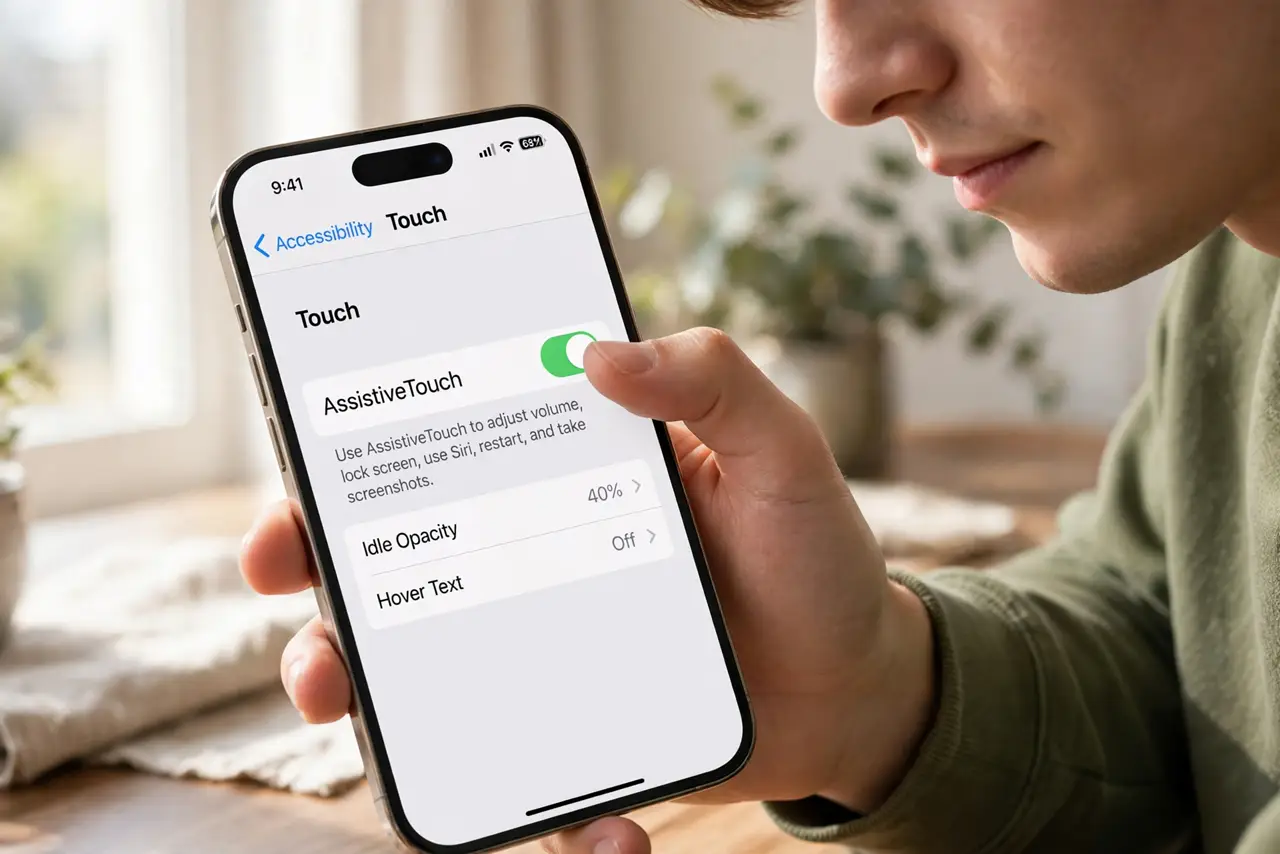
Quick fix: on iPhone open Settings, Accessibility, Touch, AssistiveTouch, and turn it on. A floating button appears — tap it for Home, gestures, notifications, and device controls. Drag it to any screen edge. Customize the menu with your most-used actions.
Follow these steps
- Turn it on. Open Settings, Accessibility, Touch, AssistiveTouch, and toggle it on. The floating button appears immediately, semi-transparent until touched. Everything from here is customization.
- Learn the default menu. Tap the button: you get Notification Center, Device, Control Center, Home, and Custom gestures. The Device submenu holds rotate, volume, lock, and more — a full button replacement.
- Move it out of the way. Drag the button to any screen edge; it snaps there and fades when idle. If it keeps covering something, you are not stuck with its first position — and if it gets in the way there are fixes.
- Customize the top menu. In the AssistiveTouch settings, tap Customize Top Level Menu. Add the four to six actions you actually use — screenshot, lock screen, app switcher — and remove the rest. Fewer icons means faster taps.
- Set up the triple-click shortcut. In Accessibility settings, set the side-button triple-click to toggle AssistiveTouch. Now you can summon or dismiss the button instantly without digging through Settings.
- Try custom gestures. Create a gesture — a pinch, a multi-finger tap — and trigger it from the menu. Gamers and accessibility users get the most from this; everyone else can safely ignore it.
What NOT to do
- Do not leave the default menu cluttered. Six useful actions beat twelve you never tap — customize it once.
- Do not panic if it appears unexpectedly. A triple-click or an accessibility shortcut turned it on — toggle it off in the same setting.
- Do not use it as a permanent crutch for a broken button. It works, but a repair restores full function — see it as a bridge.
- Do not forget Android has its own version. The accessibility button on Android covers similar ground under Accessibility settings.
Frequently asked questions
What is the floating button on my iPhone?
That is AssistiveTouch — an on-screen menu for Home, gestures, and device controls. Turn it off in Settings, Accessibility, Touch, AssistiveTouch.
Can AssistiveTouch replace a broken Home button?
Yes, that is its classic use. The menu's Home action works exactly like the physical button, including double-tap for the app switcher.
Does AssistiveTouch drain battery?
Negligibly. It is a tiny overlay — far less than the screen itself. No need to toggle it off for battery reasons.