Screenshot With a Back Tap
Double-tapping the back of your iPhone to take a screenshot feels like a magic trick — no button gymnastics, no awkward grip. Back Tap turns the whole back of the phone into a shortcut button. This guide sets it to screenshot, with the one tweak that stops accidental captures.
TL;DR / Quick Fix
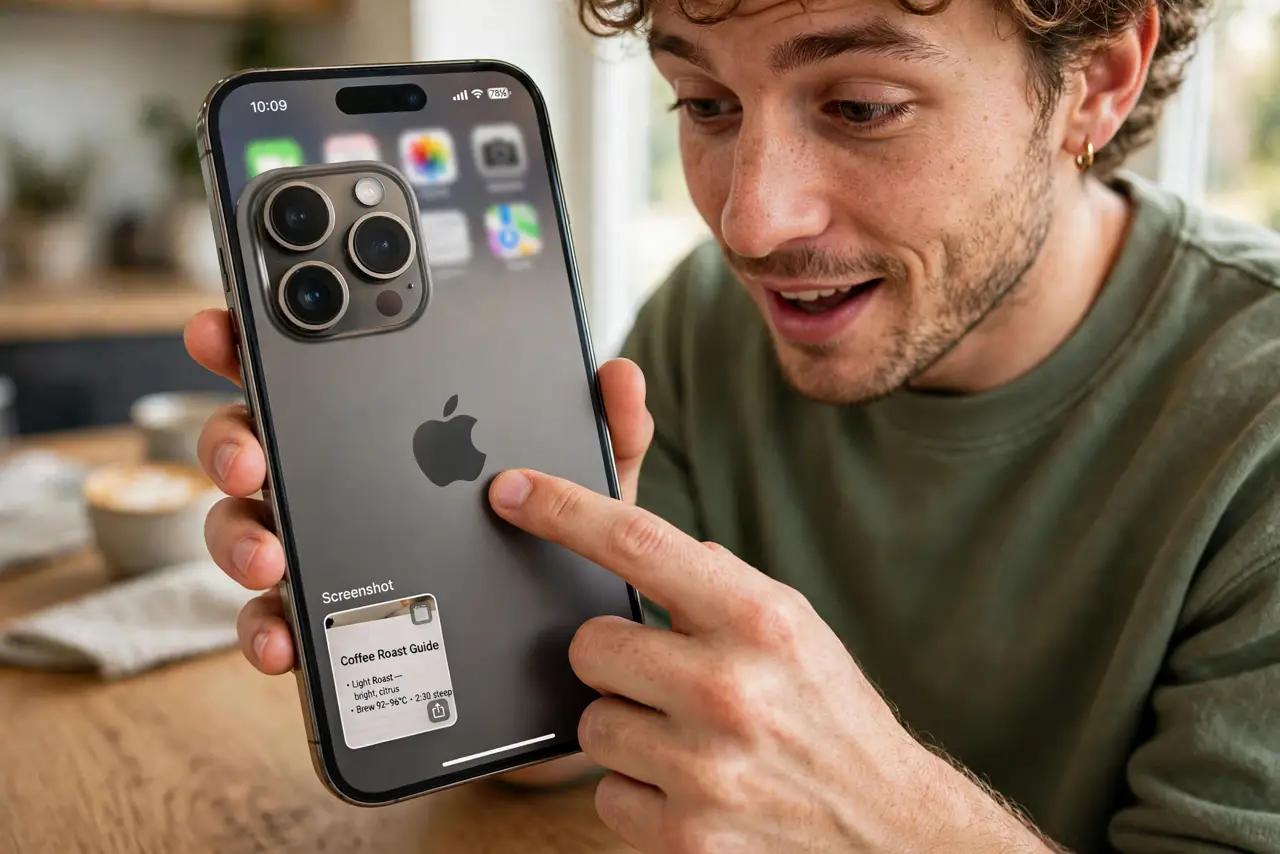
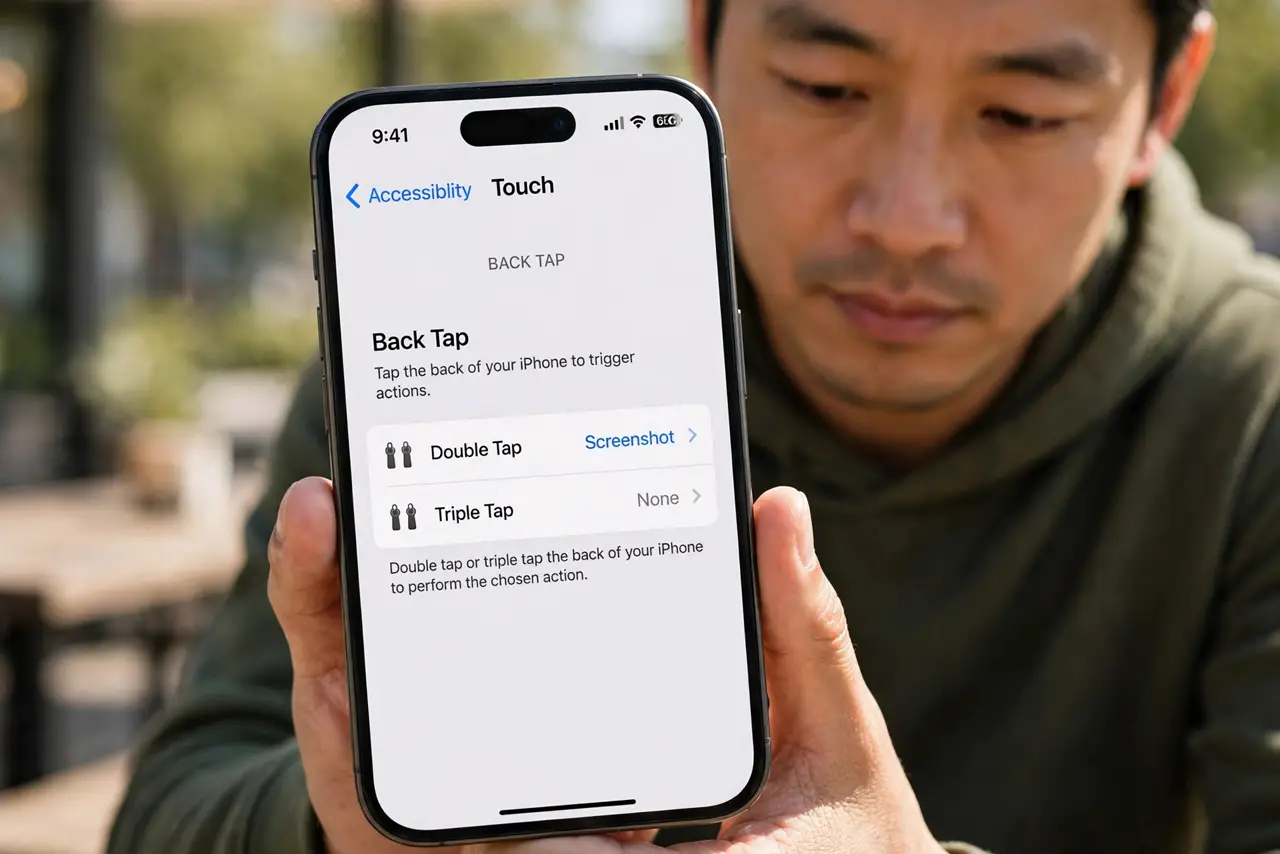
Quick fix: open Settings > Accessibility > Touch > Back Tap and set Double Tap or Triple Tap to Screenshot. Tap the back of the iPhone firmly twice near the Apple logo. If screenshots fire by accident, switch the action to Triple Tap or turn it off.
Follow these steps
- Open the Back Tap settings. Go to Settings > Accessibility > Touch, then scroll down and tap Back Tap. You will see Double Tap and Triple Tap slots.
- Assign Screenshot to Double Tap. Tap Double Tap, scroll the action list, and choose Screenshot. Back out — the setting saves automatically.
- Tap firmly, near the logo. Double-tap the back of the phone with a firm finger, around the Apple logo. Light brushes do not register; you need a deliberate tap.
- Check the thumbnail appears. A small preview slides in at the bottom-left corner. Tap it to edit, or swipe it away to save silently to Photos.
- Fix accidental screenshots. If screenshots fire in your pocket, move the action to Triple Tap — much harder to trigger by accident — or assign Double Tap to something harmless like Mute.
- Try other actions once it works. Back Tap can also open Control Center, scroll, or run a Shortcut. One well-chosen action beats a menu you never use.
What NOT to do
- Do not tap with a case three inches thick and expect miracles. Very rugged cases dampen the tap the sensor needs.
- Do not set Double Tap to Screenshot if the phone lives loose in a bag. You will return to 40 screenshots of darkness.
- Do not assume it works through every glove. Thin gloves are fine; ski gloves are not.
- Do not confuse Back Tap with a broken power button. If screenshots stop working, check the setting before the hardware.
Frequently asked questions
Why doesn't Back Tap work with my case on?
Thick rugged cases absorb the tap impulse. Try tapping harder near the logo, or test with the case off to confirm the setting works.
Can Back Tap do more than screenshots?
Yes — it can trigger almost any accessibility action or Shortcut, from flashlight to scrolling. Screenshot is just the most popular choice.
Does Back Tap drain the battery?
Negligibly. The accelerometer already runs all day for raise-to-wake and step counting; Back Tap just listens to it.