Back Up Before Updating
The update button glows, you tap it, and halfway through the progress bar freezes. Rare — but when it happens, the only question that matters is whether you backed up first. A fresh backup turns an update disaster into a one-hour restore; no backup turns it into lost photos and a very bad week. This takes five minutes and is the cheapest insurance in tech. The update day guide is the full pre-flight routine.
TL;DR / Quick Fix
Quick fix: run a fresh iCloud or computer backup right before every iOS update — it takes minutes and saves everything. Confirm the backup finished in Settings before you tap install. If the update fails, you restore in an hour instead of mourning lost photos.
Follow these steps
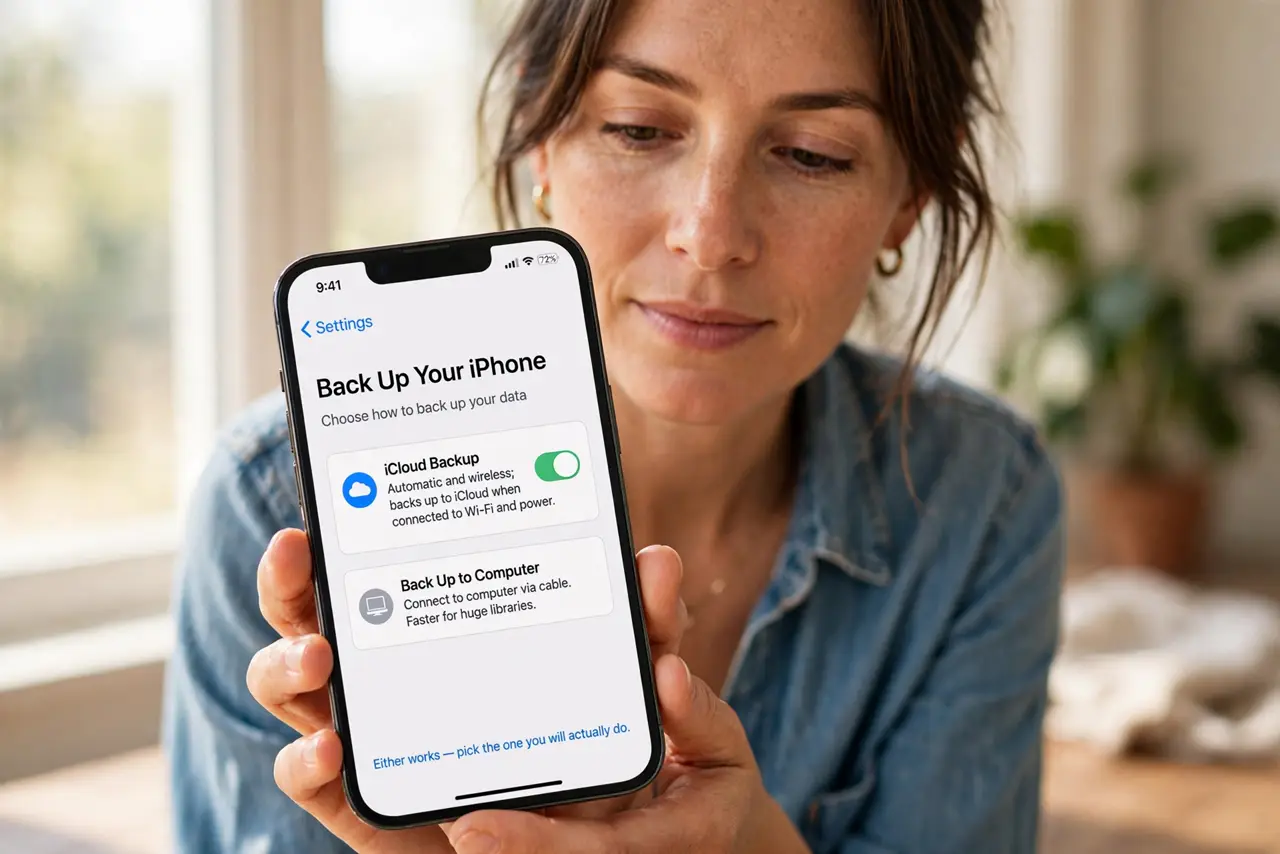
- Choose iCloud or computer backup. iCloud is automatic and wireless; a computer backup via cable is faster for huge libraries. Either works — pick the one you will actually do.
- Connect to power and Wi-Fi. Backups pause on low battery and crawl on cellular. Charger in, Wi-Fi on, then start — the same prep as the update itself.
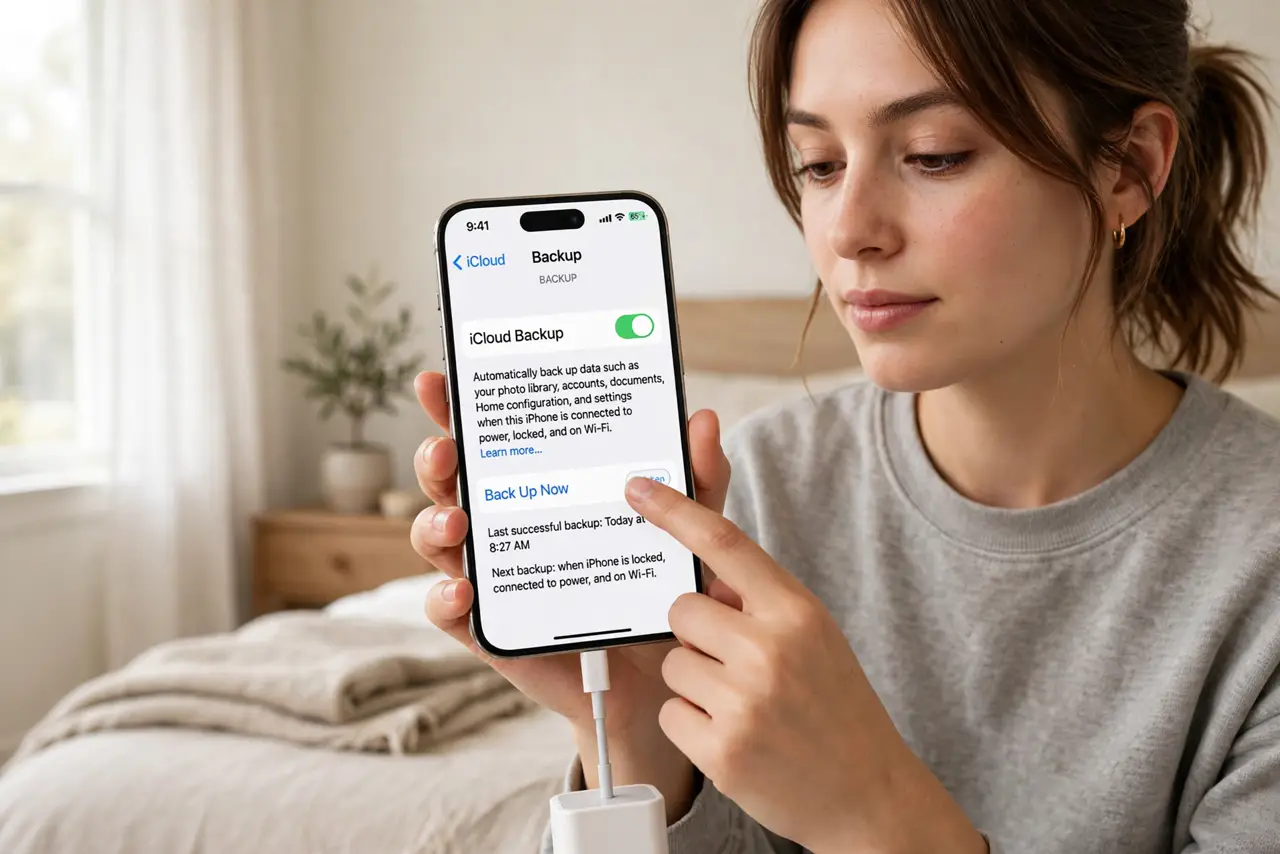
- Start the backup manually. In Settings, then your name, then iCloud Backup, tap Back Up Now. Do not rely on last night's automatic backup — run a fresh one.
- Confirm it finished. Wait for the timestamp to update to right now. A backup that 'started' is not a backup — the completed timestamp is the proof.
- Check you have room. iCloud backups need free iCloud space; computer backups need free disk space. A backup that fails silently for lack of room helps nobody.
- Now update with confidence. With a verified fresh backup, the update button holds no fear. If anything fails, recovery is a restore away — see the backup options for the full menu.
What NOT to do
- Do not trust an old automatic backup. Run a fresh one right before the update — last week's backup misses this week's photos.
- Do not start the update while the backup runs. Let the backup finish completely first; overlapping them invites trouble.
- Do not ignore the 'not enough iCloud storage' warning. The backup did not happen — free space or back up to a computer instead.
- Do not skip this because 'updates never fail.' Rare is not never, and the cost of skipping is everything.
Frequently asked questions
How long does an iPhone backup take?
Five to twenty minutes for most people on Wi-Fi — longer the first time or with huge photo libraries. It is worth every minute.
iCloud or computer backup — which is better?
iCloud is convenient and automatic; computer backups are faster and free of storage fees. Before updates, either is fine.
Will the backup include everything?
Nearly — photos, messages, settings, app data. Some things like Face ID data stay device-only for security, which is normal.