CarPlay? The Plain Basics
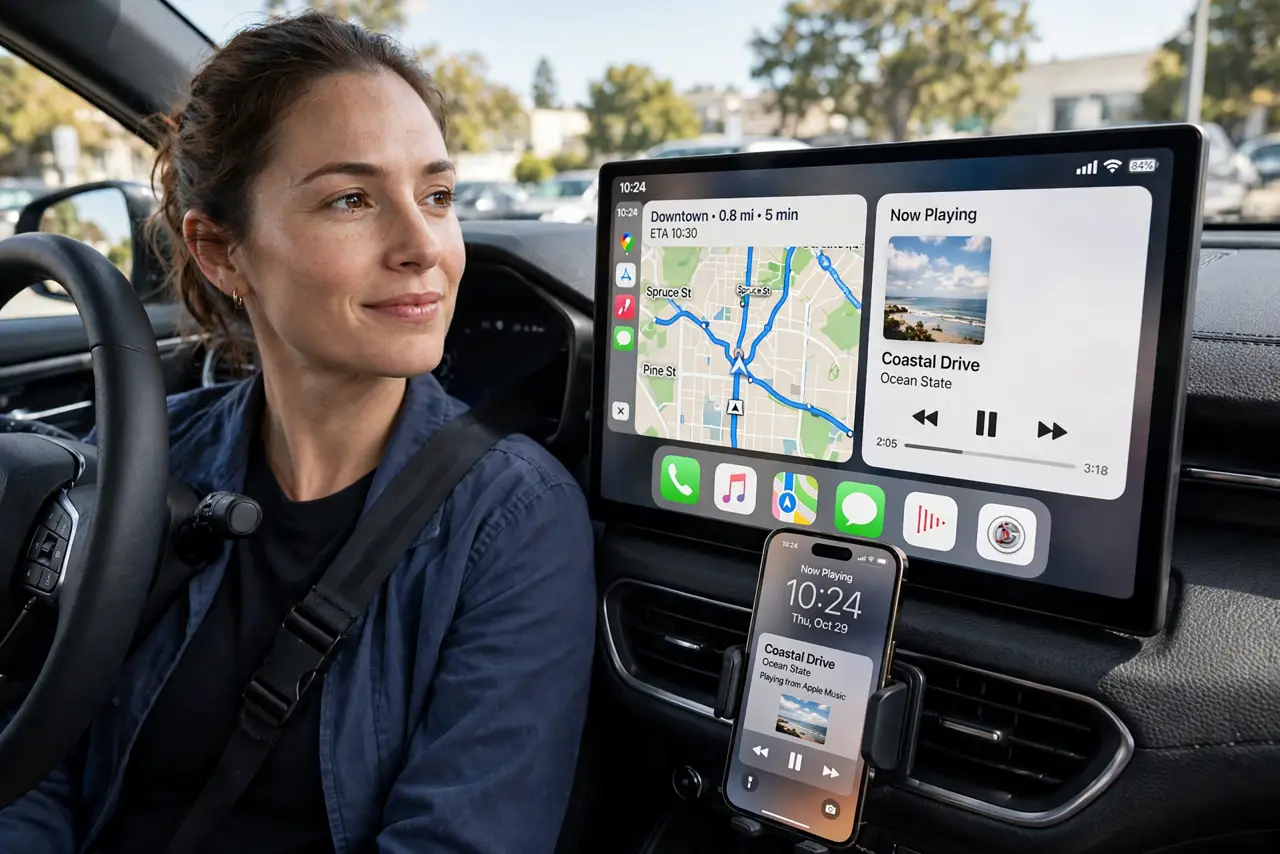
CarPlay puts your iPhone's key apps — maps, music, messages, calls — onto your car's display with big touch targets and Siri voice control. It is the difference between fumbling with a phone mount and having navigation that reads itself to you. Setup is usually plug-and-play, but wireless CarPlay and older cars add wrinkles. Here is the plain guide.
TL;DR / Quick Fix
Quick fix: CarPlay mirrors key iPhone apps to your car's display. Plug in with a good cable for wired CarPlay, or pair over Bluetooth and Wi-Fi for wireless. If the car does not detect the phone, check the car's input source and the iPhone's CarPlay settings.
Follow these steps
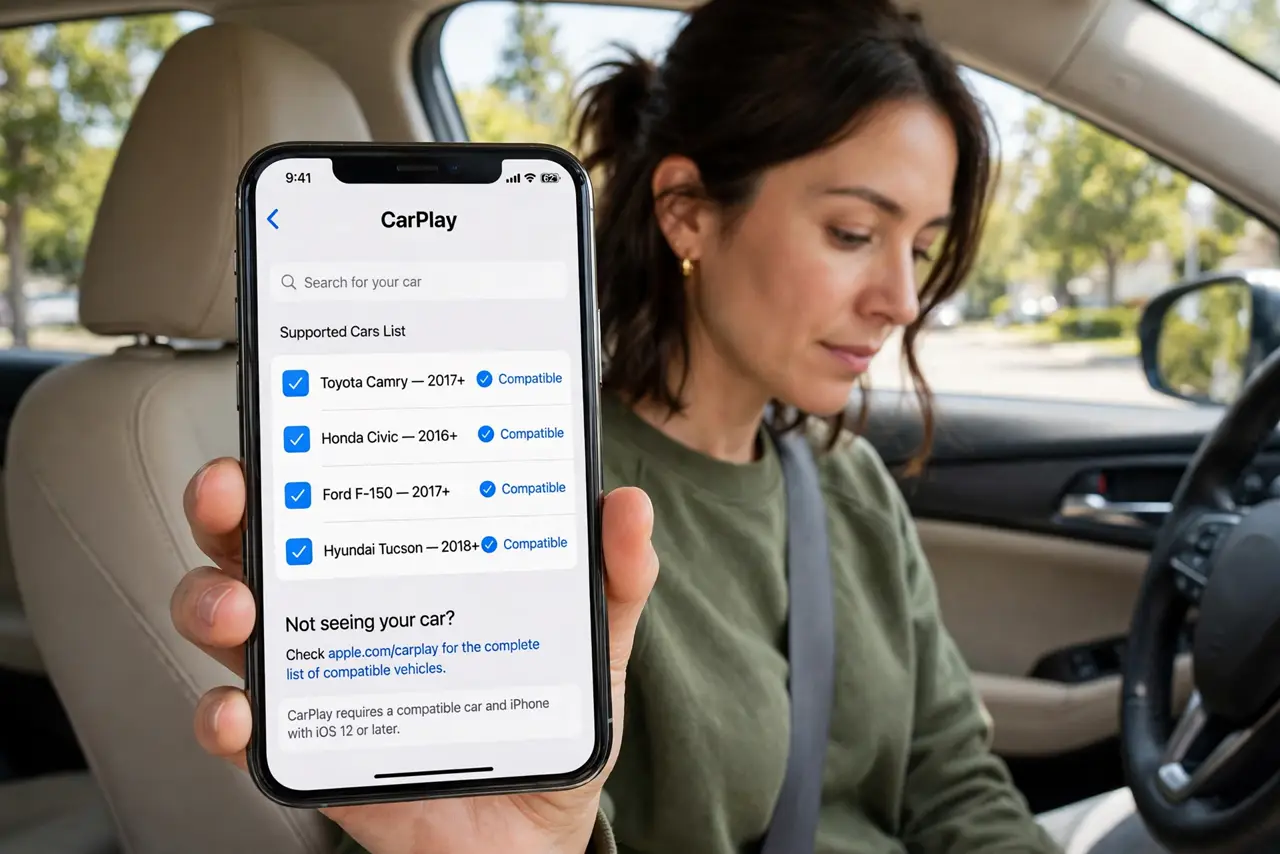
- Check your car supports it. Most cars from the last decade offer CarPlay, wired or wireless — check the car's manual or Apple's car list. Older cars may need an aftermarket head unit.
- Connect wired first. Plug the iPhone into the car's designated CarPlay USB port (not every port works) with a good cable. The car should offer CarPlay — tap it. Cheap cables are the number-one failure point.
- Set up wireless if available. For wireless CarPlay, pair Bluetooth first, then accept the CarPlay prompt — the phone and car then connect over Wi-Fi automatically. It is convenient and slightly laggier than cable.
- Arrange your CarPlay apps. On the iPhone: Settings, General, CarPlay, select your car, Customize. Drag the apps you use — maps, music, podcasts — to the front and bury the rest.
- Learn the Siri control. Hold the car's voice button (or say 'Hey Siri') to navigate, text, and call hands-free. Voice is the whole safety proposition — learn it before you need it at speed.
- Troubleshoot the common failure. CarPlay not appearing is usually the cable, the wrong USB port, or the car's input source. For wireless dropouts specifically, the disconnects guide walks through the fix sequence.
What NOT to do
- Do not use a bargain-bin cable. CarPlay is fussy about cables — a worn or cheap one causes exactly the random disconnects people blame on the car.
- Do not plug into any random USB port. Many cars have one CarPlay-designated port; the others only charge. Check the manual for which is which.
- Do not fiddle with the phone while driving. That defeats the entire purpose — set up CarPlay parked, then drive with voice and the car screen.
- Do not assume wireless is always better. Wireless CarPlay drains the phone battery fast — on long drives, wired charges while it plays.
Frequently asked questions
Why does CarPlay keep disconnecting?
Usually the cable or the USB port — swap cables first, try the other port second. For wireless, Wi-Fi interference is the suspect.
Can I use CarPlay and charge at the same time?
Wired CarPlay charges while connected. Wireless CarPlay drains — use a separate charger or mount on long trips.
Does CarPlay work with Android phones?
No — CarPlay is iPhone-only. Android phones use Android Auto, which is the same idea on a different system.