Fix CarPlay Not Working
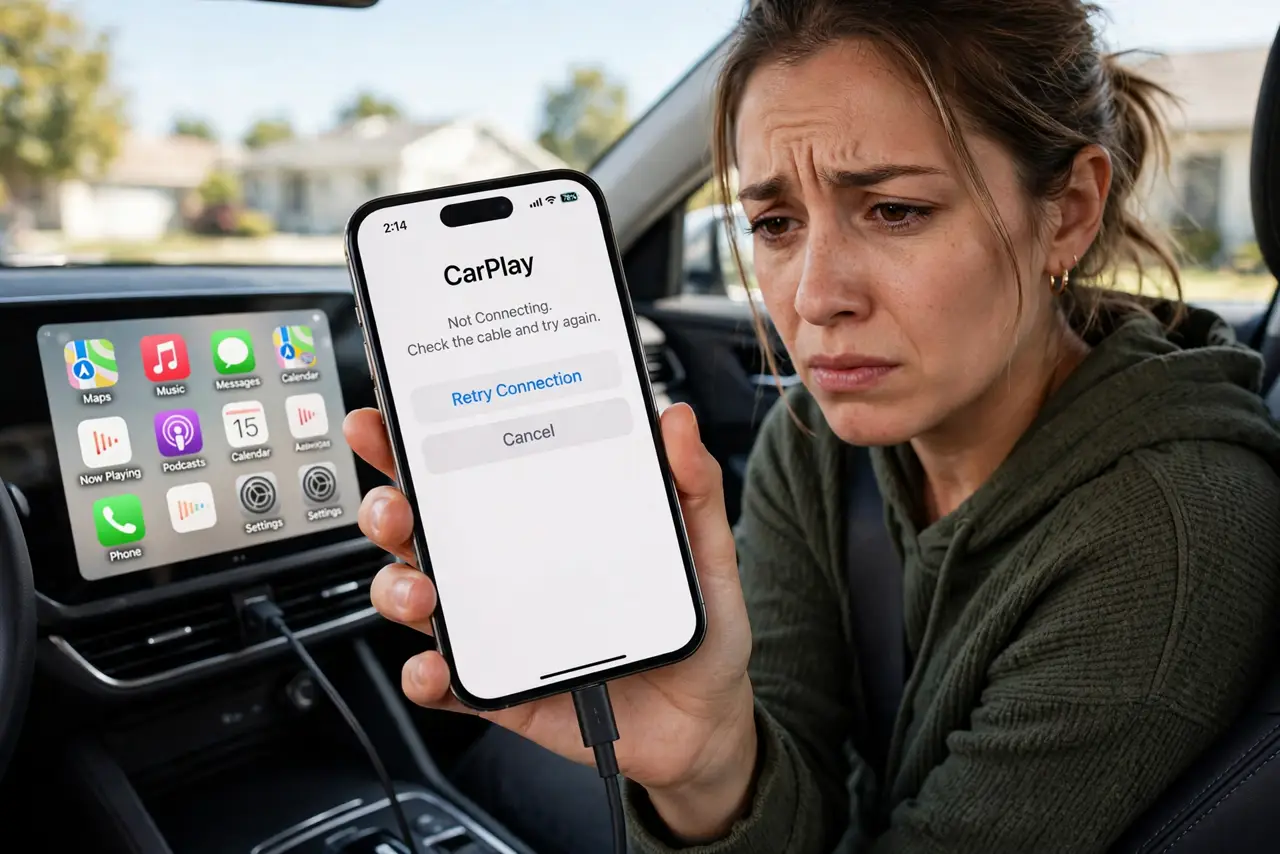
You plug in your iPhone and the car screen stays dark, or CarPlay connects and then drops mid-drive. Before blaming the car, know that most CarPlay failures are cable, settings, or Bluetooth pairing issues — all fixable in minutes. Work through these checks in order and you will find the culprit fast.
TL;DR / Quick Fix
Quick fix: try a different Apple-certified cable first — cheap cables cause most CarPlay failures. Then check that CarPlay is allowed under Screen Time restrictions and that your car is not blocked in iPhone Settings, General, CarPlay. Re-pair Bluetooth and restart both the phone and the car's infotainment system.
Follow these steps
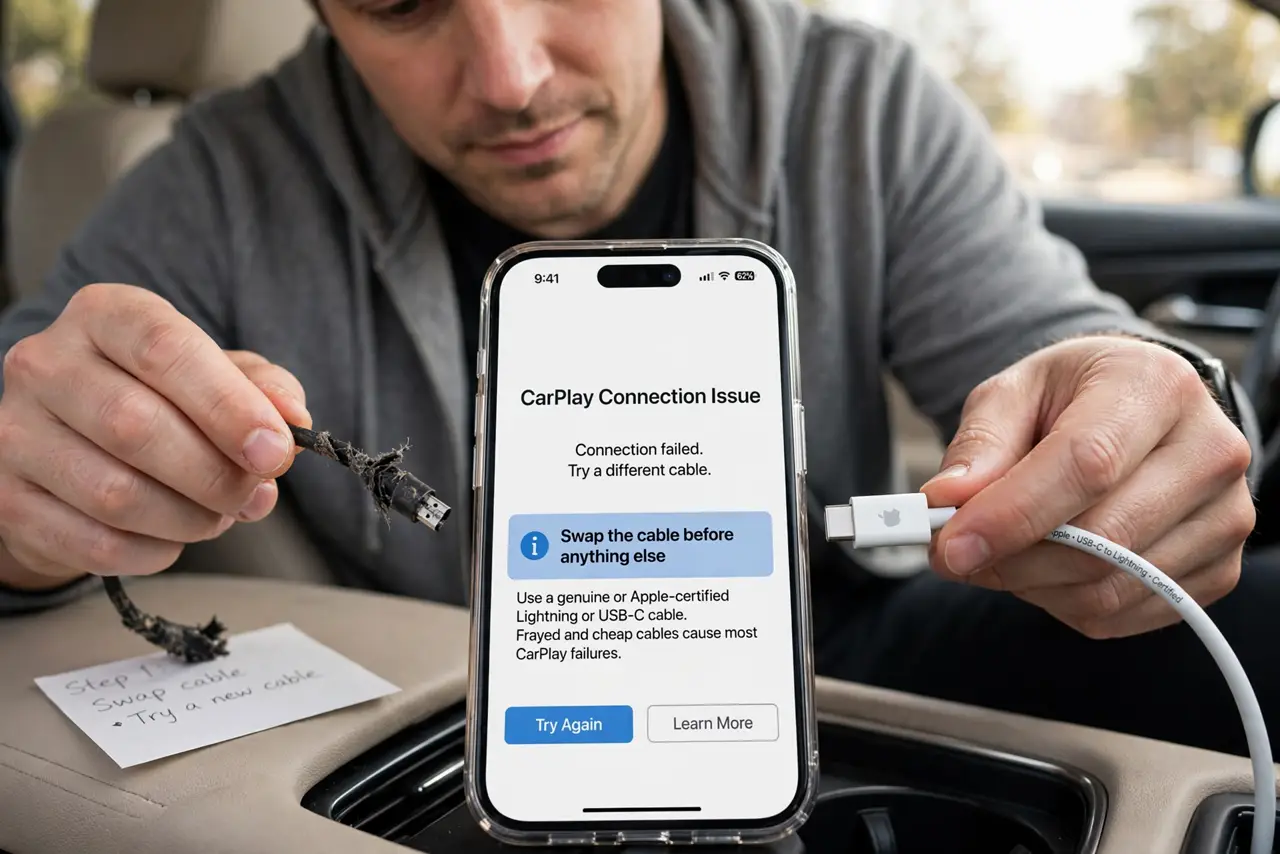
- Swap the cable before anything else. Use a genuine or Apple-certified Lightning or USB-C cable, and try a different one. Frayed and cheap cables cause the majority of CarPlay connection failures — this single test resolves most cases.
- Check that CarPlay is allowed. Go to Settings, Screen Time, Content and Privacy Restrictions, Allowed Apps, and make sure CarPlay is on. A restricted CarPlay silently refuses to start with no error message.
- Forget and re-add the car. In Settings, General, CarPlay, select your car and tap Forget This Car, then set it up again from scratch. Corrupted pairings are the second most common cause after cables.
- Restart both ends. Restart your iPhone and reboot the car's infotainment system (usually a long press on its power button). If the screen shows a black image, the black screen fixes walk through the display-specific steps.
- Re-pair Bluetooth for wireless CarPlay. Wireless CarPlay needs both Bluetooth and Wi-Fi talking to the car. Turn both off and on, remove the car from Bluetooth settings, and re-pair — stale pairings cause the random disconnects many drivers report.
- Check for car firmware updates. Car makers release infotainment updates that fix CarPlay bugs. Check your car's settings or the maker's app — an outdated head unit can reject newer iOS versions.
What NOT to do
- Do not buy a new head unit first. Cables, settings, and pairings cause nearly all CarPlay failures — the hardware is rarely broken.
- Do not use gas-station charging cables for CarPlay. Many are charge-only and cannot carry data at all, so CarPlay never starts.
- Do not ignore Screen Time restrictions. A blocked CarPlay gives zero feedback — it just never launches, which looks exactly like a broken car.
- Do not leave five old cars paired. A cluttered CarPlay car list confuses auto-connect — forget the ones you no longer drive.
Frequently asked questions
Why does CarPlay work with one cable but not another?
Data pins. Charge-only cables lack the data lines CarPlay needs, and worn cables drop data intermittently. Certified cables guarantee full data wiring.
Can I use CarPlay wirelessly if my car only supports wired?
Not natively, but third-party wireless adapters plug into the car's USB port and bridge the connection. They add slight lag but work well for most drivers.
Why does my map freeze but music keeps playing?
The audio and display run on separate streams. Map freezes are usually a GPS or app issue on the phone side — the map freeze fixes cover that specific symptom.