iPhone Check In Never Completes a Trip
Check In should tell a contact you arrived, but the trip stays open long after you got home. Location permission, a weak signal, or a changed route usually keeps it hanging.
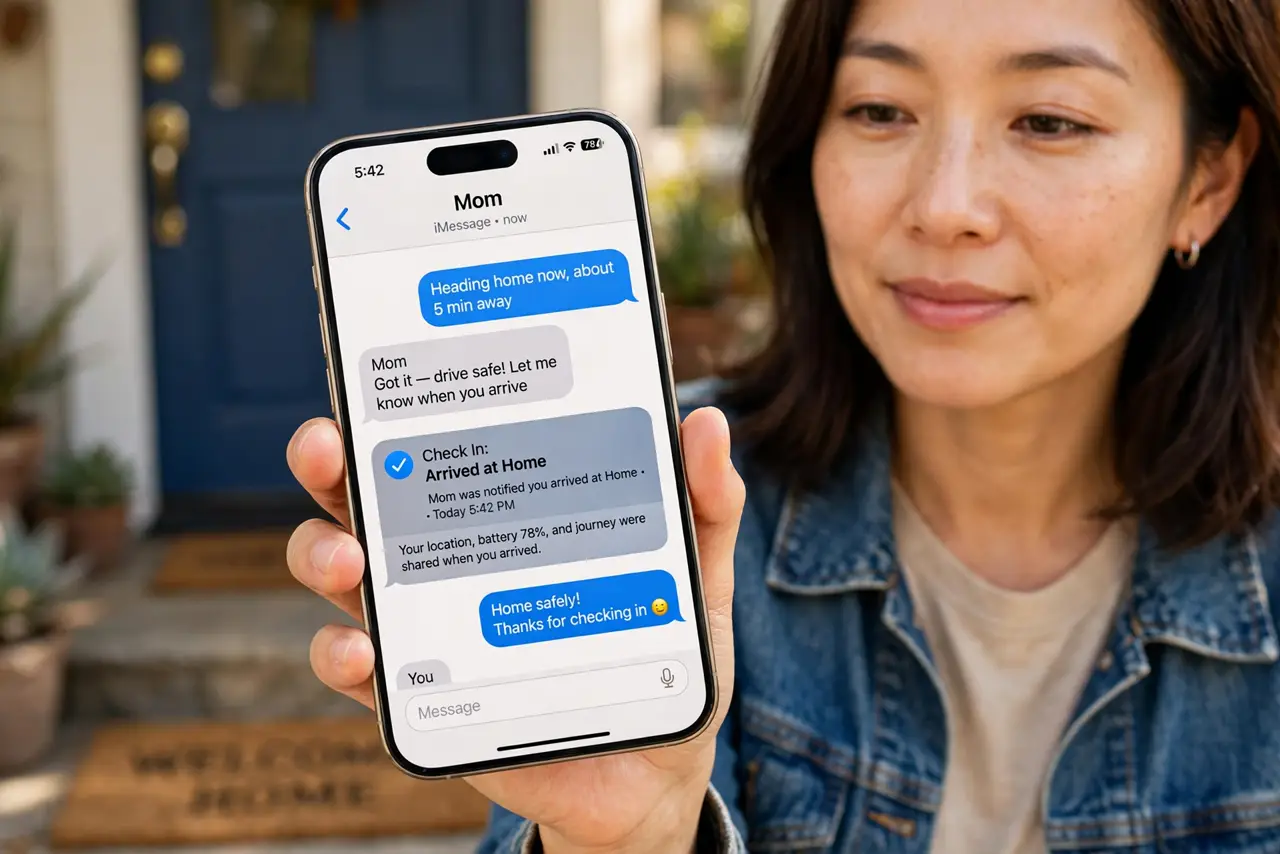
TL;DR / Quick Fix
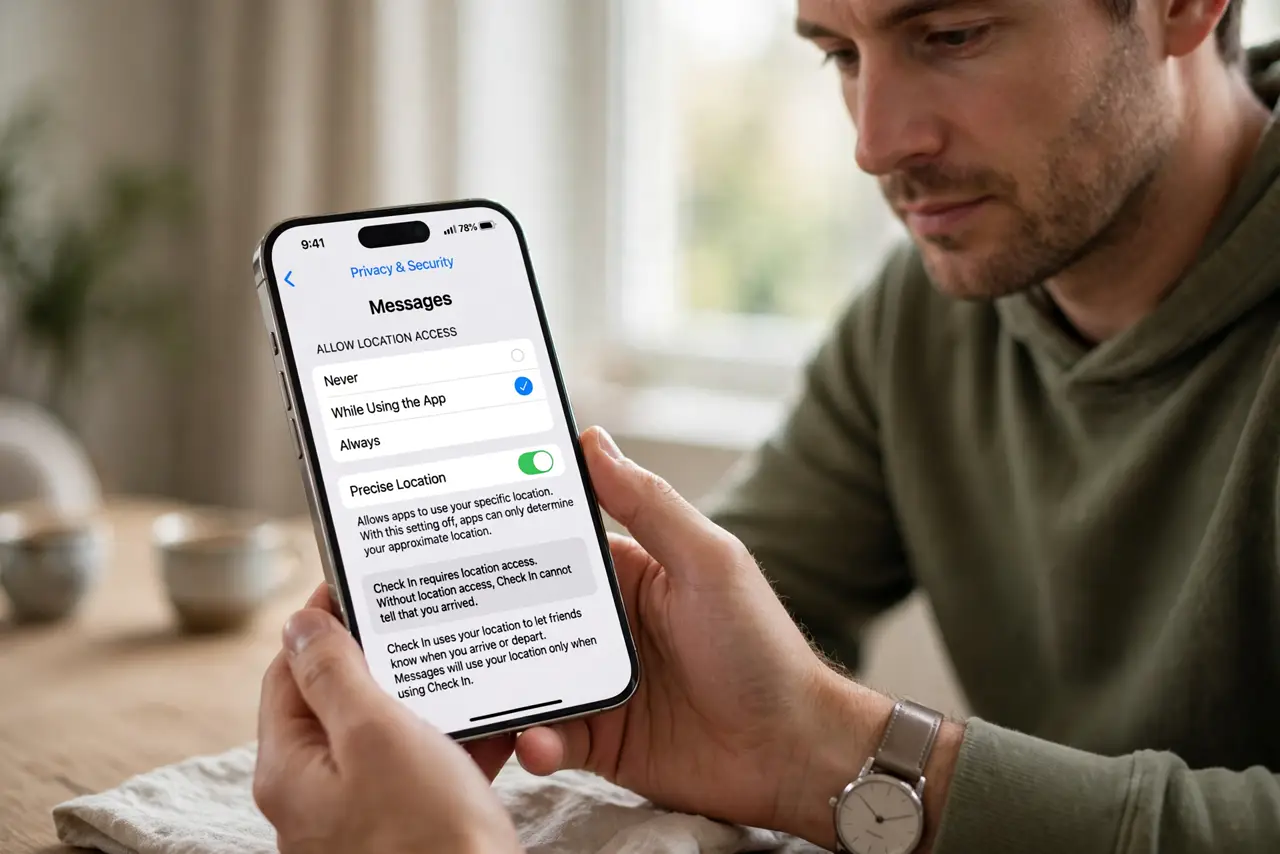
Quick fix: open Settings, then Privacy and Security, then Location Services, and confirm Messages has [[location|iphone-location-sharing-stops-by-itself]] access. Then end the trip by hand in Messages and start a fresh Check In next time and end any stuck trip by hand in Messages.
Follow these steps
- Give Messages location access. Open Settings, then Privacy and Security, then Location Services, then Messages, and choose While Using the App or Always as Check In requires. Without location access, Check In cannot tell that you arrived.
- End the trip by hand. Open the conversation in Messages, find the Check In, and end it manually. A stuck trip does not need to stay open, and ending it tells your contact you are safe.
- Check your signal at the destination. Check In needs a data connection to report arrival. If you arrived somewhere with no signal, the trip stays open until the iPhone connects again and can send the update.
- Keep the destination realistic. Set the destination to the place you actually go, not a vague area. If you stop short of the destination or take a different route, Check In may wait for an arrival that never registers.
- Check the timer, not just the destination. If you set a timer instead of a destination, Check In completes when the timer ends and you respond. Miss the prompt and the trip stays open until your contact is alerted.
- Start a fresh Check In next trip. After ending the stuck trip, start a new Check In with correct location access and a realistic destination. A fresh trip with the right permissions usually completes cleanly.
What NOT to do
- Do not delete the conversation to clear a stuck Check In. Deleting it removes the trip record, while ending the trip by hand closes it properly.
- Do not turn off location for Messages to save battery and expect Check In to work. Check In depends on location, so it cannot complete without that permission.
- Do not ignore a Check In alert from someone else. If a friend's trip stays open, check on them, since a stuck trip can also mean they never arrived.
- Do not set a destination you will not reach. An unreachable destination keeps the trip open and worries your contact for no reason.
Frequently asked questions
Why does Check In stay open after I arrive?
Usually Messages lacks location access, the iPhone had no signal at arrival, or the destination does not match where you actually stopped.
Does ending a trip by hand alert my contact?
Ending it tells your contact the trip closed, which is the safe outcome when you already arrived.
Can Check In work without mobile data?
No. It needs a connection to send the arrival update, so a dead zone can delay completion until signal returns.
What to read next
- iPhone Location Sharing Stops by Itself? Fix It
- Find My Shows an Old Location? Fix It