iPhone Location Sharing Stops? Fix It
Family or friends suddenly cannot see your location, even though you never turned sharing off. Sharing often stops when Location Services change, the phone signs out, or a setting resets after an update.
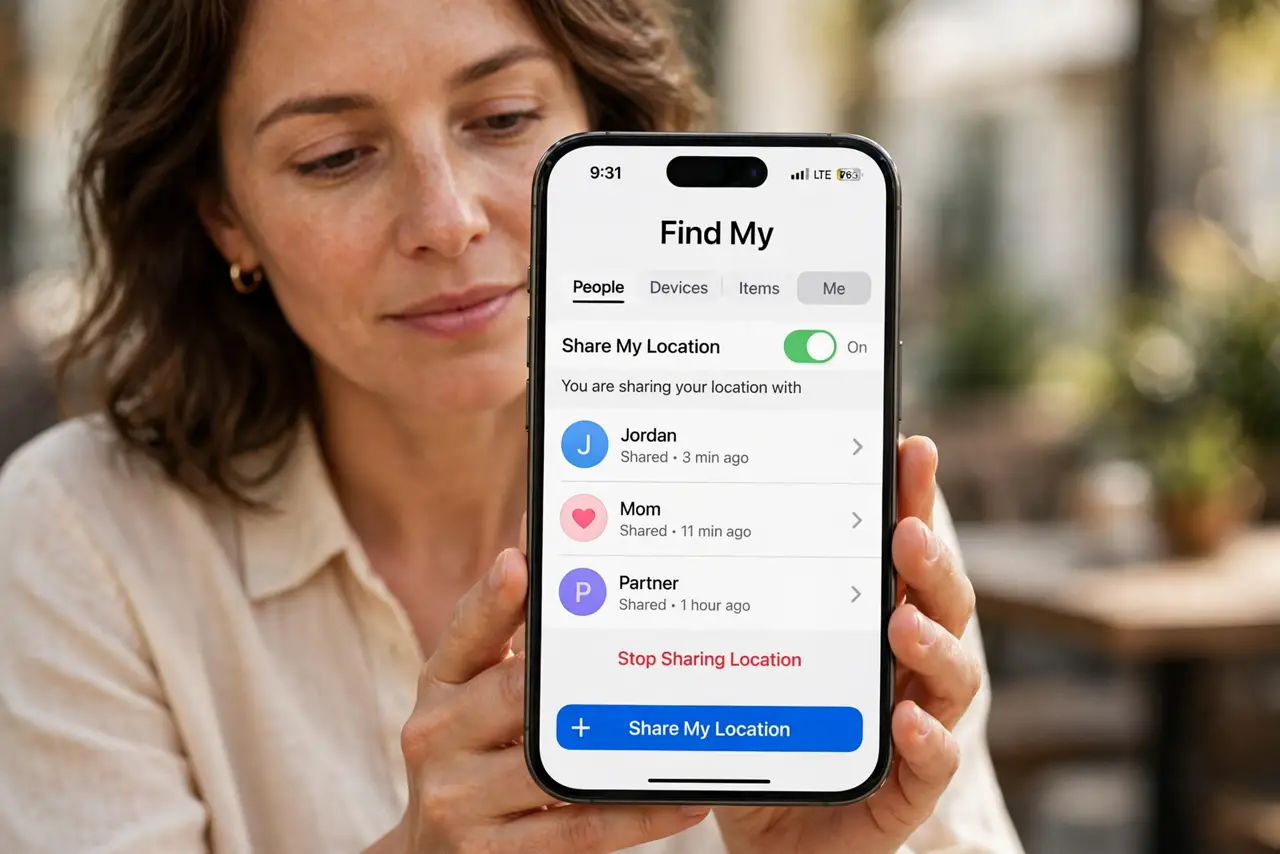
TL;DR / Quick Fix
Quick fix: open Settings, then Privacy and Security, then Location Services, and confirm Location Services and Share My Location are both on. Then open Find My and confirm you are sharing from this device. Test once more after a restart. Write down what worked for next time.
Follow these steps
- Turn on Location Services. Open Settings, then Privacy and Security, then Location Services, and make sure the main switch is on. Without it, no app or sharing feature can use your location.
- Confirm Share My Location is on. In the same Location Services screen, tap Share My Location and confirm it is on and set to share from this device. Sharing from another device can make this phone look silent.
- Check Find My sharing. Open Find My, tap Me, and confirm Share My Location is on and the right people are listed. If someone is missing, share with them again from this screen.
- Confirm you are still signed in. Open Settings and check you are signed into your Apple ID at the top. Signing out stops sharing, so sign back in if the account shows signed out.
- Check Date and Time and Low Power Mode. Turn on Set Automatically for date and time, since a wrong clock can break location features. Low Power Mode can also pause background location, so test with it off.
- Toggle sharing off and on once. Turn Share My Location off, wait a few seconds, and turn it back on. Then ask one person to confirm they can see you again before changing anything else.
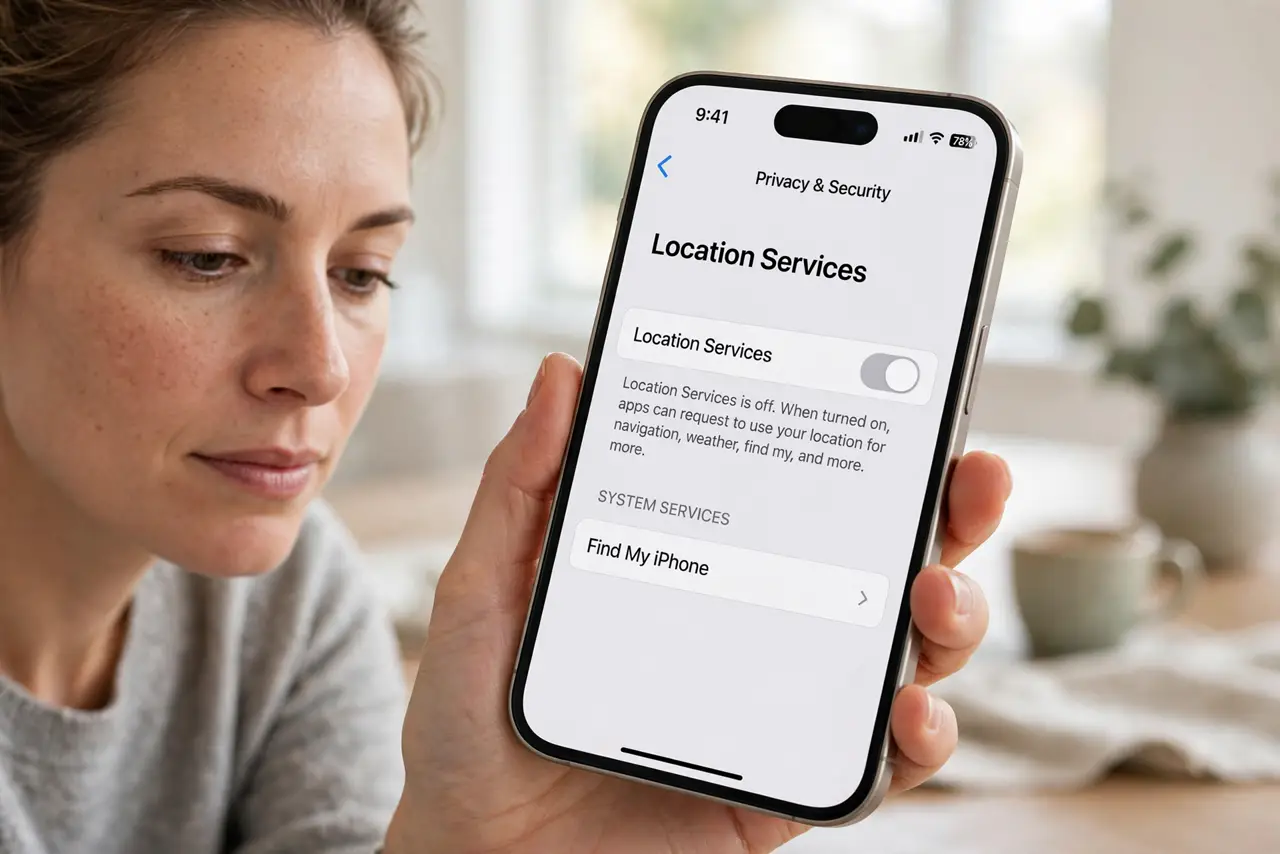
What NOT to do
- Do not share your location with people you do not trust just to test it. Test with one family member you already share with.
- Do not turn off Location Services entirely to fix sharing. That stops every location feature, including maps and emergency features that need it.
- Do not assume someone blocked you when sharing stops. Check your own settings first, since a sign-out or update is a far more common cause.
- Do not leave Precise Location off for Find My and expect exact sharing. Find My needs precise location to show where you actually are.
Frequently asked questions
Why did location sharing stop after an update?
An update can reset a permission or sign you out. Check Share My Location and your Apple ID sign-in after any update.
Can Low Power Mode stop location sharing?
Yes, it can pause background location work. Test with Low Power Mode off to see if sharing returns.
Why can one person see me but another cannot?
You may share with one person but not the other. Check the people list in Find My and add anyone missing.
What to read next
- Find My Shows an Old Location? Fix It
- iPhone Reminders Do Not Alert? Fix Them