Charging Paused Overnight?
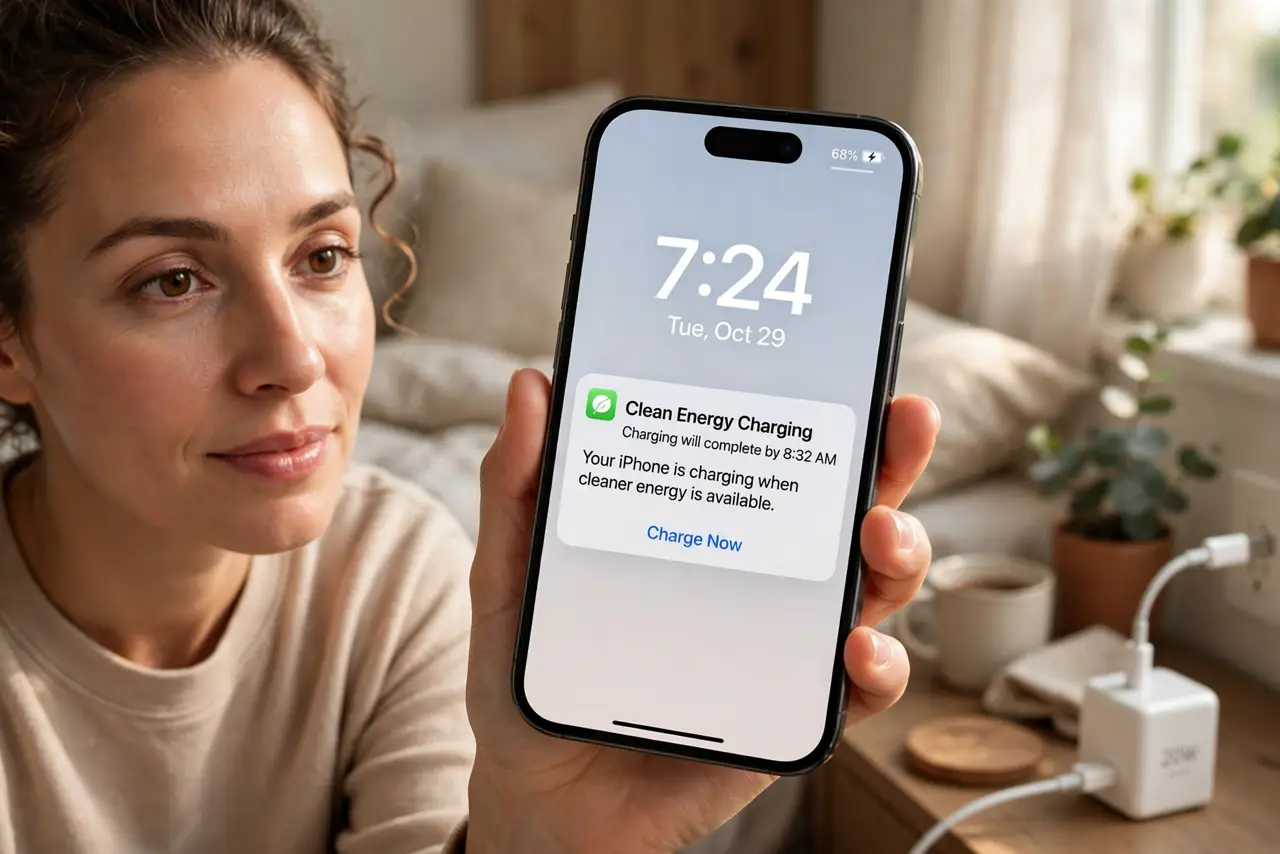
You plug in at night, wake up, and the iPhone sits at 80% with a message about clean energy charging. It feels broken — but it is a feature: the phone pauses charging to wait for lower-carbon electricity, then finishes before your alarm. Usually. When it misfires and you wake to a half-charged phone, here is what is happening and how to control it.
TL;DR / Quick Fix
Quick fix: Clean Energy Charging pauses charging overnight to wait for cleaner power, then finishes before your alarm. It learns your routine from location and alarms — no action needed. If the phone isn't full by morning, check Significant Locations is on, or turn the feature off in Battery settings.
Follow these steps
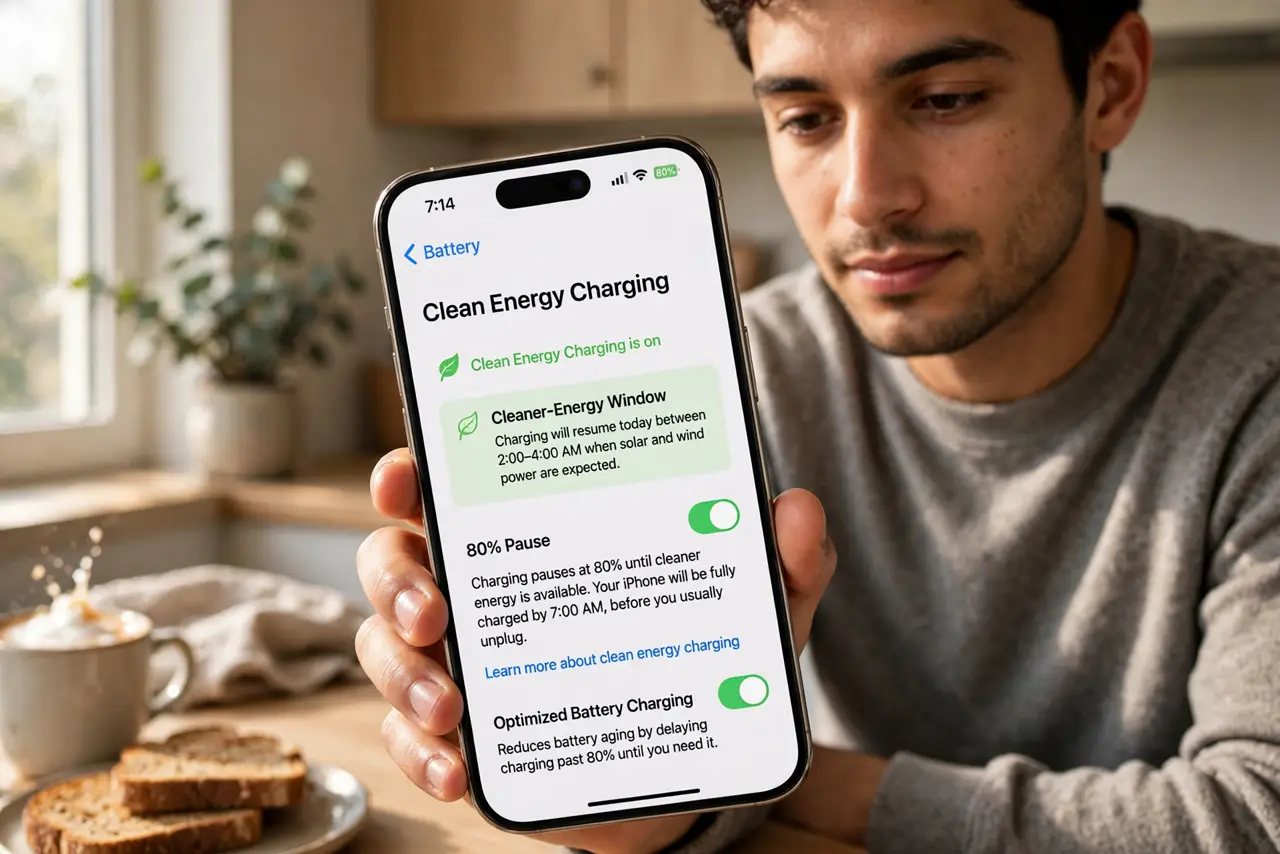
- Understand what the feature does. When enabled, your iPhone charges to 80%, pauses, and waits for a cleaner-energy window before finishing — timed to complete before you typically unplug. It is a carbon-footprint feature, not a battery-health bug, and it only engages where you charge regularly.
- Know why it needs your routine. The phone predicts your wake time from alarms and charging history, and confirms 'home' via Significant Locations. Travel, irregular schedules, or disabled location history make its predictions wrong — that is when you wake to 80%.
- Check Significant Locations. Go to Settings > Privacy & Security > Location Services > System Services > Significant Locations and make sure it is on. Without it, the phone can't tell home from a hotel, and the feature either misfires or never engages.
- Set a consistent alarm. A regular morning alarm gives the feature its finish line. If you wake at wildly different times with no alarm, the phone guesses conservatively — and conservative means pausing longer.
- Turn it off if it annoys you. Settings > Battery > Battery Health & Charging > Clean Energy Charging — toggle it off. No shame in it; the carbon savings are modest per phone, and a reliably full battery beats a clever half-full one.
- Distinguish it from the 80% limit. The separate '80% limit' option caps charging permanently for battery longevity. Clean Energy Charging pauses temporarily and finishes by morning. If your phone never passes 80%, you enabled the limit — different setting, different fix. See slow wireless charging if the issue is speed, not pausing.
What NOT to do
- Do not panic at the 80% pause. It is the feature working as designed — the phone finishes before your usual unplug time.
- Do not disable Location Services entirely to stop it. That breaks maps, Find My, and photo geotags — toggle just this feature instead.
- Do not confuse it with optimized charging. Optimized Battery Charging is the older, similar feature; the two overlap, and either can cause the overnight pause.
- Do not expect it to work while traveling. New locations mean no routine data — the feature stays quiet until it learns the new pattern.
Frequently asked questions
Does Clean Energy Charging hurt the battery?
No — if anything it helps slightly, since the battery spends fewer hours at 100%. The pause itself is harmless.
Why doesn't it engage at all?
It needs a learned routine: regular charging location, Significant Locations on, and time to observe. New phones or new routines take days to activate it.
Is the carbon saving real?
Modest but real — grids vary in carbon intensity through the day. One phone's savings are tiny; a hundred million phones' savings are not.