Captions Everywhere
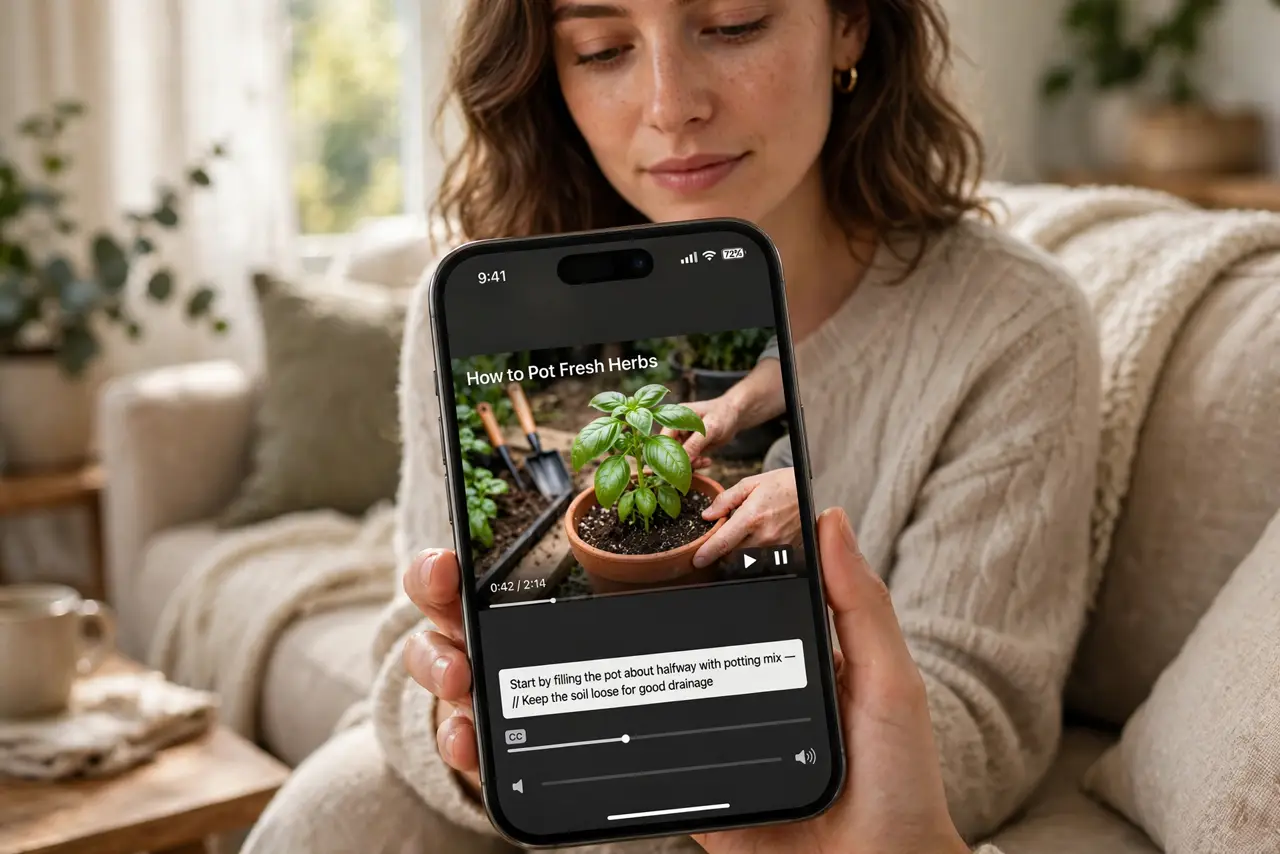
You miss half the dialogue in shows, calls, and videos — accents, mumbling, noise. Captions everywhere means turning on every caption system your iPhone offers: media captions, live captions for calls, and FaceTime captions. Never miss a line again.
TL;DR / Quick Fix
Quick fix: turn on Closed Captions in Settings, Accessibility, for media apps. Enable Live Captions for real-time captions on calls and audio. Turn on FaceTime captions for video calls. Each system is separate — enable all three for full coverage. Customize caption style so they are actually readable.
Follow these steps
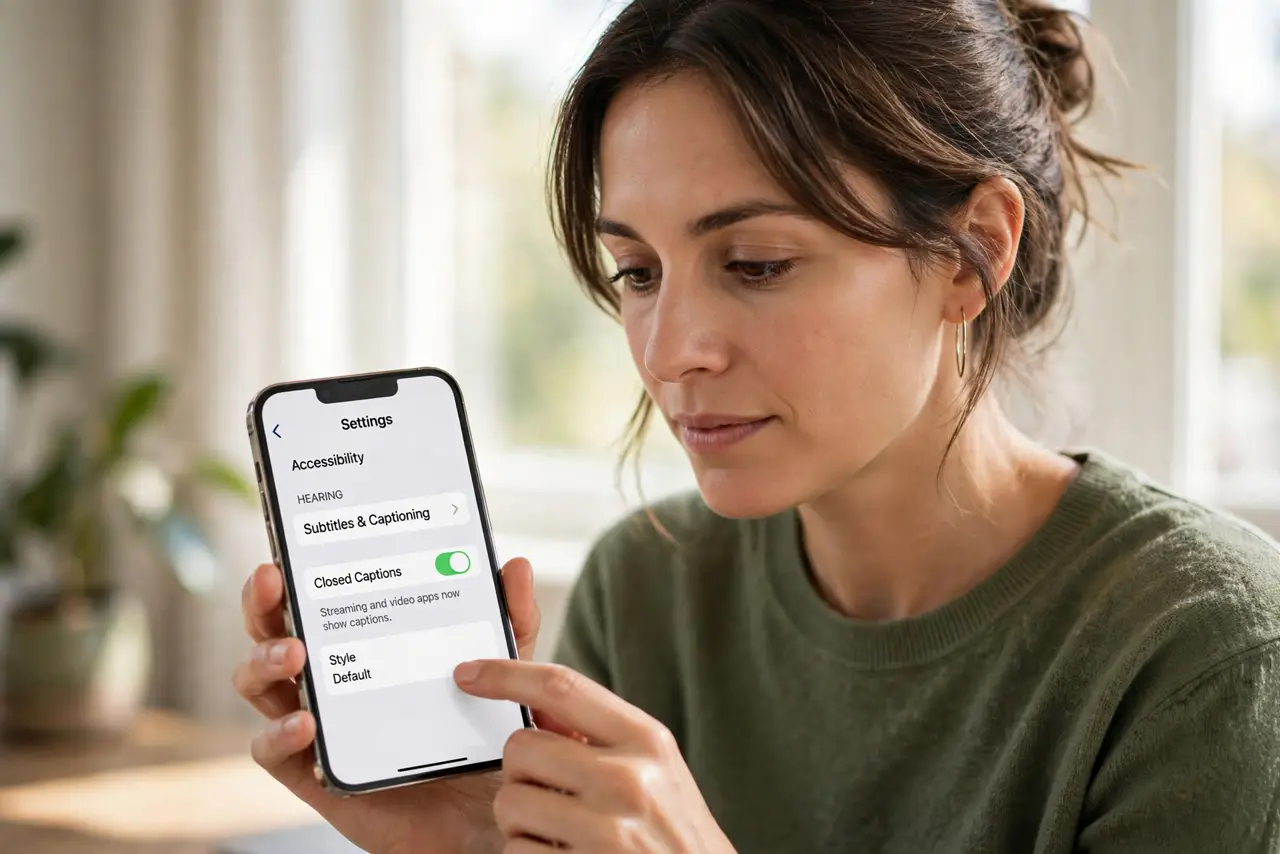
- Enable media captions. Go to Settings, Accessibility, Hearing, Subtitles and Captioning, and turn on Closed Captions. Streaming and video apps now show captions.
- Turn on Live Captions. In Accessibility, enable Live Captions for system-wide real-time captions on calls, FaceTime audio, and apps — see Mac live captions for the desktop equivalent.
- Enable FaceTime captions. Turn on captions specifically for FaceTime video calls. The FaceTime captions guide covers the call settings.
- Customize the style. In Subtitles and Captioning, pick Style and make text large, high-contrast, with a background. The subtitle styling guide perfects readability.
- Use them on calls too. Live Captions transcribe phone audio in real time — ideal for accents, noise, or hearing support. Check meeting captions for work calls.
- Know the limits. Auto-captions mishear names and jargon. They are an aid, not a transcript — critical details deserve a second check.
What NOT to do
- Do not assume one toggle covers everything. Media, live, and FaceTime captions are three separate switches.
- Do not leave captions tiny and white. Unstyled captions vanish on bright scenes — style them once.
- Do not rely on auto-captions for legal or medical calls. Misheard words in high-stakes calls need human confirmation.
- Do not forget they need processing power. Live captions on very old phones can lag — test before important calls.
Frequently asked questions
Do captions work in every app?
Media captions work in most video apps; some apps use their own caption settings. Live Captions cover system audio broadly.
Can I change how captions look?
Fully — size, font, color, background, opacity. Style them once and every app inherits it.
Do live captions leave the device?
Processing is on-device. Your call audio is not sent anywhere for captioning.