iPhone Flags a Password? What It Means
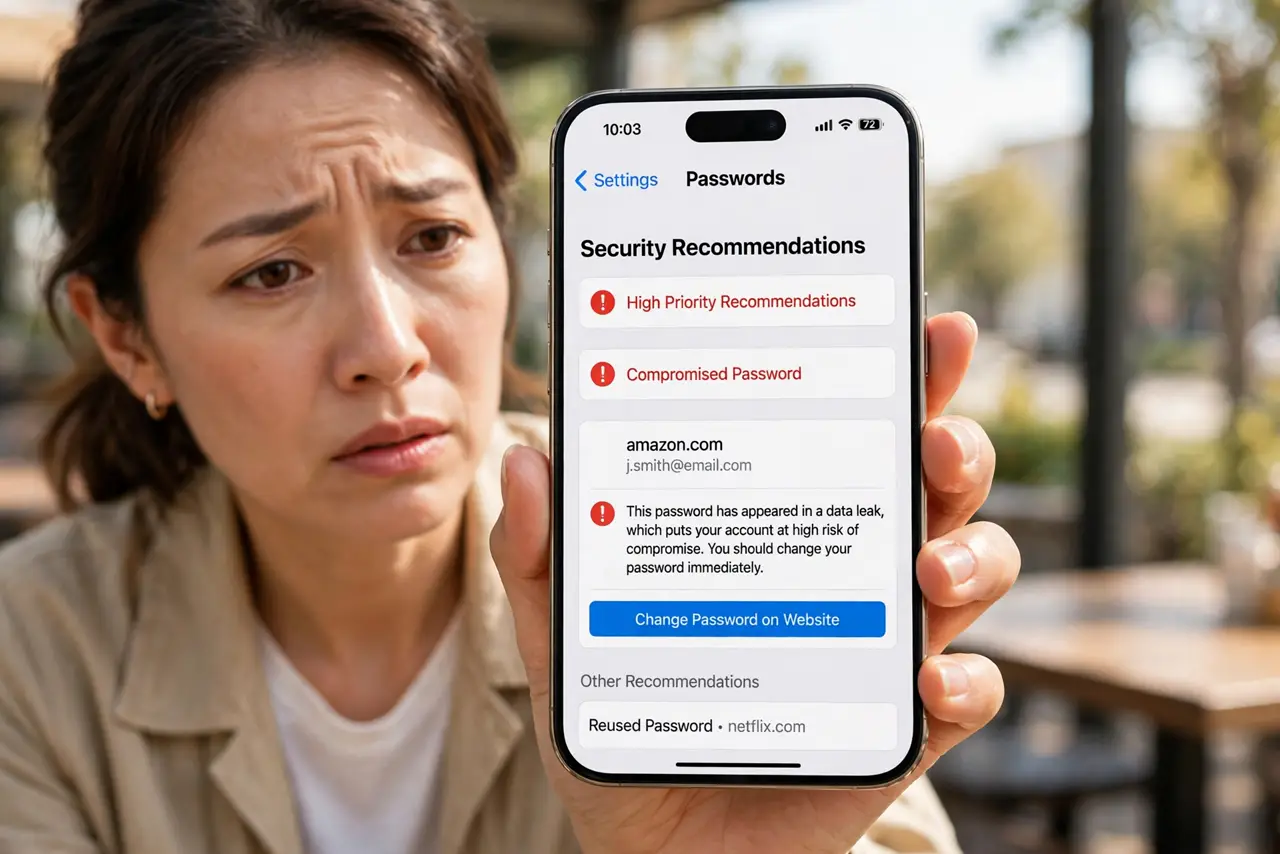
Your iPhone flags a saved password as compromised in Settings. Like Chrome, Apple compares your saved logins against known breach data. This guide shows where the alert lives and what to do about it.
TL;DR / Quick Fix
Quick fix: open Settings, go to Passwords, tap Security Recommendations, and change every flagged password to a new unique one — including anywhere else you reused it. Turn on two-factor for the important accounts. Re-check the list afterward to confirm it is clean.
Follow these steps
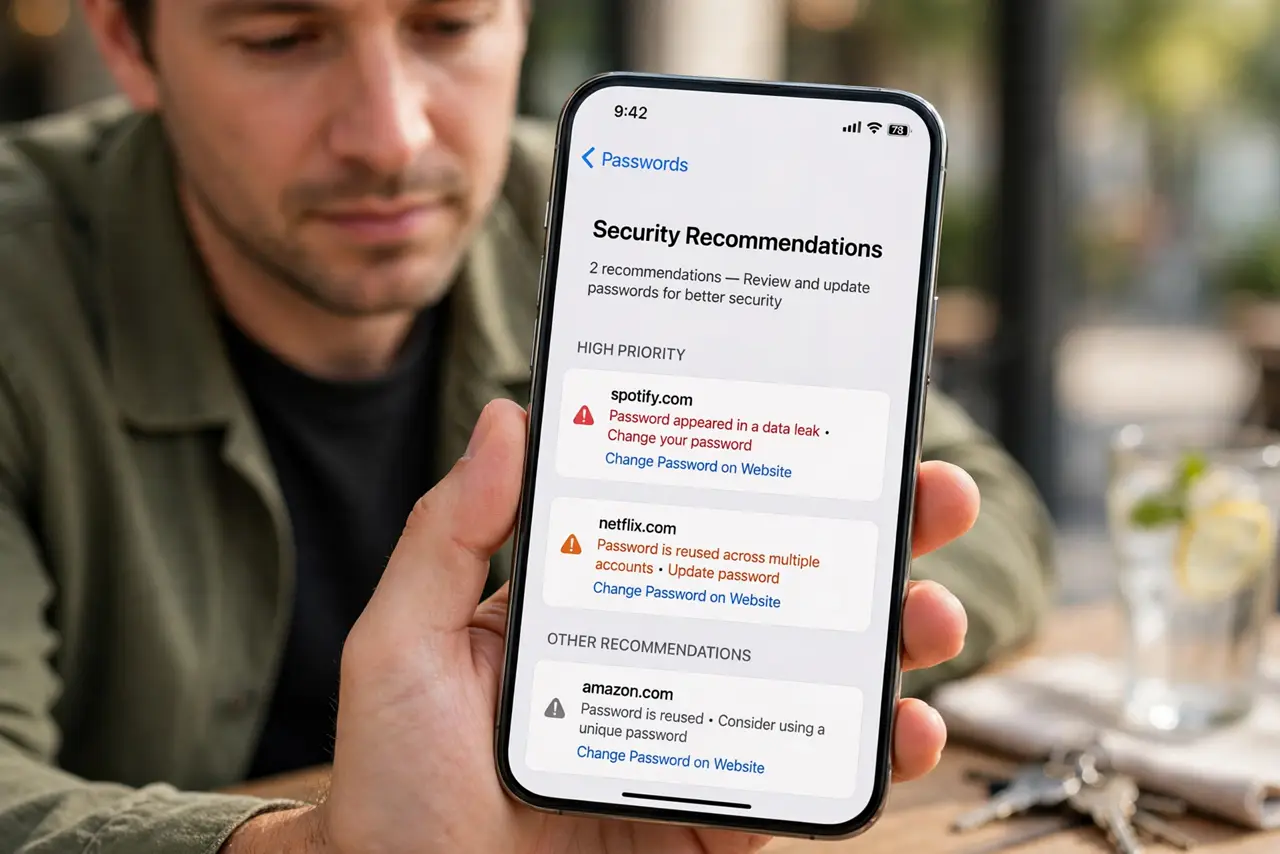
- Find the Security Recommendations list. Open Settings, tap Passwords, and unlock with Face ID or your passcode. Tap Security Recommendations at the top to see every flagged login.
- Read why each one is flagged. Apple flags passwords found in data leaks and passwords you reuse across sites. Both are worth fixing, starting with the leaked ones.
- Change the flagged passwords. Tap an entry, tap Change Password on Website, and set a new unique password. Let iCloud Keychain generate and save a strong one.
- Fix reused passwords too. If the same password appears under multiple logins, give each site its own. A unique password per site is the goal.
- Add two-factor where it matters. For the flagged email, banking, and Apple ID accounts, make sure two-factor is on. It is your safety net if another leak happens.
- Confirm the list is clean. Go back to Security Recommendations after your changes. An empty list means every flagged password is fixed.
What NOT to do
- Do not ignore the list because it is long. Work through it a few logins at a time — every fixed password is one less open door.
- Do not turn off the detection to hide the warnings. The alerts are doing their job; the passwords are the problem.
- Do not change passwords on public Wi-Fi without care. Use your cellular data or a trusted network when resetting important logins.
- Do not forget logins saved outside Apple. Check Chrome or other browsers too, since Apple only sees what is in iCloud Keychain.
Frequently asked questions
Does Apple upload my passwords to check them?
Apple says the check happens on your device against downloaded breach data, so your actual passwords are not sent to Apple.
What does 'this password has appeared in a data leak' mean?
It means the exact password was found in stolen breach data. Anyone with that data can try it on your accounts.
Why does it also flag passwords I reuse?
Because one breach then compromises every site sharing that password. Apple flags reuse so you fix the habit, not just the leak.